Importing Data from Zoho Analytics Workspace
Creating reports from tables/data spread across multiple workspaces is now made easy with the Zoho Analytics Workspace import option.
You might sometimes have relevant data spread across separate workspaces. However, you cannot create reports from tables present in different workspaces. So, the way out would be to bring the data into a single workspace. This document will explain how.
- Why i do not see tables from the workspace selected to import?
- Can I also import reports and dashboards from my source workspace?
General
1. How to import data from one Zoho Analytics workspace to another?
You can import data available in one workspace to another workspace using the Import Data from Zoho Analytics Workspace option. Refer to the below presentation to learn more.
2. Can I import data using Custom Query?
Yes, you can import data by writing your custom query, provided you are a Workspace Administrator or the Account Administrator of the account from which you are importing.
For more detail, refer to import data from Zoho Analytics workspace.
3. Will the data source of the source workspace be copied?
No, the data source of the workspace from which you are importing will not get copied. The source workspace by itself is your data source in this case.
4. Can I change the data type of the table data while importing? Will it revert during sync schedule?
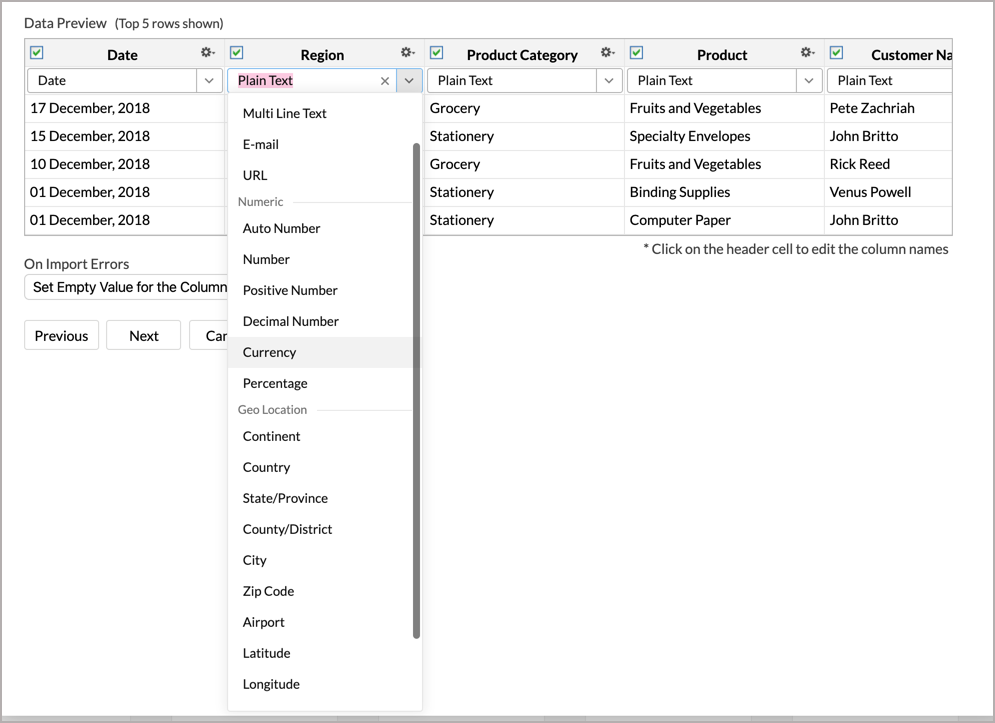
Yes, you can change the data type of your columns while importing. The data type set here will remain as is, and not revert during your sync schedule. To change the datatype while importing data,
In the Table Preview available in your Import Wizard, click the drop-down menu below your table name and choose the required data type from here.
5. Can I retain the relational data modeling from my source?
You cannot retain the relational data modeling from your source. However, you can auto-join tables.
While importing a new table into an existing Workspace, Zoho Analytics auto-identifies columns with the same column name and datatype and provides suggestions for lookup. You can create this lookup by following the steps in the below slide show.
6. How do I set 'On Import Error' option?
You can specify how to handle errors (in case an error occurs during import of data) in the Import settings dialog of the Import Wizard.
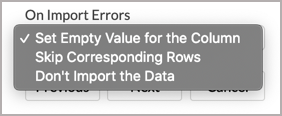
The following are the possible options:
- Set Empty Value for the Column (default) - Select this option to set empty value to the corresponding column value which had problems while importing.
- Skip Corresponding Rows - Select this option to skip the corresponding rows in which an error occurs while importing.
- Don't Import the data - Select this option to abort the import process, if any error occurs during import.
In case any error occurs during import, the details of the same would be shown in the Import Summary dialog that appears when import process gets completed.
7. Can I schedule data import?
Yes, you can schedule your import of data, provided your data has a column header.
Refer to this slide show to know how to schedule your data import.
Solutions
1. Why do I not see tables from the workspace selected to import?
You can only import data from your own workspaces, and from workspaces shared with you with export permission.
The tables might not be shared with you, or the tables shared would not have export permissions. Hence the table names will not be listed. Please check with your Workspace Administrator.
2. Can I also import/copy reports and dashboards from my source workspace?
As of now, you can only import tables from one workspace to another.
If you want to replicate the reports and dashboards from a workspace, use either of the following methods:
- Export and import using the Export/Import template option.
- Copy reports using Copy Reports API.