Advanced Analytics for Zoho Payroll
Setting up the Integration
A user with administrator privileges (Account admin and Org admin) can configure the integration.
Note:
- The initial fetch might take a few minutes depending on the volume of the data to be imported. An email and an in-app notification will be sent, once the initial fetch is complete.
- The setup process can sometimes fail for a variety of reasons. In this case we request you to access the Data source tab and click the Retry link to import again. If the issue persists then write to support@zohoanalytics.com.
Modules & Fields (What are the modules and fields in Zoho Payroll that will be synchronized in Zoho Analytics Workspace?)
The below table lists the modules and fields that will be synced to Zoho Analytics.
|
Modules |
Fields |
| Benefit | Name, Category, Plan, Status, Registration Number, State Code, Tax Exempt Section, Tax Exempt Sub Section, Is Employer Contribution Included in CTC, Description, Created By, Last Modified By, Created Time, Last Modified Time, Benefit ID |
| Benefit Involved in Payrun | Employee Current Amount, Employee YTD Amount, Employer Current Amount, Employer YTD Amount, Calculated Employer Amount, Calculated Employee Amount, Is Employer Amount Overridden, Is Employee Amount Overridden, Employer Override Notes, Benefit Pay Type, Last Modified Time, Employee Payrun Benefit ID, Employee Benefit Detail ID, Employee ID, Payrun ID, Benefit ID |
| Deduction | Deduction ID, Deduction name, Deduction Type, Is Recurring, Status, Perquisite Interest Rate, Liability Account, Created By, Last Modified By, Created Time, Last Modified Time |
| Deduction Involved in Payrun | Payrun ID, Current Amount, YTD Amount, Calculated Amount, Notes, Is Amount Overridden, Last Modified Time, Employee Payrun Deduction ID, Employee Deduction ID, Deduction ID, Employee ID |
| Designation | Designation ID, Designation Name, Created By, Last Modified By, Created Time, Last Modified Time |
| Earning | Parent Earning ID, Earning Name, Component Type, Earning Type, Name in Payslip, Calculation Type, Amount, Amount in Percentage, Status, Is included in CTC, Is variable pay, Is FBP Component, Max limit, Can restrict overriding FBP amount, Is Included in ESI contribution, Is Included in EPF contribution, EPF Contribution Inclusion Type, Is Included in Pro Rata, Is Taxable, Can show in Payslip, Can calculate tax without projection, Created By, Last Modified By, Created Time, Last Modified Time, Earning ID |
| Earning Involved in Payrun | Employee Current Amount, Employee YTD Amount, Applicable Days, Is Amount Overridden, Calculated Amount, Notes, Last Modified Time, Employee Payrun Earning ID, Employee Earning ID, Earning ID, Employee ID, Payrun ID |
| Employee Address | Employee Address Line 1, Employee Address Line 2, Employee City, Employee State Code, Employee Postal Code, Employee Country, Created By, Last Modified By, Created Time, Last Modified Time, Employee Address ID, Employee ID |
| Employee Benefit | Is Employee Amount In Percent, Is Employer Amount In Percent, Employer Contribution Amount, Employee Contribution Amount, Employee Contribution Percent, Employer Contribution Percent, Created By, Last Modified By, Created Time, Last Modified Time, Effective From, Effective To, Employee Contribution Max Limit, Employer Contribution Max Limit, Benefit Details ID, Employee ID, Benefit ID, Salary Revision ID |
| Employee Deductions | Effective From, Effective To, Is Amount In Percentage, Amount In Percentage, Amount, Is Recurring, Recurrence Termination Type, Recurrence Termination Amount, Recurrence End Date, Deduction Type, Created By, Last Modified By, Created Time, Last Modified TIme, Employee Deduction ID, Employee ID, Deduction ID, Loan ID |
| Employee Earning Breakup | Amount, Is Amount In Percentage, Is Recurring, Effective From, Effective To, Created By, Last Modified By, Created Time, Last Modified Time, Frequency, Employee Earning ID, Employee ID, Earning ID, Salary Revision ID |
| Employee Information | Employee Number, First Name, Middle Name, Last Name, Gender, Date of Joining, Work Email, Portal Access, Employee Status, Personal Email, Father Name, Mobile Number, Date of Birth, PAN Number, Payment Mode, Date Of Termination, Portal Invitation via Mobile, Created By, Last Modified By, Created Time, Last Modified Time, Employee ID, Designation ID, Department ID, Branch ID |
| Employee Investment Declaration Detail | Item Description, Planned Amount, Date, Pan Number, Is Metro, Effective From, Effective To, End Date, Name, Last Modified Time, Investment Declaration ID, Investment Declaration Item ID |
| Employee Investment Declaration Summary | Tax Year Start, Tax Year End, Tax Regime, Created By, Created Time, Last Modified By, Last Modified Time, Investment Declaration ID, Employee ID |
| Employee Involved in Payrun | Paid Date, Employee Payrun Status, Total Earnings, Total Reimbursements, Total Deductions, Total Employee Benefits, Total Employer Benefits, Total Charity Contributions, Total Employee Taxes, Total Employer Taxes, Net Bonus Amount, Net Pay Amount, Business Expense Reimbursement Amount, Payment Mode, Base Days, Working Days, No of Paid Days, Loss Of Pay Days, Notes, Payment Initiated By, Created By, Last Modified By, Created Time, Last Modified Time, Employee ID, Payrun ID, Branch ID, Department ID, Designation ID |
| Employee Loan Repayment Detail | Repayment Type, Repayment Date, Repayment Amount, Reference Number, Payment Mode, Paid Through Account ID, Created By, Last Modified By, Created Time, Last Modified Time, Loan Repayment ID, Employee ID, Loan ID |
| Employee Loan Summary | Paid Through Account ID, Loan Name, Loan Number, Disbursement Date, Status, Loan Amount, Loan Reason, Exempt Perquisite Calculation, Repayment Start Date, Instalment Amount, Opening Balance Amount, Tenure, Created By, Last Modified By, Created Time, Last Modified Time, Loan ID, Employee ID, Deduction ID |
| Employee Payment Information | Bank Holder Name, Bank Name, Account Number, IFSC Code, Account Type, Created Time, Last Modified Time, Created By, Last Modified By, Employee Bank Account ID, Employee ID |
| Employee Perquisite Item Details | Employee Perquisite ID, Type, Date, Effective From, Effective To, Perquisite Approved Amount, Recovered Amount, Perquisite Planned Amount, Last Modified Time, Employee Perquisite Item ID, Loan ID |
| Employee Perquisite Summary | Tax Year Start, Tax Year End, Total Taxable Perquisite Amount, Total Recovered Amount, Total Perquisite Amount, Created By, Created Time, Last Modified By, Last Modified Time, Employee Perquisite ID, Employee ID |
| Employee Reimbursement | Reimbursement ID, Created By, Last Modified By, Created Time, Last Modified Time, Maximum Limit, Amount, Effective From, Effective To, Employee Reimbursement ID, Employee ID |
| Employee Salary Revision | CTC (per annum), Is CTC Change In Percentage, Change In Percentage, Status, Old Salary Revision ID, Effective From, Effective To, Payment Effective From, Created By, Last Modified By, Created Time, Last Modified Time, Salary Revision ID, Employee ID |
| Employee Tax Exemptions | Effective From, Effective To, Created By, Created Time, Last Modified By, Last Modified Time, Employee Tax Exemption ID, Employee ID, Payroll Tax ID |
| Employee Taxes | Effective From, Effective To, Created By, Created Time, Last Modified By, Last Modified Time, Employee Tax Detail ID, Employee ID, Payroll Tax ID |
| IT Involved in Payrun | Investment Declaration Item ID, Last Modified Time, Investment Declaration Payrun ID, Payrun ID, Investment Declaration ID, Employee ID |
| Pay Schedule | Payschedule ID, Schedule Name, Payschedule Type, Start Date, First Payday Offset, First Payday Ends on, First Payday, Second Payday, End Date, Pay Date, Created By, Last Modified By, Created Time, Last Modified Time |
| Payroll Reimbursement | Reimbursement Name, Component Type, Reimbursement Type, Name in Payslip, Maximum Amount, Status, Is FBP Component, Created Time, Last Modified Time, Reimbursement ID, Created By, Last Modified By |
| Payroll Taxes | Payroll Tax Type, Tax Jurisdiction, State, Is Configurable, Tax Group, Tax Authority, Created By, Created Time, Last Modified By, Last Modified Time, Registration No, Registration Date, Payroll Tax ID, Branch ID |
| Payrun Summary | Payroll Type, Pay Period Start, Pay Period End, Pay Date, Earning ID, Notes, Bonus Calculation Type, Journal ID, Approved Time, No Of Working Days, Status, Created By, Created Time, Last Modified Time, Last Modified By, Mode Type, Payrun ID |
| Perquisite Involved in Payrun | Last Modified Time, Payrun Perquisite ID, Employee Perquisite ID, Employee Perquisite Item ID, Employee ID, Payrun ID |
| POI Involved in Payrun | Proof Of Investment ID, Last Modified Time, POI Payrun ID, Proof Of Investment Item ID, Employee ID, Payrun ID |
| Proof Of Investment Item Summary | Item Description, Status, Actual Amount, Planned Amount, Approved Amount, Date, End Date, Pan Number, Is Metro, Effective From, Effective To, Approved By, Approved Time, Reason, Last Modified Time, Proof Of Investment Item ID, Proof Of Investment ID |
| Proof Of Investment Summary | Tax Year Start, Tax Year End, Total Approved Amount, Status, Tax Regime, Created By, Created Time, Last Modified By, Last Modified Time, Proof Of Investment ID, Employee ID |
| Reimbursement Claim Item | Bill Date, Bill Number, Claimed Amount, Approved Amount, Reason For Lesser Approved Amount, Approval Entity ID, Reason, Created Time, Last Modified Time, Created By, Last Modified By, Reimbursement Claim ID, Reimbursement Claim Item ID, Reimbursement ID |
| Reimbursement Involved in Payrun | Employee Reimbursement ID, Employee Eligible Amount, Employee Paid Amount, Employee YTD Amount, Is Amount Overridden, Calculated Amount, Notes, Last Modified Time, Employee Payrun Reimbursement ID, Reimbursement ID, Employee ID, Payrun ID |
| Reimbursements Claim | Claim Date, Claim Number, Claim Status, Total Claimed Amount, Total Approved Amount, Created Time, Last Modified Time, Created By, Last Modified By, Reimbursement Claim ID, Employee ID |
| Tax Deduction Involved in Payrun | Taxable Wages, Employee Current Amount, Employee YTD Amount, Calculated Employee Amount, Is Amount Overridden, Notes, Last Modified Time, Employee Payrun Tax ID, Employee ID, Payrun ID, Payroll Tax ID |
Data Sync Frequency
Zoho Analytics offers flexible sync schedules to ensure that your data is always up-to-date for effective analysis. These schedules allow you to automate the process of updating your data, ensuring that your analyses are based on the latest information.
- 1 Hour (Enterprise plan only)
- 3 Hours
- 6 Hours
- 12 Hours
- Every day
Handling Data Synchronization Failure
Data synchronization can fail,
- If the data type of a field is changed in the Zoho Payroll Application.
- If the Modules and Field selected for analysis are deleted in the source application.
- If the user who configured the integration no longer has permission to access the modules.
In any of the above mentioned cases, the data sync will be paused. You will be notified via email and in- app notification with the exact reason for failure along with the solution.
To resolve the sync failure, delete or restructure the views, or restore the specific modules and fields from the source application. Refer to Data Sync failure and solutions article for more details.
Once you have made the changes, click the Sync now option in the data source tab to resume data sync. If the issue persists, contact support@zohoanalytics.com
Managing Data Sources
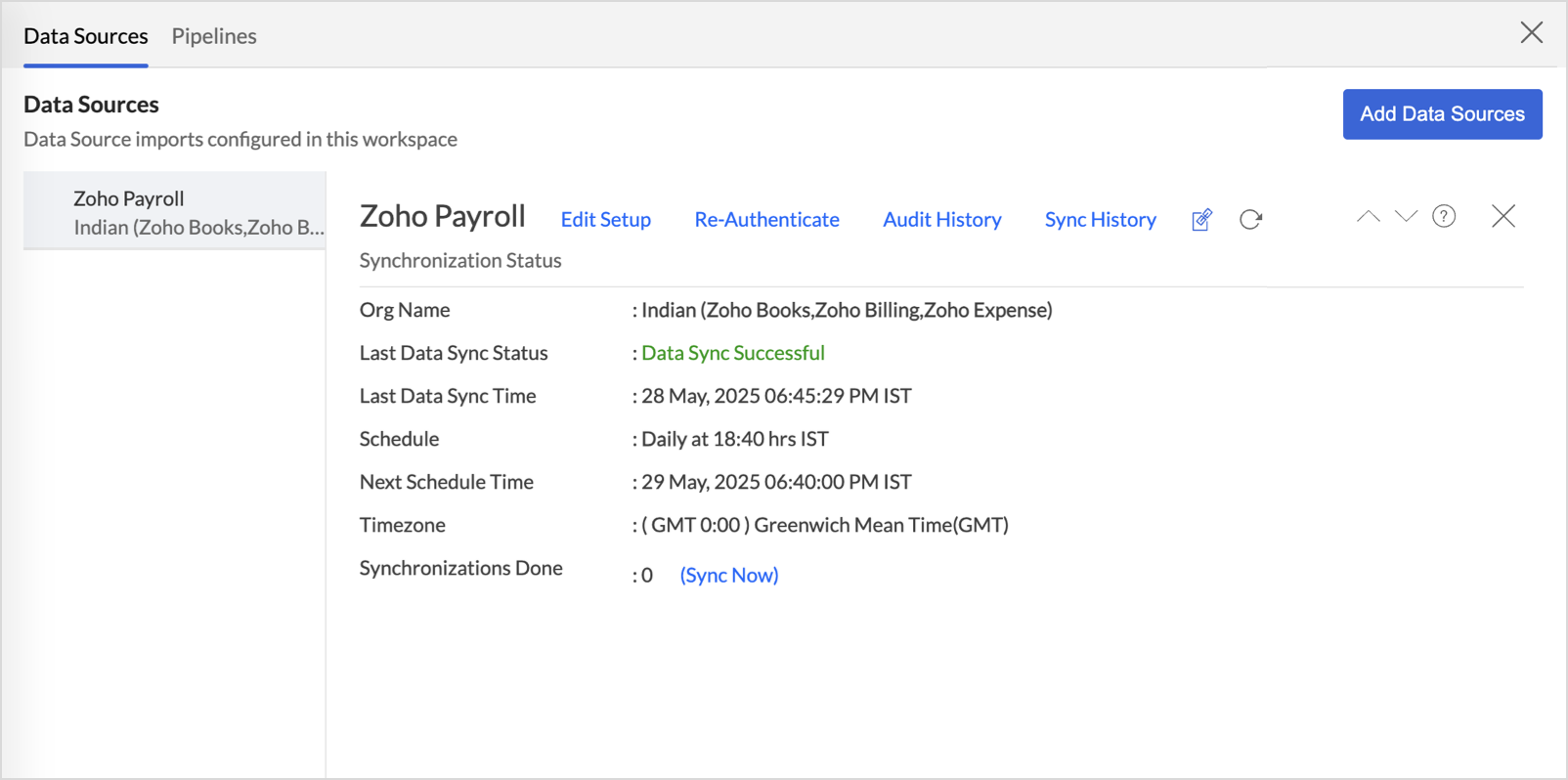
The Data Sources tab provides essential information to monitor and manage the integration setup. It also allows you to edit the settings as needed. Users with administrator privileges will be able to view and modify the connection settings.
Data Source Permalink
The Data Source Permalink helps you easily access the data source tab. Only the Organization Admin and Account Admin can make changes in the Data sources page, other users can know the synchronization details like whether the last data sync was successful or not, when the last data sync happened, when the next sync is scheduled to happen, etc. This link can also be pasted in dashboards so that everyone accessing the dashboard can know about the sync status.
Edit Setup
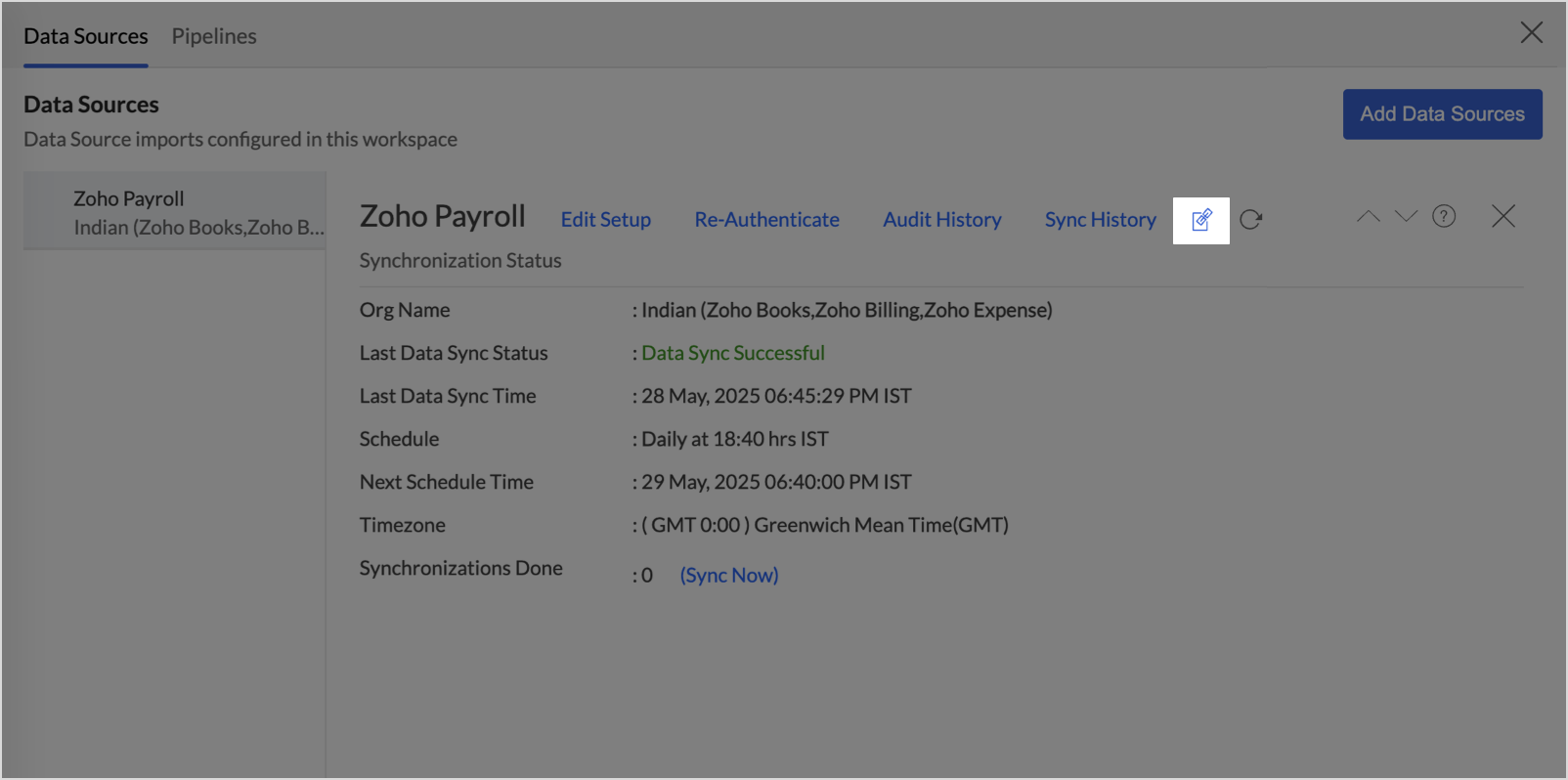
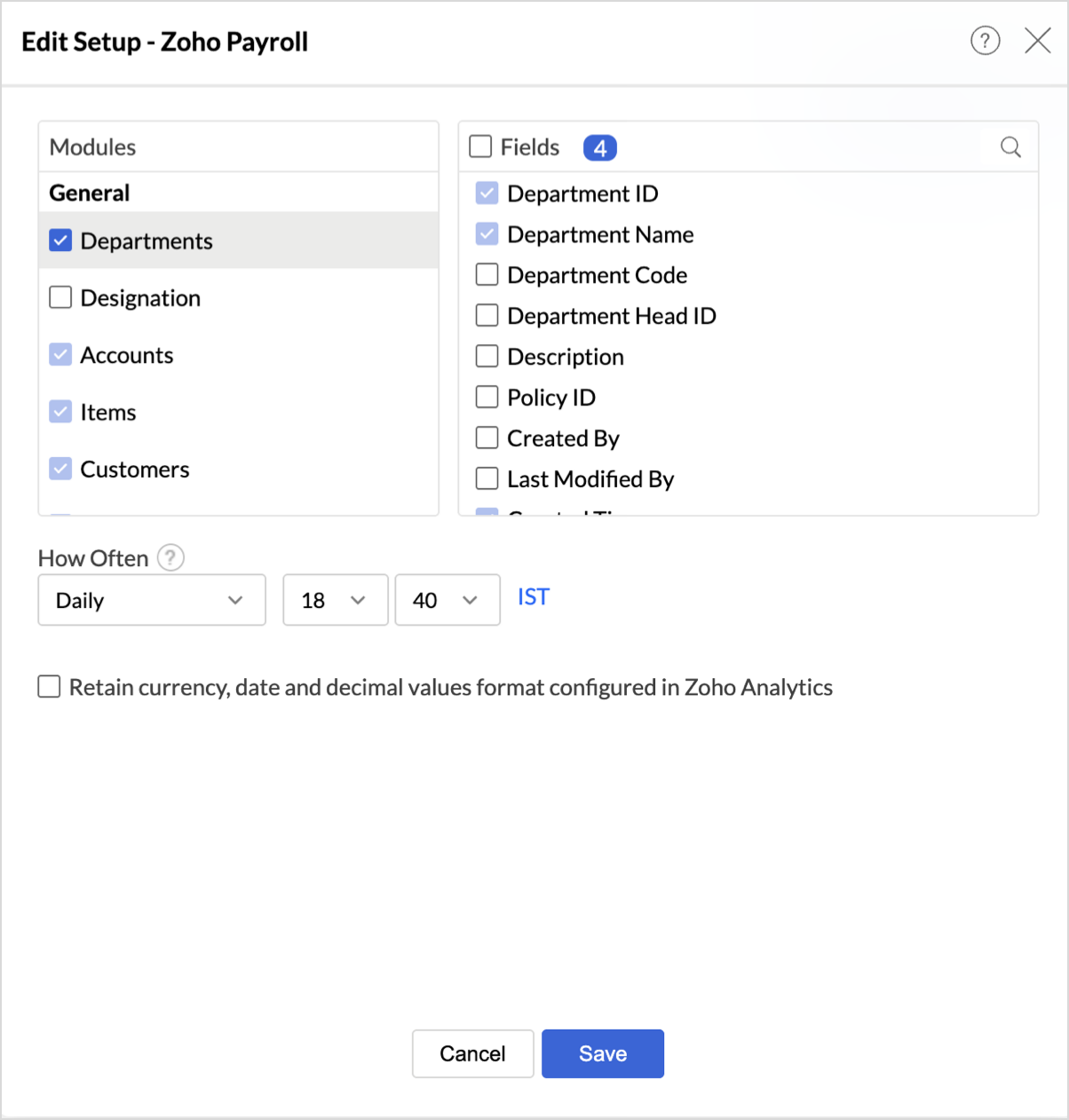
The Edit Setup tab allows you to add or delete modules or fields, change the schedule interval, and modify other settings specific to the business application.
To modify the settings,
- Click Data Sources > Edit Setup.
- The Edit Setup - Zoho Payroll dialog will open. Modify the settings as needed and click Save.
Re- Authenticate
Re-authentication will be helpful when the API key or password is changed. In this case, the data sync will be paused, and the administrator who configure the connector setup must re-authenticate to resume the data sync.
Sync History
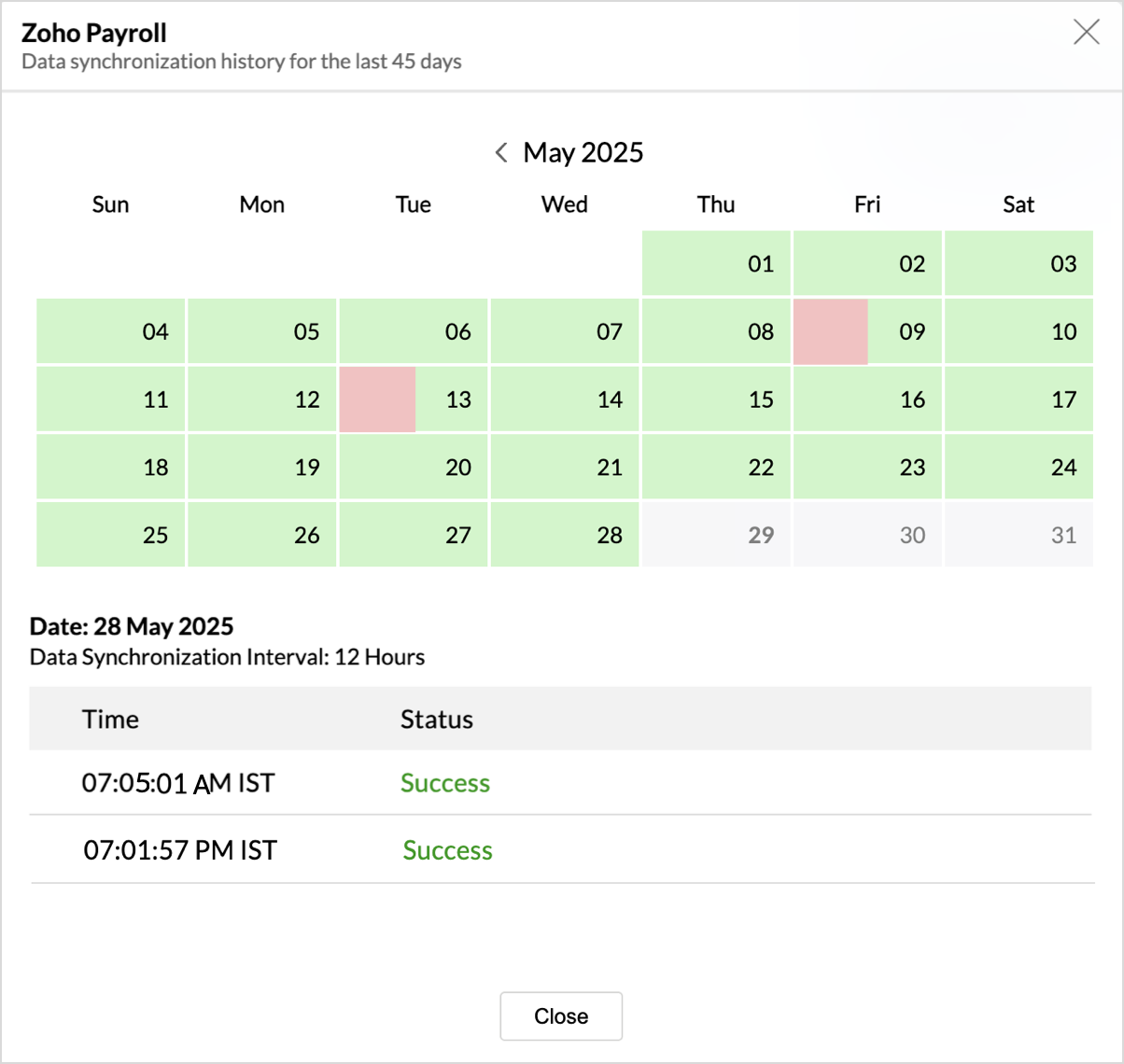
The Sync History tab provides details about the data sync for the last 45 days. A successful data sync is marked in green, and a sync failure is marked in red.
To view the Sync history,
- Click Data sources > Sync History.
- A calendar with the Sync History of the last 45 days will open. The date when the data sync has happened will be highlighted. Hover to view the number of times the data had got synced on a specific date.
- Click the date to view more details.
- Time - Displays the time when the data is synced.
- Status - Shows whether the sync was a success or a failure.In case of failure, the reason will be displayed. Refer to this page to learn how to resolve the issue and avoid further failure.
Audit History
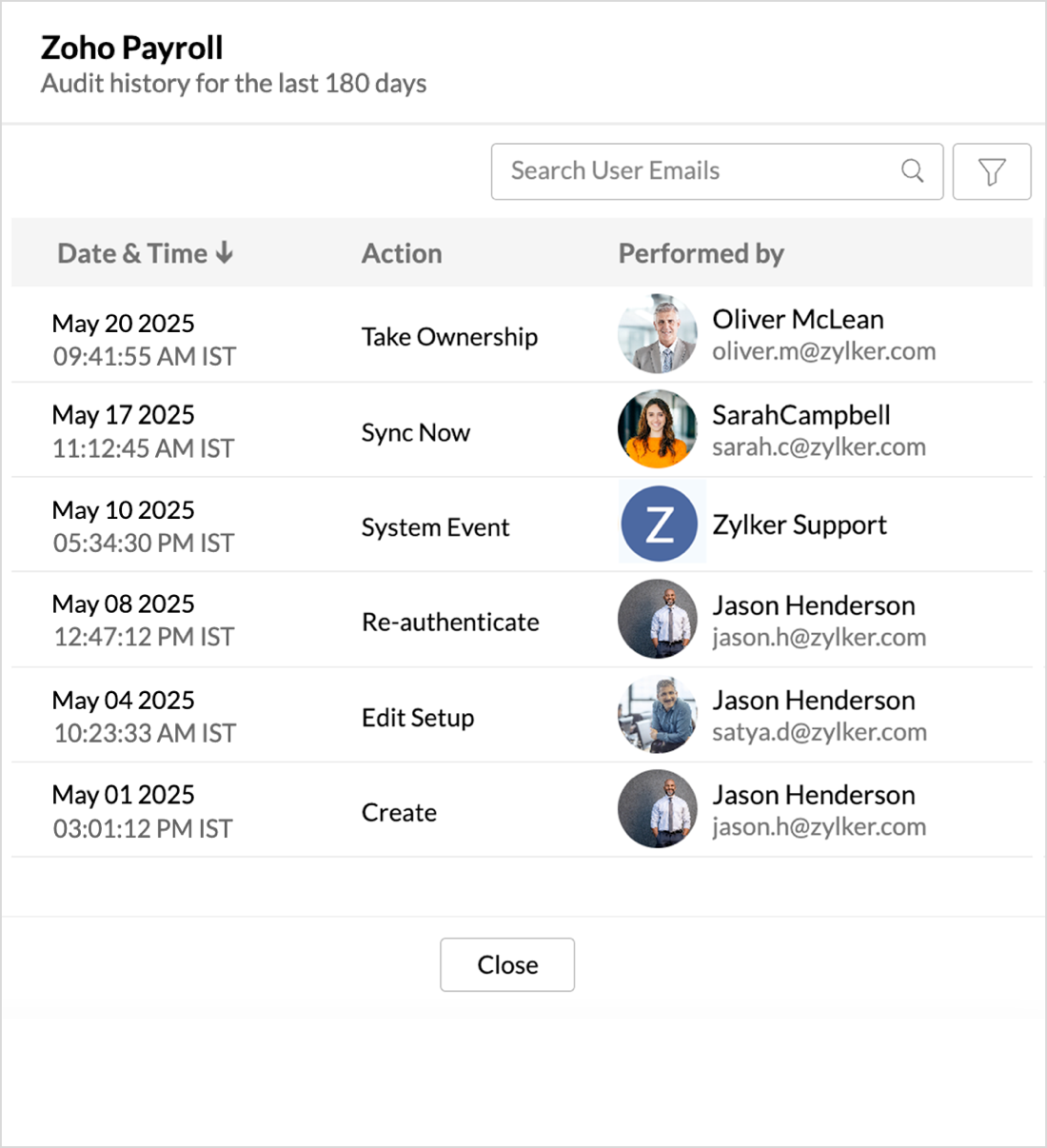
Zoho Analytics logs all the user activities and system events within the Zoho Payroll workspace. The following actions that are logged in Zoho Analytics,
- User Action: Create, Modules Added, Modules Removed, Fields Added, Fields Removed, Schedule Change and Entities Modified, Delete, Take Ownership, Re-authenticate, Sync Now, Retry.
- System Action: Plan upgrade or downgrade.
To view the audit history,
- Click Data Sources > Audit History.
- A dialog with the activities for the last 180 days will open.
Remove Data Source
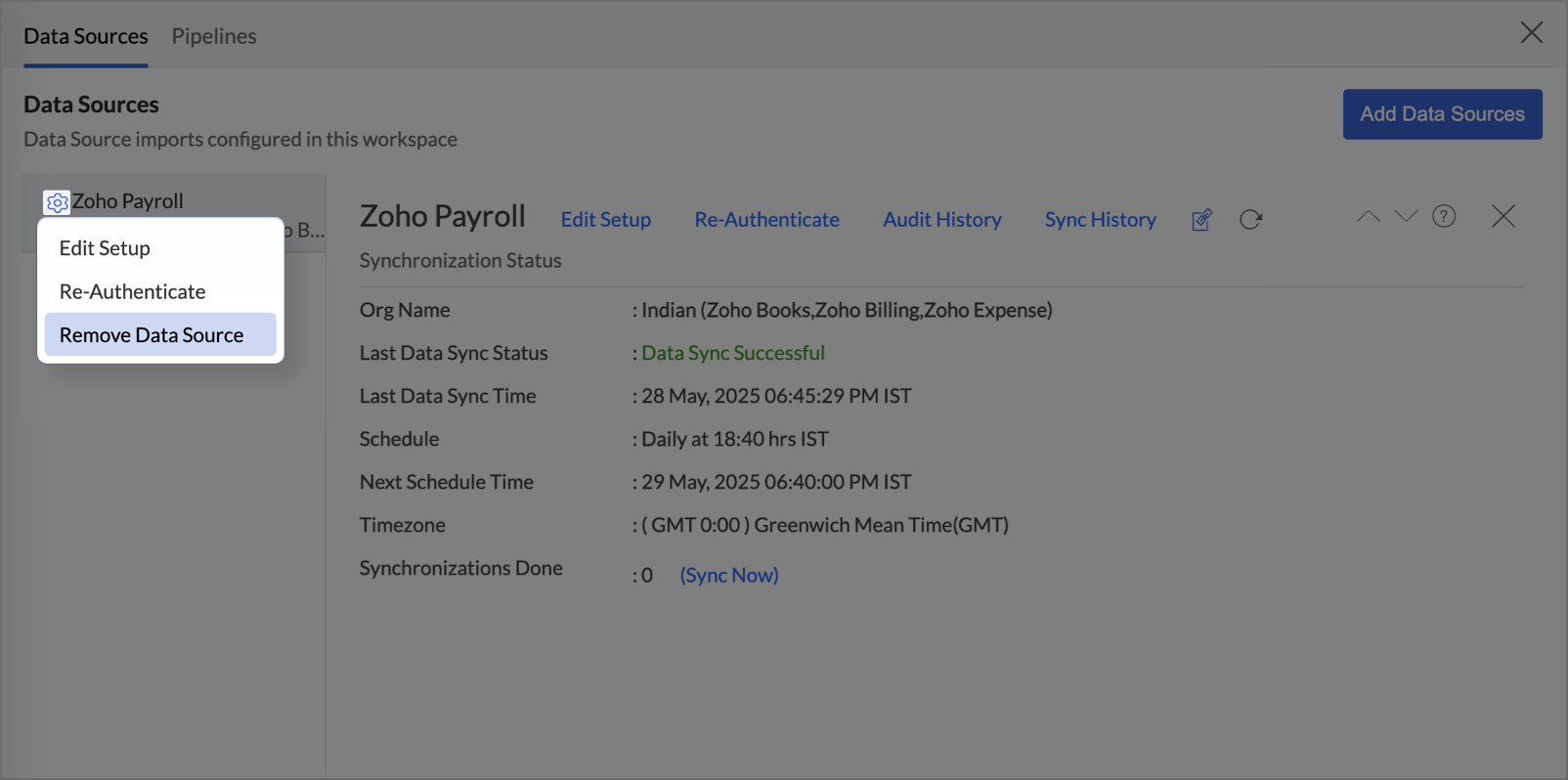
Zoho Analytics allows you to remove the integration if needed. Removing the integration will suspend further data synchronization. The data tables and the reports will be available.
Click the Settings icon in the Data Sources tab, and select Remove Data Source from the drop-down menu.
Data Modeling & Preparation
Zoho Analytics allows you to combine data from various sources such as Files, Feeds, Databases and Business Applications for an in-depth analysis. Query Tables allows you to combine data from different tables to create reports.
While blending data from other data sources, Zoho Analytics automatically identifies similar columns and provides suggestions for lookups. Refer to the Joining Tables article for more details.
Data Visualization / Analysis
Zoho Analytics offers a wide range of visualization types to conduct your analysis. Refer to the Creating Reports section to learn more.The below table lists the range of visualizations supported in Zoho Analytics.
| Visualization |
Types
|
|
Bar
|
Stacked bar, Histogram, Horizontal bar
|
|
Stacked Bar
|
Horizontal Stacked bar, 100% vertical and horizontal stacked bar
|
|
Area
|
Area with markers, Smooth Area, Smooth area with Markers
|
|
Line and Bar Combination chart
|
Bar with Line, Bar with Bubble, Bar with Scatter, Bar with Area, Area with Bubble, Line with Bubble and Custom Combination
|
|
Bubble Chart
|
Bubble Pie, Packed Bubble, Word Cloud
|
|
Stacked Area
|
Stacked area with markers, Smooth stacked area, Smooth stacked area with markers
|
|
Map
|
Heat Map, Map Scatter, Map Bubble, Map Pie, Map Bubble Pie, Map Filled, Geo Heat Map
|
|
Pie
|
Pie, Ring, Semi Pie, Semi Ring
|
|
Tree map
|
Default View
|
| Sankey | Default View |
|
Sunburst
|
Default View
|
|
Race Chart
|
Default View
|
|
Doughnut
|
Default View
|
|
Matrix View
|
Pivot table
|
|
Tabular
|
Summary and Tabular view
|
|
Dashboards and KPI widgets
|
Single Numeric Widget, Dial Chart Widget
Bullet, Chart Widget
|
Sharing and Collaboration
- Share data and reports with your colleagues & friends with fine-grained permission
- Enable real-time commenting on a shared view to efficiently collaborate with your users
- Publish reports for wider consumption. Embed reports/dashboards within your websites, web applications, and blogs.
- Export, Email, and Print reports in a variety of formats.
- Use Zoho Analytics mobile apps (optimized for both IOS and Android platform) and access the reports and dashboards on the go.
Help & Support
We offer 24x5 technical support (Monday to Friday). In case if you need our assistance kindly do mail us your questions to support@zohoanalytics.com.
You can also reach out to us on our toll-free numbers.
United States: +1 (888) 900 9646
United Kingdom: +44 (20) 35647890
Australia: +61-2-80662898
India: +91 44 6965 6060