To initially set up the white label solution,
-
Login to your Zoho Analytics account.
-
Click the Settings
icon at the top right corner.
-
From the
Settings
page, select White Label. The White Label Settings Page
requesting the rebranding details will be displayed.
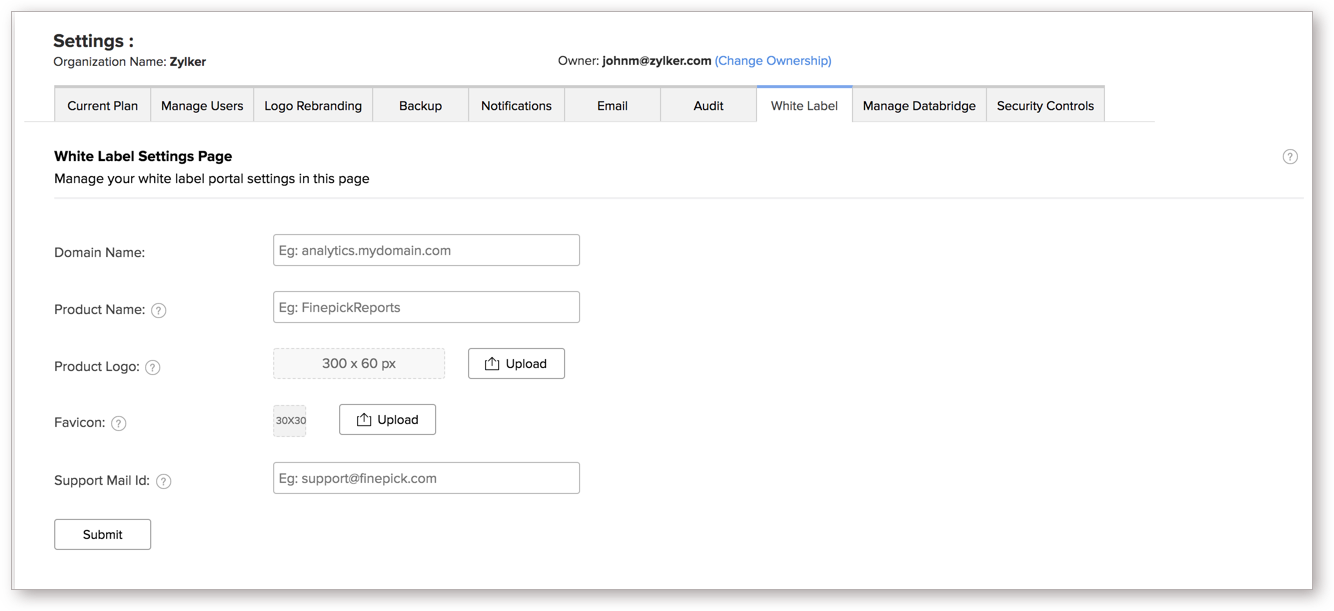
Domain Name: Enter the website address where the white label solution has to be hosted. (eg: analytics.finepick.com).
Do note that once the domain name is configured Zoho Analytics will not allow you to edit the domain name by yourself, please write to us at
support@zohoanalytics.com
in case you wish to make any changes.
Product Name: Enter the product name. This name will be used in all instances where Zoho Analytics name is currently displayed.
Product Logo: Upload a logo for your White Label application. The supported file formats are .gif, .jpg, .png and .bmp, and the recommended size of the image is 300x60px.
Favicon: Upload an icon that you want to display along with the page title in the browser tab. The recommended size of the image is 30x30px.
Support Mail Id: Enter a support email address. This email address will be used in all instances for email communications where the Zoho Analytics support (support@zohoanalytics.com) email address is currently used.
Options Specific to SSO

Along with the other options available, there are a few options specific to SSO. They are:
Login URL: Enter the app/site URL where log in happens in your application. This will be displayed to your user in case he has not logged in to your product/service that is integrated with Zoho Analytics and accesses the domain URL directly.
Logout URL: Enter the URL to which the user has to be redirected upon logging out of your application.
Trusted IP ranges: Enter the IP Address of your app/site from which the authentication request will be sent to Zoho Analytics. You can add multiple IP ranges by clicking the "
+ Add New IP Range
" link.
Options Specific to SAML

Along with the other options available, there are a few options specific to SAML. They are:
Login URL: Enter the app/site URL where log in happens in your application. This will be displayed to your user in case he has not logged in to your product/service that is integrated with Zoho Analytics and accesses the domain URL directly.
Logout URL: Enter the URL to which the user has to be redirected upon logging out of your application.
Metadata file: SAML metadata is an XML document that contains the information necessary for interaction with SAML-enabled identity or service providers. Upload your SAML metadata file here.
After providing the necessary details, click Submit. Once you submit, you will be navigated to the next page.
Here you will have to add the CNAME.
Configure the CNAME mapping of your subdomain to analytics.cs.zohohost.in
(changes based on the datacenter your Zoho account is in). The table below lists the CNAME mapping of the subdomain corresponding to each datacenter.
|
Datacenter
|
Cname Mapping Domain
|
|
US
|
analytics.cs.zohohost.com
|
|
EU
|
analytics.cs.zohohost.eu
|
|
IN
|
analytics.cs.zohohost.in
|
|
AU
|
analytics.cs.zohohost.com.au
|
Once this is done, whenever a user tries to access your domain name (let's say for example, analytics.finepick.com), they will be redirected to the Zoho Analytics server in the backend seamlessly, without revealing the identity of Zoho Analytics.

After adding the CNAME record in your domain service provider, click
Verify CNAME Mapping
button.
Once you submit the details, we request you to wait for a couple of days. Our team will notify you via an email or a call once we enable the white label solution for your account.