- Data Import: Data in Amazon RDS Oracle will be imported and stored in Zoho Analytics. You can setup periodic schedules to fetch the latest data automatically from your Amazon RDS Oracle database. Report loading time will be faster as the data is stored in Zoho Analytics.
- Live Connect: In this mode, data will not be fetched from Amazon RDS Oracle and stored in Zoho Analytics. Instead for the reports that you create Zoho Analytics will generate appropriate queries that will connect the required data live from Amazon RDS Oracle to Zoho Analytics and show you the report. In this case the loading time will directly depend on the performance of Amazon RDS Oracle.
Data Import
1. Preamble: Why should I allowlist Zoho Analytics IP addresses and How do I do it?
2. How do I import data from the Amazon RDS Oracle database?
3. How can I edit the setup?
4. How long does it take for the data to be imported into Zoho Analytics?
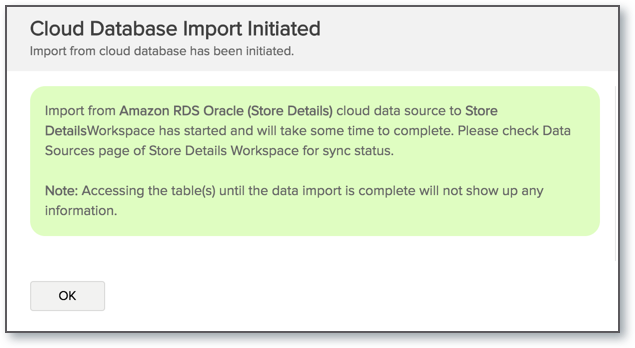
After setup, you might have to wait sometime for the initial fetch to happen. This depends upon the amount of data to be imported into Zoho Analytics and also the response time of your Amazon RDS Oracle server. You will receive an email notification once the import is complete. Please note that, if you access the workspace before the initial fetch, it will not display any data.
5. Can I import data from Views created in Amazon RDS Oracle (apart from Tables) into Zoho Analytics?
Yes, you can import data from both Views and Tables into Zoho Analytics.
You can import data from tables, views, external tables, managed tables, and virtual views available in your Amazon RDS Oracle database into your Zoho Analytics workspace.
6. Will foreign keys defined between my tables in the Amazon RDS Oracle database be linked in Zoho Analytics as well?
When importing multiple tables, the foreign keys defined between the tables in Amazon RDS Oracle database will be linked in Zoho Analytics. The foreign keys will be created as Look-up columns in Zoho Analytics.
If you import data from one table at a time (choosing single table option) then the foreign keys will not be defined. However, you can manually link the tables in Zoho Analytics using the Look-up column feature. Click here to learn about the Look-up column feature.
7. Can I change the data-type of the columns imported in Zoho Analytics?
Yes, you can change the datatype of the columns imported into Zoho Analytics. However it is necessary that the data-type of your column is compatible with the data-type of the column in your Amazon RDS Oracle database for successful data synchronizations. It is always recommended that you change the data type in both your Amazon RDS Oracle database as well as your Zoho Analytics workspace.
8. I have synced data from a database into a table. Can I change the data source of this table?
Yes, you can change the data source of a table, into which the Amazon RDS Oracle database has been synced.
Follow the below steps to import if the source is available in the same Amazon RDS Oracle database that is imported into the table.
- Open the Workspace.
- Click Import Data > Import into this Table.
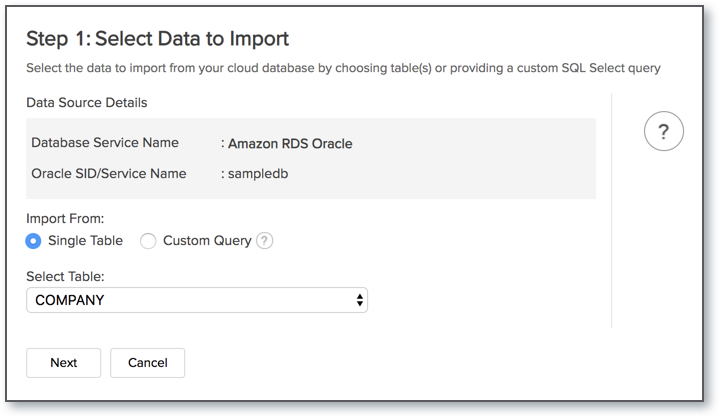
- The Select Data to Import tab of Import wizard will open.
- You can choose to import from a different table using the Select Table option or import using the Custom Query.
Follow the below steps to import if the source is available in a different local database.
- Open the Workspace.
- Click Data Source from the left bar.
- All data sources for this Workspace will be listed. Click the data source you want to edit.
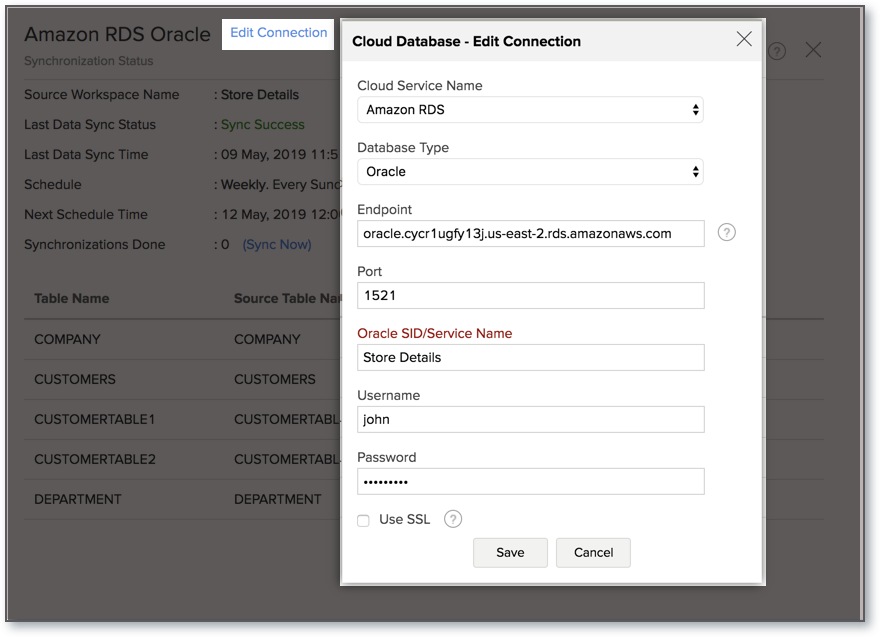
- The Data Source page will open. Click Edit Connection.
- In the Cloud Database - Edit Connection dialog that open, modify the data source.
9. I have connected to a database and imported a few tables into Zoho Analytics. Can I add more tables from the same source to the existing connection?
Yes, you can add tables from the same source to the existing connection. Follow the below steps:
- From your Amazon RDS Oracle Workspace, navigate through Create > New Table/Import Data.
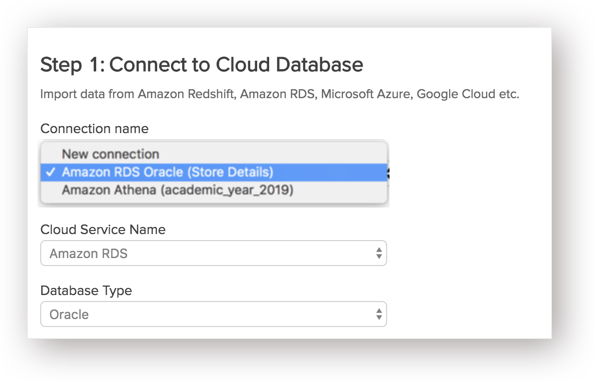
- Click the Cloud Databases option. The Connect to Cloud Database wizard will open.
- From the Connection name drop down menu, select the existing Amazon RDS Oracle database name.
The rest of the steps are similar to importing data from cloud database.
 Note: In case you change the schedule interval while importing the tables, the same intervals will be applied to already imported tables as well.
10. Can I import data from my Amazon RDS Oracle database into an existing Zoho Analytics workspace?
Yes. Follow the below steps to import data into an existing workspace:
- Open the Workspace into which you wish to import the data.
- Navigate through Create > Import Data.
- Click the Cloud Databases option.
Configuring the import will be similar to the steps followed in this presentation.

11. Can I synchronize the data from my Cloud Database instantly?
Yes, you can synchronize your data from Cloud Database instantly when needed.
To synchronize your data instantly:
- Login to your Zoho Analytics account.
- Open the corresponding Workspace.
- From the home page, click Data Source tab. The Data Source page will open.
- Click Sync Now link.
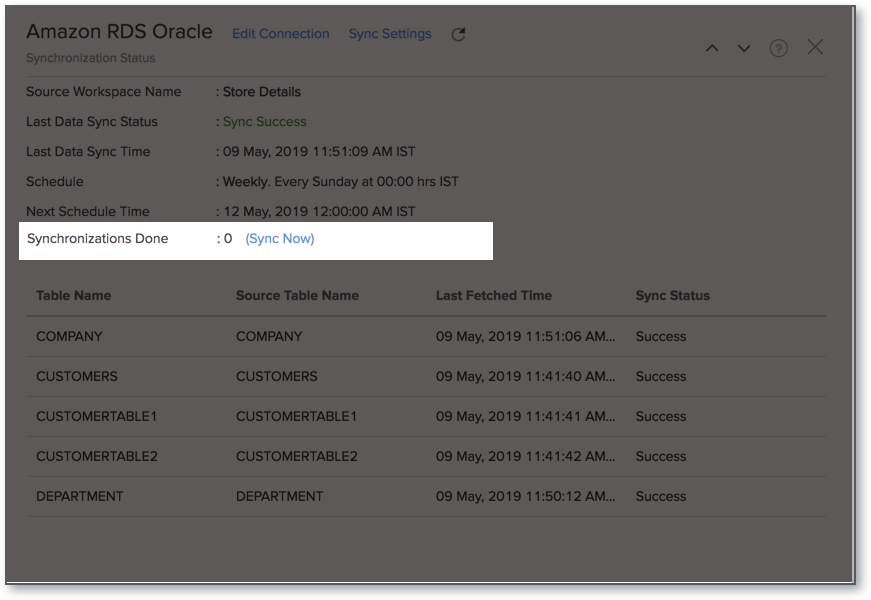 Note: This option can be used to a maximum of five times per day.
12. The Last Data Sync Status in Datasources page shows Sync Failed. How do I resolve it?
You can resolve your sync failure by understanding the reason behind the failure. There are two methods to know the reason for the sync failure:
Method 1:
- Open the corresponding Workspace.
- Click Data Sources from the left bar.
- All data sources for this Workspace will be listed. Click the data source that has failed to sync.
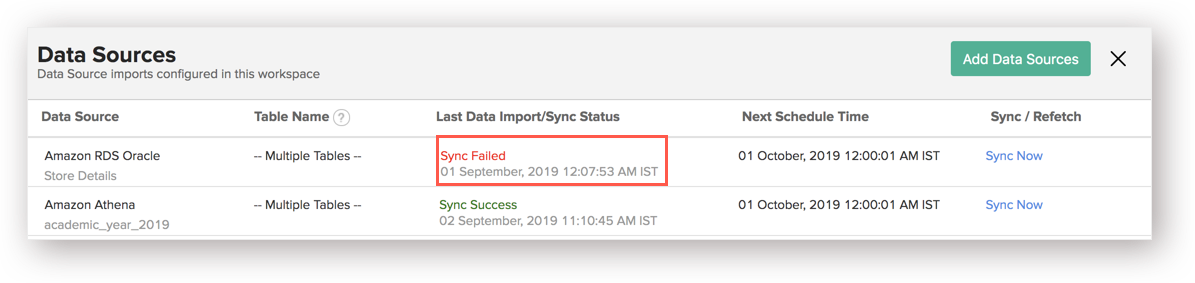
- The Data Sources page will open. Click the View Last Import Details icon that appears on mouse over of each table row. The Import Details pop-up page will open.
You will find the reason for your failure in the Details section. Take the necessary action based on the reason provided.

Method 2:
- Open the corresponding table.
- Navigate through Import Data > Last Import Details.
The Import Details pop-up page will open. You will find the reason for your failure in the Details section. Take the necessary action based on the reason provided.

13. How do I remove the Setup?
To remove the setup,
- Login to your Zoho Analytics account.
- Open the corresponding Workspace.
- From the home page, click Data Source tab. The Data Source page will open.
- Click the Settings icon.
- Select Remove Data Source from the drop-down menu that opens.
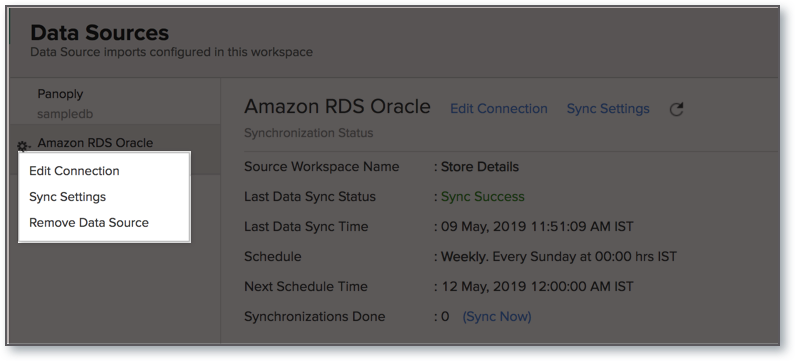
Please note that the data source connection will be removed, but the tables and the data will be retained in the workspace. As the data source connected is removed, no further synchronization will happen.
Live Connect [Beta]
1. Preamble: Why should I allowlist Zoho Analytics IP addresses and How do I do it?
2. How do I connect live with the Amazon RDS Oracle database?
3. How can I edit the live connect setup?
4. How is Live Connect different from Data Import?
Tabulated below are the differences between the Data Import feature and Live Connect feature.
| Data Import |
Live Connect |
| Data in Amazon RDS Oracle will be imported and stored in Zoho Analytics. |
Data from Amazon RDS Oracle will be fetched live using appropriate reporting queries whenever you create or access a report in Zoho Analytics. |
| Filtered data set can be imported from Amazon RDS Oracle using customized queries. |
Custom Query feature is not available in Amazon RDS Oracle Live Connect. |
| Multiple data sources (apart from Amazon RDS Oracle) can be imported into the same workspace and they can be combined for reporting & analysis purpose. |
Cannot import data from any other data source into the same workspace in which Live Connect from Amazon RDS Oracle is setup. |
| Changes made to the columns such as addition/deletion will be synchronized automatically. |
Any changes such as column addition/deletion/renaming will not be reflected. You will have to manually map the data using the Sync Design option. |
When importing multiple tables, the foreign keys defined between the tables in Amazon RDS Oracle database will be linked in Zoho Analytics. The foreign keys will be created as Look-up columns in Zoho Analytics. If you import data from one table at a time (choosing single table option) then the foreign keys will not be defined. However, you can manually link the tables in Zoho Analytics using the Look-up column feature. |
Look-up relationship will be automatically created for tables that are linked via foreign keys in Amazon RDS Oracle. However, you cannot manually link the tables in Zoho Analytics using Look-up column feature. |
| Users can create query tables. |
Users cannot create query tables. |
| Report loading time will be fast as the data is stored in Zoho Analytics. |
Report loading time directly depends on the Amazon RDS Oracle server response time and the amount of data in Amazon RDS Oracle. |
5. How long does it take for me to visualize my data in Zoho Analytics?
As there is no data import process involved, the loading time depends upon the amount of data stored in your Amazon RDS Oracle database and also the response time of your Amazon RDS Oracle server.
6. Will the reports/dashboards query hit my database server every time I open it or can it be cached in Zoho Analytics?
(or) Can I store a cache of my data points in Zoho Analytics to get quick access to my views?
Zoho Analytics allows you to create a cache for the reports in your live connect database to reduce the query fetching time.
To enable cache for your live connect workspace, please follow the below steps:
- From your Workspace Explorer, click Settings from the side menubar.
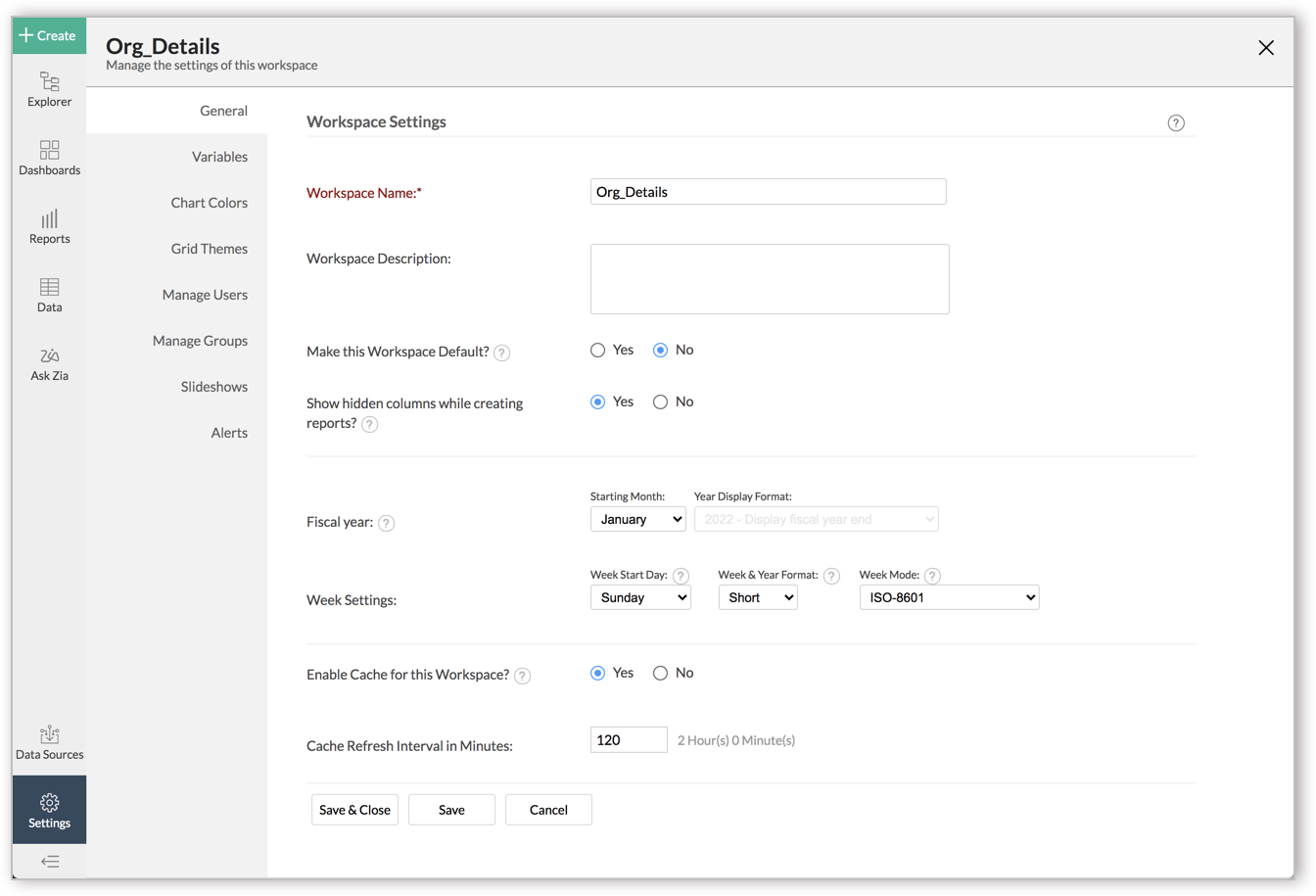
- In the General - Workspace Settings page that opens, choose Yes for Enable Cachefor this Workspace.
- Provide Cache Refresh Interval in Minutes.
- Click Save & Close.
A cache for the reports will be created for the Workspace.
- Enabling cache will help create a cache for your reports in the workspace. This data will get updated periodically based on the time provided in the Cache Refresh Interval in Minutes.
- You can create a cache only for the reports, and not for tables in the workspace.
- This option is available only for Live Connect.
7. Can I connect Views created in Amazon RDS Oracle (apart from Tables) to Zoho Analytics?
Yes, you can connect with both Views and Tables created in Amazon RDS Oracle to Zoho Analytics.
8. Will foreign keys defined between my tables in Amazon RDS Oracle database be linked in Zoho Analytics as well?
Yes. In case you have linked two or more tables in your Amazon RDS Oracle database using foreign keys, they will be linked automatically using a Look-up column in Zoho Analytics as well.
9. I got an alert message "This view cannot be accessed due to some changes made in the table" while accessing my tables/reports in Zoho Analytics. What should I do?
This alert message will be displayed when Zoho Analytics is not able to access the information from Amazon RDS Oracle. This could be because the tables/columns that you are trying to access in Zoho Analytics is deleted or renamed in Amazon RDS Oracle.
In this case, it is recommended that you remap the table/column. Refer to this presentation to know how to remap a table.
10. What is a Mismatch?
When you have created reports in Zoho Analytics over the tables or columns which no longer have a direct mapping in Amazon RDS Oracle database, it will be listed as mismatch.
So, ensure that the tables/columns in Zoho Analytics workspace and Amazon RDS Oracle database matches. The tables/columns that do not match will be listed in the Mismatch tab of the Amazon RDS ConnectionSettings page. Refer the next question to know more about mismatch.
11. When do Mismatches occur and how to resolve them?
12. Can I connect new columns added in my Amazon RDS Oracle database to Zoho Analytics?
Yes, you can connect the new columns that are added in your Amazon RDS Oracle database to Zoho Analytics from the Amazon RDS Connection Settings page. Refer to this presentation to know more.
Note: If there exists a mismatch between the already available data in your Zoho Analytics workspace and your Amazon RDS Oracle database, Zoho Analytics will NOT be able to fetch the new column information. In this case, you need to first resolve the mismatches to connect to the new columns. 13. Can I change the data-type of the columns in Zoho Analytics?
No, you cannot change the data type of the columns in Zoho Analytics.
14. Can I import data from other data sources into the same workspace that I have used to connect with Amazon RDS Oracle?
No, you cannot import data from other data sources into the same workspace that you have used to connect with Amazon RDS Oracle.
15. Can I create Query Tables over the Amazon RDS Oracle data?
No, you will not be able to create Query Tables if you have setup the workspace using the Amazon RDS Oracle Live Connect option. This is because this option does not fetch and store the data locally in Zoho Analytics. If you wish to create Query Tables, we request you to use the Data Import option.
16. What happens when I delete or rename the database in Amazon RDS Oracle?
When you delete or rename a database in Amazon RDS Oracle, Zoho Analytics loses its connectivity with Amazon RDS Oracle. Thereafter, a warning message, as shown below, would be displayed. This error message will also be displayed if there are any connectivity issues or if your Amazon RDS Oracle credentials have expired.
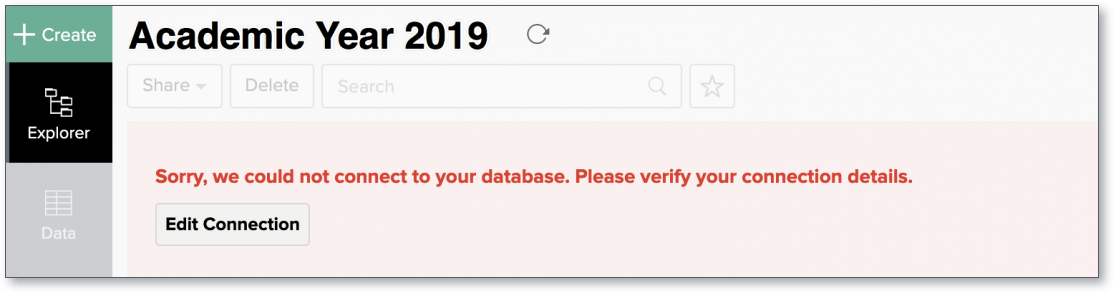
For more information regarding the same, refer to the Edit Connection presentation.
17. How do I remove the Setup?
You have to delete the workspace in Zoho Analytics to remove the connection setup.
To delete the workspace,
- Log in to Zoho Analytics
- Click the More Actions icon that appears on mouse hover adjacent to the workspace name that you want to delete
- Click the Delete Workspace option
18. What are the limitations of using the Amazon RDS Oracle Live Connect?
Given below are a few short comings that one might face while using the Amazon RDS Oracle Live Connect option.
- Data from your Amazon RDS Oracle database will NOT be locally stored in Zoho Analytics. Zoho Analytics will generate appropriate queries to fetch the required data live from Amazon RDS Oracle and show you the report. Hence, the loading time will directly depend on the performance of Amazon RDS Oracle.
- Any changes such as column addition/deletion/renaming will not be mapped automatically. The user must manually map the updates made.
- Users cannot combine data from other data sources into the same workspace in which you have connected the Amazon RDS Oracle database.
- Users cannot create query tables.
Troubleshooting Tips
1. I get an error message "Sorry, there is a problem in connecting to your cloud data source. Check your connection details and try again." What should I do?
This error occurs in the following scenarios:
| Scenario |
Solution |
| Incorrect connection settings are specified |
Ensure that the correct Endpoint/Hostname, Port, and user credentials are specified. |
| Your cloud database service does not recognise Zoho Analytics as an authenticated agent to fetch the data |
To import data from Amazon RDS you need to allowlist Zoho Analytics IP address. |
2. I get an error message “Cannot connect to the specified endpoint/hostname. Please check if the specified endpoint/hostname is configured as publicly accessible” when trying to connect to Amazon RDS database. What should I do?
This is because you have NOT enabled Public Accessibility while creating the RDS instance. Ensure to enable the public accessibility option in the Amazon RDS interface.
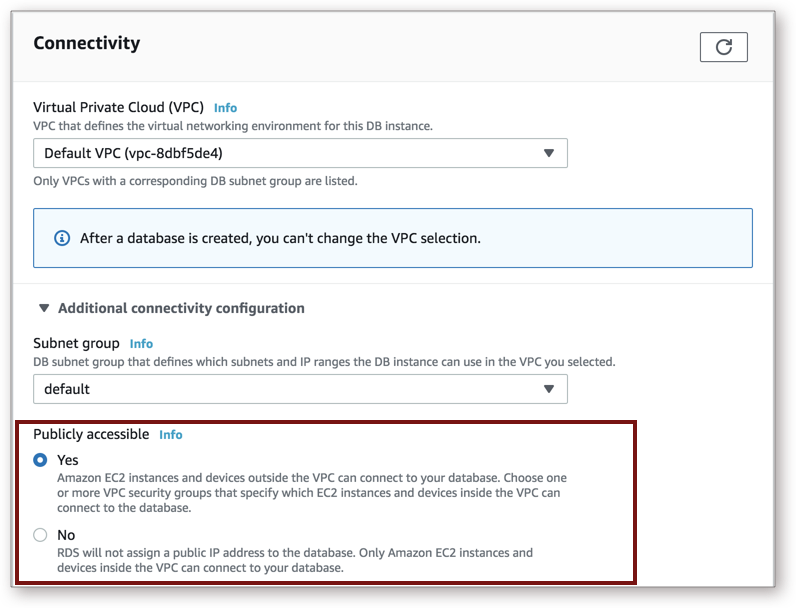 Note: If you don’t want to enable the Public accessibility option, you can connect to the Amazon RDS database using Zoho Databridge.
3. I am unable to find the Live Connect option while importing data into Zoho Analytics. What could be the possible reasons?
You will be able to connect live in Zoho Analytics only if,
- You have a paid or trial plan.
- You are importing data into a new Workspace in Zoho Analytics.
Note: Zoho Analytics does not permit the import of data into an existing Workspace using the Live Connect option.