Databricks
Configure Connection Details
- Click Import Your Data > Databases & Datalakes.
- Choose Databricks from the listed data sources.
- Select the Host Server Type, Cloud Server or Local Server based on where the data is stored or available.
Cloud Server
- Choose the Cloud Service Provider.
- Databricks: Specify the End Point.
- Azure: Specify the Server Name.
- Specify the HTTP path.
- Specify the Username and Password.
- Specify the Catalog Name and Database Name.
- Choose How to connect to the database for retrieving the records.
- Connect directly using IP addresses: You must allowlist Zoho Analytics IP addresses to use this method.
- Connect through agent : Zoho Databridge is an utility tool that helps fetch the data hosted in private networks. Ensure to have the latest version of Zoho Databridge.
- The Use SSL checkbox is enabled by default to encrypt and secure the data transmission process.
- Select the checkbox Use SSL Tunneling to secure data transmission.
- Specify the SSH Host Name, SSH Port, SSH Username, and SSH Password.
- Click Next.
Local Server
- Specify the Database Host Name and HTTP Path.
- Specify the Username and Password.
- Specify the Catalog Name and Database Host Name.
- Select the Databridge which has access to the database. Refer to Zoho Databridge article to learn more.
- Specify the SSH Host Name, SSH Port, SSH Username, and SSH Password.
- Click Next.
Choose Data to Import
Once the connection details are configured, you need to decide which data you want to import from Databricks. Zoho Analytics offers a range of import options, including Single Table, Multiple Table, and Custom Query to support various data structures and analysis needs.
Single Table
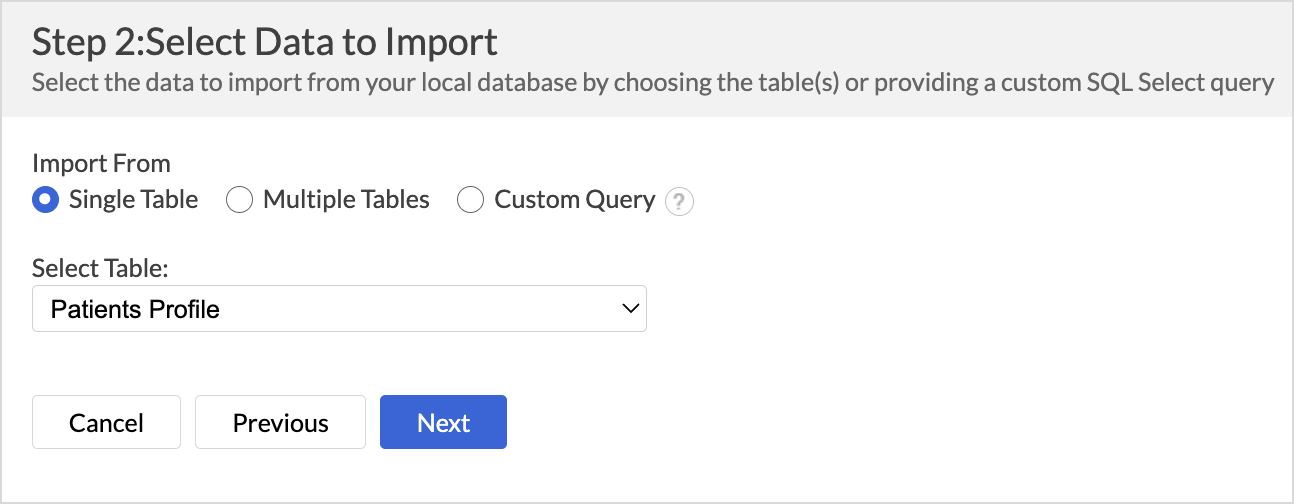
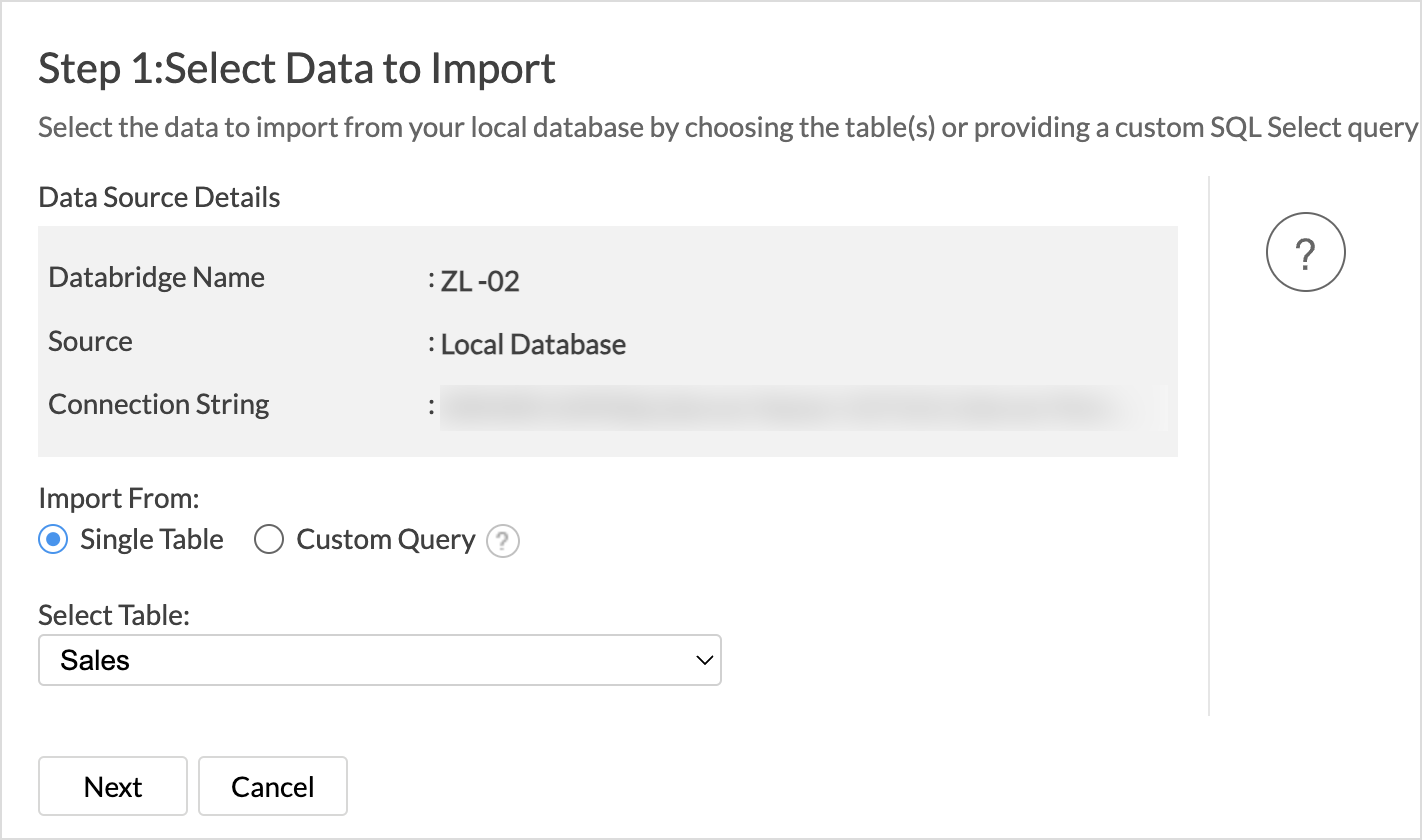
- Select Single Table from the Import From section.
- Choose the table to import from the Select Table drop-down menu.
- Click Next to continue.
- The Import Settings and Preview wizard will open.
- You can edit the Workspace Name, Table Name, and add a description if needed.
- The Data Preview section displays the first few records of your data; you can verify the column name and the data type.
- Unselect the checkbox adjacent to the column header to Remove Column from importing.
- On Import Errors section allows you to specify how to handle error conditions in case they occur while importing data. The following are the possible options:
- Set Empty Value for the Column (default): Sets an empty value to the corresponding column value which had problems while importing.
- Skip Corresponding Rows: Skips the corresponding rows in which an error occurs while importing.
- Don't Import the Data: Aborts the import process if any error occurs during importing.
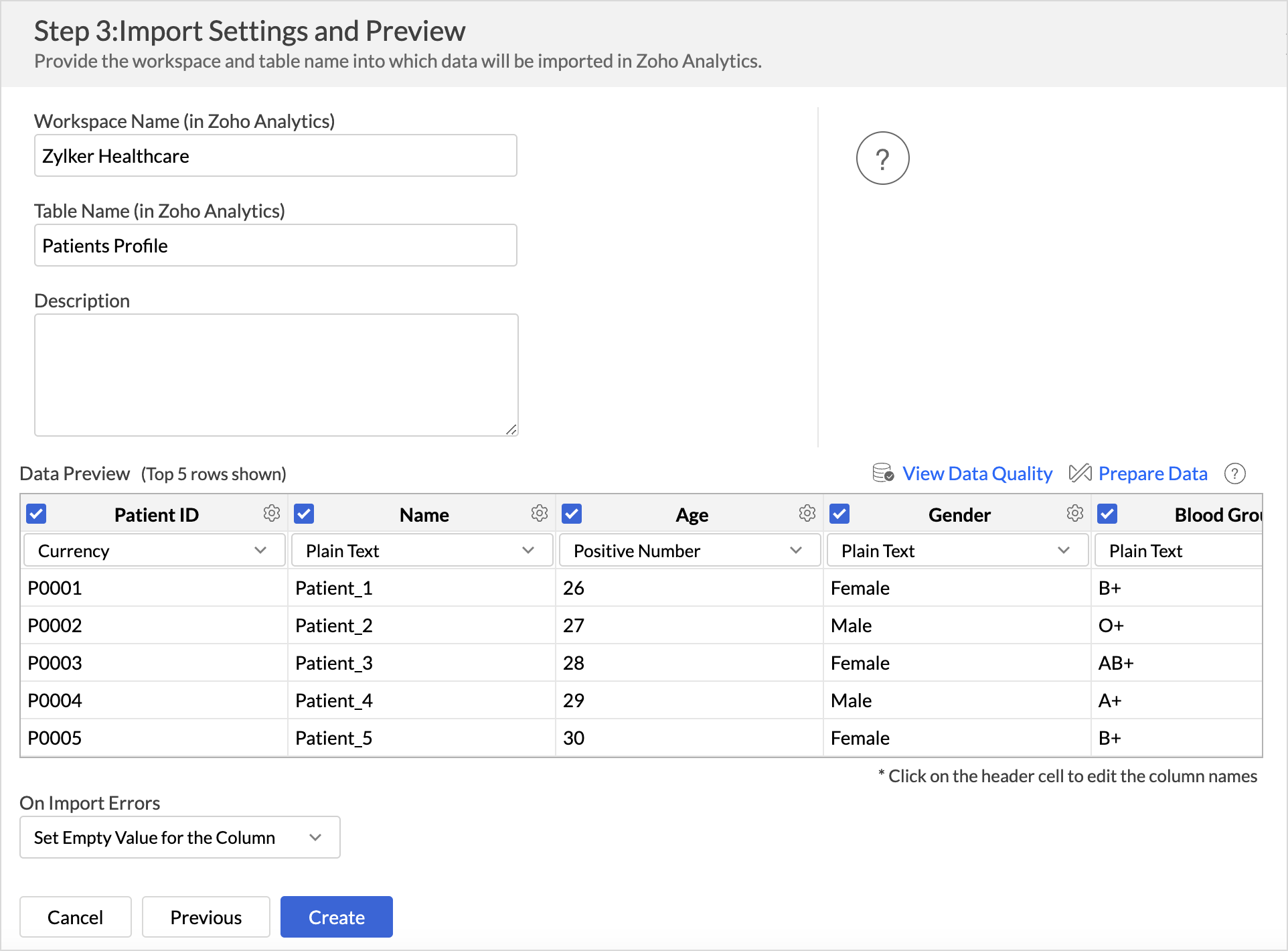
- Click Create. Data import will be initiated, and you can also choose to schedule the import.
Multiple Tables
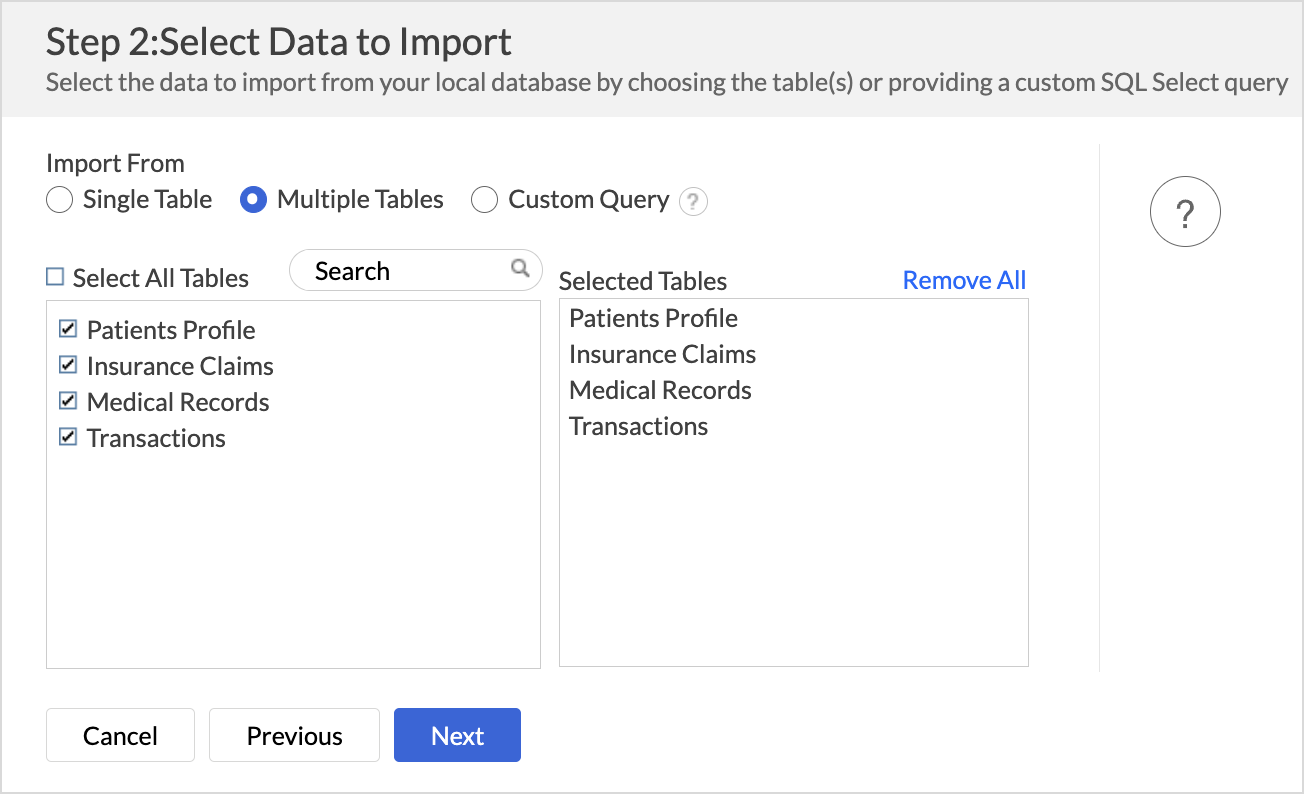
- Select Multiple Tables from the Import From section.
- Choose the tables to be imported.
- Click Next to continue.
- In the Import Settings page that opens, specify the Workspace Name that is to be created in Zoho Analytics. You can also provide a Description about the workspace.
- Click the Edit icon that appears on mouse hover to edit the Table Name.
- Specify how to handle errors that occur during import in the On Import Errors section.
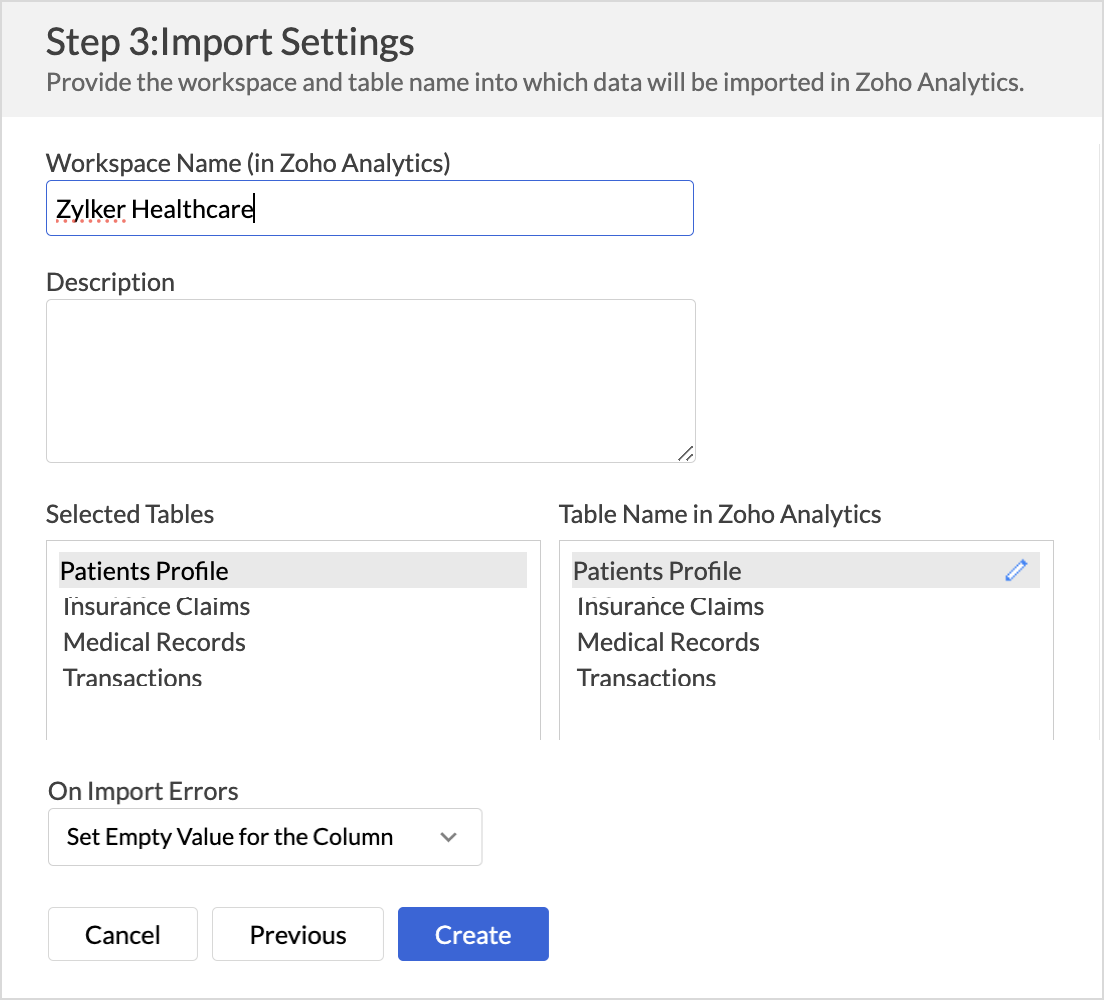
- Click Create. Data import will be initiated, and you can also schedule the import.
Custom Query
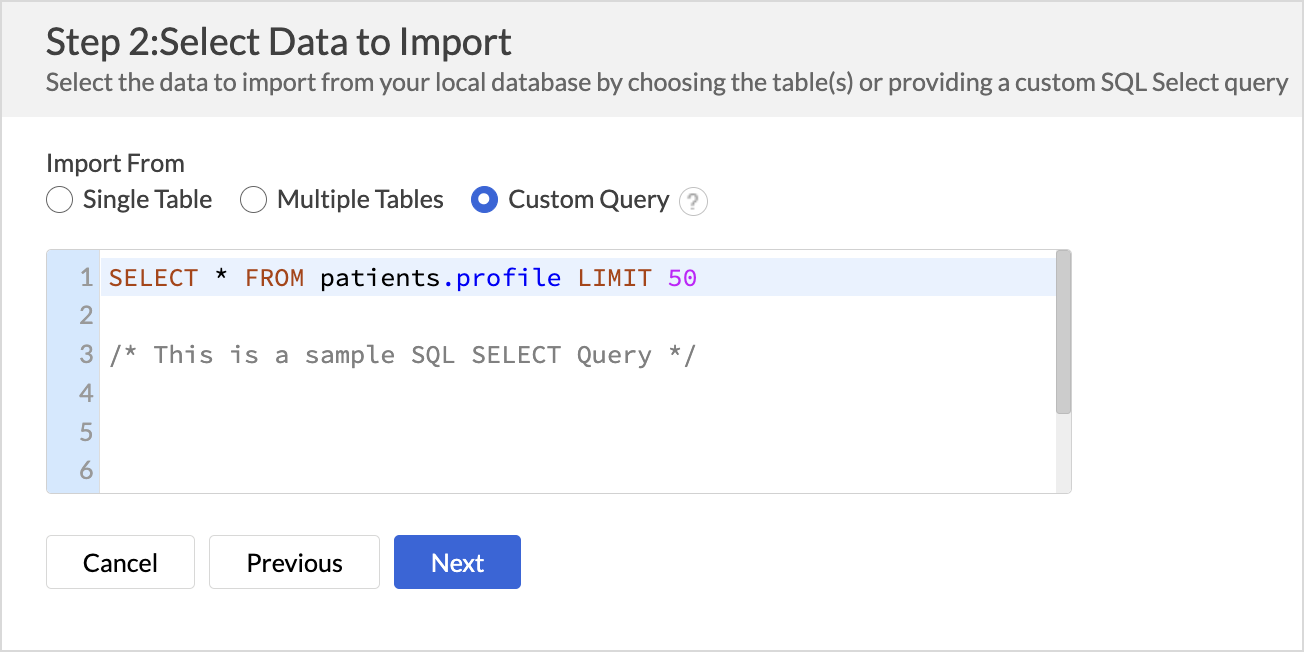
- Select the Custom Query option and provide the SQL SELECT query in the given text area.
- Click Next to continue. The successive steps are similar to importing data from a single table.
Schedule Data Import
Data Refresh
Data freshness is important for effective analysis. Zoho Analytics allows you to configure what data should be fetched in each schedule.
- Import all records: This option imports all the records in each schedule Refer to the Schedule import article to learn more.
- Incremental Refresh: This option imports only the new and updated or modified records into Zoho Analytics.This method is beneficial when the database contains transactional records that get updated frequently. Refer to the Incremental Fetch article to learn more.
Follow the below steps to configure the Import synchronization settings (data refresh settings)
- Once you have initiated the data import, Click Schedule this Import.
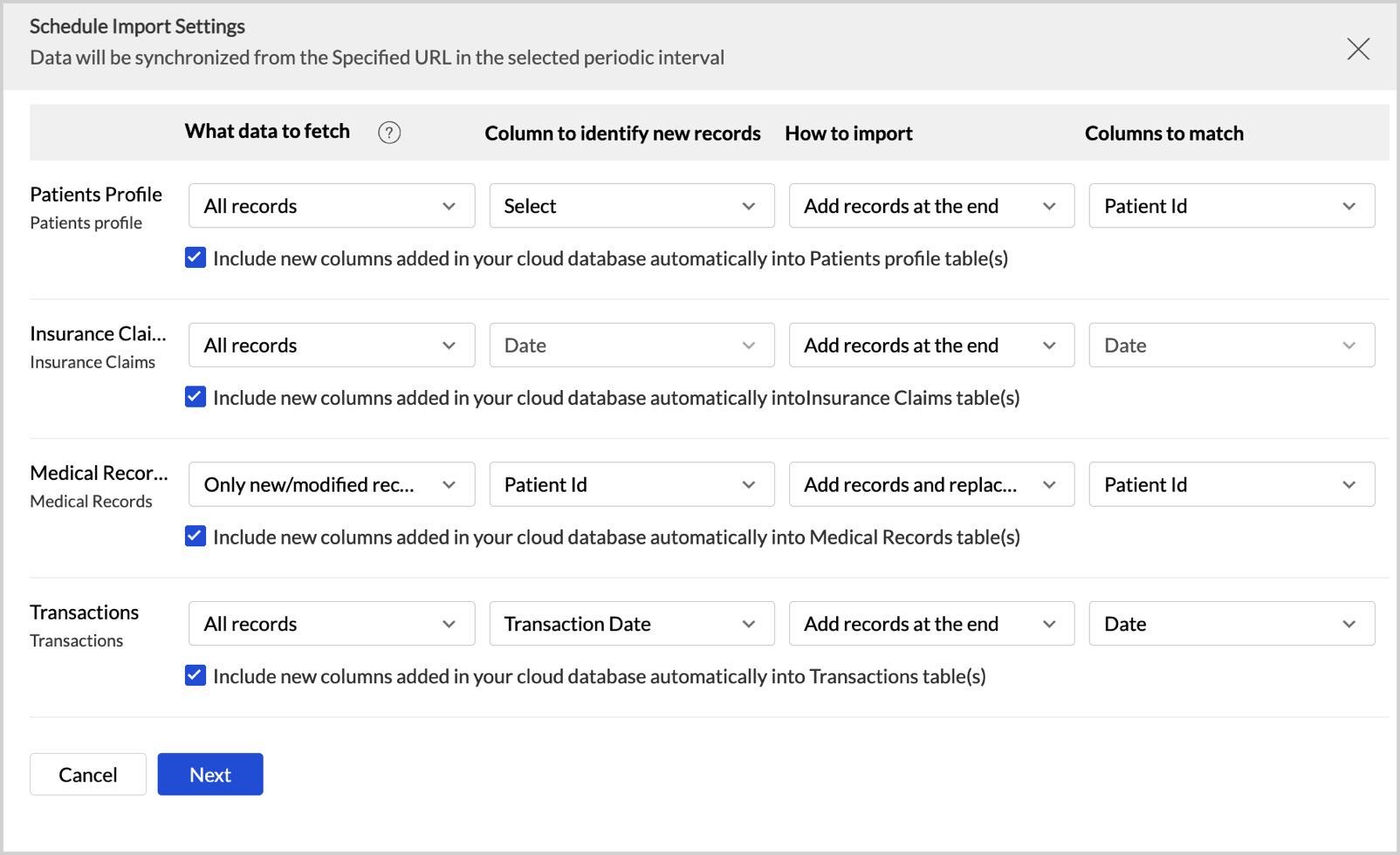
- Choose What data to fetch in each schedule drop-down menu. You can choose to import all the records or incrementally fetch only the newly added or modified records.
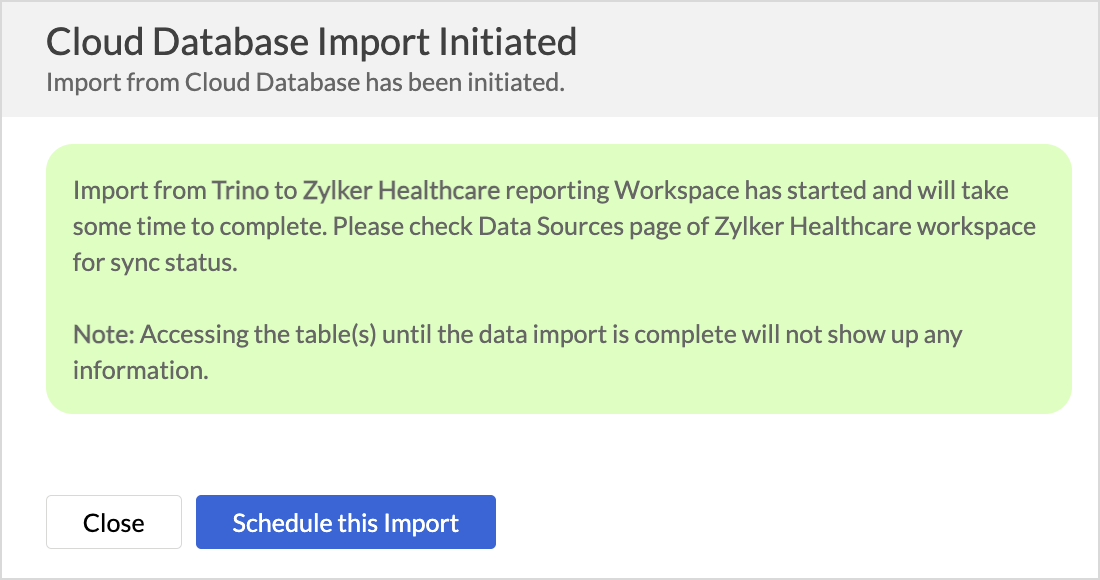
- Choose How do you want to import the data?
- Select Include new columns added in your cloud database automatically into Zoho Analytics table(s) to import data from newly created columns in the subsequent imports.
- Click Next.
Data Sync Frequency
Zoho Analytics offers flexible sync schedules to ensure that the data is always up-to-date for effective analysis.
- In the Schedule Setting pane, choose the interval in which you would like to synchronize the data. You can choose to synchronize your data at one of the intervals mentioned below.
- Every 'N' hour
- Everyday
- Weekly Once (Standard plan and above)
- Monthly Once (Standard plan and above)
- Selecting Not Scheduled will import the data only once, i.e., at the time of import.
- In the case of continuous import errors, you can choose to be notified via email. To get notifications, select the interval at which you need to be notified from the Notify me after every drop-down menu. You can also choose to notify the Account Admin, All Workspace Admins, All Organization Admins, or any Custom User.
- You can also choose to notify the Account Admin, All Workspace Admins, All Organization Admins, or any Custom User.
- Enable the Periodically Fetch toggle button to initiate a full fetch of records. The frequencies are available based on the selected intervals.
- Choose the required interval and click Save.
Refer to the Multiple Sync Schedule interval section to learn how to sync different tables at different sync intervals.
Import Rollback
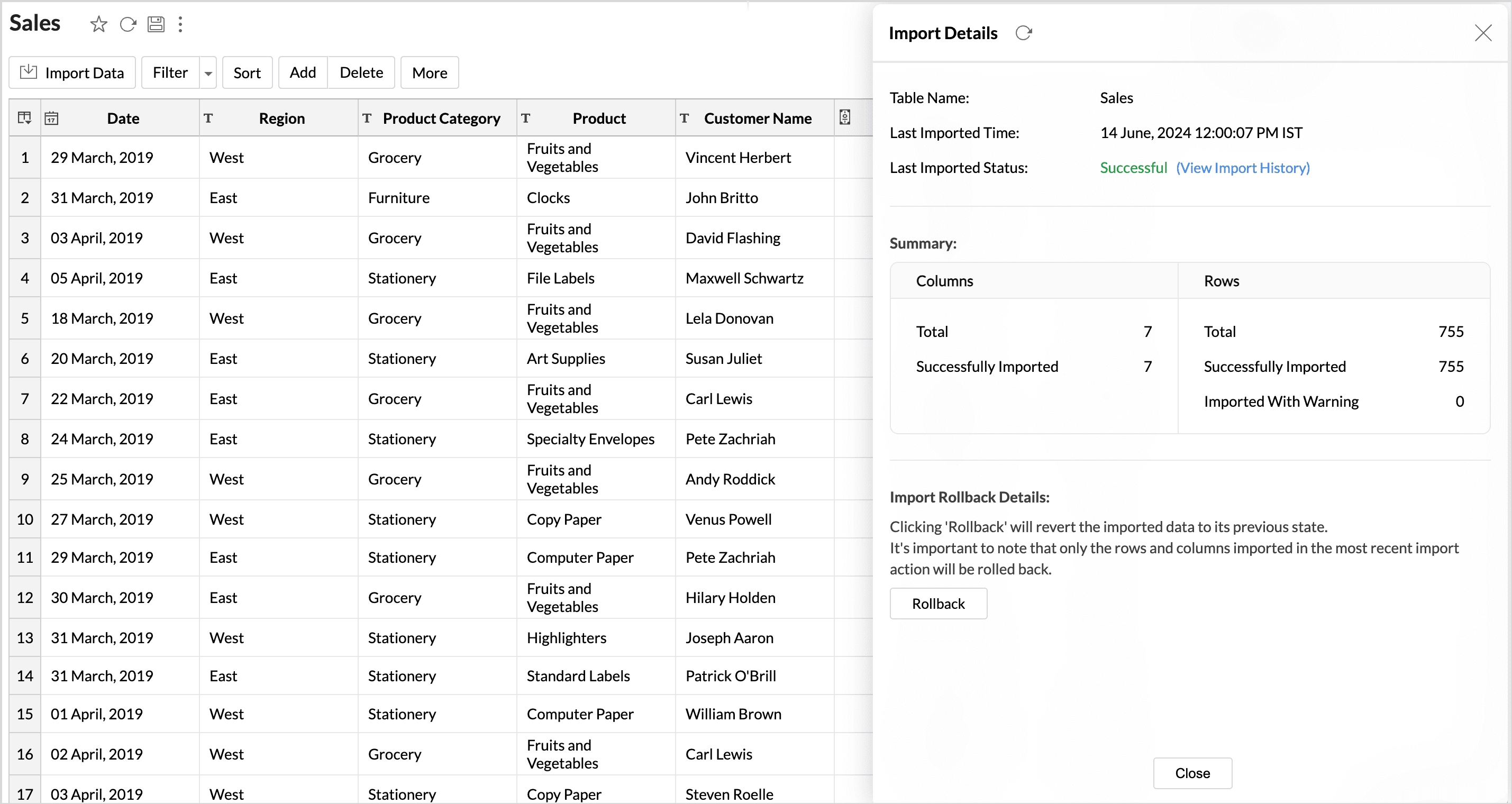
Import rollback reverts the most recent data import to the previous version. Users with administrator privileges and custom role users with permission to create tables can perform this action. Rollback facilitates the correction of errors in data without disrupting operations and also minimizes data loss. It is useful in collaborative environments where multiple users access the data and make changes.
Note:
- Data can be reverted to its previous state within 4 hours of the import.
- Deleted columns will not be reverted during the import rollback.
Any actions, such as adding a new column, creating formulas, formatting columns, and having lookups defined, will be preserved during the import rollback.
Follow the below steps to revert the data import to the previous version,
- Access the data table, which needs to be reverted.
- Click Import Data > Last Import Details.
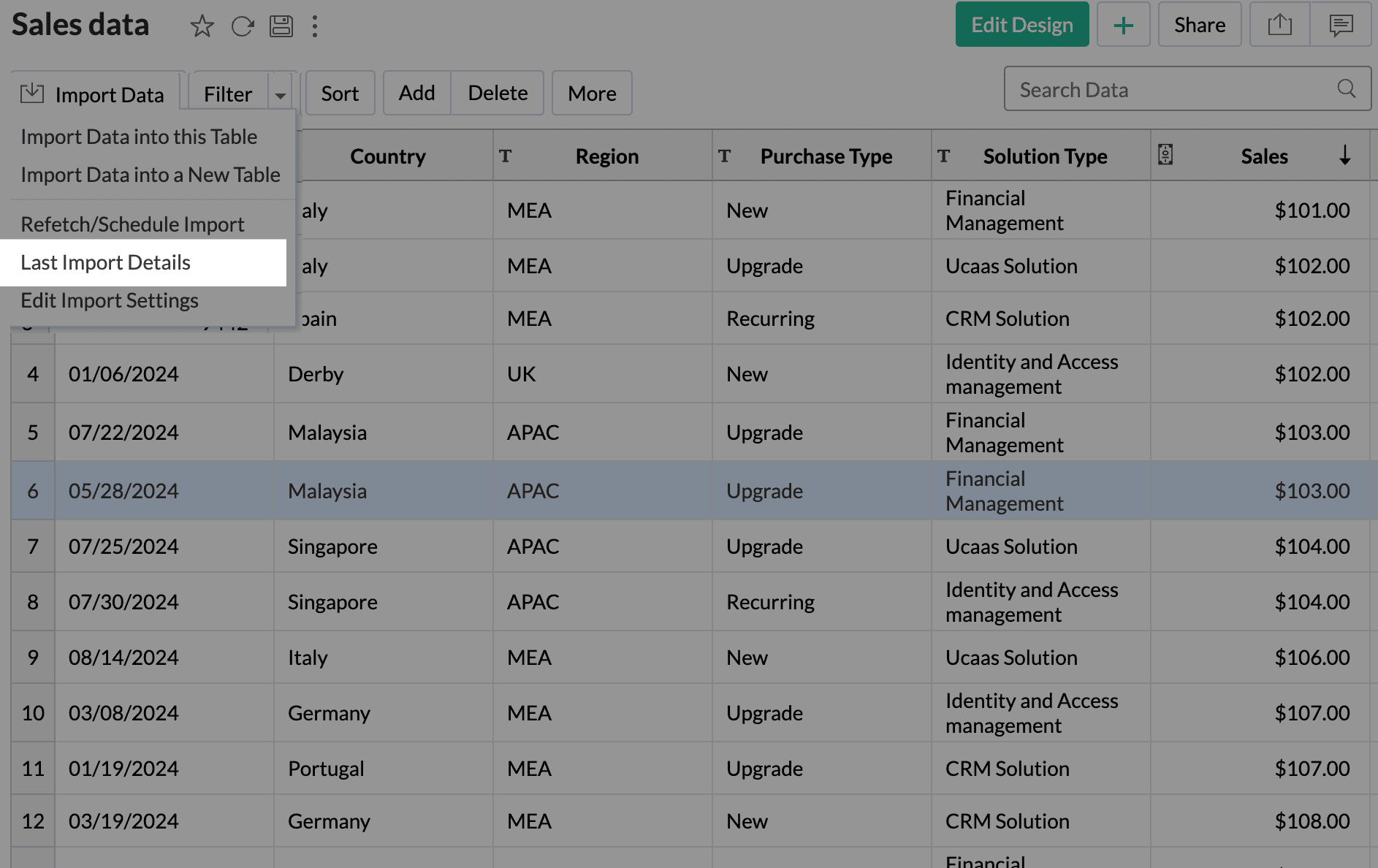
- Click Rollback to revert to the previous instance.
- Import rollback will be initiated, displaying the status along with the details of the admin who performed the action and the time of execution.
Live Connect
Live Connect enables direct, real-time connection to the data source, ensuring that up-to-the-minute data is used for analysis. In this method, the data is not imported or stored within the Zoho Analytics application. Refer to the Live Connect article to learn more.
Manage Data Source
The Data Sources tab is the central hub that helps manage all the connection settings of the data sources in the workspace. It also helps keep tabs on the data sync status and notifies in the case of data sync failures. User with the Administrator Privilege can access the data sources tab and make necessary changes when needed.
Edit Connection
Enables admins to re-authenticate and update the connection details such as credentials or configuration settings without causing any interruption to the existing data flow.
Sync Settings
Helps manage and modify the frequency of data synchronization (e.g., change from daily to hourly syncs) based on the current needs of your analysis. In case of a sync failure, you can specify which users should be notified. You can manage the periodic fetch settings for the tables where only the newly added records are imported. Refer to the Schedule Import section to learn more.
Configure Multiple Sync Intervals
Zoho Analytics allows you to configure multiple sync schedules for the tables in a connection, that is, tables can be synced at different timeframes. Refer to the Multiple Sync Schedule article to learn more.
Audit History
Audit logs are crucial for maintaining security and troubleshooting issues. They provide a comprehensive record of User and System Actions, including details of the time when the action occurred and information about the administrator who performed the action. Audit logs are maintained for each data source in the workspace.
The following are the User Actions and the System Actions that are logged in Zoho Analytics
| Type | Action | Description |
| User Action | Data Source Creation | Provides the details of the admin who configured the connection with the application |
| Table Creation | Provides the details of the New Tables added to the workspace. | |
| Remove Table from Data source | Provides details of the tables that are deleted. | |
| Edit Setup | Provides the details about the Configuration changes like re-authentication, enabling or disabling SSH. | |
| Import Settings | Changes in data fetch settings | |
| Sync Settings | Changes in data synchronization settings | |
| Table-level Sync now | Provides the details of what records are fetched when the sync now option is used | |
| System Activities | Schedule Import | Fetching data at the scheduled intervals. |
Select any action in the audit history to view complete information about the action performed.
Sync History
Provides a detailed record of data synchronization activities, making it easy for the administrators to track the status of each data sync. The sync operations are color-coded for immediate recognition. Successful data syncs are indicated in green, signaling that the data sync is completed without any issues. Failed data syncs are marked in red with the reasons for failure along with the necessary action to be taken.
Manage Table Synchronization Settings
Zoho Analytics provides flexible data fetch options like full data and incremental fetch, which imports only the new records. Each table can have different data fetch configurations. All the tables imported from the database will be listed with the Table and Source Table Name, What data is fetched in each sync, Last Fetch Time, and its Sync status.
- Hover the mouse over the table for which you want to modify the settings.
- Click the Sync Now icon to include the recent changes made in the source database. The data records are imported based on the type of Data Fetch configured for that table. In the case of tables where only new records are imported, you can also choose to do a Full Data Fetch.
- Click the Edit icon to modify the synchronization settings of the table. You can choose whether all the data should be fetched from the source or only the new records in each data sync schedule.
- Click the Sync Now icon to include the recent changes made in the source database. The data records are imported based on the type of Data Fetch configured for that table. In the case of tables where only new records are imported, you can also choose to do a Full Data Fetch.
- Click the Delete icon to remove a table. This will terminate only the data synchronization between the source table and Zoho Analytics. The lookups and the relationships defined, and the reports created over that table, will all be retained.
- Click the Info icon to view the Import Details. Get a Summary of the data that were successfully imported and the data that had errors while importing
Resolving Sync Failures
Data synchronization can fail if the credential provided is invalid or expired, or if the data type mismatches. Zoho Analytics sends an email to the workspace admin and also sends an in-app notification with the reason for failure along with the necessary action to be taken to resolve the issue. Access the Data Sources tab to resolve sync failure. Refer to the Edit Setup section for more details.
Data Blending
Combine data from various data sources, such as Files, Feeds, Cloud storage Databases, and Business applications, for in-depth analysis. While importing data in an existing workspace, Zoho Analytics auto identifies columns of the same data type and provides suggestions for lookup. With Query Tables, you can combine data from different tables in the workspace. Use query tables to import data
To import data into an existing workspace, Click the Create icon on the side navigation panel and choose New Table/Import Data from the drop-down menu. Successive steps are similar to the steps mentioned in this section.
Import Data into an existing table
- Click Import > Import data into this table.
- Select the table you want to import.
- Choose how you want to import the data into the existing table and select how to handle import errors.
- Click Import.