Importing from CUBRID using Zoho Databridge
Zoho Analytics allows you to import data stored in the Cubrid database using the Zoho Databridge. You can also automate the import process to synchronize the data from your local /hosted Cubrid database into Zoho Analytics in a periodic interval. Report loading time will be faster as the data is stored in Zoho Analytics.
The Zoho Databridge bridges your local Cubrid database and Zoho Analytics server to fetch data from your local/hosted Cubrid database. With this, you can also automate the import process to synchronize the data from your local/hosted Cubrid database into Zoho Analytics at a periodic interval.
Data Import
1. How do I install Zoho Databridge?
2. How do I import data from the Cubrid database using Zoho Databridge?
To import data from local Cubrid database, it is mandatory to install Zoho Databridge. Refer to the previous question to know how to Install.
3. How long does it take for the data to be imported into Zoho Analytics?
Import will take from a few minutes to hours depending on the volume of the data. Please note that, if you access the Workspace before the initial fetch, it will not display any data.
4. How can I edit the Import setup?
You can edit the import setup anytime needed by following the steps below.
- Open the workspace.
- Click the Data Sources tab from the left bar.
- All data sources for this workspace will be listed. Click the Cubrid data source that you want to edit.
- The Data Sources page will open. Click the Edit Connection link.
- Modify the settings as needed and click Save. The connection details will be saved.
5. How can I schedule Import from Cubrid database?
Zoho Analytics allows you to schedule the import anytime. You can schedule the import for an existing table by following the steps below.
- Open the workspace.
- Click the Data Sources tab from the left bar.
- All data sources for this workspace will be listed. Click the Cubrid data source for which you want to schedule the import.
- The Data Sources page will open. Click the Sync Settings link.
- The Local Database - Synchronization Settings dialog will open.
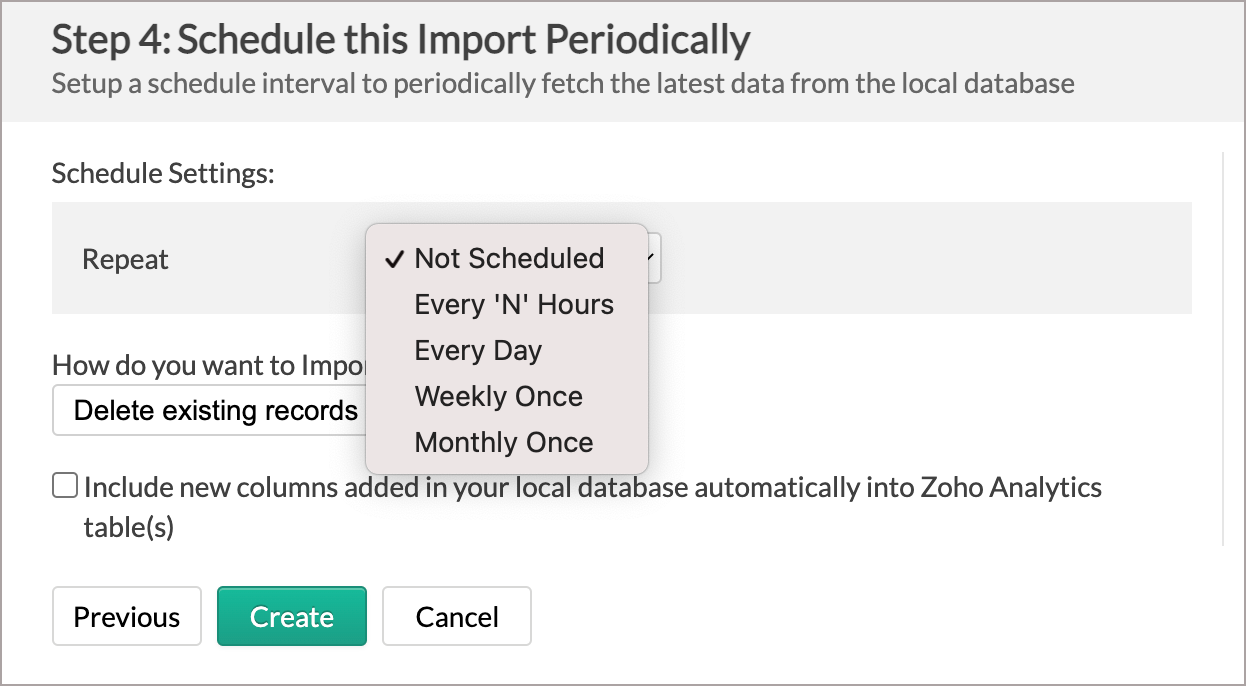
- Select the schedule interval you need in the Repeat drop-down. Supported intervals are:
- Not Scheduled
- Every 'N' Hours
- Every Day
- Weekly Once
- Monthly Once
- Select when the data needs to be imported in Perform every option.
- In the Notify me after every Sync Failure(s) option, set the number of consecutive import failure after which you need to be notified.
- Click Save. The data for your Cubrid database will be imported into Zoho Analytics in the set interval.
You can also schedule the import while initial import using the Schedule Setting option in the Step 4 of Import Wizard.
6. Will I be notified on import failures?
Yes, you can be notified after consecutive import failures, in case it occurs. To get notified of import failures, you need to set the number of consecutive import failures after which you need to be notified in the Notify me after every Sync Failure(s) option of the schedule import.
7. Import from Cubrid database that is hosted in the cloud fails. How to solve this?
Import from the database may fail when the Databridge does not have the privilege to access the data. In case your database security system only allows access from restricted IP Addresses, then it will blacklist the server/machine where Databridge is installed. Ensure that you have whitelisted the IP Address of the machine/ server where the Databridge is installed.
8. Can I import data from Cubrid database into an existing Zoho Analytics Workspace?
Yes, you can import your data from Cubrid into an existing Workspace.
Follow the below steps to import data into an existing workspace:
- Open the Workspace into which you wish to import the data.
- Click Create > New Table / Import Data.
- The Import Your Data section will open. Click the Local Databases tab.
- The Import Wizard will open. Configuring the import will be similar to the steps followed in this presentation.
9. Can I import data from Cubrid database into an existing table in Zoho Analytics?
Yes, you can import data into an existing table if you are importing from the same source database as the imported table. To do this:
- From the required table, click Import Data > Import into this Table.
- The Select Data to Import tab of Import wizard will open.
- You can choose to import from a different table using the Select Table option or import using the Custom Query.
10. I have synced data from database into a table. Can I change the data source of this table?
Yes, you can change the data source of a table, into which the Cubrid database has been synced. To do this:
- Open the workspace.
- Click the Data Sources tab from the left bar.
- All data sources for this workspace will be listed. Click the data source you want to edit.
- The Data Sources page will open. Click the Edit Connection link.
- In the Local Database - Edit Connection dialog that open, modify the data source. You can also change the Databridge that fetches the data.
- Click Save to implement the changes made.
11. Can I import data from the Cubrid which are hosted in various networks/private cloud?
Yes, you can import from various databases that are hosted in different networks by installing multiple Databridges. You need to install various Databridges for each network. To link all the Databridge installations to your account, use the same installation key available in the Download dialog.

Note:
- Single Databridge installation can import data from various data sources available in the same network.
- You can install only one Databridge per machine.
12. Will foreign keys defined between my tables in Cubrid database be linked in Zoho Analytics as well?
Yes. In case you have linked two or more tables in your database using foreign keys, they will be linked automatically using a Look-up column in Zoho Analytics as well. You can also create lookup columns manually using the Lookup feature available in Zoho Analytics. Learn more.
13. Can I change the data type of the columns imported in Zoho Analytics?
Yes, you can change the data type of the columns imported into Zoho Analytics. However, it is necessary that the data type of your column is compatible with the data type of the column in your Cubrid database for successful data synchronizations. It is always recommended that you change the data type in both your Cubrid database as well as your Zoho Analytics Workspace.
14. Can I import tables from the same database into multiple workspaces in Zoho Analytics?
Yes, you can import tables from the same database source to multiple workspaces in Zoho Analytics. Read more about import.
15. How do I remove the import setup?
You can remove the import setup by following the steps below.
- Open the workspace.
- Click the Data Sources tab from the left bar.
- All data sources for this workspace will be listed. Click the data source you want to remove.
- In the Data Sources tab that opens, click the Settings icon.
- Click the Remove Data Source option from the drop-down menu.
Please note that this only removes the connection. You can still continue accessing the workspace in Zoho Analytics.