Zoho Databridge
Setup Zoho Databridge
1. What is Zoho Databridge?
Zoho Databridge is a lightweight independent utility that bridges your data source and Zoho Analytics server to enable easy data import. Using this, you can import data you have stored in a local or hosted database such as MySQL, MS SQL Server, Oracle, PostgreSQL etc.,
2. How do I install Zoho Databridge?
3. Can I independently download Zoho Databridge?
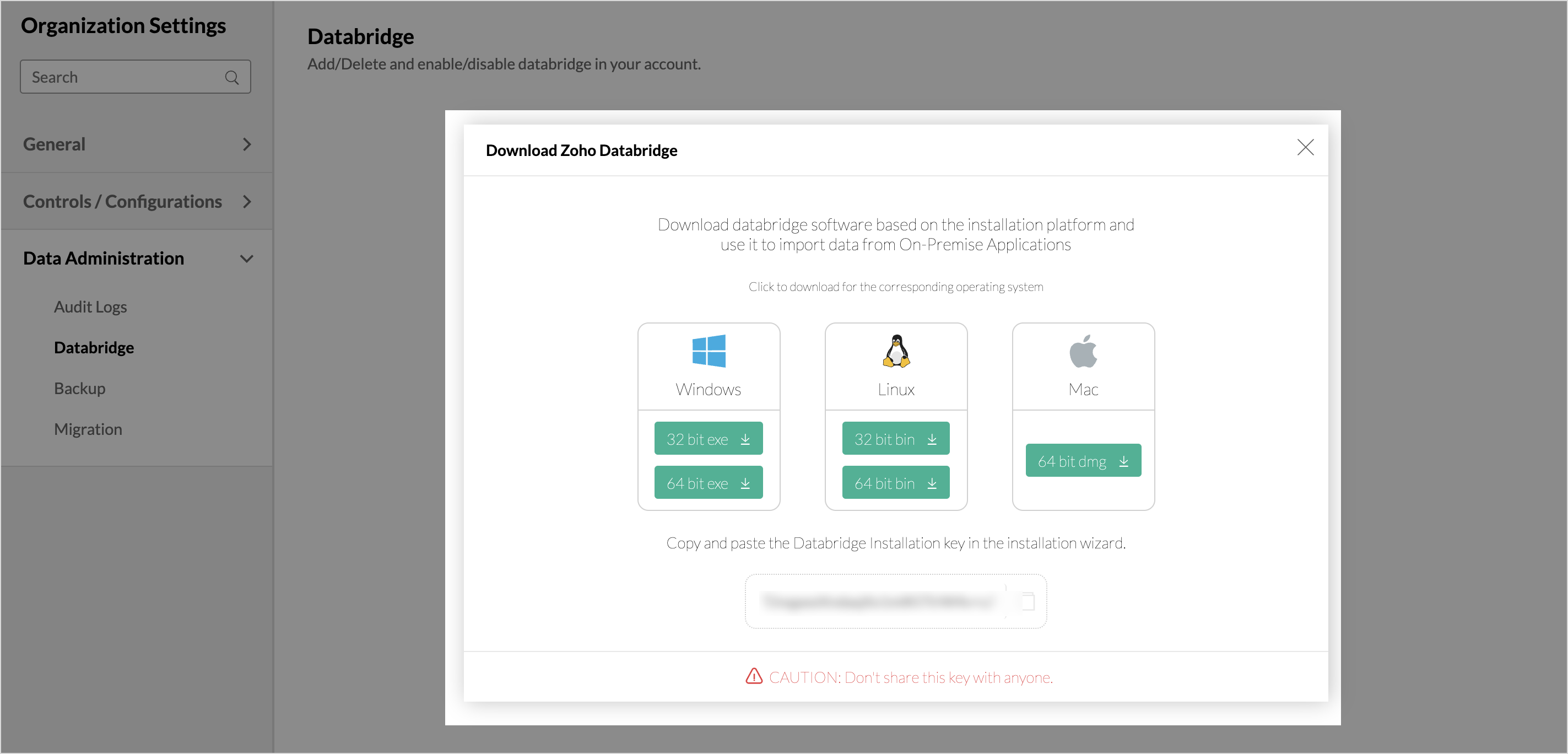
Yes, you can independently download the Databridge. Click the corresponding OS to download.
| Data Center | Download Zoho Databridge | ||
| US |  Windows Download Windows Download 32 bit exe l 64 bit exe |
 Linux Download Linux Download 32 bit bin l 64 bit bin |
 Mac Download Mac Download 64 bit dmg |
| EU | Windows Download 32 bit exe l 64 bit exe |
Linux Download 32 bit bin l 64 bit bin |
Mac Download 64 bit dmg |
| IN | Windows Download 32 bit exe l 64 bit exe |
Linux Download 32 bit bin l 64 bit bin |
Mac Download 64 bit dmg |
| CN | Windows Download 32 bit exe l 64 bit exe |
Linux Download 32 bit bin l 64 bit bin |
Mac Download 64 bit dmg |
| JP | Windows Download 32 bit exe l 64 bit exe |
Linux Download 32 bit bin l 64 bit bin |
Mac Download 64 bit dmg |
|
CA
|
Linux Download 32 bit bin l 64 bit bin |
Mac Download 64 bit dmg |
|
|
AU
|
Linux Download 32 bit bin l 64 bit bin |
Mac Download 64 bit dmg |
|
|
SA
|
Linux Download 32 bit bin l 64 bit bin |
Mac Download 64 bit dmg |
|
|
UAE
|
Linux Download 32 bit bin l 64 bit bin |
Mac Download 64 bit dmg |
|
4. How do I start/stop Zoho Databridge manually?
 Note: In Mac and Linux, you need to start Zoho Databridge everytime the machine is rebooted. Whereas in the Windows the application will be automatically started by default.
6. Can I link multiple Zoho Databridge installations into my account?
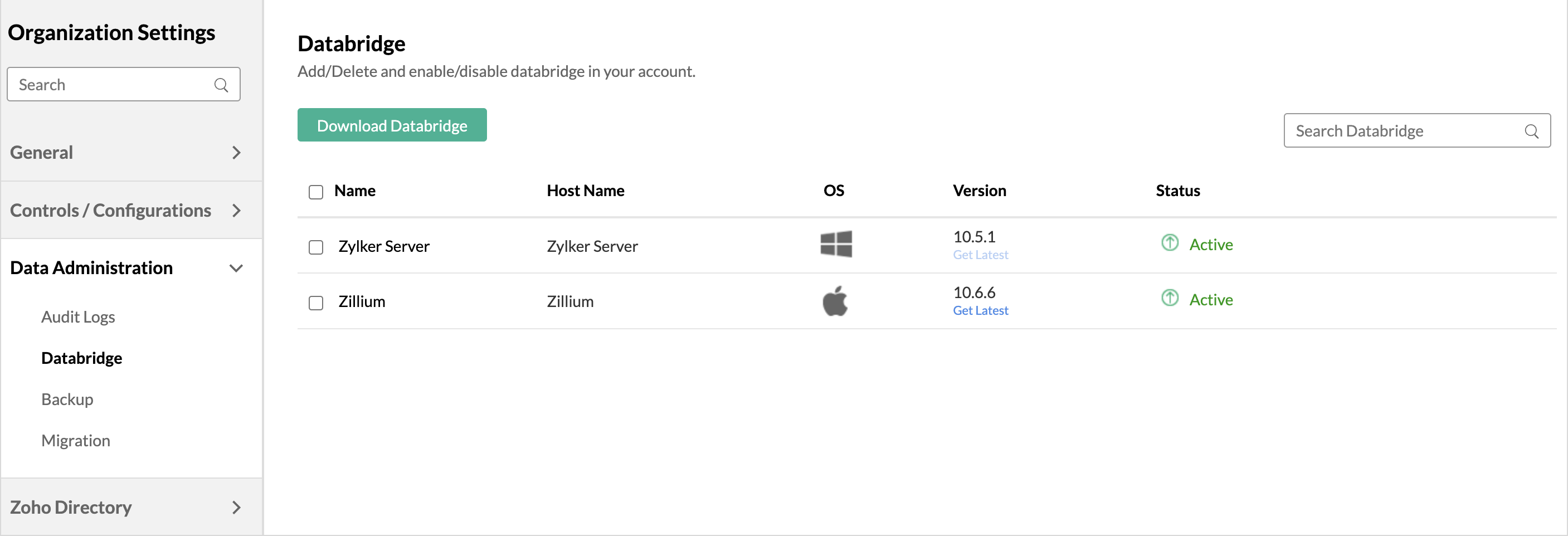
Yes, you can link multiple Zoho Databridge installations into your account. Download the Zoho Databridge from the Manage Databridge tab in the Accounts Setup page. Install using the same installation key.
All installations will be listed in the Manage Databridge tab of the Account Setup page.
- A single Databridge can import data from various data sources available in the same network.
- You can install only one Databridge per machine.
6. How do I manage all my Zoho Databridge?
Follow the below steps to do so:
- Login to your account.
- Click the Setup icon at the top right corner. The Settings page will open.
- Open the Manage Databridge tab.
- All the Zoho Databridge linked to your account will be listed here with the following details.
- The Zoho Databridge details such as Name and Version of each installation.
- The Host Name and OS of the machine where each Databridge is installed.
- The Status of Databridge. This status shows whether the Databridge is able to connect to the Zoho Analytics server.
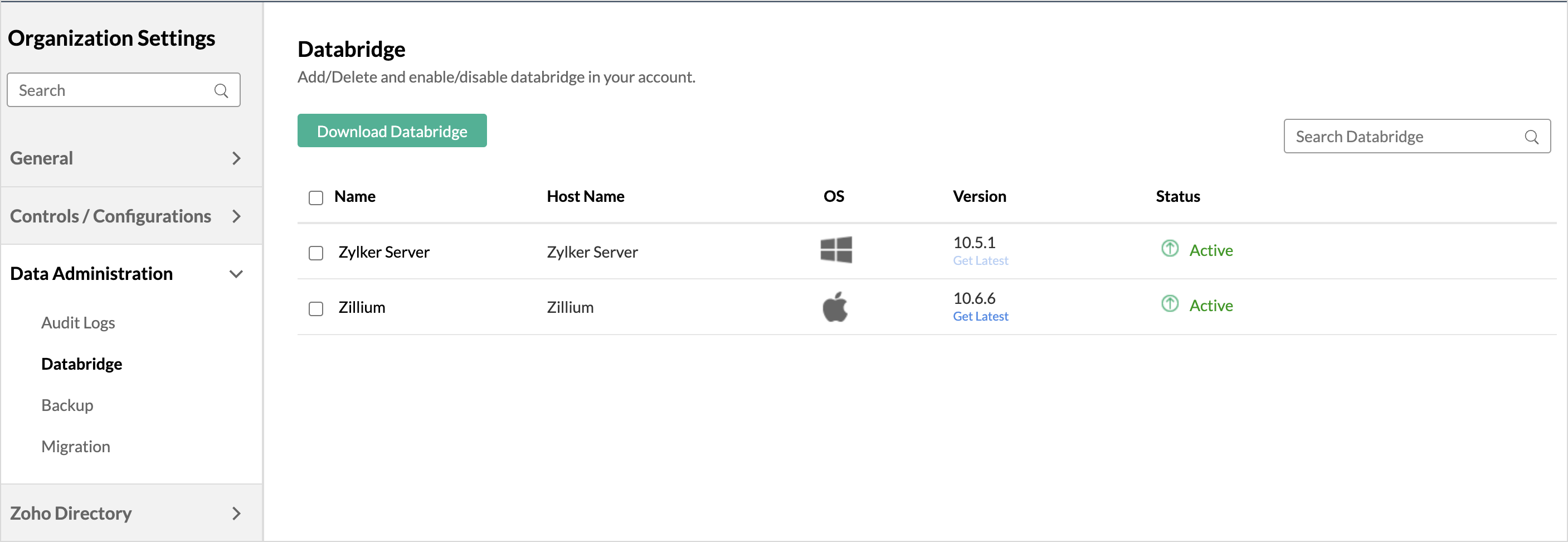
- The Zoho Databridge details such as Name and Version of each installation.
- Hover over the Databridge installation list, the contextual menu options will open. You can perform the following operations.
- Ping Databridge to check the connectivity status. This status shows whether the Zoho Analytics server is able to connect to the Databridge.
- Enable or disable the Databridge.
- Delete the Databridge.
- Ping Databridge to check the connectivity status. This status shows whether the Zoho Analytics server is able to connect to the Databridge.
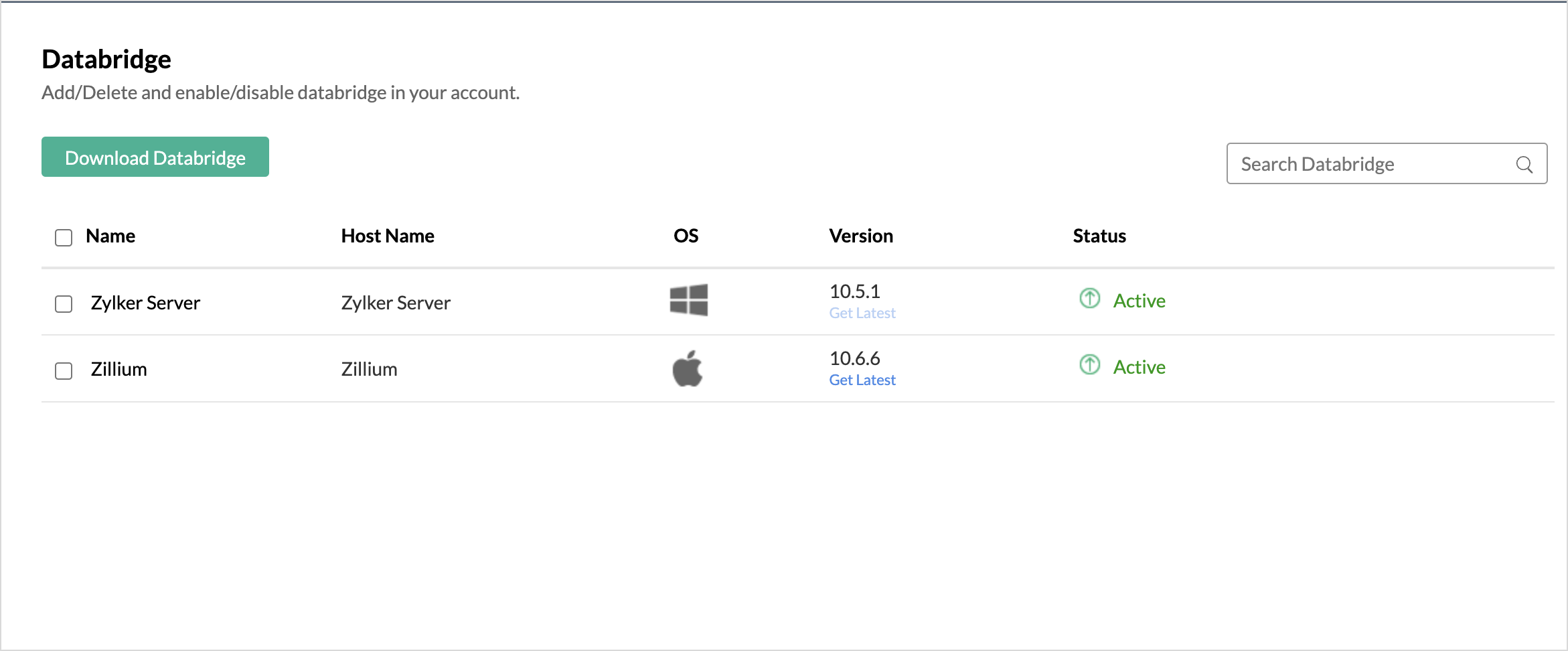
You can also enable, disable or delete multiple databridge together by selecting the corresponding checkboxes and then select the option at the top bar.
7. Why is my Zoho Databridge Status shown as in-active?
The Zoho Databridge status will be shown as in-active when it is unable to connect to your server. Ensure the following to avoid this:
- Your data source is running.
- The server/machine where the Databridge is installed is running.
8. Can I modify the Proxy Settings after installation?
Yes, you can modify the proxy settings anytime after installation using the serveragent .config file available in the {installed location}/ZohoDatabridge/conf folder.
Modify the Proxy Settings parameters as given below and save the file.
- PROXY - Set this to true if you connect through a Proxy Server.
- PROXY_HOST - Specify the Proxy hostname.
- PROXY_PORT - Specify the Proxy port number.
- PROXY_USERNAME - Specify the Proxy username.
- PROXY_PASSWORD - Specify the Proxy password.
Restart the Databridge once the changes are done.
Note: Ensure that the proxy details are configured properly. Zoho Databridge will not be able to import data if the Proxy Settings are not properly configured.
9. Can I migrate from Upload Tool to Zoho Databridge?
Yes, you can migrate from Upload Tool to Zoho Databridge. Refer to Migration from Upload Tool to Zoho Databridge document to know more.
FAQ and Troubleshooting Tips
1. Zoho Databridge Status is Active, why am I not able to import?
This happens when the Zoho Databridge is active, but the Zoho Analytics server is unable to connect with the Databridge.
You can check the connectivity status by clicking Ping icon that appears on mouse over.
The status will be displayed as in the below screen.
In case the connectivity is poor, status is shown as failed. Try connecting after sometime.
2. Databridge becomes In-active after I close the terminal in Linux / MAC. How to overcome this?
You can overcome this by using nohup in Linux and MAC to start Databridge as shown below. This prevents Databridge from getting killed after closing the terminal.
3. I get an error message "Error Connecting with databridge, please check your connection with your databridge." How to overcome this?
There might be a connectivity problem in reaching the Databridge. Restart the Databridge and try connecting your data source.
4. I get an error message "Sorry, there is a problem in connecting to your local data source. Check your connection details and try again." How to overcome this?
This error occurs when Zoho Analytics server is not able to connect with your data source. Ensure the following to avoid this error.
- The connection details you have specified in the Import wizard are proper.
- Your data source is running.
- The server where the Databridge is running has the privilege (or whitelisted) to connect to the data source hosted in the private cloud.
5. I have installed Databridge and started. But, the Databridge is not getting listed in the Manage Databridge page. How to overcome this?
Check whether the server where the Databridge is running is able to reach *.zoho.com domain. Once the network connectivity issue is resolved, restart the Databridge.
6. I get an error message "OutOfMemoryError: Java heap space" message during Import. How to overcome this?
This error occurs when the size of the data you are importing exceeds the default heap memory set to run the program. To overcome this, change the heap memory of Databridge.
7. Import from the cloud database fails. How to solve this?
Import from the cloud database may fail when the Databridge does not have the privilege to access the data. In case the security system of your cloud database only allows access from restricted IP Addresses, then it will blacklist the server/machine where the Databridge is installed. Ensure that you have whitelisted the IP Address of the server/machine where the Databridge is installed.