Add Rows and Columns
 Note: These options will be enabled only to users who have been provided with Write permissions while sharing by the Administrator. Refer to the topic Sharing and Collaboration to know more about permissions.
Adding Rows to a Table
After you have created a table, you can easily add rows dynamically to the table.
- From the Explorer tab of the Workspace, select the table to which you want to add the row.
- Click Add from the toolbar and then select Add Row option or right click on any cell in the table and then select the Add > Add Row option.
- The cursor will be automatically placed at the bottom row of the table.
- Enter appropriate values into the row as you would do in a spreadsheet like Excel. You can navigate across cells (left to right) by using Tab key or the left and right arrow keys.
- Once the data entry is done click Save in the toolbar.
Instead of using the Add Row option as mentioned above, you can also navigate to the end of the table and start adding your new row content in the row indicated with a * in the row number cell.
Tip:
To enter data in a cell, type the values right away or press F2 key or double-click on the cell to get into edit mode. This is similar to how a spreadsheet operates for data entry.
Modifying a Row
To modify data in an existing row, press F2 key or double-click on the cell you wish to get into edit mode and type the values you want. Save the changes by clicking Save in the toolbar.
Deleting Row(s)
You can delete one or more rows from a Zoho Analytics table. This section explains how to delete a row or multiple contiguous rows from a Zoho Analytics table.
To delete a row from a table:
- Select a row by clicking on its row header or select any cell from the row to be deleted.
- Select Delete > Delete Row(s) in the toolbar.
You can also delete multiple contiguous rows at a time from a table.
To delete multiple rows:
- Select the required rows by holding Shift key.
- Delete rows by selecting Delete> Delete Row(S) option from the toolbar
If you want to delete all rows in a column, select Delete > Delete All Rows option in the toolbar.
Note: Remember that once you delete a row, you cannot undo the deletion. It is important to back up your data before you do any delete operation.
Adding a Column
To add a new column in a table:
- From the Explorer tab of the Workspace, select the table to which you want to add the column.
- Click Add option in the toolbar and then select Add Column option.
- The Add Column dialog will open in which the details of the new column can be specified.
- Provide the column's name and select data type as shown below. You can refer here to know about various data types (column types) supported by Zoho Analytics.
- Select the This column contains Personal Data to mark this column as a column with personal data.
- A new column with the specified name will be added to the right of the table.
- Click Save in the toolbar.
Adding a Lookup Column
Lookup column relationships in Zoho Analytics are similar to Foreign key relationships in Relational Database. A lookup column is a type of column whose values will be referenced from a column in another table in the same workspace i.e., it can be used to cross-reference tables in a workspace.
In Zoho Analytics, Lookup column field displays the looked up column values as a list in a combo box to choose values instead of typing them in. Let's say a new Department ID Lookup column has been added to Employee table, whose values will be looked up from Department ID in the Department table. When editing a lookup column field, all the Department IDs existing in Department table will be displayed as a list of choices in a combo box as shown below, so that you can choose the appropriate department the Employee belongs to.
If your Zoho Analytics workspace has more than one table, you can start creating a lookup column.
To add a lookup column to a table:
- Open the table to which you wish to add Lookup column.
- From the toolbar, select Add > Add Lookup Column option.
- In the Add Lookup Column dialog box that opens, type the Lookup column name in the Column Name text box.
- Choose the column to lookup, from the list provided in Column to Lookup option.
- Select the This column contains Personal Data to mark this column as a column with personal data.
- Click OK to add the lookup column.
Note: When you define a date column to be a lookup column, Zoho Analytics will automatically derive the appropriate date function to be used to join the tables for the report. Let us say your report has sales across Month and Year. Now, Zoho Analytics will join the Month and Year data between the tables. Refer to the topics Relational Data Modeling and Joining Tables to know more about lookup column.
Deleting Column(s)
You can delete one or more columns from a Zoho Analytics table. This section explains how to delete a column or multiple contiguous columns from a table.
Note: Remember, you cannot delete a column if it has been used to create a report. Also, once you delete a column, you cannot undo that deletion. It is recommended to back up your table before you do any delete column operation.
To delete a single column:
- Select the column to be deleted by clicking on the column header
- From the toolbar, select Delete > Delete Columns(s) option.
You can also delete multiple contiguous columns at a time from a table.
To delete multiple columns:
- Select the required contiguous columns by holding Shift key.
- Delete selected columns by selecting Delete> Delete Column(s) option from the toolbar.
Deleting Dependent Column(s)
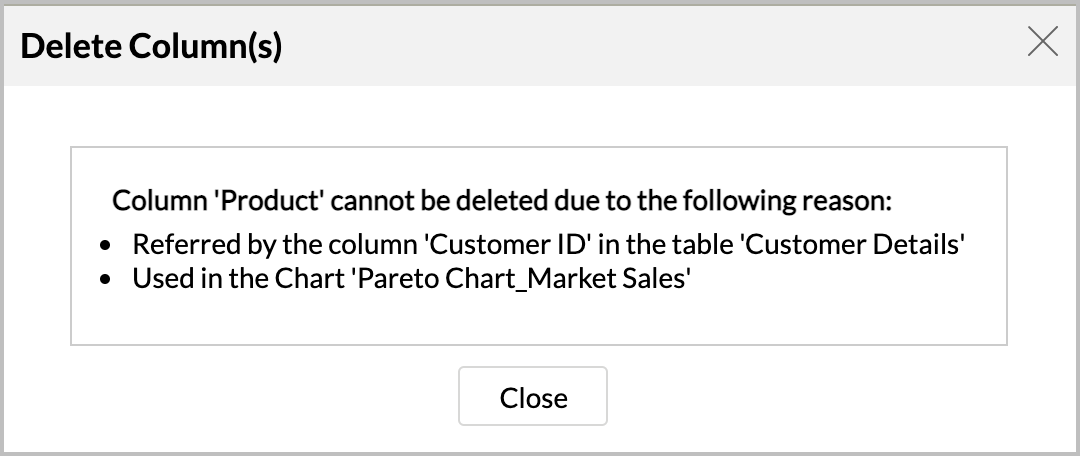
Dependent columns are those over which views/lookup columns are created. Dependent columns cannot be directly deleted as an other entity from the workspace is dependent on this column. When you try to delete a dependent column, Zoho Analytics displays an error, similar to the one displayed in the screenshot below: