Zia, powered by OpenAI
By integrating with generative AI, organizations can easily access the power of artificial intelligence without having to invest in expensive hardware or software. With this integration of Zoho Assist and Zia, technicians can harness and utilize the power of generative AI during their remote sessions to provide support to their customers effectively.
How to Integrate Zia, powered by OpenAI with Zoho Assist:
- Click on your profile picture in the top-right corner, then click View API Keys.
- In the next page, click+ Create new secret key and copy it.
 You can't come back and copy the secret key later. Make sure that you copy and paste it someplace safe for future reference.
 - Copy and paste the API key that was generated in Step 3 and click Validate.
Once the API key is successfully validated, your OpenAI account will be successfully integrated with Zoho Assist.

Note: Please do not share or publicly display the API Key, as it's a secret key to access your account.
How to use Zia for Automatic Chat Suggestions
After integrating Zoho Assist with Zia, you will be able to automatically generate chat suggestions that you can use for analyzing and responding to customers during the remote session.
- Start a remote support session by clicking Start now in the Remote Support module of Zoho Assist.
- Once the customer has joined the remote session, you can initiate a chat with them.
- To help Zia analyze the requirement and generate automatic responses, initiate a conversation with the customer via the Chat option.
- When Zia learns about the session purposes and chat responses, it will be available to generate responses to be sent to the customers.
- Click the Generate Response option. Zia will automatically generate responses to be shared in the chat.
- Click Enter to send the response that was generated by Zia.
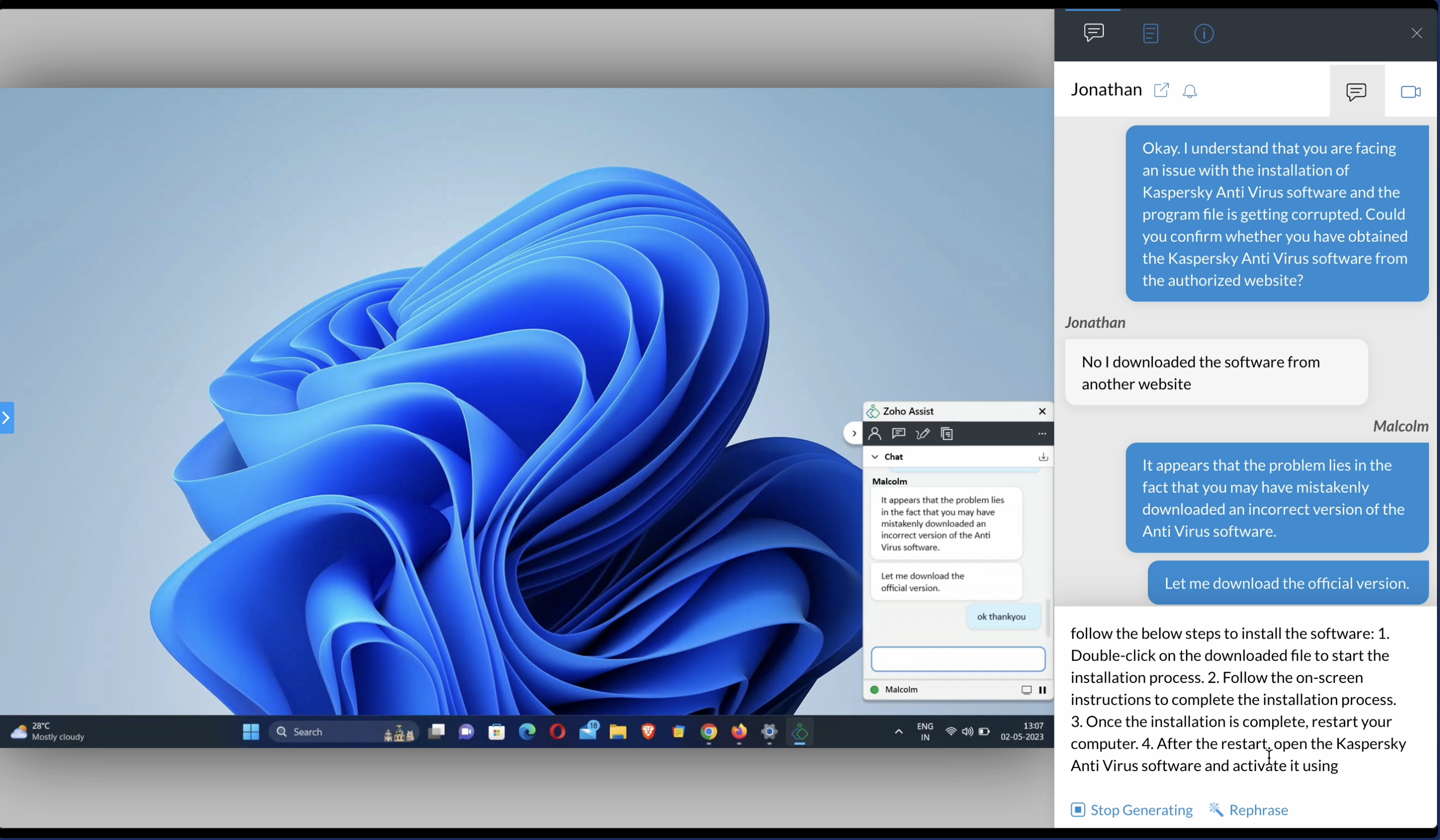
How to rephrase the chat suggestions from Zia
After Zia generates a chat response you can either choose to rephrase the entire response or a specific part of the response.
- To rephrase the entire chat suggestion, click the Rephrase option from the bottom of the chat.
- To rephrase a specific part of the response, drag and choose the part that you want to rephrase, then click on Rephrase.
This will rephrase the chat suggestion based on your requirement.
How to use Zia for Sentence Completion
You can also use Zia to auto complete your sentences.
To complete sentences, type in your initial response to the customer. Halfway into the sentence, you can click Generate response, which will auto complete the sentence that you created. You will also be able to rephrase the content for these responses.
How to use Zia to generate Session Summary
Zia can help you with generating a session summary for your sessions based on the session audit logs and chat responses available during the remote session. At the end of your remote session, you can click the Session Summary by Zia option, which will automatically generate the Session summary for you. The session summary will include the purpose of the session, a timeline of the actions performed during the remote session, and the resolution provided to the customer.