Email Deliverability FAQs | Zoho Backstage
This FAQ outlines the most common reasons emails may fail to send or deliver and explains how to verify your domain records. Please go through these checks before reaching out to support, as resolving issues with this guide will help us assist you more quickly.
1. Why are my scheduled emails failing?
Scenario 1: The scheduled email shows an error
When the mail tile turns red and the “Failed” tag appears
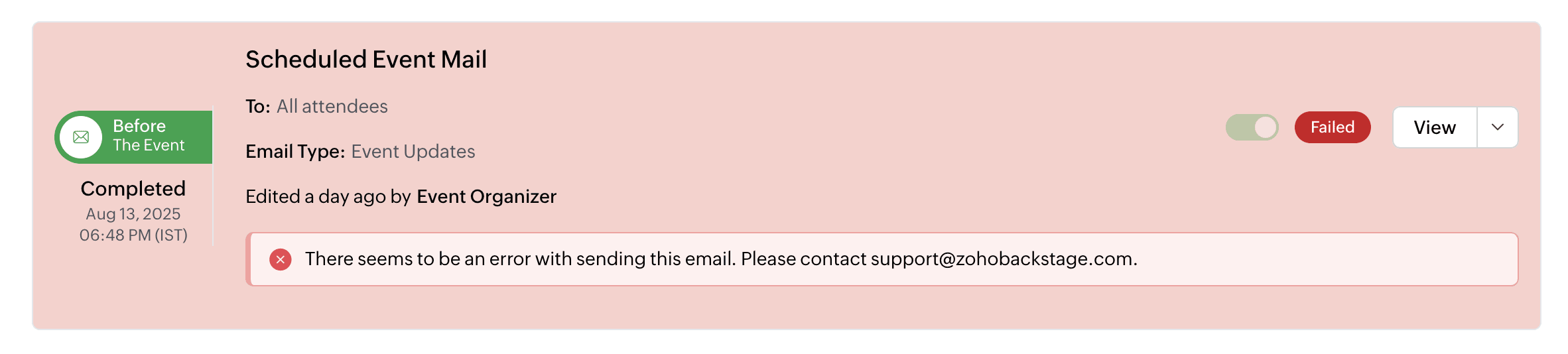
- If this happens, please reach out to our support team.
When the mail tile turns yellow and the “Unsent” tag appears

This may occur for one of the following reasons:
- The scheduled email is paused, or the Send all emails option at the event level is turned off.
- The event’s date range has been changed and published, and the scheduled email’s send time no longer falls within the allowed schedule range.
Scenario 2: The email was triggered but not delivered
If the scheduled email was successfully triggered but the recipient didn’t receive it, check your email logs for delivery status, including any bounce or failure reports. If you find delivery issues, please contact our support team with the bounce details for further help.
2. Why are my emails not being delivered?
Mails not getting delivered — Scheduled, Reminder, and Automated emails:
Case 1: Hard Bounce
The email could not be delivered and will not be retried.
Possible causes and fixes:
- Invalid email address: Verify the recipient’s email address for typos or outdated domains, then correct it and resend.
- SPF and DKIM not verified: Follow the steps in 3: How do I verify SPF and DKIM records? to fix your DNS records, then resend.
- Recipient’s mailbox full: Ask the recipient to clear space in their inbox before attempting to resend.
- Recipient’s mail server blocking emails: Contact the recipient’s IT team to whitelist your sending domain.
Case 2: Soft Bounce
The email was temporarily rejected, but the system will retry delivery later.
Possible causes and fixes:
- Recipient’s mail server is down: Wait and allow our system to retry sending automatically.
- Temporary connectivity issue: No action is needed on your end, but you can contact the recipient’s IT team to confirm if their server is back online.
3. How do I verify SPF and DKIM records?
Scenario 1: SPF verification issues
- An SPF record should be published once per domain.
- If you need to authorize multiple services, combine them into a single SPF record (not separate records).
- Use the SPF record tailored for your region/data center.
- Keep the number of include: mechanisms within the record to 10 or fewer.
- Example:
- Single service: v=spf1 include:zoho.com ~all
- Multiple services: v=spf1 include:zoho.com include:transmail.net ~all
- Use a trusted SPF checker (Zoho ToolKit) to validate your configuration.
Scenario 2: DKIM verification issues
- To verify a DKIM record, you’ll need your domain’s DKIM selector key.
- If you don’t know the selector key, check your domain provider’s settings or consult your technical team.
- Make sure the DKIM syntax is correct and the key matches what you’ve added to your DNS records.
Scenario 3: No valid SPF or DKIM entries
- Double-check that your domain’s DNS records have valid SPF and DKIM entries.
- Verify that there are no syntax errors (for example, include: should be properly formatted).
- If you update your DNS records, remember to save the changes and allow time for them to propagate.
4. Why are my emails landing in the spam folder?
This can happen if the firewall or spam filter of the recipient’s email server is blocking our emails.
What you can do:
Ask recipients to check their spam folder and mark the email as “Not Spam” or “Not Junk.” If the issue persists, reach out to support with:
- The recipient’s email address
- The full email header from the spam/junk folder delivery
5. What should I check if a recipient isn’t receiving an email?
If a customer reports they didn’t receive an expected email:
- Get the recipient’s email address.
- Check your email logs to see if the email was sent and its delivery status.
- If there’s no record, review your sending rules, workflows, or triggers.
- If you see a bounce, check the reason and ensure the recipient’s address is valid.
- Confirm that your SPF and DKIM records are up to date. If you make any changes, wait for DNS propagation and verify them using a trusted DNS record checker.
- If you still need help, please reach out to our support team with the delivery details and bounce information.
6. DKIM status is still pending even after adding the records in my DNS settings. How do I fix this?
Ensure that the DKIM values are added correctly as a TXT record in your DNS settings.
Double-check the values for accuracy by entering the selector and domain name in DKIM Core Key Check.
7. What SPF record should I add for my domain?
The SPF record for your account will be tailored to your region. Please use the record provided in your product setup. The examples below are only samples.
- United States (US): v=spf1 include:transmail.net ~all
- India (IN): v=spf1 include:transmail.net.in ~all
- Europe (EU): v=spf1 include:eu.transmail.net ~all
- Canada (CA): v=spf1 include:ca.zeptomail.net ~all
- Australia (AU): v=spf1 include:transmail.net.au ~all
- Japan (JP): v=spf1 include:jp.zeptomail.net ~all
- China (CN): v=spf1 include:transmail.net.cn ~all
- South Africa (SA): v=spf1 include:sa.zeptomail.net ~all
8. What details should I share with support if emails are still failing?
To resolve issues quickly, please provide:
- Your domain name
- Portal ID
- Event ID
- Sender and recipient email addresses
- The date and time the email was sent
- Bounce notification (if available)
- Email header (if the mail landed in spam)
This FAQ covers common scenarios and checks. For any cases not listed here, please provide as much detail as possible when you reach out, so our support team (support@zohobackstage.com) can help you faster.