Pipelines, Sub-Pipelines, Stages and Stage Transition Rules
1. What are Team Pipelines in Bigin?
Team Pipelines are multi‑dimensional pipelines that let you manage different business processes (e.g. sales, service, refunds, testimonials) in the same Bigin account. Each pipeline can have its own set of fields, record types, stages, and access permissions.
Team Pipelines are multi‑dimensional pipelines that let you manage different business processes (e.g. sales, service, refunds, testimonials) in the same Bigin account. Each pipeline can have its own set of fields, record types, stages, and access permissions.
2. How are Team Pipelines different from generic pipelines?
Traditional pipelines in many CRMs are homogeneous and handle just one record type (e.g. only “Deals”). Team Pipelines let you maintain multiple pipelines in one system (each for a different business process) and customize them independently.
Traditional pipelines in many CRMs are homogeneous and handle just one record type (e.g. only “Deals”). Team Pipelines let you maintain multiple pipelines in one system (each for a different business process) and customize them independently.
3. Why would a business use Team Pipelines?
To centralize different customer‑facing operations in one tool (instead of using multiple disparate apps) and to keep all data unified while allowing each process its own workflow.
To centralize different customer‑facing operations in one tool (instead of using multiple disparate apps) and to keep all data unified while allowing each process its own workflow.
4. Is Team Pipelines available in all Bigin editions?
Yes, but with limits. For example, Express includes 3 team pipelines/org, and Premier 5/org. Additional team pipelines may need to be purchased as an add‑on.
Yes, but with limits. For example, Express includes 3 team pipelines/org, and Premier 5/org. Additional team pipelines may need to be purchased as an add‑on.
5. Who can create Team Pipelines?
Users with the Administrator profile in Bigin can create Team Pipelines.
Users with the Administrator profile in Bigin can create Team Pipelines.
6. What are the different pipeline permission levels in Zoho Bigin?
Zoho Bigin offers six distinct permission levels for team pipelines:
- Organizer: Full administrative access, including adding/removing users, customizing stages and fields, and configuring workflow automations.
- Manager: Can create, edit, and delete records within the pipeline but cannot modify the pipeline structure or manage users.
- Member: Can view all records and edit/delete only those they own. If Role Hierarchy is enabled, they can also modify/delete records owned by their subordinates.
- Participant: Can only view, edit, or delete records they own.
- Viewer: View-only access to all records; cannot edit or delete any records.
- Requester: Typically external users who can add records and track their status but cannot edit or delete records.
7. How can admins edit pipeline permissions?
Admins can modify pipeline permissions in two ways:
- Through Settings:
- Navigate to Settings > Fields > Pipeline Fields.
- Select the desired pipeline.
- Click the More icon and choose Edit Permissions.
- From the Main View:
- On the main pipeline view page, click the More icon next to the pipeline name.
- Select Edit Permissions.
After making the necessary changes, click Save to apply them.
8. Are there any restrictions on record visibility for different roles?
Yes, record visibility varies based on the user's role and whether Role Hierarchy is enabled:
- Role Enabled:
- Organizers have access to all records.
- Managers, Members, and Participants can access records they own, shared records, and records owned by their subordinates.
- Viewers can access all records.
- Requesters can access records they created.
- Role Disabled:
- Organizers have access to all records.
- Managers, Members, and Participants have access to all records.
- Viewers can access all records.
- Requesters can access records they created.
9. How do I add a new Team Pipeline?
There are two ways:
There are two ways:
- From scratch - define your own pipeline name, icon, record naming, stages, and fields.
- Clone from template - select an existing template and customize it further.
10. How do I add a new Team Pipeline?
- Go to the Pipelines module in your Bigin account.
- Select the desired Team Pipeline.
- Click the (+) button at the bottom of the page to create a new sub-pipeline.
- Enter the sub-pipeline name, open stages, and closed stages for the sub- pipeline. Click on (+) to add more stages, and (-) to delete a stage.
11. How many Sub‑pipelines are allowed in Bigin?
Below is the sub pipelines limit based on the edition and Each sub-pipeline can have up to 25 stages.
Sub-pipeline limits: Express (15), Premier (25), Bigin 360 (75).
Below is the sub pipelines limit based on the edition and Each sub-pipeline can have up to 25 stages.
Sub-pipeline limits: Express (15), Premier (25), Bigin 360 (75).
12. Can I convert a sub‑pipeline into a full Team Pipeline?
Yes, there is a feature to convert any sub‑pipeline into its own team pipeline, supplying necessary details and fields.
13. What are stages in Bigin Team Pipelines?
Stages represent the different steps in a business process within a pipeline. Each stage helps track the progress of records, such as deals or support tickets, from initiation to completion. You can customize these stages to align with your specific workflow needs.
14. What editing operations are possible on pipelines and stages?
You can:
- Rename pipelines or sub‑pipelines.
- Edit or rename stages (either for that pipeline alone or across all pipelines).
- Add new stages or delete existing ones.
- Replace one stage with another from a different pipeline.
- Reorder stages via drag‑and‑drop.
15. Can records move between pipelines or sub‑pipelines?
Yes, you can move multiple records in bulk to another stage, sub‑pipeline, or even to a different team pipeline.
16. What happens if I delete a Team Pipeline?
Deleting a pipeline permanently deletes the records in it, associated workflows, email templates, tags, email aliases (if used), stage transition rules, closure restrictions, etc. Before deleting, you are advised to export the records.
17. Can a sub‑pipeline be deleted separately?
Yes, sub‑pipelines can be deleted independently.
18. Can stages be shared or renamed across pipelines?
When renaming a stage, you may choose whether the change should apply only to the current sub‑pipeline, or across all pipelines in the account.
When renaming a stage, you may choose whether the change should apply only to the current sub‑pipeline, or across all pipelines in the account.
19. Can I collapse or expand pipeline columns (stages)?
Yes, you can collapse/expand stage columns to focus on important stages. And you can resize columns as well.
Yes, you can collapse/expand stage columns to focus on important stages. And you can resize columns as well.
20. How can I collapse or expand stages in the pipeline view?
To manage the visibility of stages:
- Navigate to the desired pipeline in the Deals module.
- Click the Collapse icon at the bottom of a stage column to collapse it.
- Alternatively, click the More icon (three dots) in the stage header and select Collapse stage.
- To expand a collapsed stage, click on its header.
This feature allows you to focus on the stages that require immediate attention.
21. Can I resize the width of stage columns in the pipeline view?
Yes, you can resize stage columns:
- Hover your mouse pointer over the boundary of a stage column.
- When the resize cursor appears, click and drag to adjust the column width as needed.
This customization helps in optimizing the display of information within each stage.
22. How do I reorder stages within a pipeline?
To reorder stages:
- Go to the Pipelines module and select the desired pipeline.
- Drag and drop the stage column to the desired position.
This drag-and-drop functionality allows you to rearrange stages to match your preferred workflow sequence.
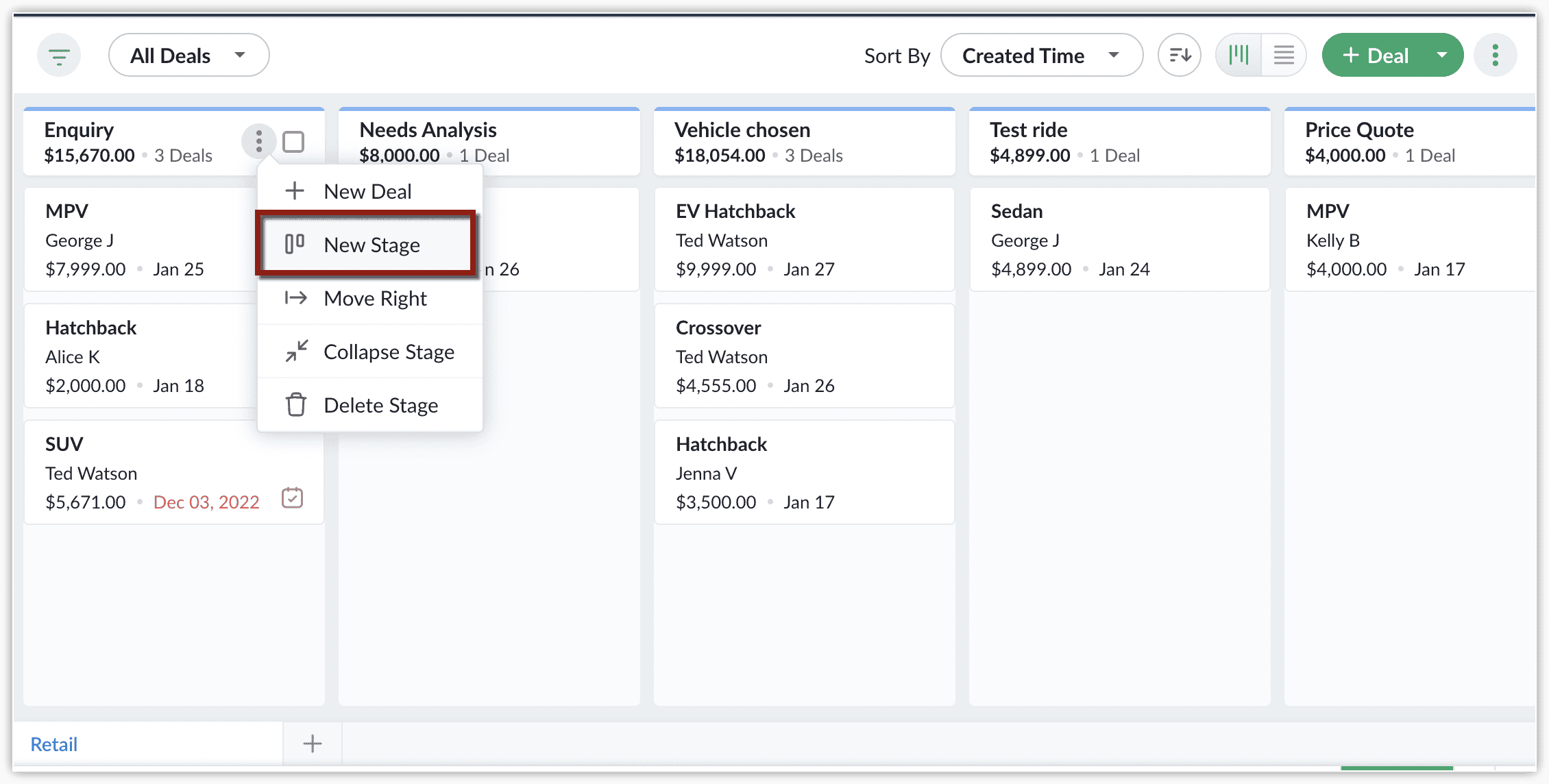
23. Is it possible to add a new stage to an existing pipeline?
Yes, you can add a new stage directly from the pipeline view:
- Navigate to the desired pipeline in the Deals module.
- Hover over the stage after which you want to add a new stage.
- Click the More icon (three dots) and select New Stage.
- Enter a name for the new stage and click Save.
This allows you to expand your pipeline stages as your business processes evolve.
24. Can I customize the fields displayed within each stage?
Yes, you can personalize the information shown in each stage:
- Click the Customize Cards icon (three dots) in the top-right corner of the pipeline view.
- Select the fields you wish to display and reorder them as needed.
- Click Save to apply your customizations.
This feature enables you to tailor the pipeline view to highlight the most relevant information for your team.
25. Can I set up rules to ensure key information is captured when moving records between stages?
Yes, Bigin allows you to create Stage Transition Rules:
- Go to Settings > Sub-Pipelines and Stages > Stage Transition Rules.
- Select the desired pipeline and click +New Rule.
- Define the source and destination stages.
- Specify mandatory fields, notes, files, or checklists to be completed before moving a record to the next stage.
This ensures that critical information is captured at each stage transition, maintaining data consistency across your pipeline.
26. What are Stage Transition Rules in Zoho Bigin?
Stage Transition Rules in Zoho Bigin allow administrators to define mandatory fields, notes, files, or checklists that users must complete when moving a record from one stage to another in a pipeline. This ensures that essential information is captured consistently throughout the pipeline process.
27. How do I create a Stage Transition Rule?
To create a Stage Transition Rule:
- Log in to your Bigin account with administrator privileges.
- Navigate to Settings > Sub-Pipelines and Stages > Stage Transition Rules.
- Select the desired team pipeline and sub-pipeline.
- Click +New Rule.
- In the "Create New Rule" pop-up:
- Choose the From Stage and To Stage.
- Specify the information to be mandated (Fields, Notes, Files, Checklist).
- Click Save to apply the rule.
Once saved, users will be prompted to complete the specified information when moving a record between the defined stages.
28. What types of information can I mandate during a stage transition?
You can mandate the following during a stage transition:
- Fields: Ensure specific fields are filled out.
- Notes: Require users to add notes.
- Files: Mandate file attachments.
- Checklist: Create a checklist of tasks that need to be completed before moving to the next stage.
These checklists are visible in the related list of records, allowing users to mark off completed tasks and partially save their progress.
29. Are there any limitations on Stage Transition Rules?
Yes, there are some limitations:
- You can create up to 30 transition rules for each pipeline.
- Each rule can include up to 23 fields, including Notes, Files, and Checklists.
- Checklists should have at least one item and can have a maximum of 10 items.
- Stages or pipelines associated with transition rules cannot be deleted.
- No two transition rules can have the same "From" and "To" stages.
30. Can I prevent records from being closed during specific stages?
Yes, you can restrict pipeline records from being closed during specific stages to ensure they go through all necessary steps. To set this up:
- Log in to your Bigin account with administrator privileges.
- Navigate to Settings > Pipelines and Stages > Stage Transition Rules.
- In the Restrict Pipeline Records Closure tab, click +Stage.
- Select the stage during which you want to restrict closure.
This prevents records from being closed prematurely, ensuring they follow the complete pipeline process.
