Bigin supports calendar sync with Google Calendar and Outlook Calendar for the Events module. This integration extends that support to Zoho Calendar. Events from your Zoho Calendar are reflected in Bigin, helping you avoid double bookings and manage your schedule from a single place.
For example, if you have a personal appointment or a team meeting on your Zoho Calendar, that time slot is blocked out in your Bigin calendar; so your sales team sees an accurate view of your availability.
Installing the Zoho Calendar Topping
How the Zoho Calendar topping gets installed depends on your organization:
New organizations: Zoho Calendar is installed by default for Bigin accounts created after Oct 1, 2026. No installation is needed, so you can go straight to setting up the sync.
Existing organizations: Only the admin user can install the topping. They can install it from Settings > Extensions > Toppings.
In both cases, once the topping is installed, the integration can be configured and used by all users in the organization. Each user authorizes their own accounts and sets up their own sync.
Setting up Zoho Calendar sync
Once the topping is installed, any user can set up the integration by authorizing both their Zoho Calendar and Bigin accounts.
Go to Setup > Extensions > Toppings.
Find Zoho Calendar and click Manage.
Choose one of the following:
Configuring sync settings
Once both accounts are authorized, configure your sync in three parts:
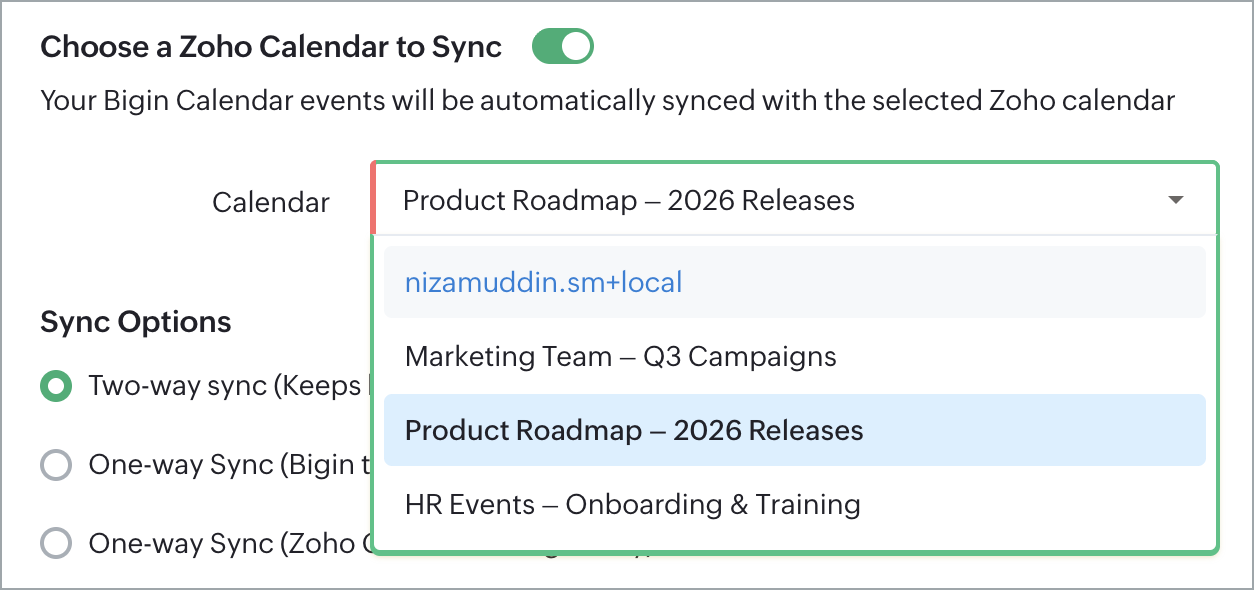
* Syncing your primary calendar.
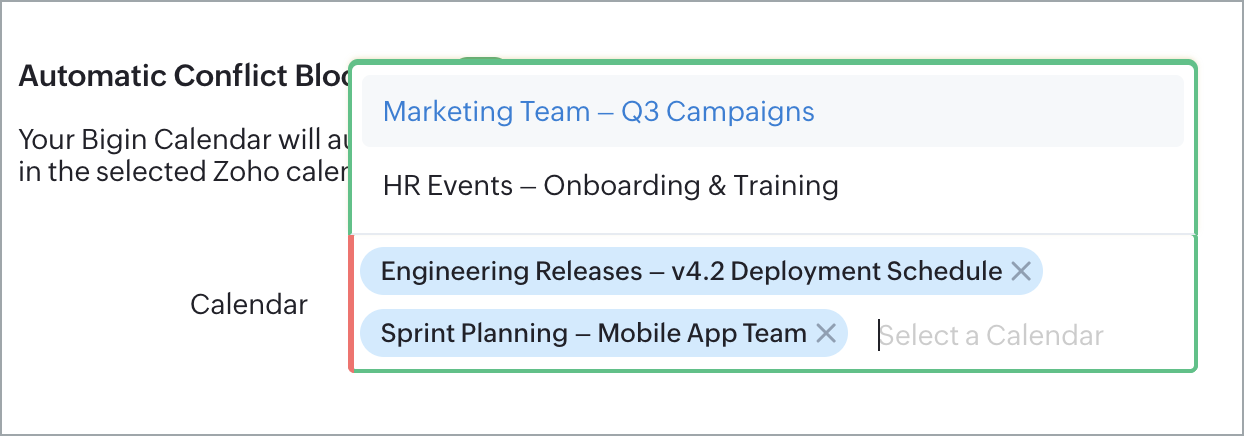
* Connecting secondary calendars to block out time.
* Setting default values for Bigin-specific fields.
Sync your primary Zoho Calendar with Bigin
Your primary calendar is the main calendar folder in Zoho Calendar whose events you want to view and manage directly from Bigin. When synced, events from this calendar appear in your Bigin Events module, so you can track, manage, and act on them without switching between tools.
Click the Sync option to open the sync settings.
Under Main Calendar, select the Zoho Calendar folder you want to use as your primary calendar. This could be your personal calendar, a team calendar, or any folder available in your Zoho Calendar account.
Under Sync Type, choose how events should sync between this calendar and Bigin:
Click Save.
For example, say you're a sales rep with three calendars in Zoho Calendar: My Calendar (your main calendar), Team Events, and Project Deadlines. You would select My Calendar as your primary calendar. Client calls, follow-up meetings, and demos logged here will appear directly in your Bigin Events module, where you can view and manage them alongside your sales activity.
Note.
Once configured, events added to your primary calendar are reflected in the corresponding time slot in Bigin.
Recurring Events will not be synced.
Connect secondary calendars to block time in Bigin
In addition to your primary calendar, you may have other Zoho Calendar folders, such as a marketing calendar or a personal calendar, with events that shouldn't overlap with your Bigin schedule. You can connect these secondary calendars to Bigin so that their booked time slots are automatically marked as unavailable, even though the events themselves won't appear in your Bigin Events module.
In the sync settings, click Add Calendar.
Select the secondary Zoho Calendar folder you want to connect.
 Note: Only Calendars with the Include in my free/busy sharing option enabled in Zoho Calendar will be listed in this dropdown.
Repeat this for any additional calendars you want to include.
Click Save.
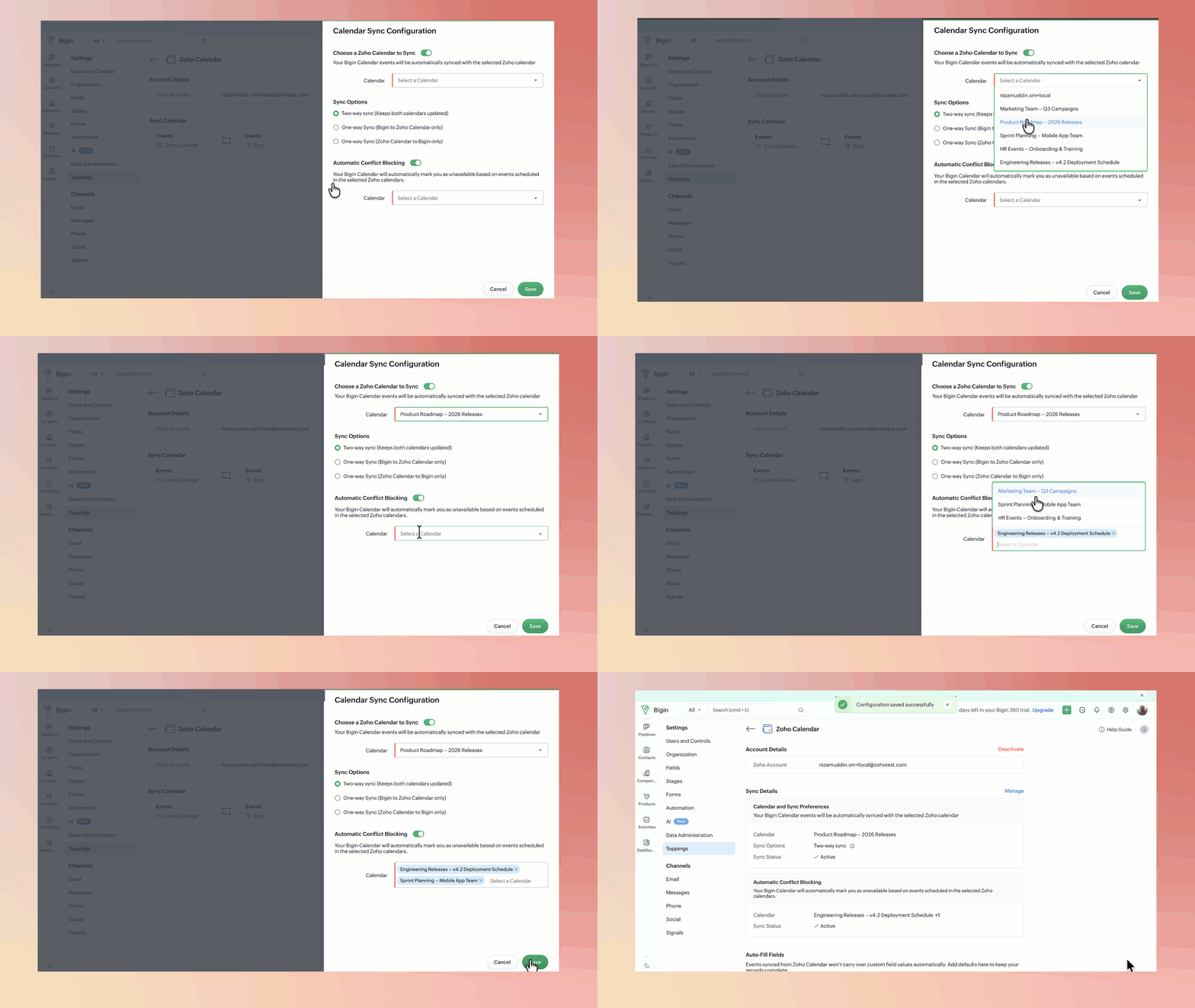
Continuing from the example above, your Team Events and Project Deadlines calendars are secondary calendars. If you have a team stand up at 10 am on your Team Events calendar, that slot is blocked out in Bigin. Anyone trying to schedule a client call or demo with you at 10 am from Bigin will see that time as unavailable, even though the standup itself isn't visible or manageable from Bigin.
Set default values for Bigin fields
Bigin's Events module may include custom fields that don't have a corresponding field in Zoho Calendar. When an event is synced from Zoho Calendar to Bigin, these fields may come in empty, which can cause issues if any of them are mandatory.
To prevent sync failures or incomplete records, you can pre-fill these fields with a default value. Every time an event syncs from Zoho Calendar to Bigin, the specified fields are automatically populated with the values you've set.
In the sync settings, go to the Fields section and click Add Field.
Select the Bigin custom field you want to pre-fill.
Enter a default value for that field.
Repeat for any additional fields that need a default value.
Click Save.