Schedule Events -7.0
Scheduling an event with your team will help you track the status of work. Say for instance, if you are approaching a milestone and you would like to know the status of the milestone, how many bugs are completed, how many are in overdue etc. then you need to meet up with your team to know the status. If you're flexible working in the calendar view, then schedule an event right within the calendar.
Schedule an Event
- Click Calendar on the left navigation panel.
-
Click on a date or click Add Activity in the upper-right corner.
-
Hover over more options icon (
).
-
Click the Event tile.
-
Select a Project from the drop-down.
-
Enter Event Title.
-
Enter the Starts at and Ends at date and time.
-
Select Attendees from the list of users in your project.
-
Add a reminder from the Remind all drop-down and enter a Location.
- Enter your comments if any.
- Use Repeat option for a recurring event
- Click Save to schedule the event in your project.
Edit Or Delete Events
Your event just got scheduled. You can edit or delete the events if required. The Calendar, by default, displays the current month with its scheduled Bugs, Events, and so on. If you are looking to edit or delete the event. Just click on the event and select  or
or  found right next to the event name. Events can be deleted by hovering over the event and then clicking .
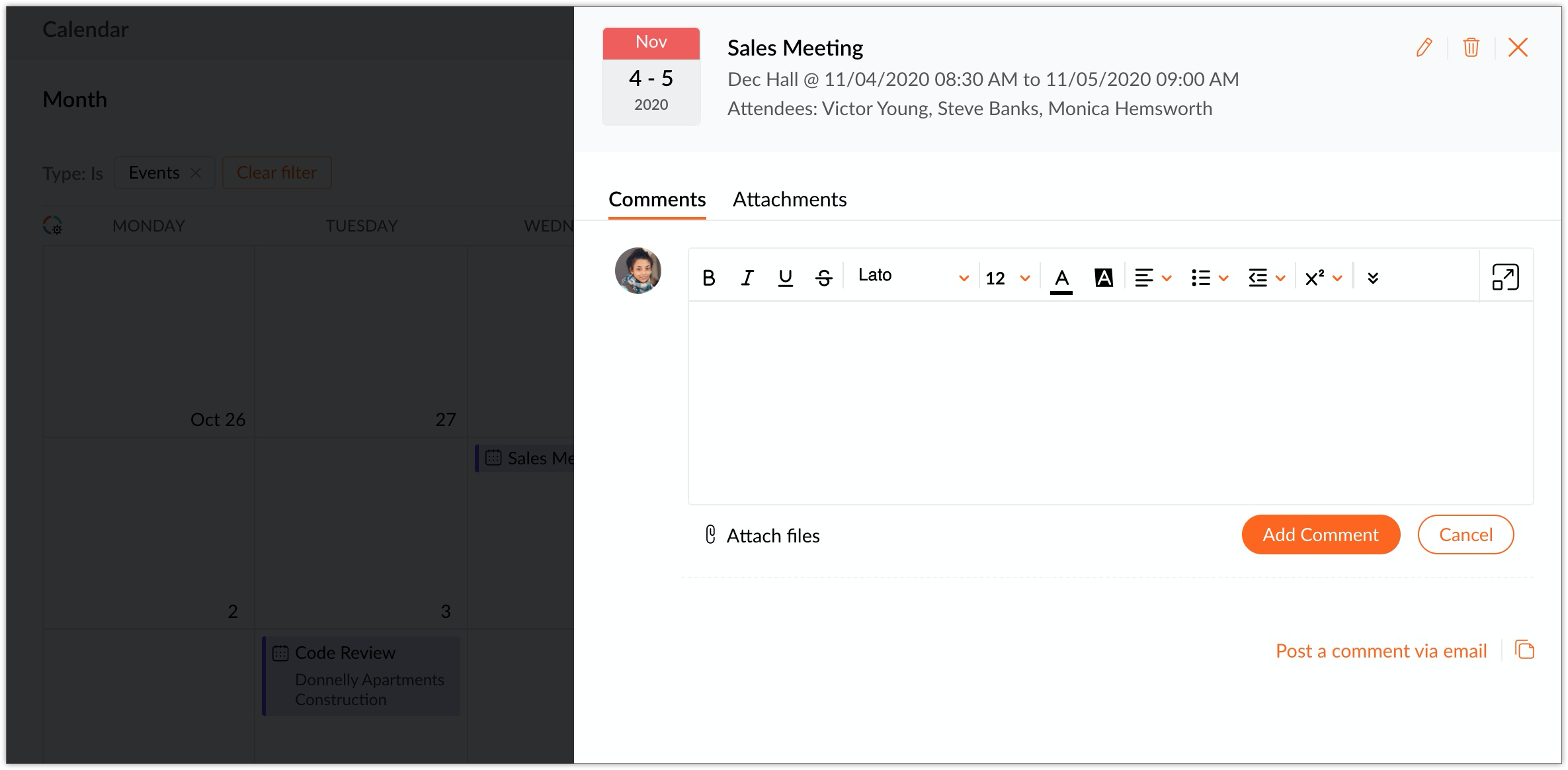
or found right next to the event name. Events can be deleted by hovering over the event and then clicking . Elapsed Events
Did you miss any important event? No Regrets. We've provided an option to see Elapsed events where you can check the logged details of the events like presentations, gathered notes, blog references, etc during the course of a meeting.
- Click Home and scroll down to view My Events section.
- Click View More in the upper-right corner.
- Click
in the upper-right corner.
- Click on Type and select Events.
- Click on Status and select All Closed.
- Click Find to fetch the elapsed events.
View Events
To view all the project activities like the task, milestone, bugs, and events in your project select Calendar from the left navigation panel.
- Click Calendar in the left navigation panel.
- Select View More to access the calendar.
- Click
and select the Type as Events.
- Click Find to fetch the details.