GoToWebinar for Zoho BugTracker
The GoToWebinar extension for Zoho BugTracker allows users to
schedule webinars as part of a particular issue. The links to join
scheduled webinars will be displayed in the Comments section of
the chosen issue. All team members involved in the project will be able
to join the webinar using the link displayed.
Installing the extension
- Navigate to
 > Marketplace > All.
 - Search for GoToWebinar for Zoho BugTracker and click on it.
- Click Install.
- Agree to the terms of service and click Install.
- Under the General section, select the profiles, projects, and users you want the extension to be shared with or given access to.
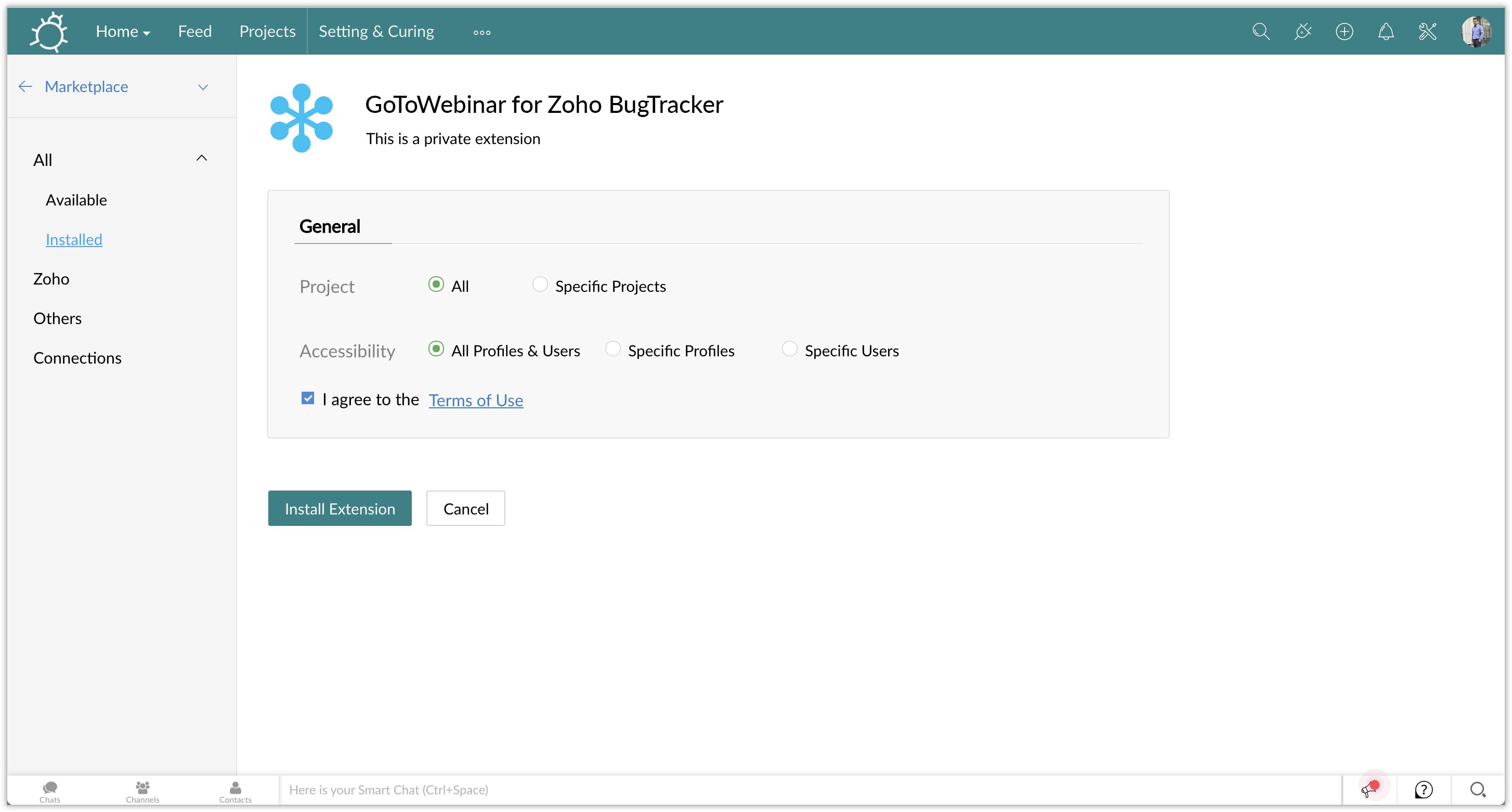
- Agree to the terms of use.
- Click Install Extension.
- Under the Connections section, click Authorize. Sign in with your Zoho credentials.
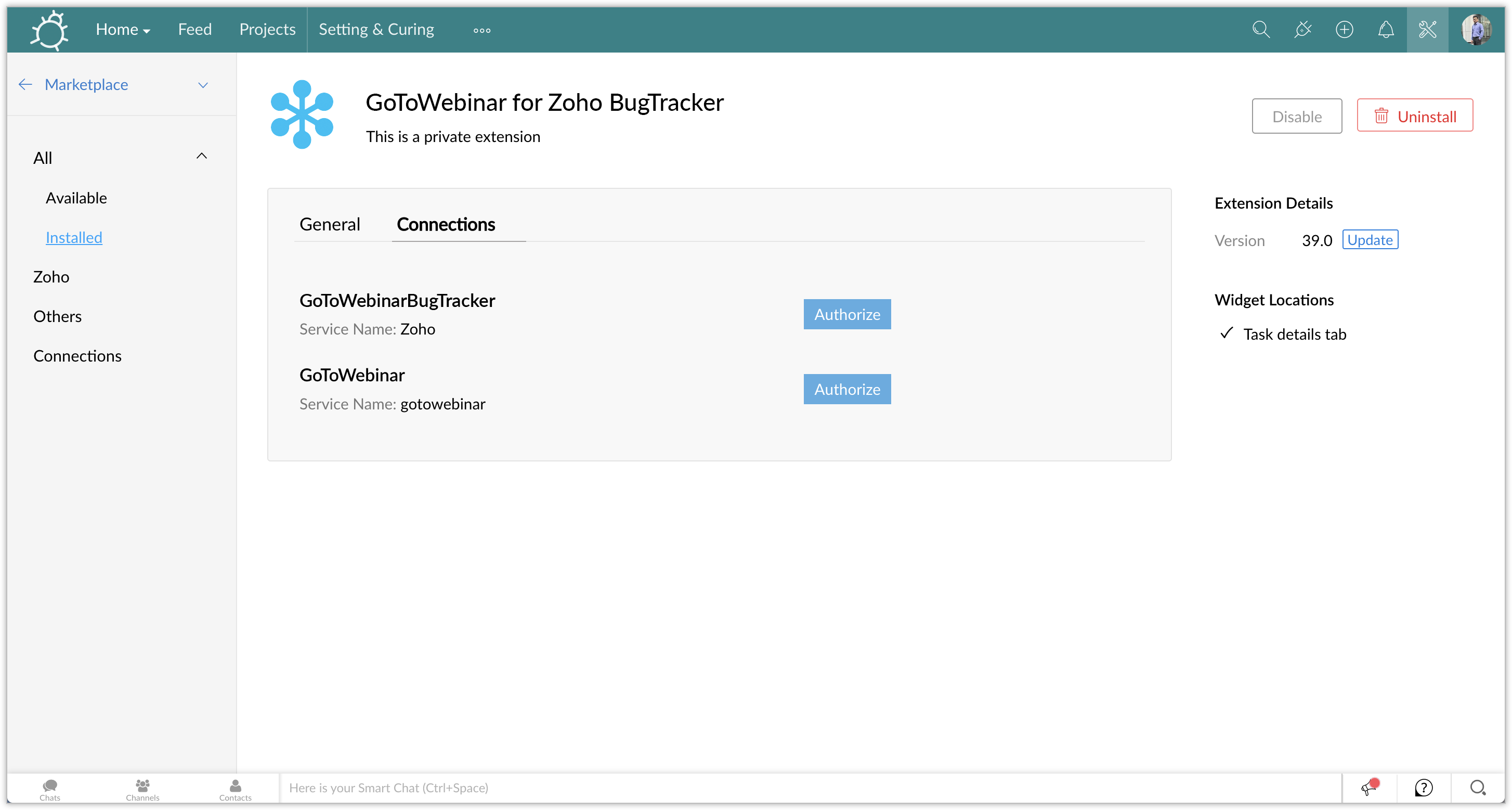
- Click Authorize.
- Sign in with your GoToWebinar credentials.
Scheduling a webinar from Zoho BugTracker
- Open a project from your project list.
- Click Issues on the left-hand panel.
- Open an issue from the listed issues.
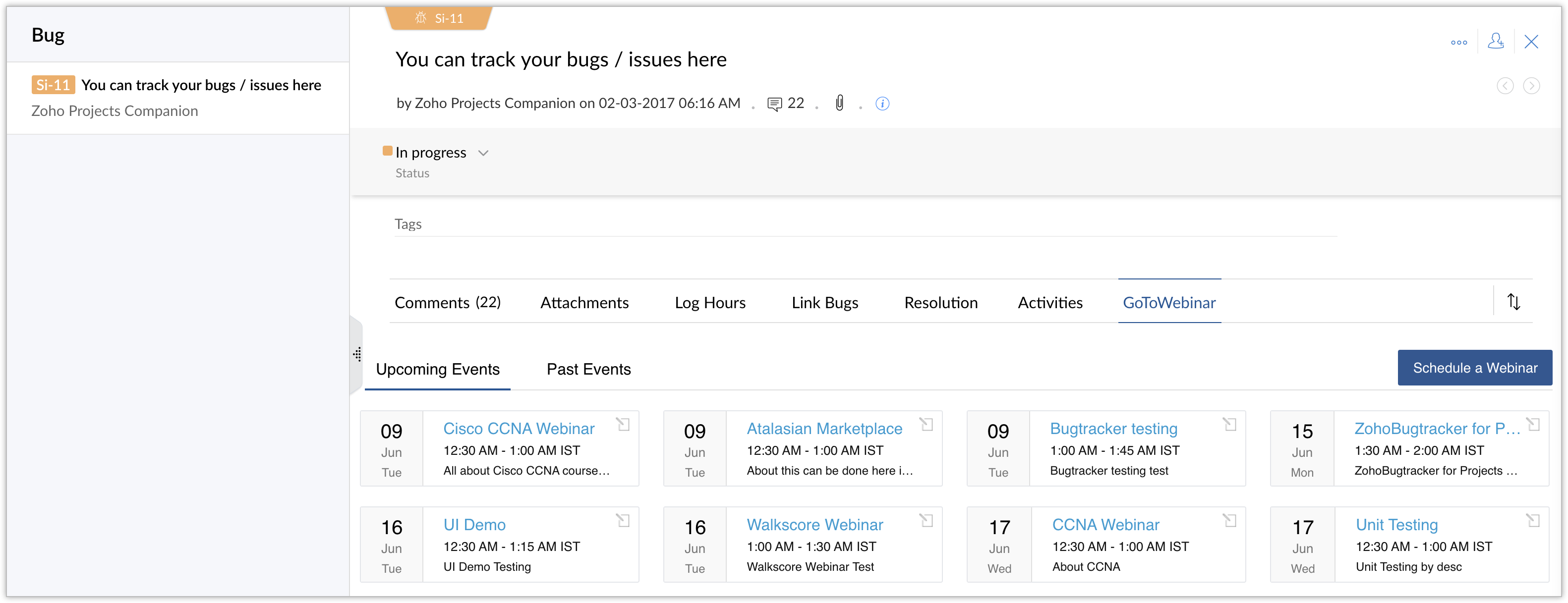
- Click the GoToWebinar tab in the issue bar.
- Click Schedule a Webinar in the right-top corner.
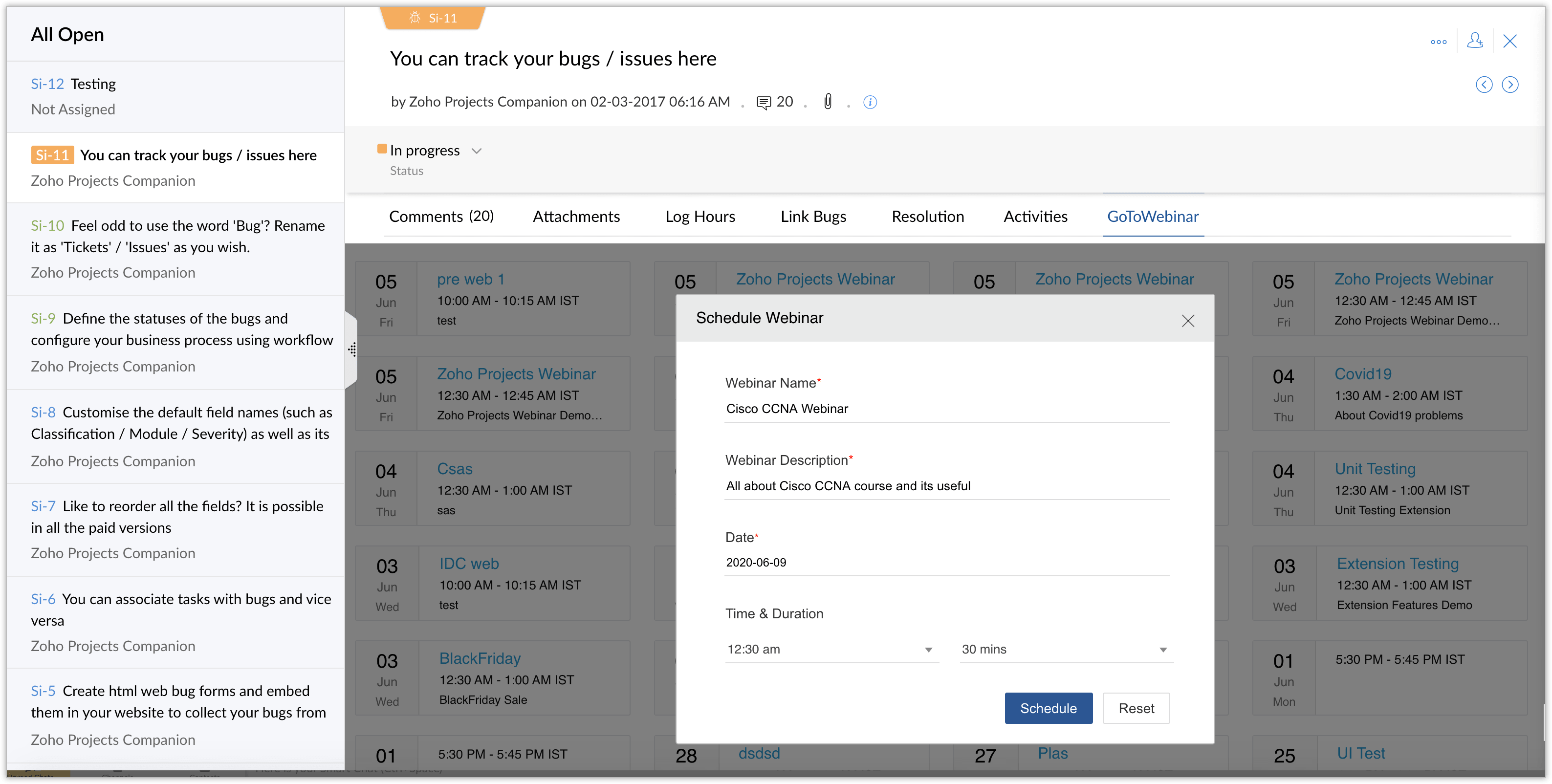
- Enter a Webinar name.
- Enter the Webinar description.
- Enter the Date the webinar has to be scheduled.
- Enter the Time and Duration of the webinar.
- Click Schedule.
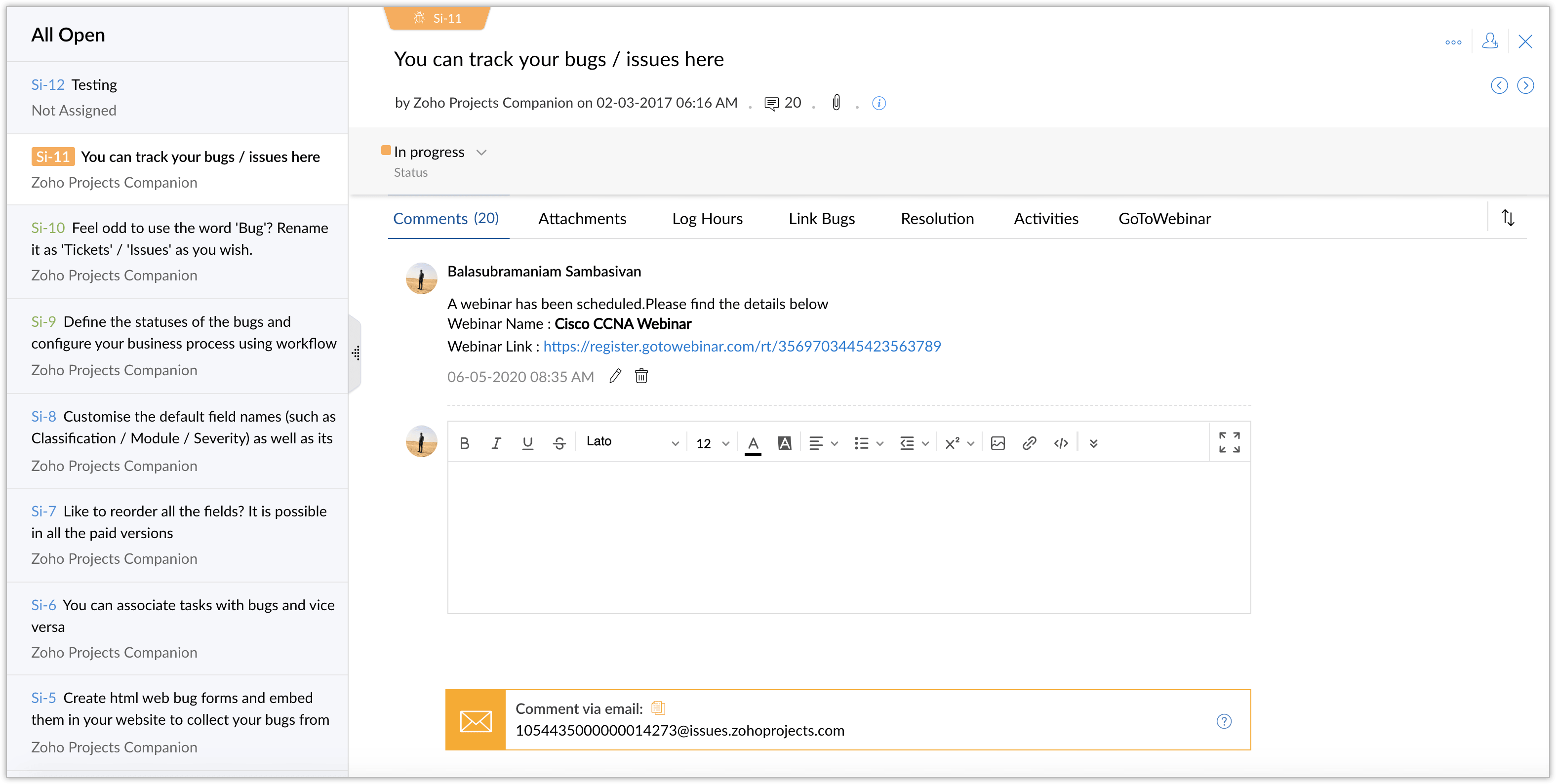
- The generated webinar link will be displayed in the Comments tab of the specific issue.
Viewing a webinar in Zoho BugTracker
- Open a project from your project list.
- Click Issues on the left-hand panel.
- Open an issue from the listed issues.
- Click the GoToWebinar tab in the issue bar.
- Under Upcoming events, all your upcoming webinars will be displayed.
- Under Past events, your webinars completed in the past one month will be displayed.
Uninstalling the extension
- Navigate to > Marketplace > All.
- Click Installed.
- Click GoToWebinar for Zoho BugTracker. Click Uninstall.