Pipedrive for Zoho BugTracker
The Pipedrive extension for Zoho BugTracker lets you access your
Pipedrive account and associate the activities from that app with Zoho
BugTracker. Using this extension, you can link calls, meetings, and
tasks from Pipedrive to your issues in Zoho BugTracker, and manage them
all from one place.
Installing the extension
- Navigate to
> Marketplace > All.
- Search for Pipedrive for Zoho BugTracker extension.
- Click Install.
- Agree to the Terms of Service and Privacy Policy.
- Click Install.
- In the General section, select the profiles and projects you want the extension to be shared with or given access to.
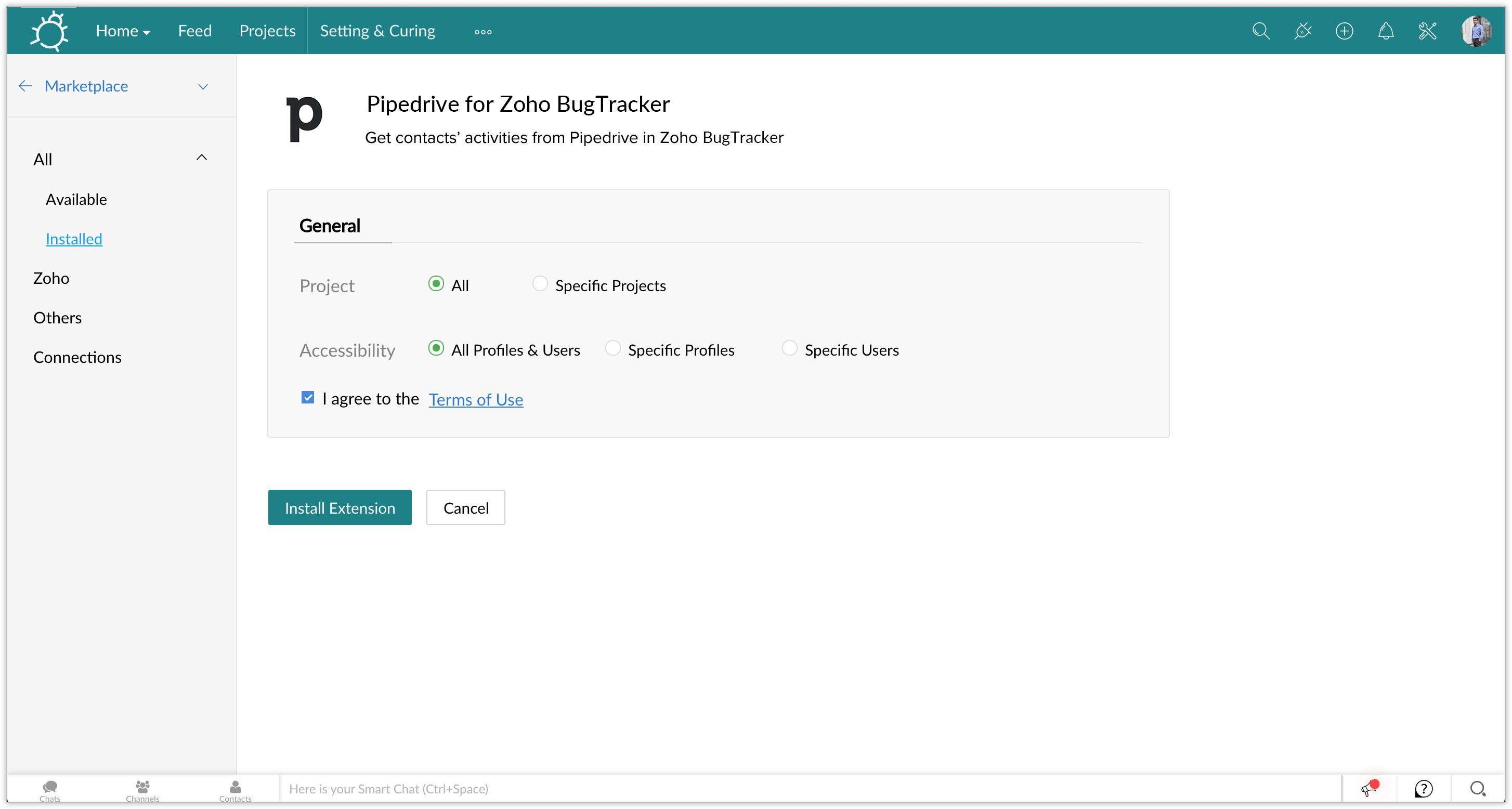
- Agree to the terms of use.
- Click Install Extension.
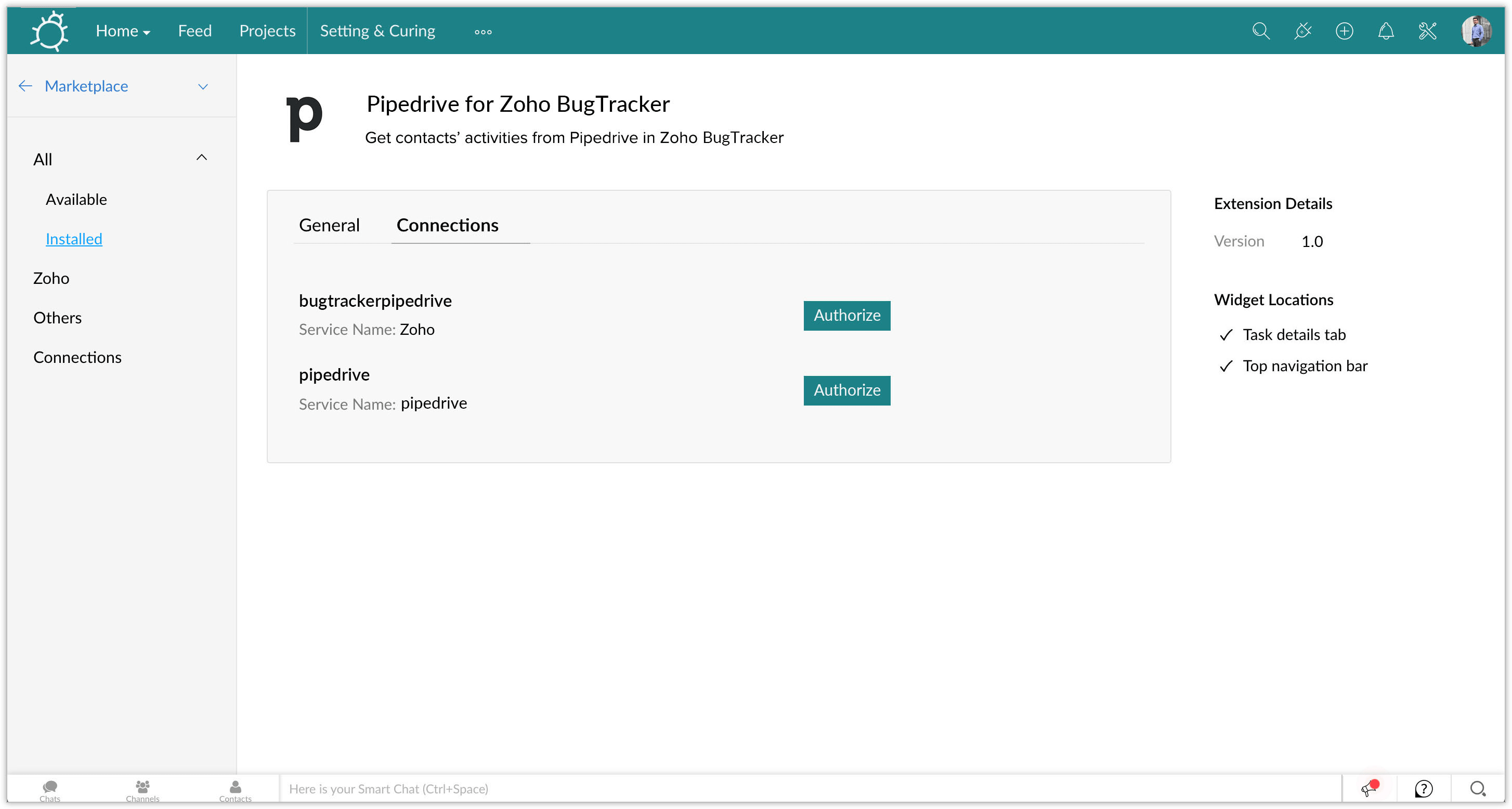
- Navigate to the Connections section.
- Click Authorize.
- Sign in with your Pipedrive credentials. The extension will be authorized and ready to use.
Linking activities from Pipedrive
- Navigate to your project and click on an issue.
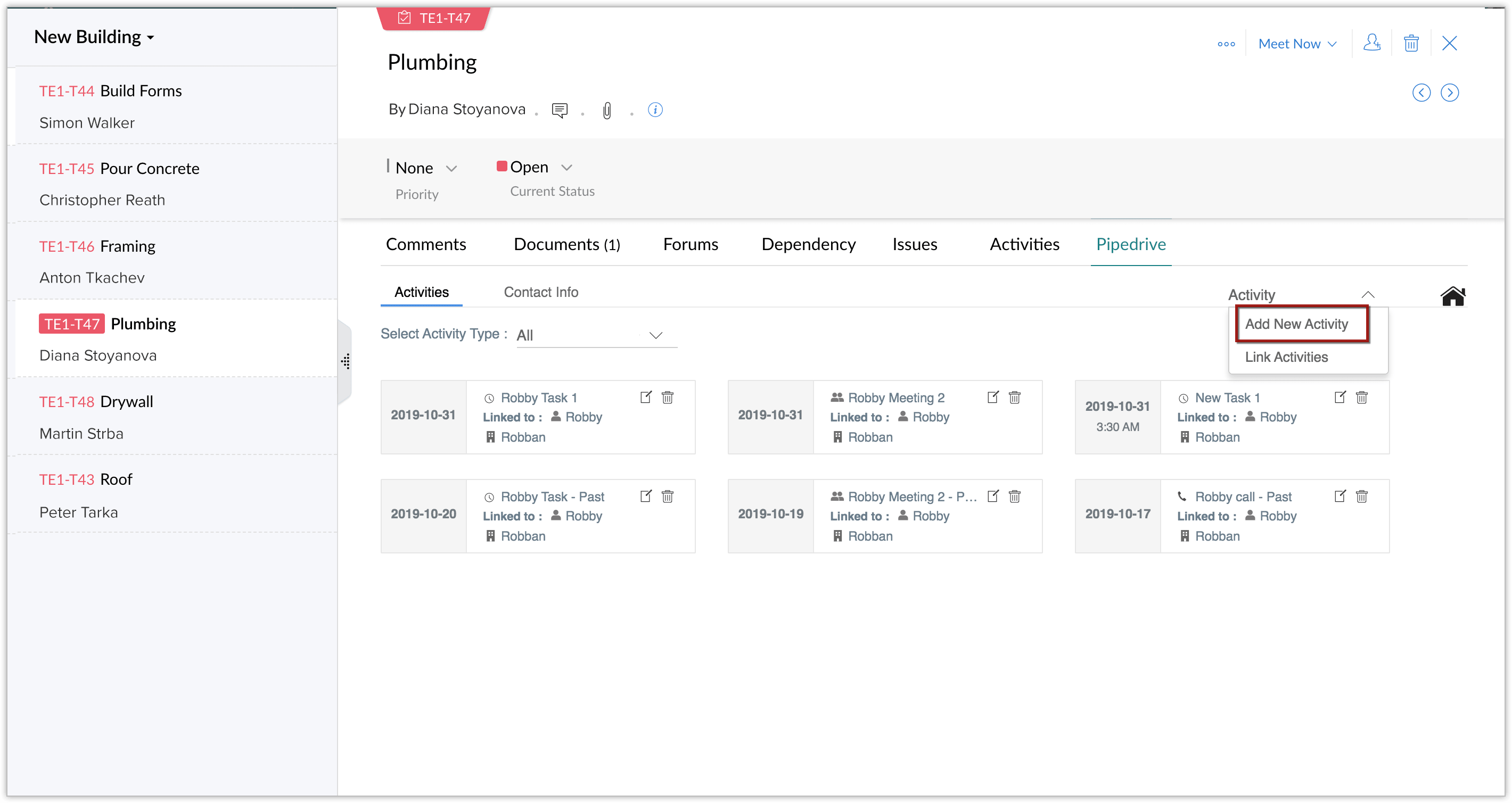
- Click Pipedrive in the issue tab.
- Click Associate Activities.
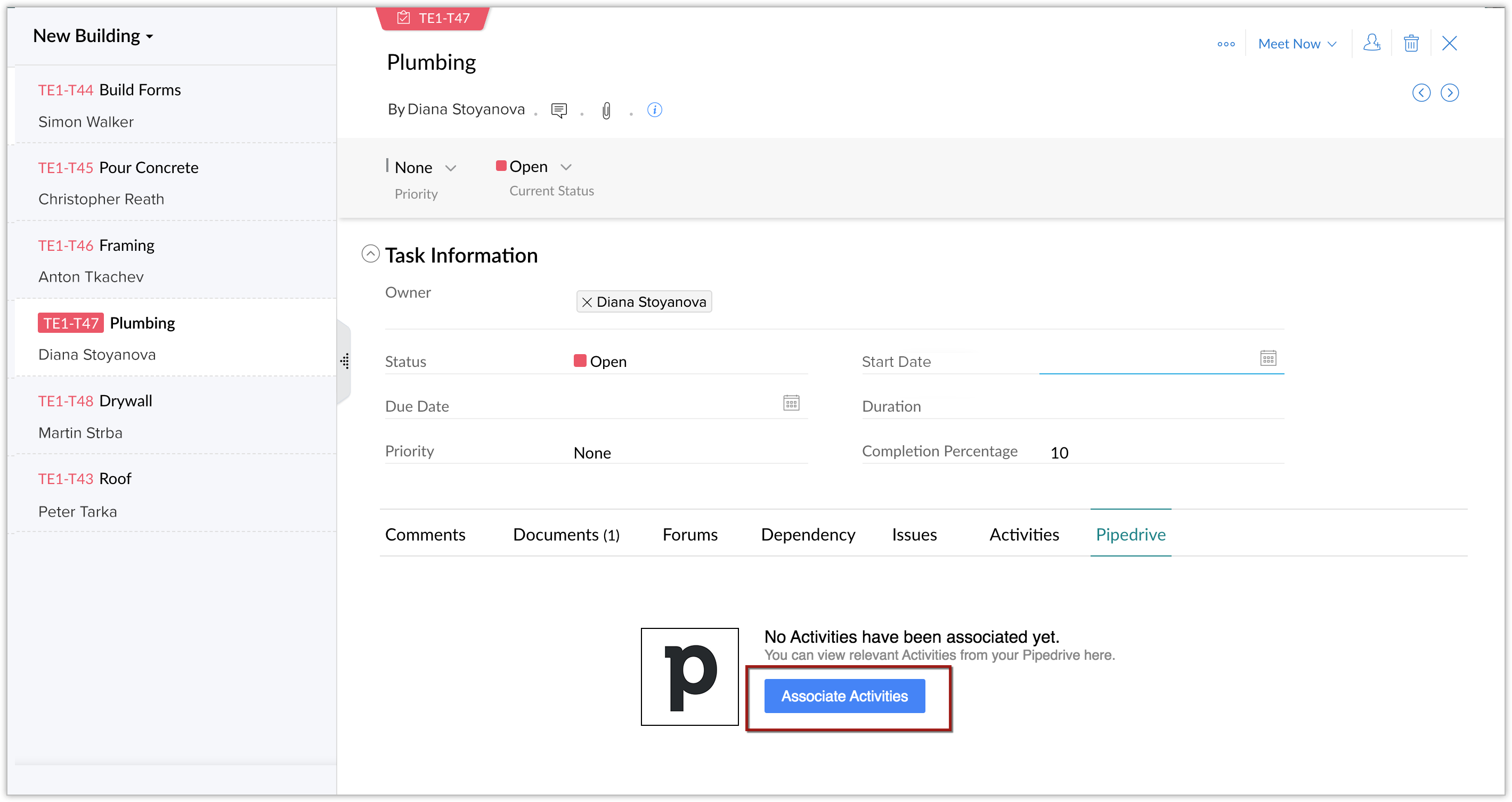
- Select the Pipedrive contact you would like to associate with. All the Call, Meeting, and Task activities associated with the contact in Pipedrive will be fetched and displayed here.
- Tap to select the activities you want to link within the issue.
- Once selected, click Link Activities under Activity. The selected activities will be linked under the specified issue.
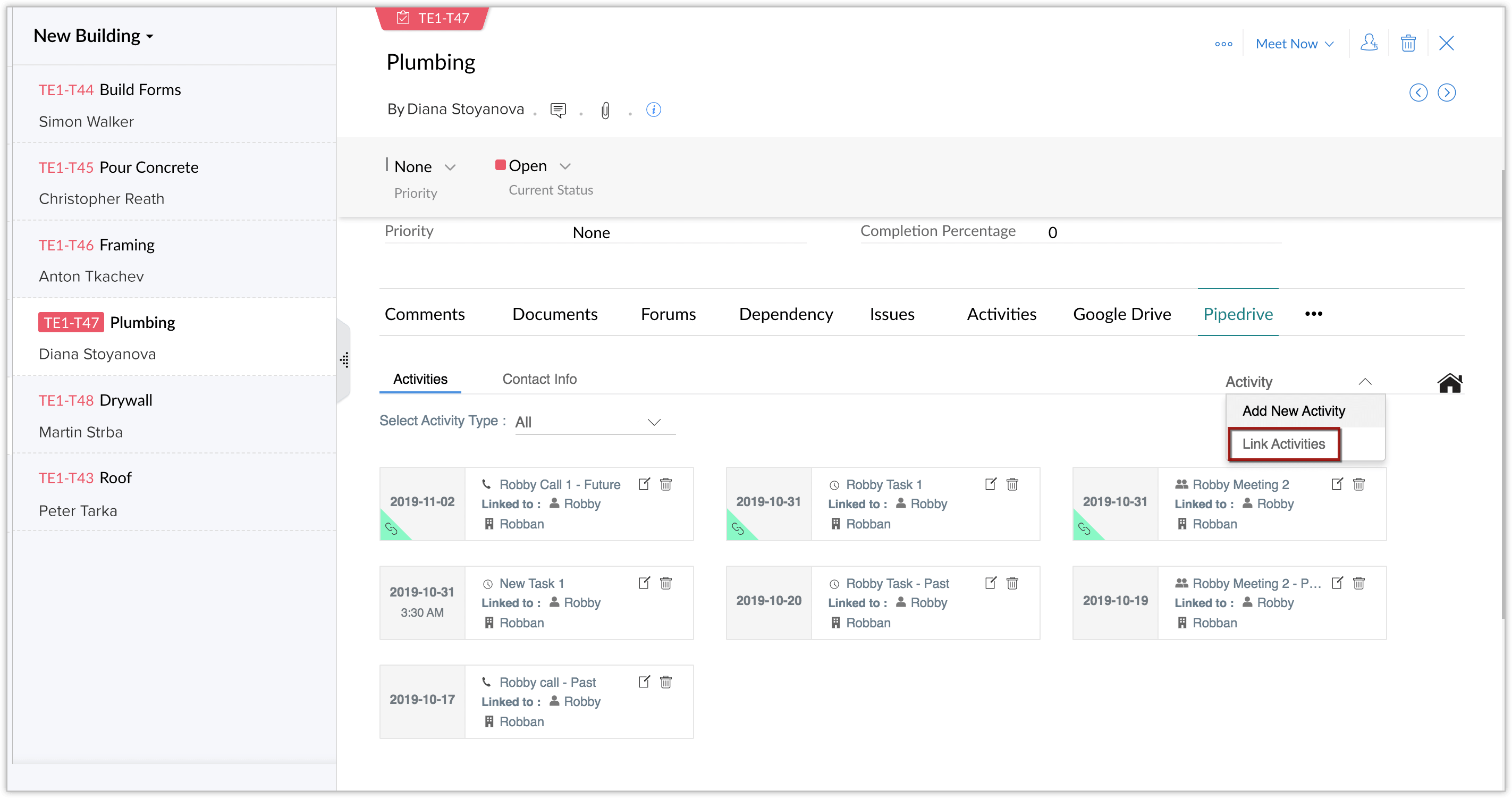
- Click Add New Activity to add activities to the contact in Pipedrive.
- You can Edit or Delete the activities within the Zoho BugTracker. This will be reflected in the Pipedrive.
Uninstalling the extension
- Navigate to

- Click Installed.
- Click Pipedrive for Zoho BugTracker.
- Click Uninstall. The extension will be uninstalled, and all the associated data will be lost.