Can I create Service Level Agreement (SLAs) for my bugs?
- Navigate to
 > Bug Tracker > SLA and click Create SLA.
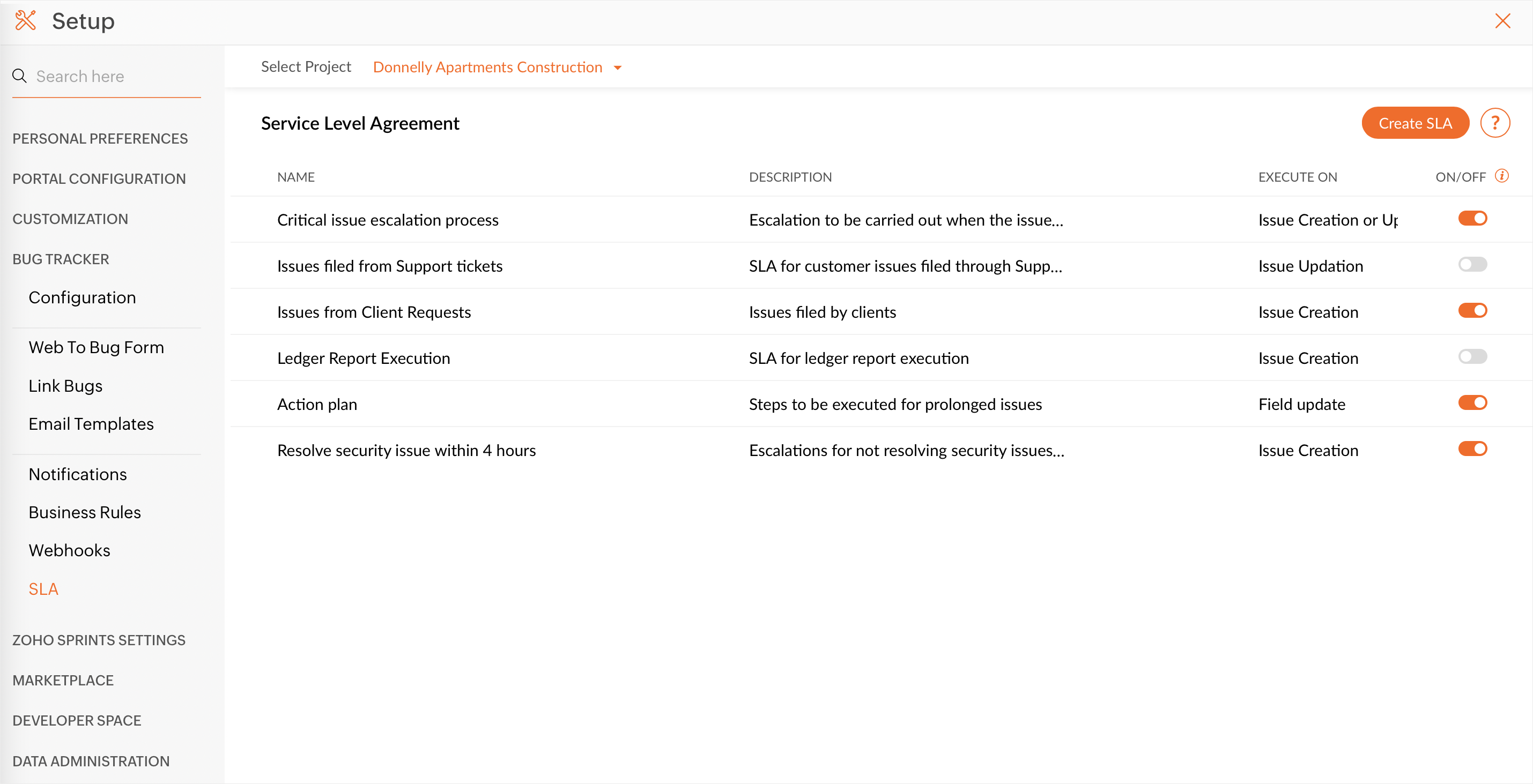
- Enter a Name.
- Select the desired option for the rule to Execute On and then click Add targets for this SLA.
- Select the criteria as to when the SLA must be executed for the bug.
You can choose your criterion from the various options that are
displayed.You can set targets to view only bugs based on Modified
Date, Last Closed Date, Phase, Severity, and so on. - Select the due date or the target time for the SLA.
In Target Action, you can choose Close Before or Resolve Before and set their respective target field and target time based on the Calendar or Business hours.
If you choose Resolve Before, the custom date field is also displayed in the Target Field. This helps in escalating the bug if it is not resolved within the set target time.
If you choose Close Before, it helps in escalating the bug if it is not closed within the set target time. - Specify Escalate on as to when to escalate the bug. You can specify a maximum of four levels if the ticket exceeds the target time.
- Specify Escalate to as to whom to escalate the bug. You can choose Assignee, Project Owner, or any of the project users from Users section, or any of the users from the User Pick List section.
- Select an existing Email Template from the drop-down or create a new Email template.
- Configure the action to be taken for the escalation. You can specify a maximum of 10 actions.
- Click Save.
The escalation levels are highlighted in color-codes next to each bug in the List view and bug details view.