Subscriptions
This section gives you an overview of your current plan and subscription details of your plan, including:
- Contacts Imported
- SMS Credits Used
- SMS Long Codes Used
- Whatsapp Credits
From here, you can effortlessly upgrade or change your plan, update your card details and enable auto-upgrade plan from right here.
But in order to manage and edit your subscription plan, you need to click on the Manage Subscription button which will take you to the store page, from where you can manage your plan and do all the required edits to your plan.
Now, let us learn how to navigate through the store page to manage your plan.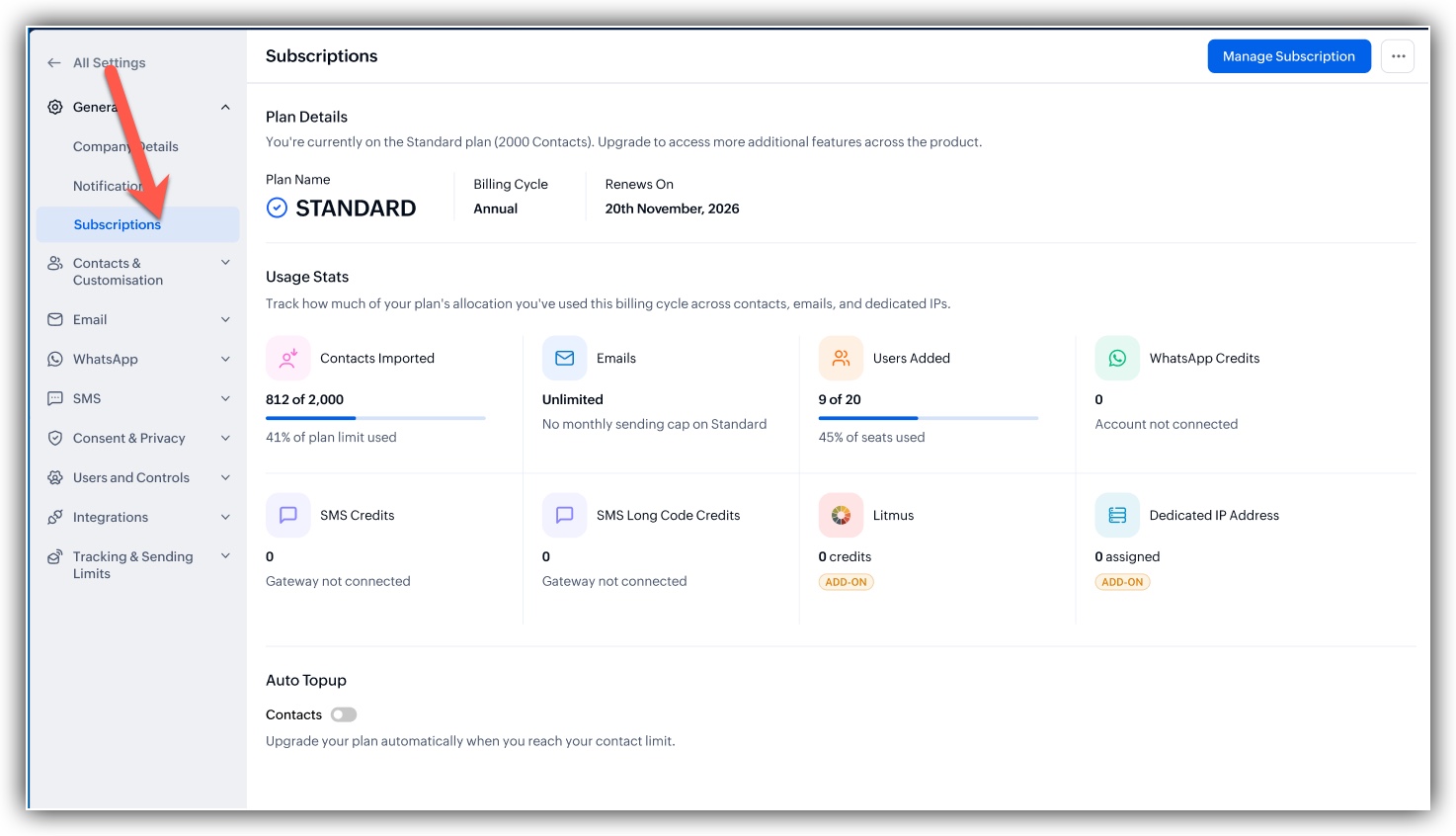
Managing your subscription plans
Zoho Campaigns offers three plans: Standard, Professional, and Pay-as-you-go. The The Pay-as-you-go plan works differently from the regular subscription plans. It follows a prepaid model, allowing you to purchase credits and use them as needed.
You’ll also get a 14-day trial period to explore all features without restrictions. After the trial ends, you can choose one of the plans based on your requirements.
Plan overview
- Standard plan: With this plan, you can use features like 100k contacts, Unlimited emails, 10 users, Basic segmentation, Advanced email templates, Basic drag-and-drop workflows, Dedicated IP (add-On), and SMS marketing (add-On)
- Professional plan: With this plan, you can use all the features of the Standard plan as well as features like More than 100k contacts, Unlimited emails, 20 users, Advanced segmentation, Contact scoring and tags, Advanced drag-and-drop workflows, Cart abandonment and purchase follow-ups with workflows (ecommerce), Pop-up forms, Dynamic content, Email polls and attachments, Batch sending, Recipient time zone sends, Recipient optimal open time sends, Dedicated IP (add-On), and SMS marketing (add-On).
- Pay-as-you-go plan: This plan is suitable for businesses who are looking to Campaigns for a one time usage You'll get most of the features of the Standard plan plus more. You get features like One email/ credit, Unlimited contacts, Up to 10 users, Signup forms, Drag-and-drop template editor, and Advanced pre-designed templates and more. Pay as you go plan is itself a add-on like plan, so it does not allow you to buy additional add-ons to it. You can only use the features that it already comes with.
Pay-as-you-go vs email-based plans
The key difference between the pay-as-you-go plan and the email-based plan are:
- The pay-as-you-go plan allows unlimited contacts, while the email-based plan only allows half as many contacts as the number of emails purchased. You do not get Add-ons packs with this plan.
- The email-based plan follow a recurring payment cycle, meaning that the payment is taken automatically each cycle and and limit contacts based on the plan. The pay-as-you-go plan is not on a recurring cycle. You are eligible for Add-on packs with this plan.
Buying a subscription plan
How do I buy a subscription plan?
- Click the Settings icon in the top-right corner.
- Select Subscription under General Settings.
- Click Change plan in the top-right corner.
- You will be redirected to Zoho's payments page, where you can easily view and manage all the products you have purchased from Zoho. Choose a plan.
- Choose between monthly or yearly subscription by enabling the toggle above the pricing plans.
- Select your preferred plan and click Upgrade.
- Add any required add-ons and click Proceed.
- Enter your billing address and complete the payment
Your plan will be updated to the one you selected. You can view this on the store dashboard.
Auto-Upgrade option
The Auto-Upgrade option is enabled by default. This implies that when you're importing your contacts and you exceed your plan limit, your plan will automatically be upgraded to the next tier based on the number of contacts you're trying to import at that time.
To view this option:
- Click Settings icon in the top-right corner.
- Select Subscription under General Settings.
- Locate the Auto-Upgrade toggle in the Subscription page.
How do I change my subscription plan?
- Click Settings icon in the top-right corner.
- Select Subscription under General Settings.
- Click Change plan in the top-right corner (You will be redirected to Zoho's payments page).
- Click Change plan again in the store dashboard page.
- Choose your preferred plan from the Standard, Professional, and Enterprise plans. This can be based on number of contacts you want to store and also the features you need to access.
- Click Change.
- Confirm your plan and make payment.
Your plan will be changed and you can view this on the store dashboard.
How do I switch from a monthly to yearly subscription plan?
- Click Settings icon in the top-right corner.
- Select Subscription under General Settings.
- Click Change plan in the top-right corner. You will be redirected to Zoho's payments page.
- Choose the Move to Yearly option under the Next Payment section. A prorated amount will be displayed based on your current selection.
- Click Make Payment and complete the payment process to activate your yearly subscription.
How can I downgrade my plan?
If you want to downgrade from a yearly plan to a monthly plan, you need to cancel your subscription and then opt for a monthly plan.
How do I cancel my subscription?
- Click Settings icon in the top-right corner.
- Select Subscription under General Settings.
- Click Change plan in the top-right corner. You will be redirected to Zoho's payments page.
- Click Change plan in the store dashboard page.
- Click the Cancel Subscription link at the bottom of the page.
- Provide a reason for your downgrade. Check the box Downgrade automatically at the end of current billing cycle to continue using the product till the end of your current billing cycle.
- Click Confirm Downgrade.

Note:
- If you want to downgrade immediately, you can either uncheck the checkbox mentioned in step 6 or click Downgrade immediately on the store dashboard page.
- All automated and scheduled activities will be suspended and, all features will be disabled until user upgrades to a subscription plan.
How do I update my credit card details?
Purchasing or subscribing to a plan is a one-step process if your credit card details are already saved in your Zoho account.
To edit your credit card details on the store:
- Click Settings icon in the top-right corner.
- Select Subscription under General Settings.
- Click Change plan in the top-right corner. You will be redirected to Zoho's payments page.
- Click Change Payment Method button. You'll be redirected to the payment methods section under Zoho Store.
- Update your card details and Save.
Add-Ons
You can also choose add-ons to extend your plan's capabilities based on your business needs. If you feel like your business does not need the large capacity of the higher end plans, then you can always choose the basic plan along with only the add-ons that you require to get your work done. There are two types of Add-ons available: Recurring and Non-Recurring Add-ons.
Recurring Add-ons
They are automatically renewed in every payment cycle once it has been added to your subscription plan. These type of Add-ons are selected during the set-up of plan selection from the store.
US Canada Long code
Long codes are sender phone numbers that need to be purchased in order to send SMS campaigns. Each add-on awards you with enough credits to obtain one 10-digit phone number which will appear as the sender phone number from which SMS campaigns will be sent out.
SMS Credits
SMS credits add-ons are required to send SMS campaigns on behalf of your Organization using Zoho Campaigns. Zoho Campaigns does not allow sending of SMS campaigns unless you have enough SMS credits to send the SMS and you need to purchase them separately as add-ons from the store.
Dedicated IP address
You can choose to have a dedicated IP address to send campaigns on behalf of your organization/portal. Having a dedicated IP address can reduce emails being moved to spam folders. It will improve your sender reputation and email deliverability.
You can choose this add-on only for yearly subscription plans.
IP address add-ons will be enabled only after you contact our support team. Our support team will go through some verifications in order to enable the feature for you. Once enabled from our side, the IP address add-on automatically appears in under the non-reccuring add-ons section, from where you can purchase the required units for your organisation.
How can I purchase Recurring add-ons?
- Click the Settings icon in the top-right corner.
- Select Subscription under General Settings. You will see your current plan.
- Click Change plan at the top-right. You will be redirected to Zoho's payments page.
- In the store home page, if you click on the Upgrade Add-ons button you can view all your available add-ons here.
- Enter the number of units you require in the Add-Ons section. Unit costs vary with the type of add-on.
- Click Proceed.
- Confirm your order and make a payment.
- Now the Add-ons have been added.
Non-Recurring Add-ons
You’ll need to add these add-ons to your subscription manually whenever you need them. Since they don’t renew automatically like recurring add-ons, you’ll have to add them again if you need them beyond your current plan period.
WhatsApp credits
WhatsApp business communications are powered by WhatsApp credits. You can buy credits as an add-on to your subscription and send WhatsApp messages to your target audience in any country. The cost to send one WhatsApp message varies by country and volume. Each conversation is charged as per the country code of the end-user.
Irrespective of the WhatsApp credits, you can only send limited WhatsApp campaigns per day based on the message limit and tier of the associated phone number.
One important prerequisite for using WhatsApp add-ons is that your WhatsApp information must be set up when you first configure your Zoho Campaigns account. If this information was not added during the initial setup, the WhatsApp Add-on may not appear in the store. In such cases, you will need to contact our support team to have it enabled. Please note that this may require setting up your Zoho Campaigns account again from the beginning.
We'll follow a pay-as-you-go model for WhatsApp marketing, and users can send campaigns whenever they need without any expiry.
Use case
What will happen to my unused WhatsApp credits?
Unused WhatsApp credits will be carried forward to the next subscription period. These credits don't have an expiration period; you can use them whenever you want.
Unused WhatsApp credits will be carried forward to the next subscription period. These credits don't have an expiration period; you can use them whenever you want.
Note: WhatsApp charges for conversations and not individual messages. Conversations are 24-hour message threads between you and your customers. Conversations are opened and charged when messages you send to your users are delivered.
How can I purchase Non-Recurring add-ons?
- Click the Settings icon in the top-right corner.
- Select Subscription under General Settings. You will see your current plan.
- Click Change plan in the top-right. You will be redirected to Zoho's payments page.
- In the store home page, if you click on the Buy More button in the bottom, you can view all additional add-ons here.
- Enter the number of units you require in the Buy Add-Ons section. Unit costs vary with the type of add-on.
For Whatsapp add-ons, You can check out your requirement using the WhatsApp credit calculator and purchase based on your requirement. - Click Proceed.
- Confirm your order and make a payment.
- Now the Add-ons have been added.
Once your plan and add-ons are set up, you can manage your campaigns and usage without interruptions.