Integrate with Analytics apps
Zoho Analytics

Features
Import contacts from Zoho Analytics.
Sync all your Zoho Analytics account details.
Nurture your contacts using multiple channels in Zoho Campaigns.
Schedule your nurturing plan using workflows.
Prerequisites
- You must have an active Zoho Analytics account. If you have multiple accounts, only one account can be selected for integration.
- Only users with Administrator permission in both Zoho Analytics and Zoho Campaigns can setup the sync.
Integrate with Zoho Analytics 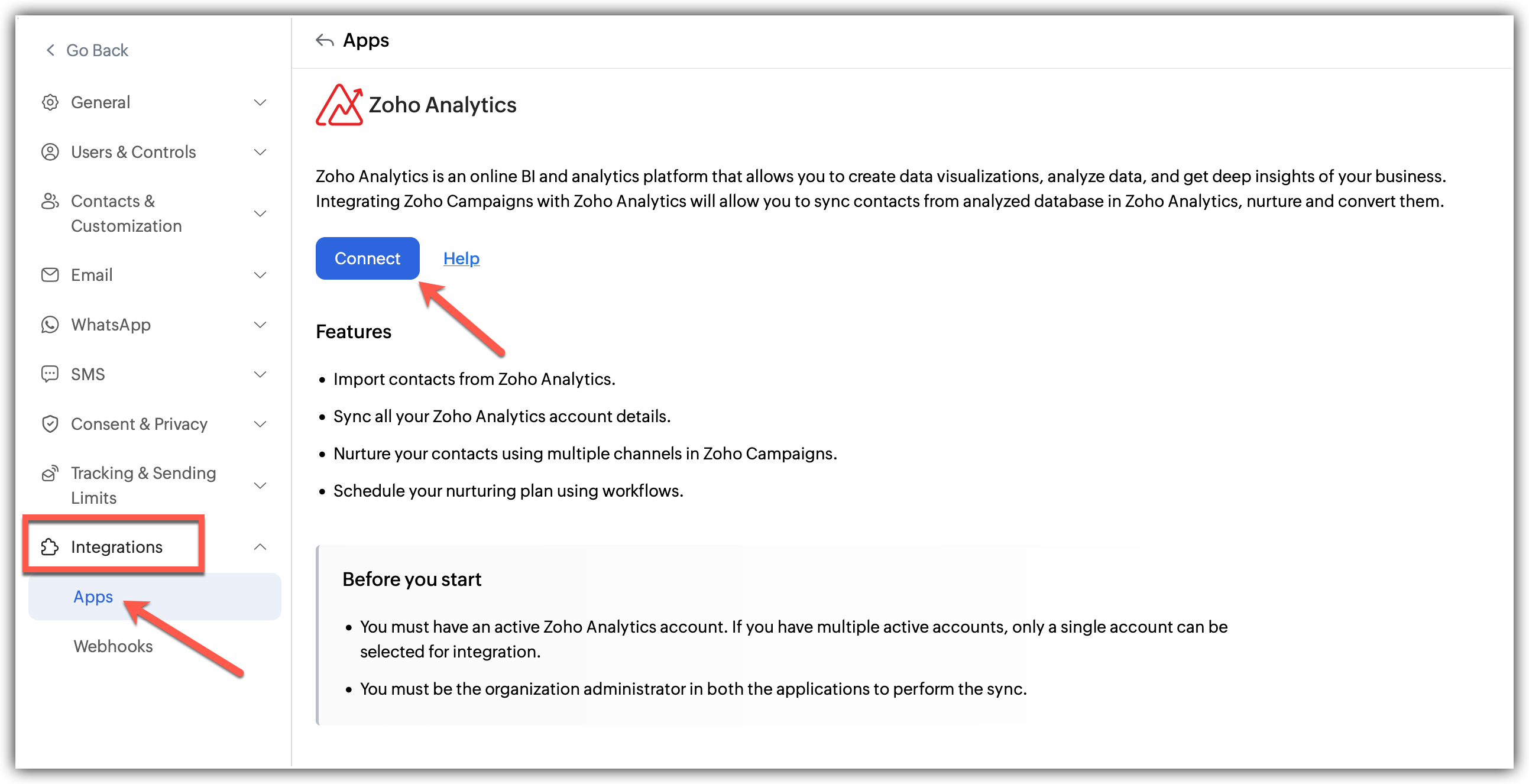
Click Settings icon on the top-right corner of the screen.
Choose Apps under Integration.
Select Zoho Analytics under Zoho and click Create Sync.
A pop up appears to create a new sync.
Fill in the details of the sync:
1. Choose the Analytics module that you want to sync.
2. Choose the Table Name and Select the Workspace under it.
3. Select the list you want to sync to.
4. Select the subscription type.
5. Choose a topic for the imports if required.
6. Select the Date, Sync frequency and the exact condition for it.
Click Next.
Now, Map the fields from Zoho Analytics to Zoho Campaigns.
Click Save and your sync will be initiated.

- Unlike other integrations, Zoho Analytics has two dropdowns–a source as well as a sub source aka an application and a form.
- Fields are not automatically pre-mapped in Zoho Analytics, so the data needs to be manually mapped to its fields during setup.
- The sync frequency date option is added for manual sync of data. The sync data will be fetched based on the time set in Sync frequency. Setting up a random time may cause improper sync issues.
What happens if I deny my Zoho Analytics account Integration?
If you deny this integration,
You cannot import contacts any further from Zoho Analytics.
All active syncs will be disabled.
You cannot send any type of promotional campaigns to your contacts from Zoho Analytics.
Denying access to Zoho Analytics
Click Settings icon on the top-right corner of the screen.
Choose Apps under Integration.
Under connected apps, Select Zoho Analytics.
Click the Disconnect option after clicking the three dots in the right.
A pop appears informing about the effect of disconnecting
Click Disconnect
Post Integration
At the integration page, you can view the syncs in a list view format under workspaces if multiple syncs are running simultaneously.
Also, individual integrations have a pause and delete sync options for easier accessibility.