Integrate with Finance apps
Zoho Books
Features
- Import customer details from Zoho Books into Zoho Campaigns.
- Build campaigns based on customer activity and transactions.
- Send updates and reminders without manual follow-ups.
Prerequisites
You must have an active Zoho books account. If you have multiple accounts, only one account can be selected for integration.
Only users with Administrator permission in both Zoho Recruit and Zoho Campaigns can setup the sync.
Integrate with Zoho Books 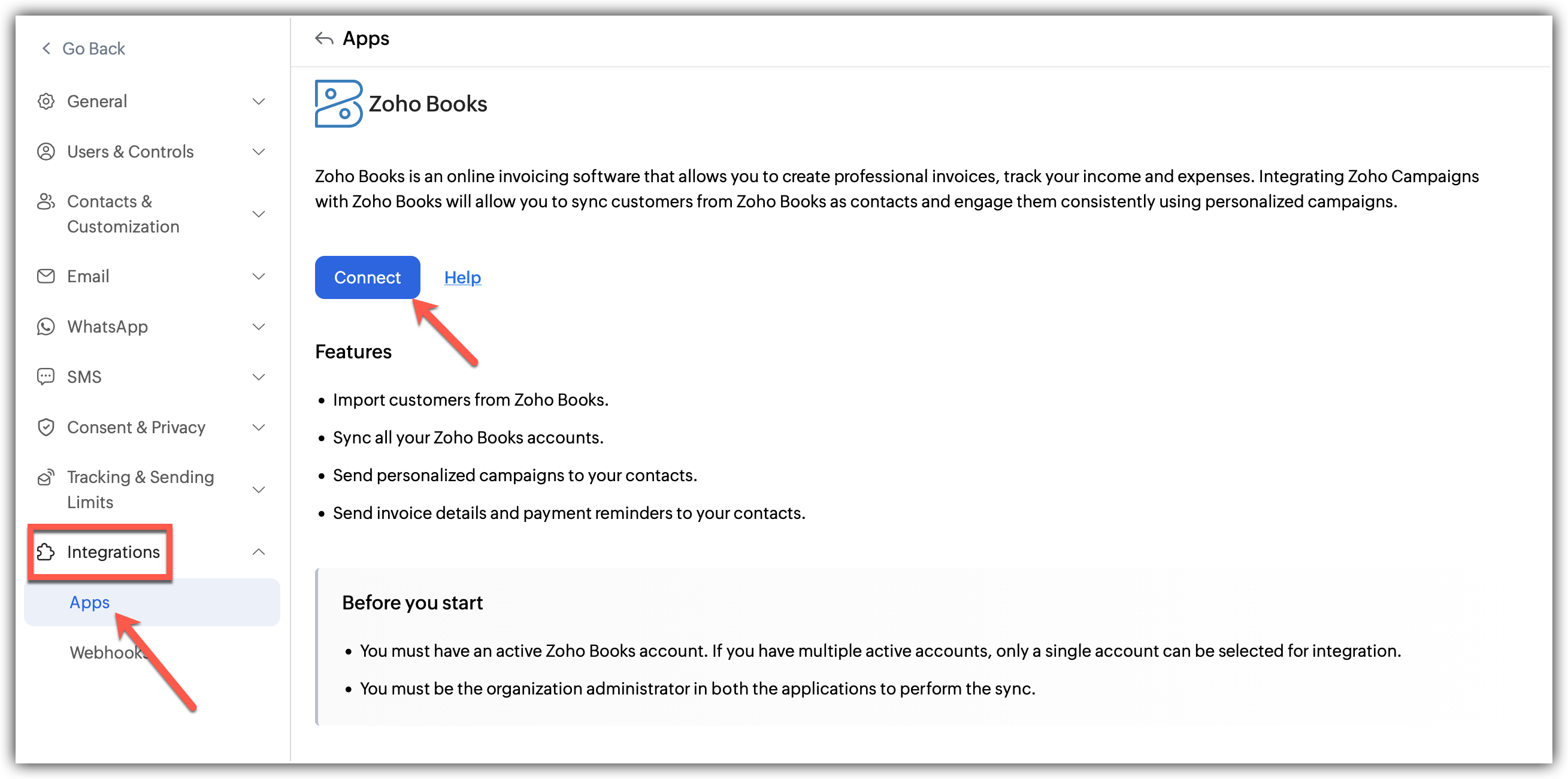
Click Settings icon on the top-right corner of the screen.
Choose Apps under Integration.
Select Zoho Contacts under Zoho Apps and click Connect.
A pop up appears to integrate and create a new sync.
After linking the account by choosing an organization to sync with Zoho Campaigns, proceed to the next step of configuring the sync.
Fill in the details of the sync:
1. Select the Books module you want to sync.
2. Select the Workspace under it.
3. Select the list you want to sync with(optional).
4. Select the subscription type.
5. Choose a topic for the imports if required(optional).
6. Configure the Sync Date, Sync frequency and the exact condition for it.
7. Toggle whether you want to update empty field value as per Zoho Books details.
8. Click Save and Next.Now, Map the fields from Zoho Analytics to Zoho Campaigns.
Click Initiate once you are done
Learn how to import contacts from Zoho Books
What happens if I deny my Zoho Books account Integration?
If you deny this integration,
All active syncs will be disabled.
You cannot import further customer data from Zoho Books.
You cannot send campaigns to synced contacts.
Denying access to Zoho Books
Click Settings icon in the top-right corner of the screen.
Choose Apps under Integration.
Under connected apps, Select Zoho Analytics.
Click the Disconnect option after clicking the three dots in the right.
A pop appears informing about the effect of disconnecting.
Click Proceed.
Post Integration
You can always go back and edit the Sync details and Field Mapping
You can also view the Sync History which logs all the actions related to this integration including Total Records, Added, Updated, Skipped contacts.
Zoho Invoice
Features
- Sync customer details from Zoho Invoice to Zoho Campaigns automatically.
- Connect and manage data from multiple Zoho Invoice accounts in one place.
- Use invoice data to create more relevant and personalized campaigns.
- Send invoice updates and payment reminders without manual follow-ups.
Prerequisites
- You need an active Zoho Invoice account.
If you have multiple accounts, you can connect only one account per integration setup. - You must have administrator access in both Zoho Invoice and Zoho Campaigns.
This ensures you have the required permissions to configure and manage the integration.
Integrate with Zoho Invoice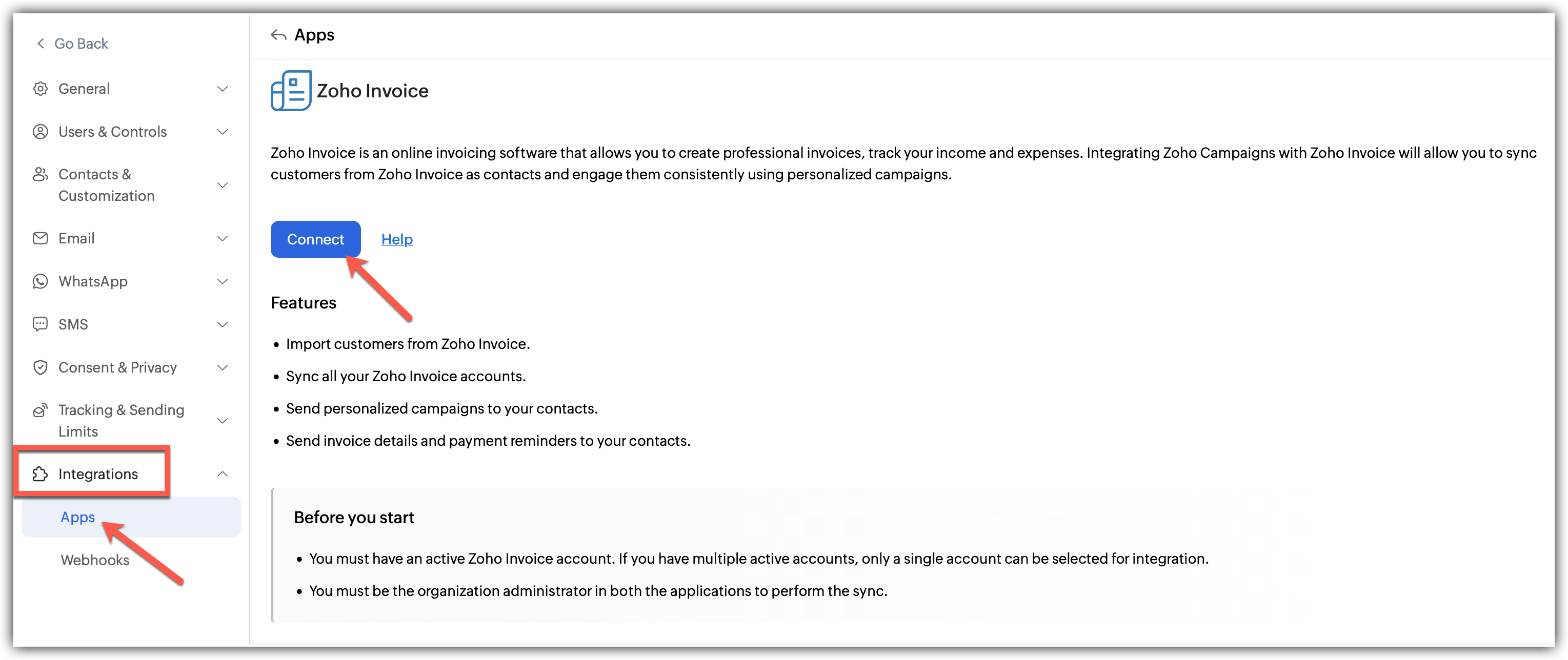
Click Settings icon on the top-right corner of the screen, then click Apps under Integrations.
Click Connect App on the top-right corner of the screen.
Click Zoho under Categories and then, select Zoho Invoice.
Click Connect.
A pop-up appears asking you to set up the sync settings:
1. Select the workspace that you want to map
2. Select where you want to sync to
3. Select the subscription type
4. Choose a topic for the imports if required
5. Select the sync frequency and the exact condition for it.
6. Toggle whether you want to update empty field value as per Zoho Invoice details.Click Save and Next.
Now, Map the fields from Zoho Invoice to Zoho Campaigns.
Click Save and your sync will be initiated.
Learn how to import contacts from Zoho Invoice

Denying access to Zoho Invoice
Click Settings icon on the top-right corner of the screen.
Choose Apps under Integration.
Click Zoho Invoice under connected apps.
Click the Disconnect option after clicking the three dots in the right.
A pop appears informing about the effect of disconnecting.
Click Proceed.
What happens if I deny my Zoho Invoice account Integration?
If you deny this integration,
Existing active syncs will be disabled.
You cannot import further contacts from Zoho Invoice.
You cannot send any type of promotional campaigns to your contacts from Zoho Invoice.
Post Integration
You can always go back and edit the Sync details and Field Mapping.
You can also view the Sync History which logs all the actions related to this integration including Total Records, Added, Updated, Skipped contacts.