Integrate with SMS Gateways
In Zoho Campaigns, SMS gateways can be integrated to extend your communication beyond email. Once connected, you can create and send SMS campaigns to your contacts directly from the platform, using the gateway provider you choose.
This is especially useful when you need your message to be seen quickly. Unlike emails, SMS messages are typically read within minutes, making them a reliable option for time-sensitive communication.
Some Use cases where SMS Integration proves to be useful
Transactional updates SMS
If Mark runs an online store, he may need to keep his customers informed about their orders. Instead of relying only on email, he can send SMS updates for order confirmations, shipping status, or payment reminders. This ensures that customers receive important information even if they miss an email.
Instant promotional SMS
If Debbie is running a limited-time sale, she may want her audience to act immediately. Sending a quick SMS about a flash sale or exclusive offer can help her reach customers instantly and recieve faster responses compared to traditional campaigns.
Customer re-engagement campaigns
If Nolan notices that some of his contacts are not responding to email campaigns, he can use SMS to reconnect with them. A short and direct message can help grab attention and bring inactive users back.
Service alerts and critical notifications
If a service provider needs to inform users about downtime, maintenance, or urgent updates, SMS becomes a reliable option. Since these messages are time-sensitive, SMS ensures that they are seen quickly.
Follow-ups after campaigns or actions
If a customer has just signed up, made a purchase, or shown interest in something, a follow-up SMS can be used to guide the next step. This could be a reminder, a quick update, or a prompt to take action.
Clickatell
Clickatell is a cloud-based messaging platform that enables businesses to send SMS messages to customers across the globe through secure and scalable APIs. It is widely used for transactional alerts, notifications, and promotional messaging, making it a reliable choice for businesses looking to communicate instantly and directly with their audience.
When integrated with Zoho Campaigns, Clickatell allows you to extend your marketing efforts beyond email and reach your contacts through SMS. This is especially useful for time-sensitive communication such as promotions, reminders, alerts, and updates, where higher open rates and immediate visibility are critical.
By combining Clickatell’s messaging infrastructure with Zoho Campaigns’ contact management and campaign capabilities, businesses can create targeted SMS campaigns, personalise messages using contact data, and ensure consistent communication across channels, all from a single platform.
To integrate with Clickatell 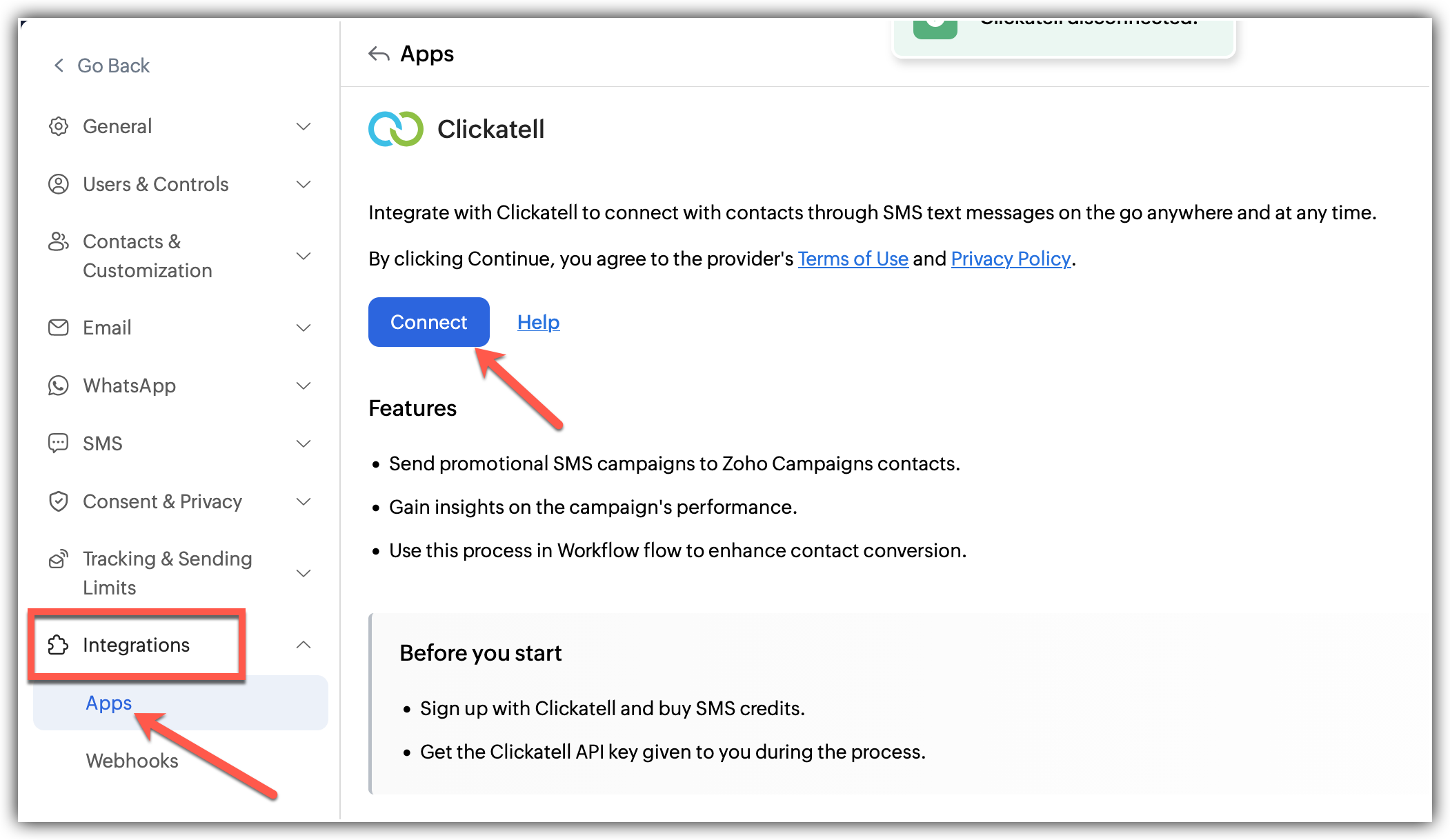
Click on Settings icon located on the top right of the application.
Choose Apps under Integrations.
Select SMS gateways from the available integration types.
Choose Clickatell and a page appears with the description, features and pre-requisites for the integration.
After reading the terms and conditions and the privacy policy, click the Connect button.
Fill in the following information in the pop up that appears:
Clickatell API Key
Sender ID if required
Click Integrate.
A pop up appears confirming your integration and and the integration details like time, date and admin is displayed.
To learn more about Clickatell, click here
After the integration
Once the Clickatell integration is successfully completed, you can start using SMS as a communication channel within Zoho Campaigns.
All SMS activities are handled through the connected Clickatell account, while Zoho Campaigns acts as the interface for campaign creation, audience selection, and overall management. This setup helps streamline your messaging efforts and ensures that both email and SMS campaigns can be managed together efficiently.
Twilio
Twilio is a messaging platform that businesses use to send SMS messages through its APIs. It’s often used when there’s a need to deliver messages quickly and reliably, whether it’s for updates, alerts, or simple notifications.
Connecting Twilio with Zoho Campaigns gives you the option to reach your contacts through SMS alongside your regular campaigns. Instead of relying only on email, you can use SMS for situations where you want your message to be seen right away.
Once connected, Twilio works in the background while you continue to manage your contacts and campaigns from Zoho Campaigns. This makes it easier to include SMS as part of your overall communication without switching between tools.
To integrate with Twilio 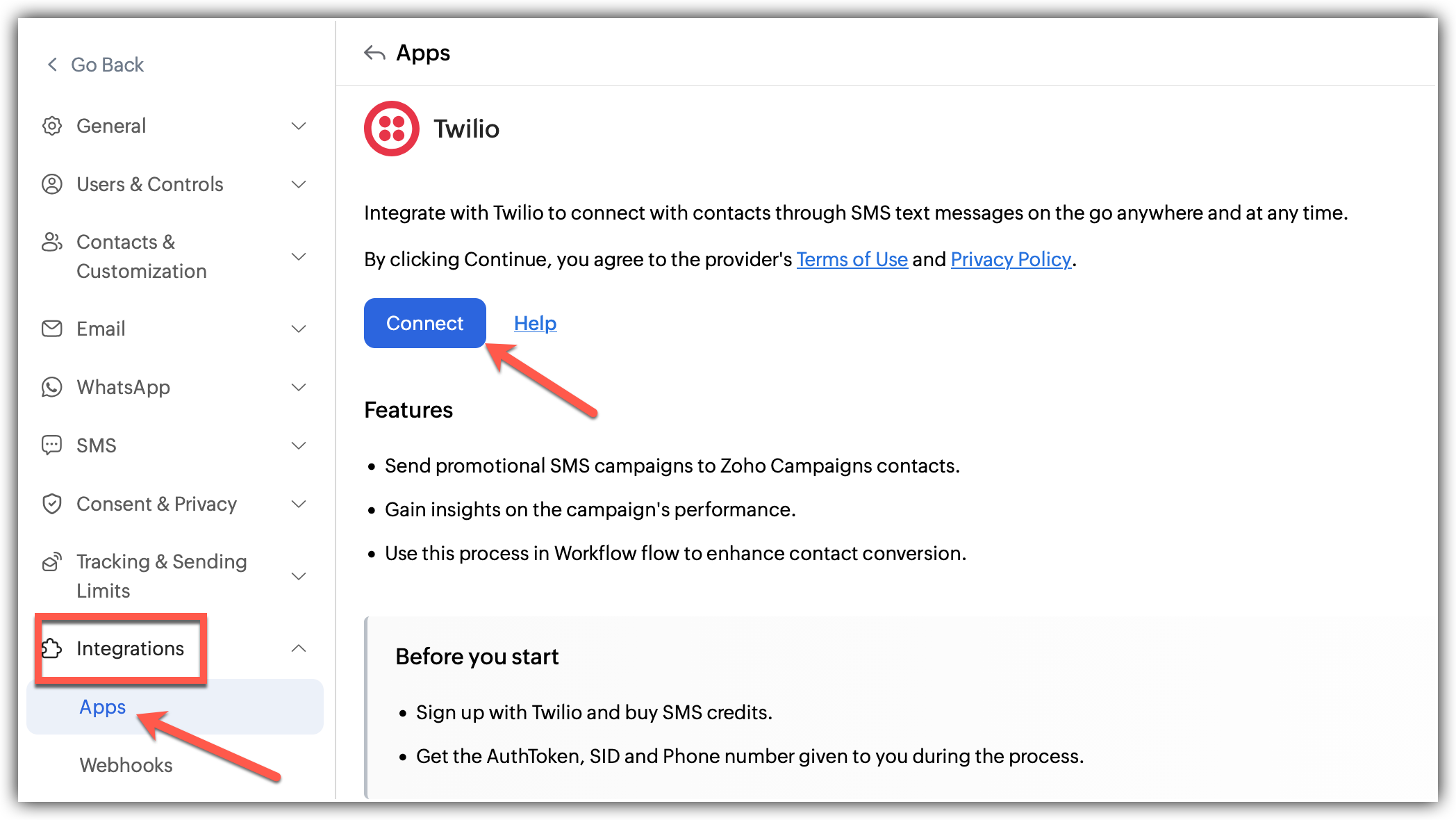
Click on the Settings icon located at the top-right corner of the application.
Choose Apps under Integrations.
Select SMS from the list of integration types.
Choose Twilio and click Connect.
Review and accept the terms and conditions, then click Continue.
In the pop-up that appears, enter the following details:
Twilio Auth Token
Twilio Account SID
Twilio Phone NumberClick Integrate.
Once completed, a confirmation message will be displayed along with details such as the time of integration and the admin who configured it.
To learn more about Twilio, click here
After the integration
Once Twilio is successfully integrated, you can start using SMS within Zoho Campaigns.
You will be able to:
Create and send SMS campaigns to your contacts.
Target specific audiences using segmentation.
Personalise messages using contact information.
Send time-sensitive updates such as reminders, alerts, and offers.
All messages are sent through your connected Twilio account, while Zoho Campaigns provides the interface to manage campaigns, contacts, and messaging activities in one place.
Sinch Engage
Sinch Engage is an SMS service provider that businesses use to send messages to customers for notifications, alerts, and general communication.
When connected with Zoho Campaigns, it lets you send SMS messages to your contacts directly from the platform. This gives you an additional way to reach your audience when you want your message to be seen quickly, without relying only on email.
To Integrate Sinch Engage with Zoho Campaigns 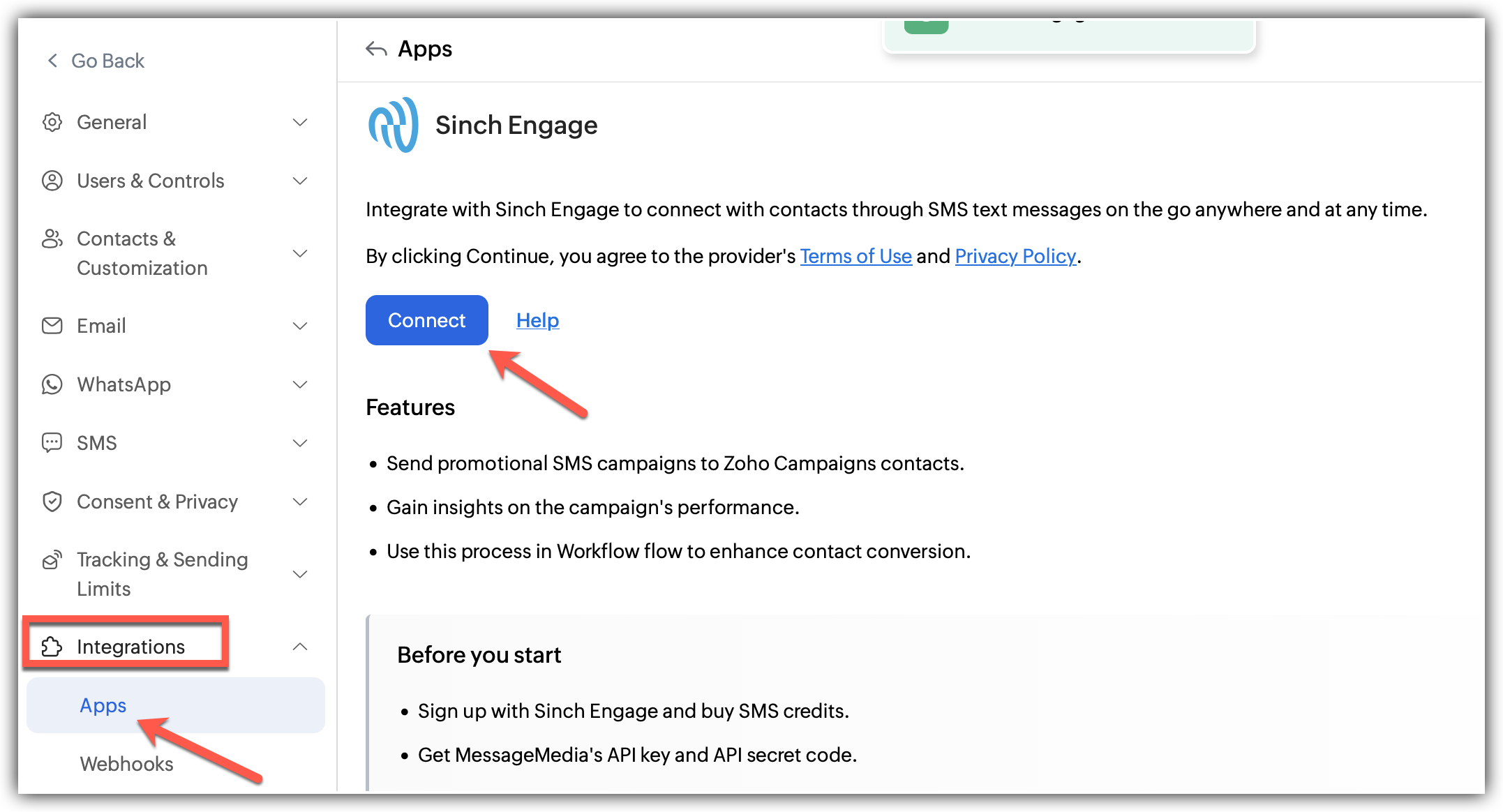
Click Settings icon on the top-right corner of the screen.
Choose Apps under Integrations.
Go to SMS Gateways.
Hover over Sinch Engage and click Connect.
In the pop-up that appears, enter the following information:
API Secret Code
Select the your targeted region, APAC or EU.
Click Integrate.
To learn more about Sinch Engage, click here
Once the integration is completed, a confirmation message will be shown with details such as the time of integration and the admin who configured it.
After the integration
Once Sinch Engage is connected, you can start sending SMS campaigns from Zoho Campaigns through the Sinch Engage account, meanwhile you manage all the other functions like managing campaigns and contacts straight from Zoho Campaigns.
Bulk SMS
BulkSMS allows you send messages to your customers in bulk for updates, alerts, and promotions.
When connected with Zoho Campaigns, it gives you a quick way to run SMS campaigns from the same place where you manage your contacts and email campaigns, without needing to switch tools.
To integrate with BulkSMS in Zoho Campaigns 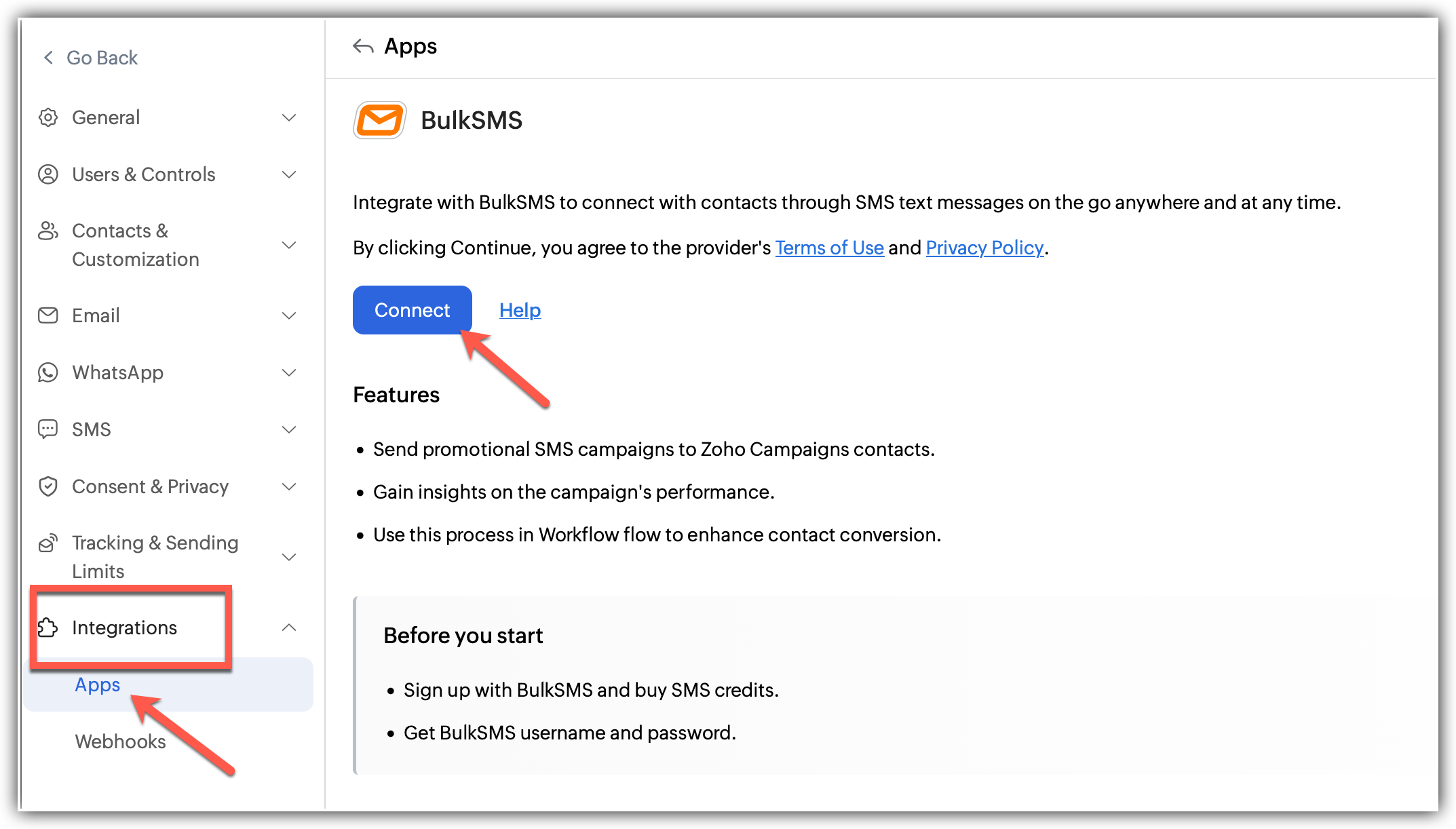
Click on Settings icon located at the top right corner of the application.
Choose Apps under Integrations.
Select SMS gateways from the available app options.
Choose BulkSMS and Review and accept the terms and conditions.
Click Connect.
Fill in the following information in the pop-up that appears:
Username
Password
Sender ID
Click Integrate.
To learn more about BulkSMS, click here
Once the integration is completed, a confirmation message will pop-up with details such as the time of integration and the admin who configured it.
After the integration
Once the integration is set up, sending SMS campaigns becomes part of your usual workflow in Zoho Campaigns.
You can choose your audience, create your message, and send it directly through BulkSMS, all without leaving the platform. This makes it easier to handle both email and SMS communication together, depending on what the situation calls for.
MessageBird
MessageBird is a communication platform that businesses use to send SMS messages for updates, alerts, and notifications across different regions.
When connected with Zoho Campaigns, it allows you to include SMS as part of your campaign flow. This means you can reach your contacts instantly when needed, without managing messaging separately.
To Integrate MessageBird with Zoho Campaigns 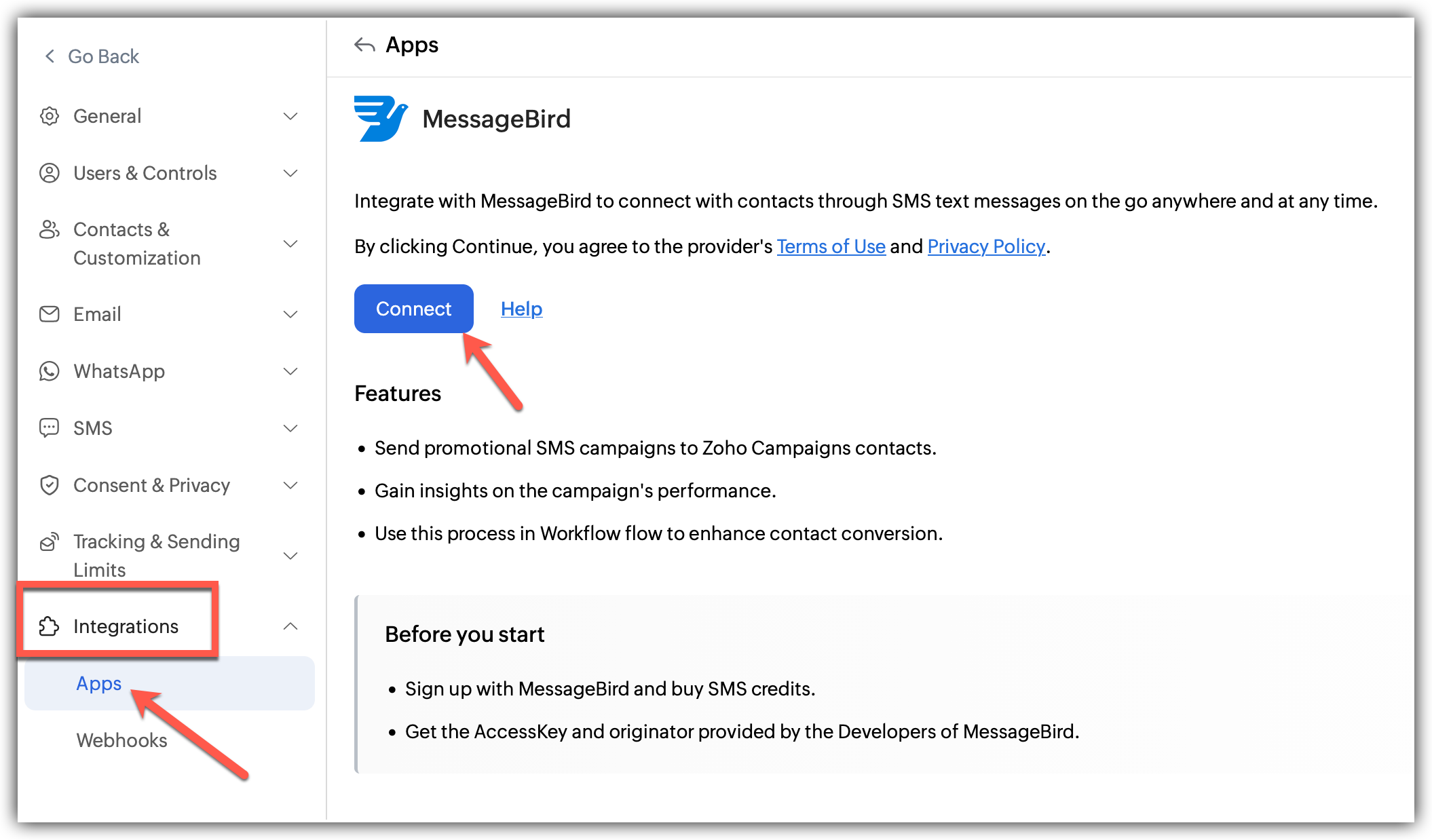
Click Settings icon on the top-right corner of the screen.
Choose Apps under Integrations.
Select SMS gateways from the available app options.
Choose MessageBird and read the terms and conditions.
Click Connect, fill in the following information:
MessageBird Access Key
Click Integrate.
To learn more about MessageBird, click here
After the integration
Once the integration is completed, a confirmation message will pop-up with details such as the time of integration and the admin who configured it.
After the integration, you can start reaching your contacts through SMS whenever needed.
This is especially useful for messages that need quick visibility, such as reminders, alerts, or short updates. Since everything is managed within Zoho Campaigns, you don’t have to switch between tools to run your campaigns.
SMS Magic
SMS Magic, when integrated with Zoho Campaigns, provides a way for businesses to send SMS messages to customers for notifications, reminders, and general communication.
After integrating it with Zoho Campaigns, you can use SMS alongside your existing campaigns to reach your audience more directly, especially in cases where quick visibility is important.
To Integrate with SMS-Magic 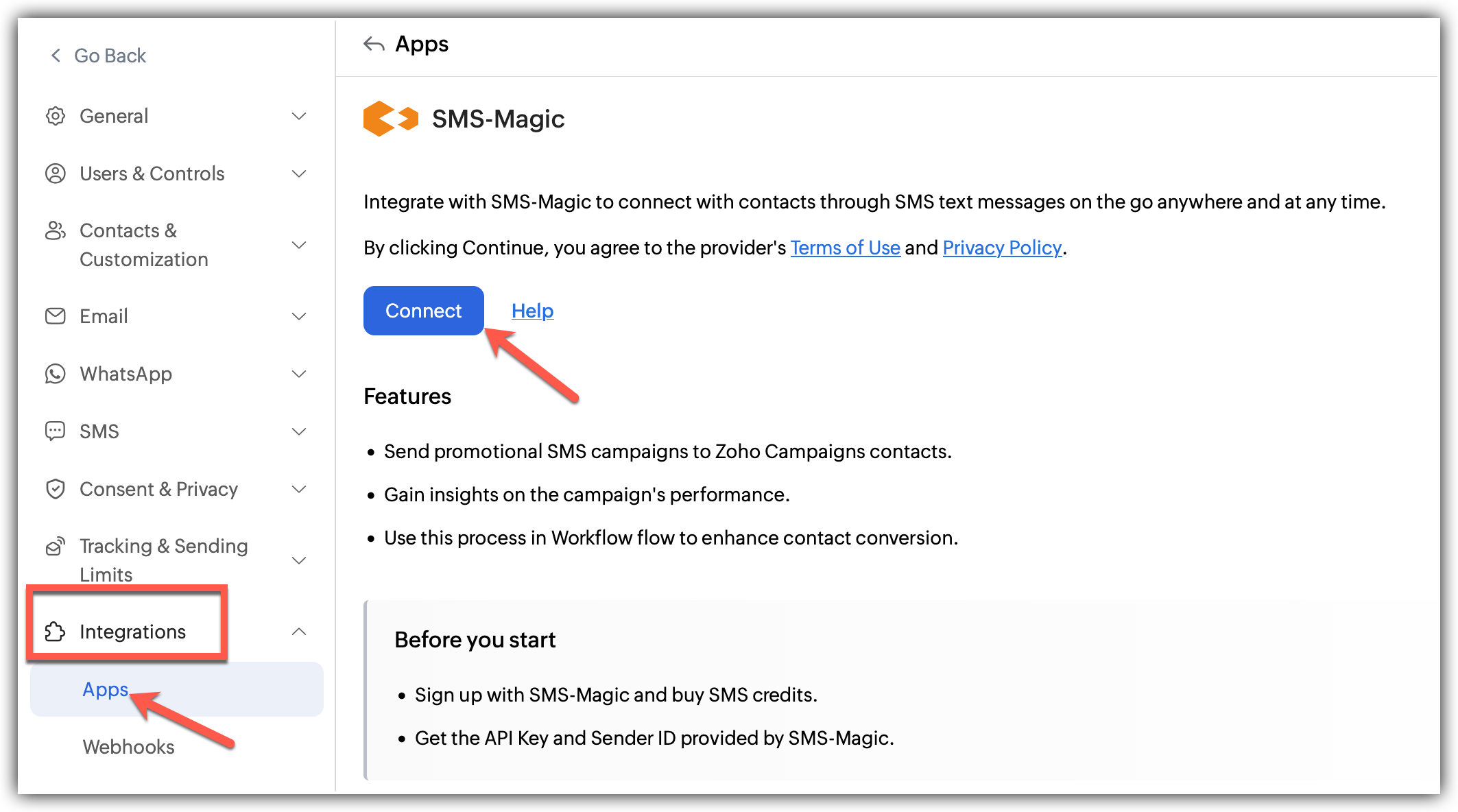
Click Settings icon on the top-right corner of the screen.
Choose Apps under Integrations.
Select SMS gateways from the available app options.
Choose SMS-Magic and read the terms and conditions.
Click Connect, fill in the following information::
Click Integrate.
To learn more about SMS-Magic, click here
After the integration
After the integration, you can start reaching your contacts through SMS whenever needed.
This is useful for messages that require immediate attention, such as reminders or alerts. Since everything is managed within Zoho Campaigns, you can run your campaigns without moving between different platforms.
MiSMS
MiSMS is an SMS gateway that allows businesses to send messages to their customers for updates, alerts, and promotional communication.
By integrating MiSMS with Zoho Campaigns, you can send SMS campaigns directly from the platform and stay connected with your audience through a faster and more immediate channel.
To Integrate with MiSMS 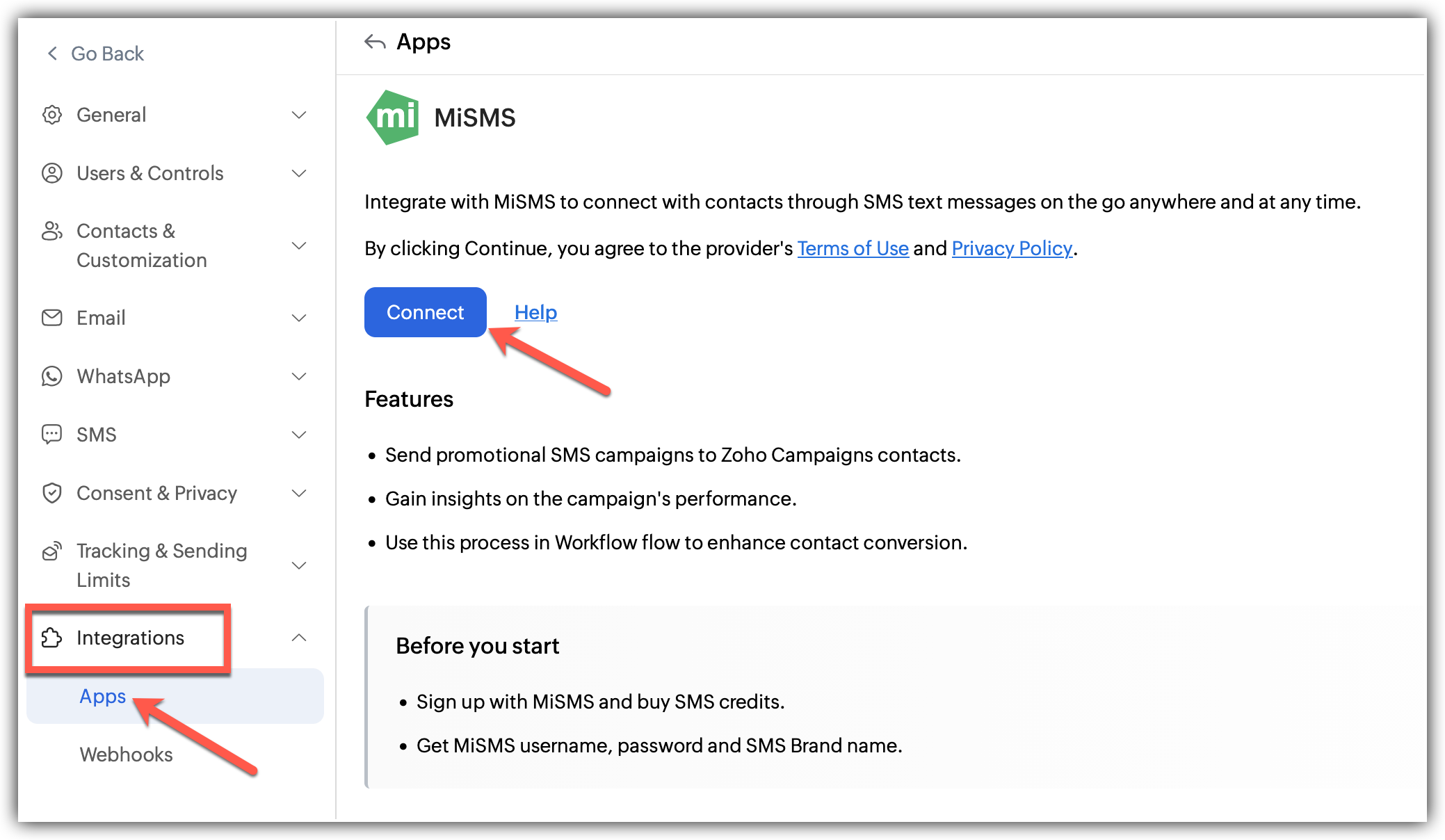
Click Settings icon on the top-right corner of the screen.
Choose Apps under Integrations.
Select SMS gateways from the available app options.
Choose MiSMS and read the terms and conditions.
Click Connect, fill in the following information:
Username
Password
SMS Brandname
Click Integrate.
To learn more about MiSMS, click here
After the integration
Once MiSMS is connected, you can start using SMS as part of your campaign activities.
You will be able to:
Create and send SMS campaigns to your contacts
Target specific audiences using segmentation
Personalise messages using contact details
Send quick updates such as reminders, alerts, and offers
All messages are routed through your MiSMS account, while Zoho Campaigns is used to manage campaigns and contacts from one place.
MSG91
MSG91 is an SMS gateway that businesses use to send messages for notifications, alerts, and promotional communication.
When integrated with Zoho Campaigns, it allows you to send SMS messages to your contacts directly from your campaign setup, making it easier to reach your audience quickly when needed.
To Integrate MSG91 with Zoho Campaigns 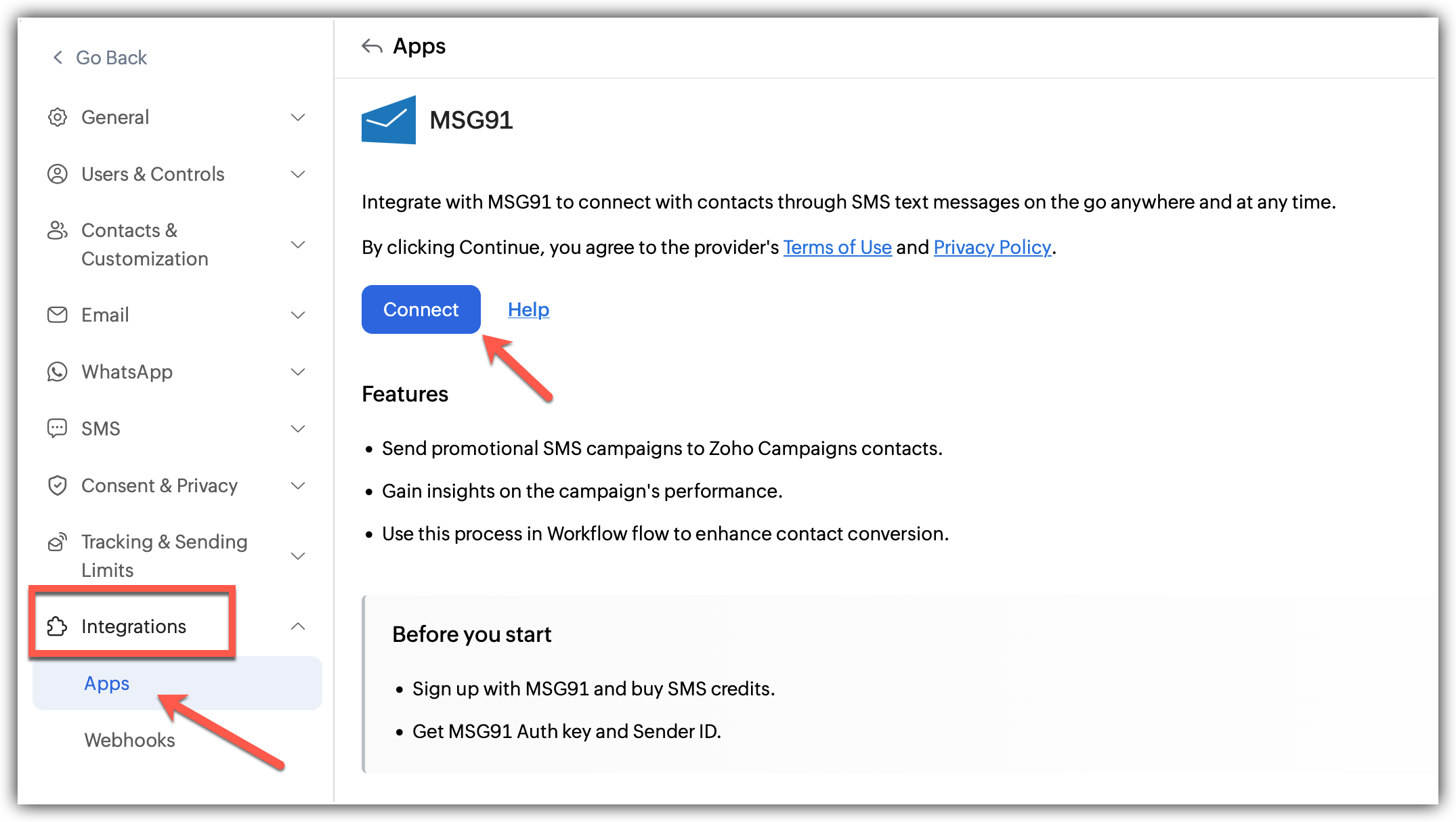
Click Settings icon on the top-right corner of the screen.
Choose Apps under Integrations.
Select SMS gateways from the available app options.
Choose MSG91 and read the terms and conditions.
Click Connect, fill in the following information:
MSG91 API Authkey
Sender ID
Select the messaging type: Promotional or Service Explicit
Click Integrate.
To learn more about MSG91, click here
After the integration
Once MSG91 is connected, SMS becomes part of your regular campaign flow.
You can create your message, choose your audience, and send it through MSG91 without leaving Zoho Campaigns. This helps you manage both email and SMS communication together in a single place.
Kudosity
Kudosity provides businesses with a way to send SMS messages to customers for updates, alerts, and general communication.
With Kudosity integrated into Zoho Campaigns, you can use SMS as an additional channel to communicate with your contacts whenever quick visibility is important.
To Integrate Kudosity with Zoho Campaigns 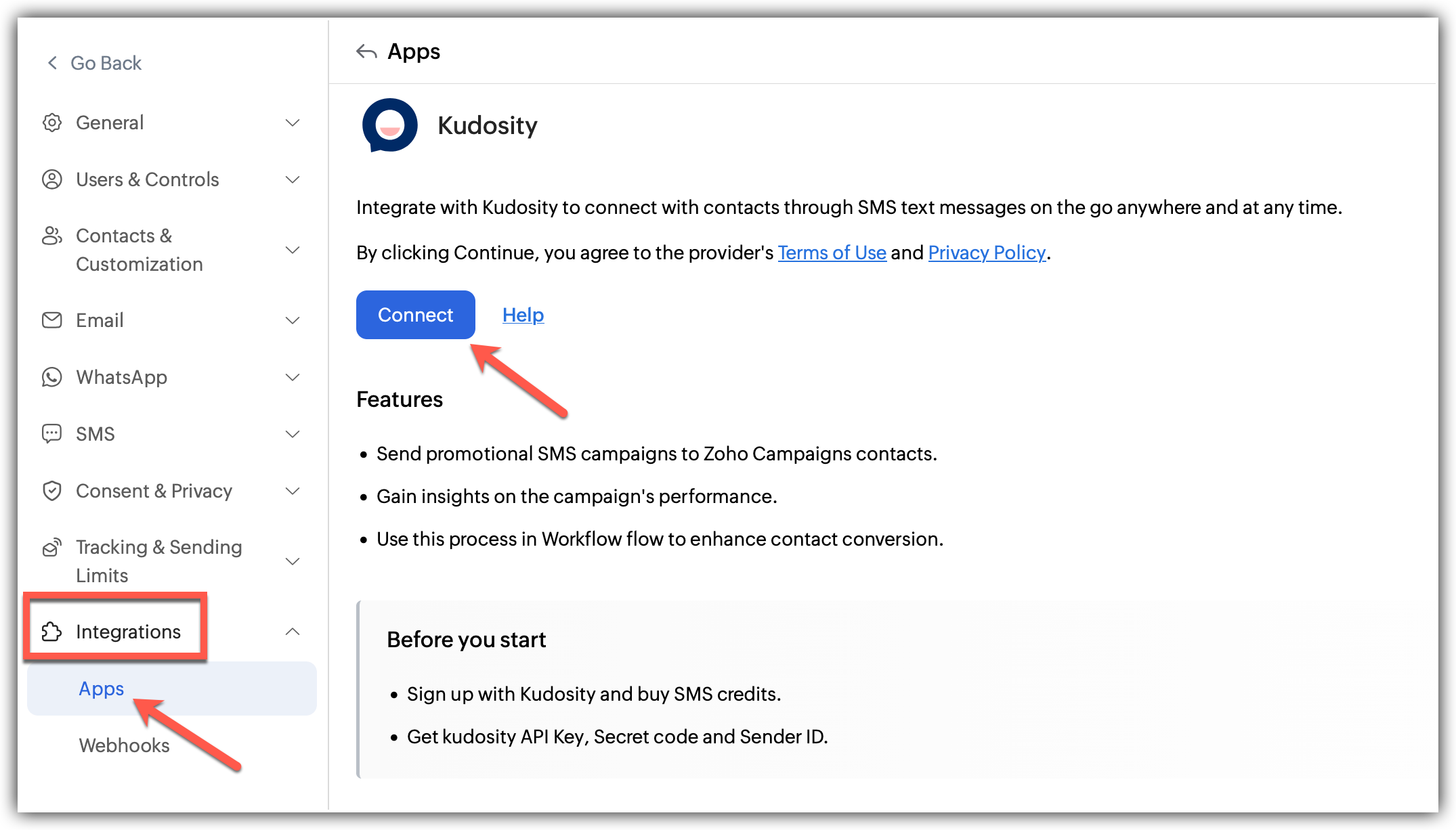
Click Settings icon on the top-right corner of the screen.
Choose Apps under Integrations.
Select SMS gateways from the available app options.
Choose Kudosity and read the terms and conditions.
Click Connect, fill in the following information:
Kudosity API key
Kudosity Secret code
Kudosity Alphanumeric caller ID
Click Integrate.
After the integration
After the integration, you can start reaching your contacts through SMS whenever needed.
This is useful for messages that need immediate attention, such as reminders or alerts, while still managing everything from within Zoho Campaigns.
Vonage
Vonage is a communication platform that enables businesses to send SMS messages for notifications, alerts, and updates.
By connecting Vonage with Zoho Campaigns, you can send SMS campaigns directly to your contacts without relying only on email for communication.
To Integrate Vonage with Zoho Campaigns 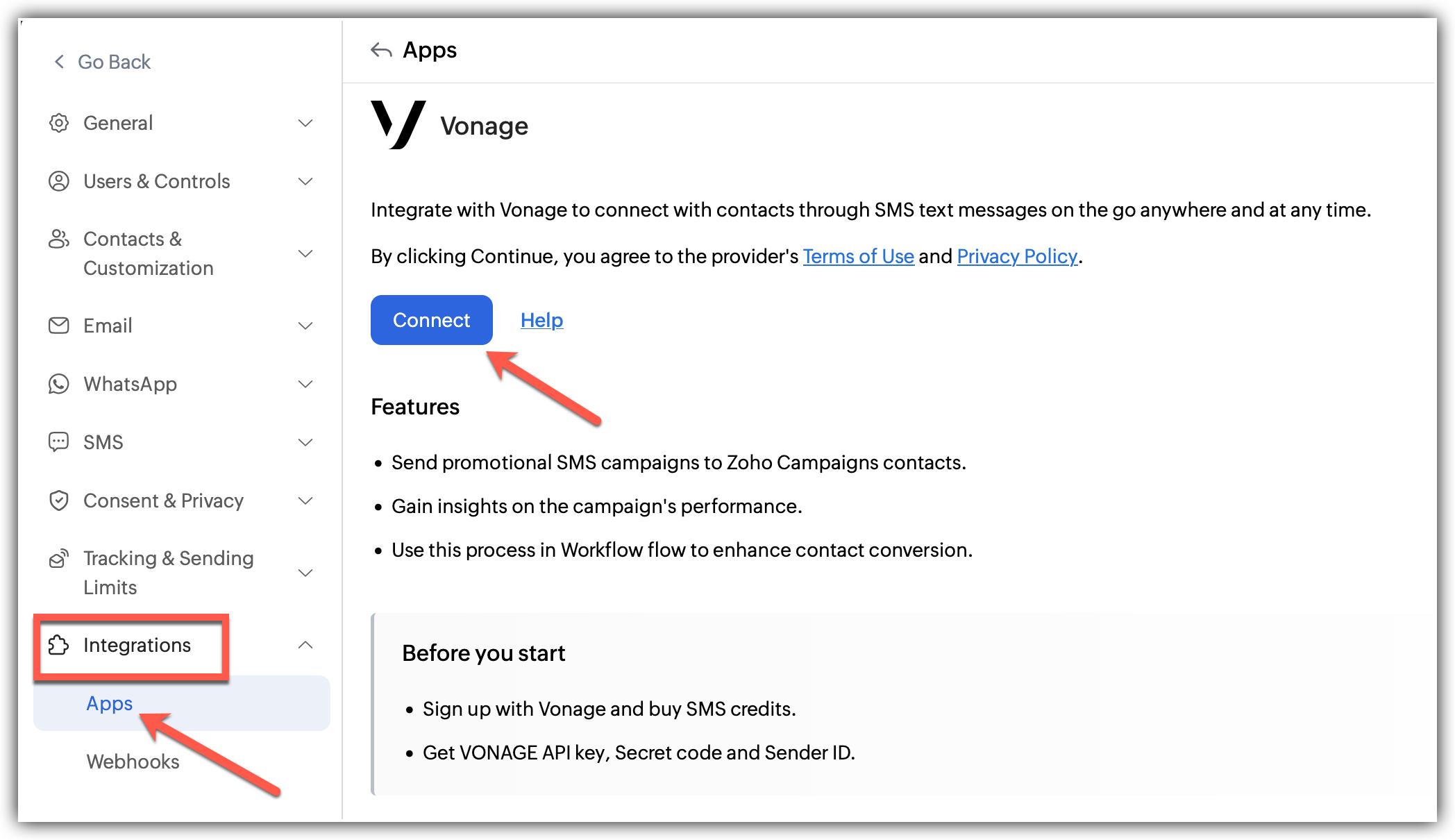
Click Settings icon on the top-right corner of the screen.
Choose Apps under Integrations.
Select SMS gateways from the available app options.
Choose Vonage and read the terms and conditions.
Click Connect, fill in the following information::
Vonage API key
Vonage Secret
Click Integrate.
To learn more about Vonage, click here
After the integration
Once Vonage is set up, you can begin using SMS as part of your campaigns.
You will be able to:
Create and send SMS campaigns
Target specific contact groups
Personalise messages using contact details
Send quick updates such as reminders and alerts
All messages are sent through your Vonage account, while Zoho Campaigns is used to manage your campaigns and contacts.
Elitebuzz
Elitebuzz is an SMS service that businesses can use to send messages for alerts, notifications, and promotional communication.
When integrated with Zoho Campaigns, it allows you to send SMS messages to your contacts directly from the platform, helping you reach them more quickly when required.
To Integrate Elitebuzz with Zoho Campaigns 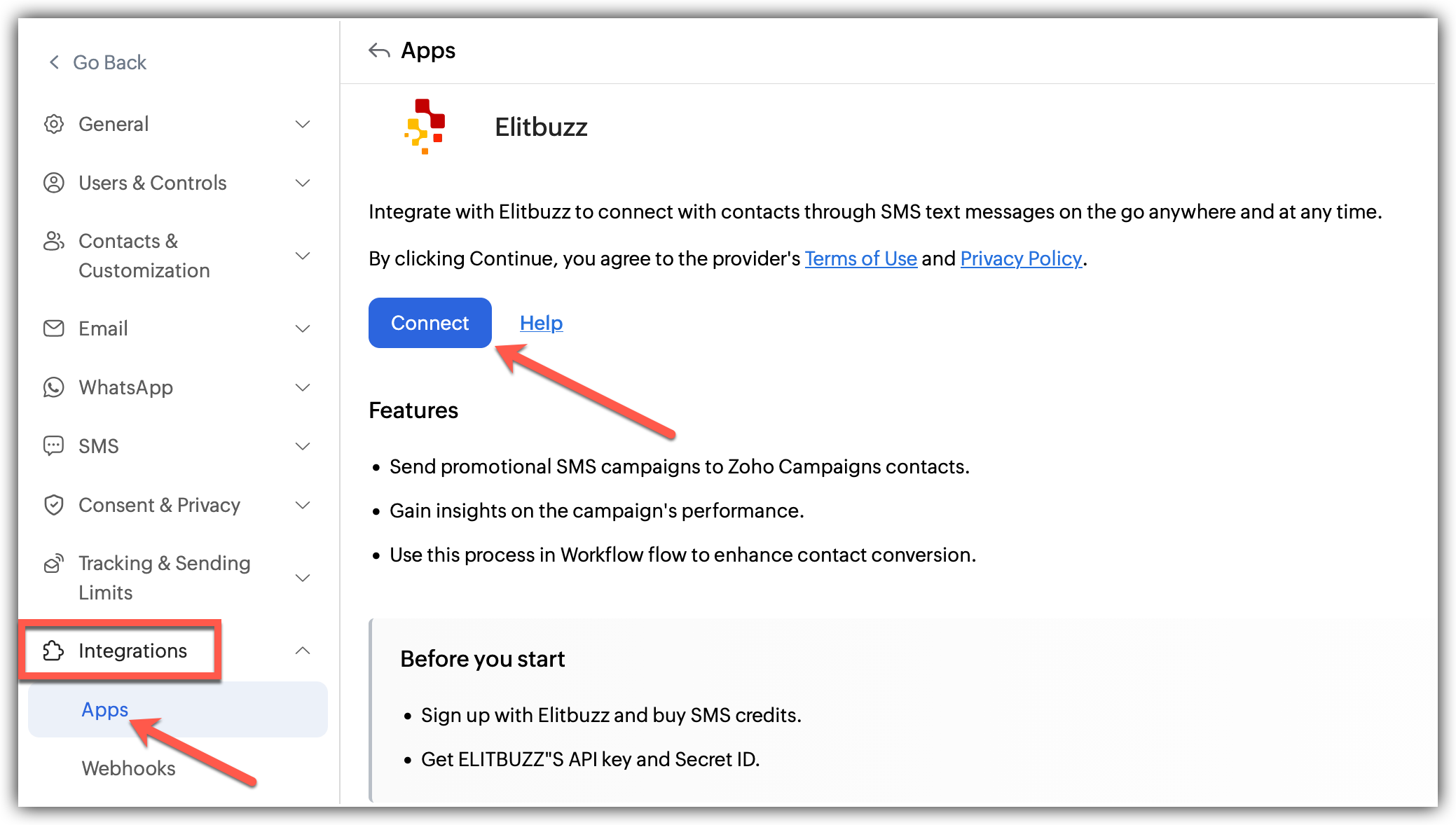
Click Settings icon on the top-right corner of the screen.
Choose Apps under Integrations.
Select SMS gateways from the available app options.
Choose Elitbuzz and read the terms and conditions.
Click Connect, fill in the following information:
Elitbuzz API key
Elitbuzz Sender ID
Click Integrate.
To learn more about Elitbuzz, click here
After the integration
Once the integration is complete, sending SMS campaigns becomes part of your usual workflow.
You can select your audience, create your message, and send it through Elitebuzz without switching between different tools.
Nimbus Adcom
Nimbus Adcom is an SMS gateway that enables businesses to send messages to customers for updates, alerts, and general communication.
With this integration, Zoho Campaigns can be used to create and send SMS campaigns directly to your contacts using Nimbus Adcom.
To Integrate Elitebuzz with Zoho Campaigns 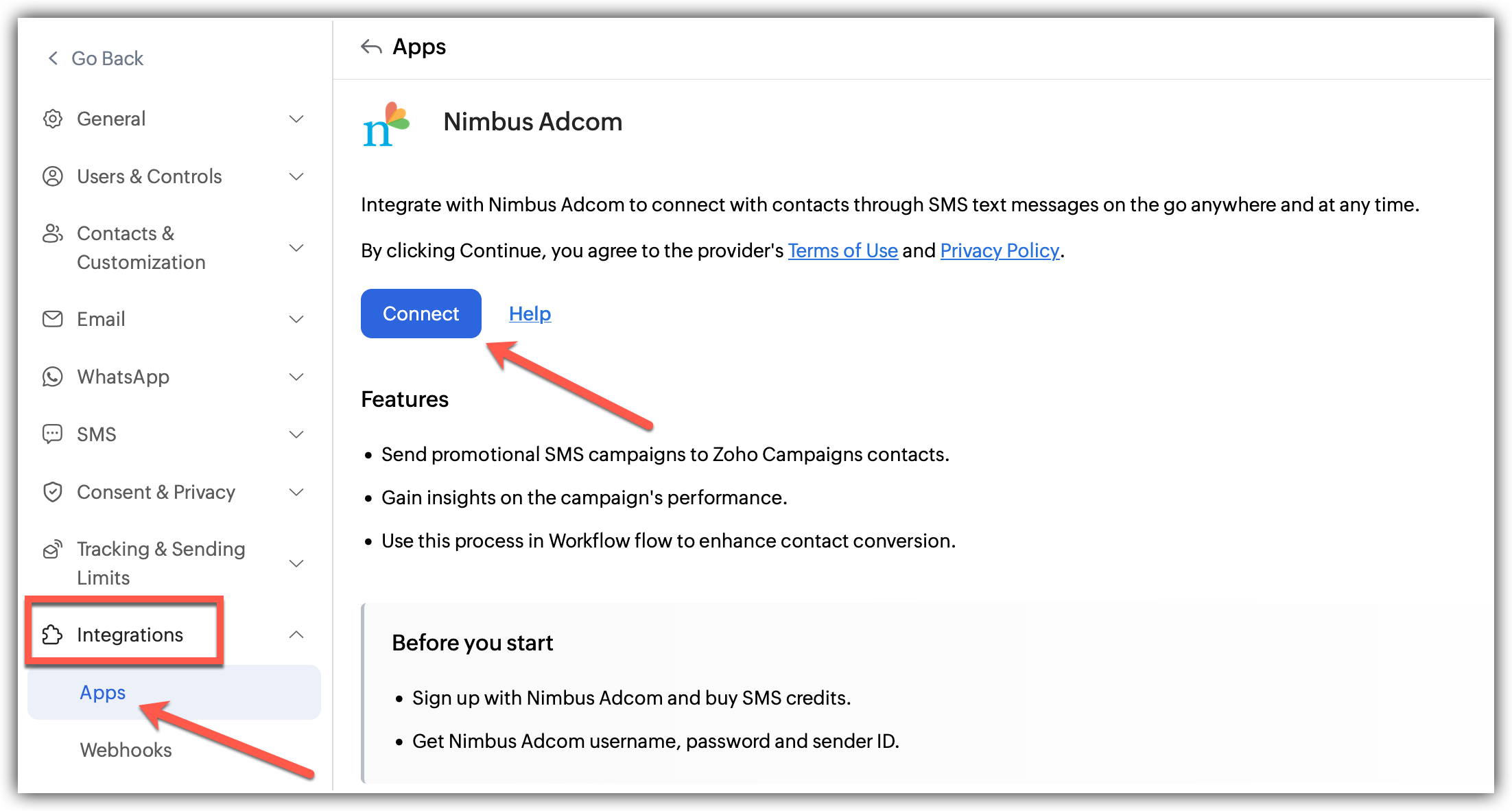
Click Settings icon on the top-right corner of the screen.
Choose Apps under Integrations.
Select SMS gateways from the available app options.
Choose Nimbus Adcom and read the terms and conditions.
Click Connect, fill in the following information:
Nimbus Adcom Username
Nimbus Adcom Password
Sender ID
Click Integrate.
After the integration
After connecting Nimbus Adcom, you can start using SMS whenever you need a faster way to reach your audience.
This helps you handle time-sensitive communication more effectively while managing everything within Zoho Campaigns.
Kaleyra
Kaleyra is a messaging platform that allows businesses to send SMS messages for notifications, alerts, and updates.
When integrated with Zoho Campaigns, it gives you the option to include SMS as part of your communication strategy alongside email campaigns.
To integrate Kaleyra with Zoho Campaigns 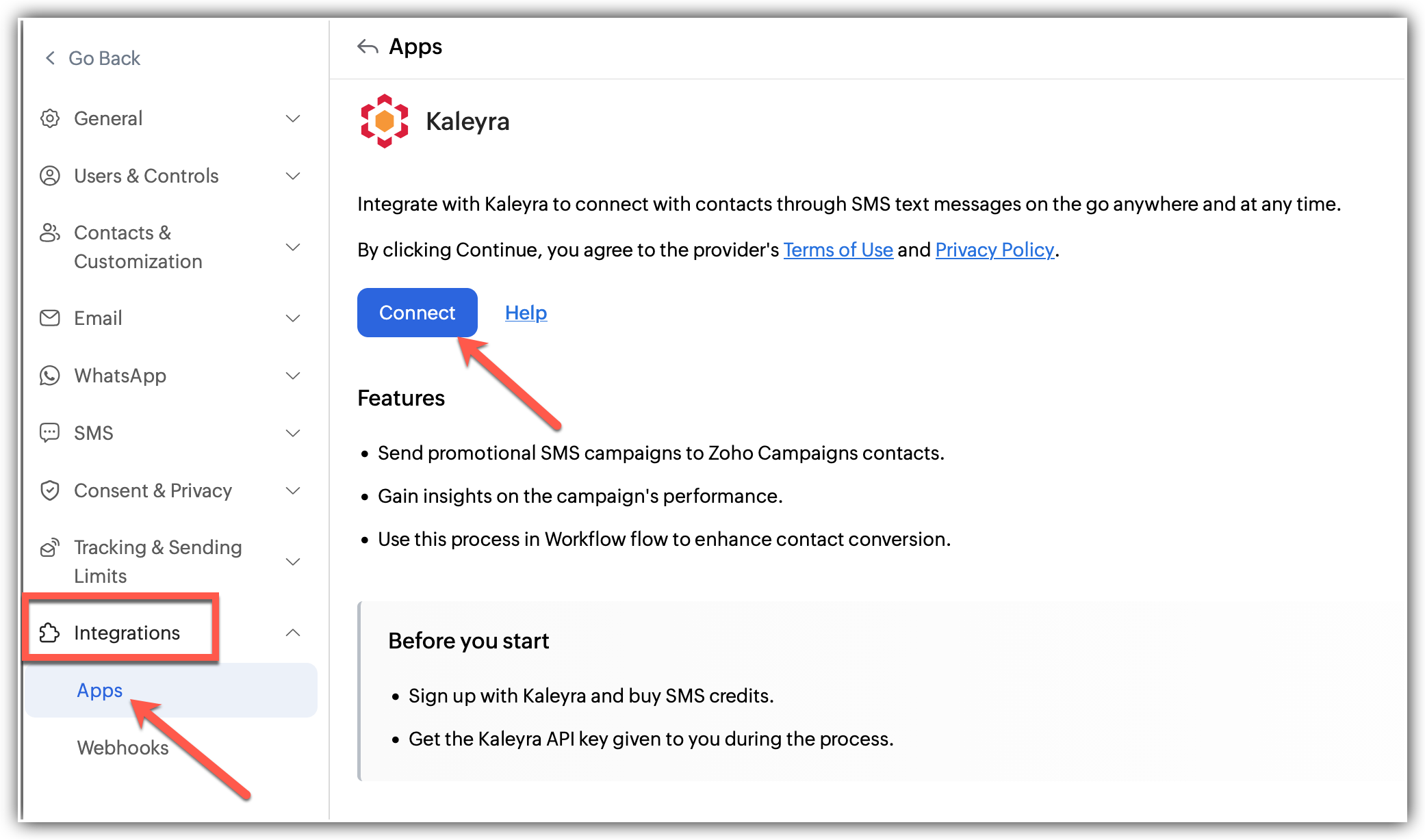
Click Settings icon on the top-right corner of the screen.
Choose Apps under Integrations.
Select SMS gateways from the available app options.
Choose Kaleyra and read the terms and conditions.
Click Connect, fill in the following information::
Kaleyra API key
Sender ID
Entity ID
Select the account type: Global or IO Platform
Click Integrate.
To learn more about Kaleyra, click here
After the integration
Once Kaleyra is integrated, you can start sending SMS campaigns directly to your contacts.
You can manage your campaigns, audience, and messaging from Zoho Campaigns while Kaleyra handles message delivery in the background.
Rakuten
Rakuten provides SMS messaging services that businesses can use to send updates, alerts, and promotional messages to customers.
By integrating Rakuten with Zoho Campaigns, you can run SMS campaigns from within the platform and reach your contacts more directly.
To Integrate Rakuten with Zoho Campaigns 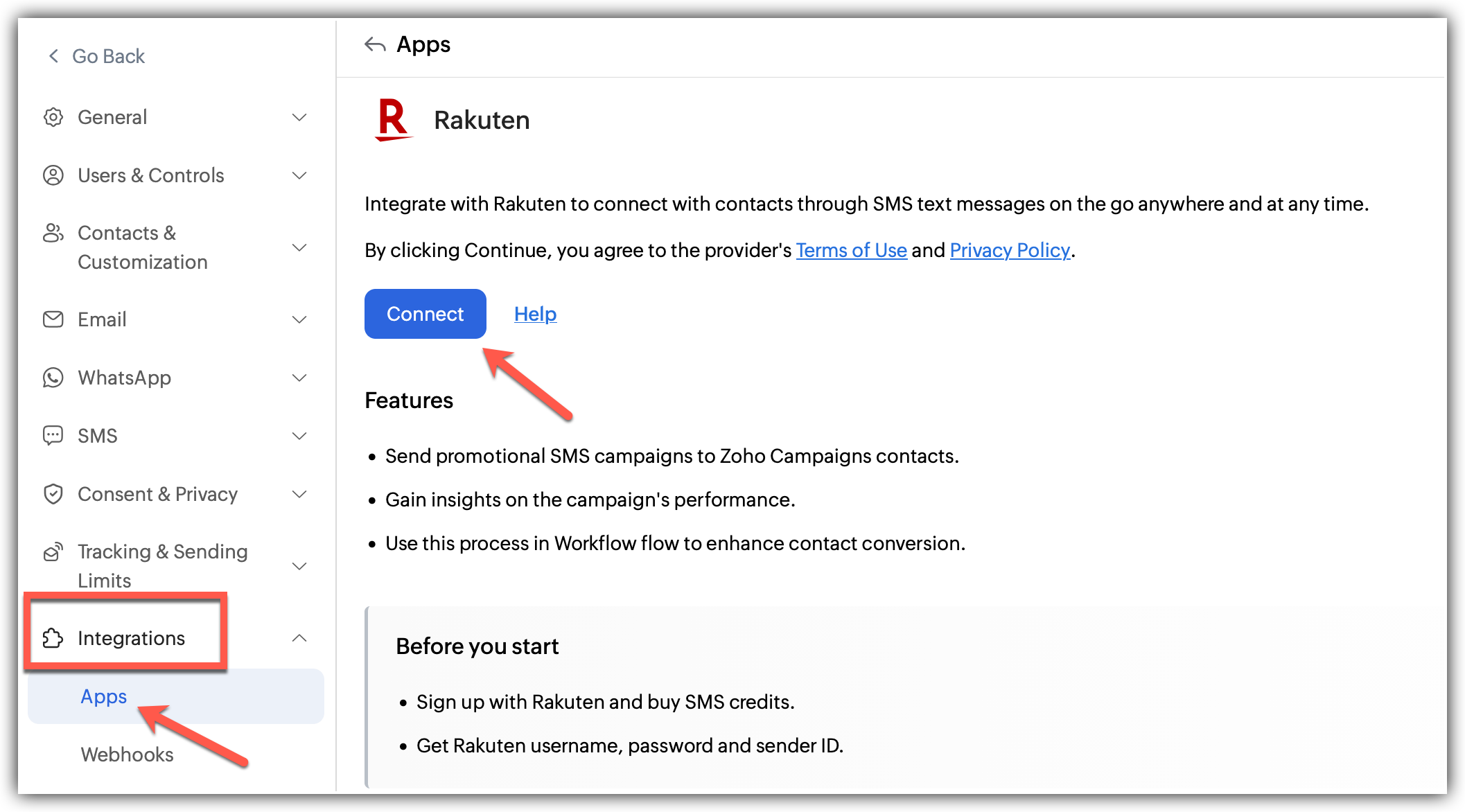
Click Settings icon on the top-right corner of the screen.
Choose Apps under Integrations.
Select SMS gateways from the available app options.
Choose Rakuten and read the terms and conditions.
Click Connect, fill in the following information::
API key
Password
Sender ID
Click Integrate.
After the integration
Once the integration is completed, you can start using SMS as an additional communication channel.
This allows you to send quick updates and messages to your contacts without depending only on email campaigns.
ValueFirst
ValueFirst is an SMS service provider that businesses use to send messages for notifications, alerts, and promotional communication.
When connected with Zoho Campaigns, it enables you to send SMS campaigns to your contacts directly from the platform, helping you communicate more quickly when needed.
To integrate with ValueFirst 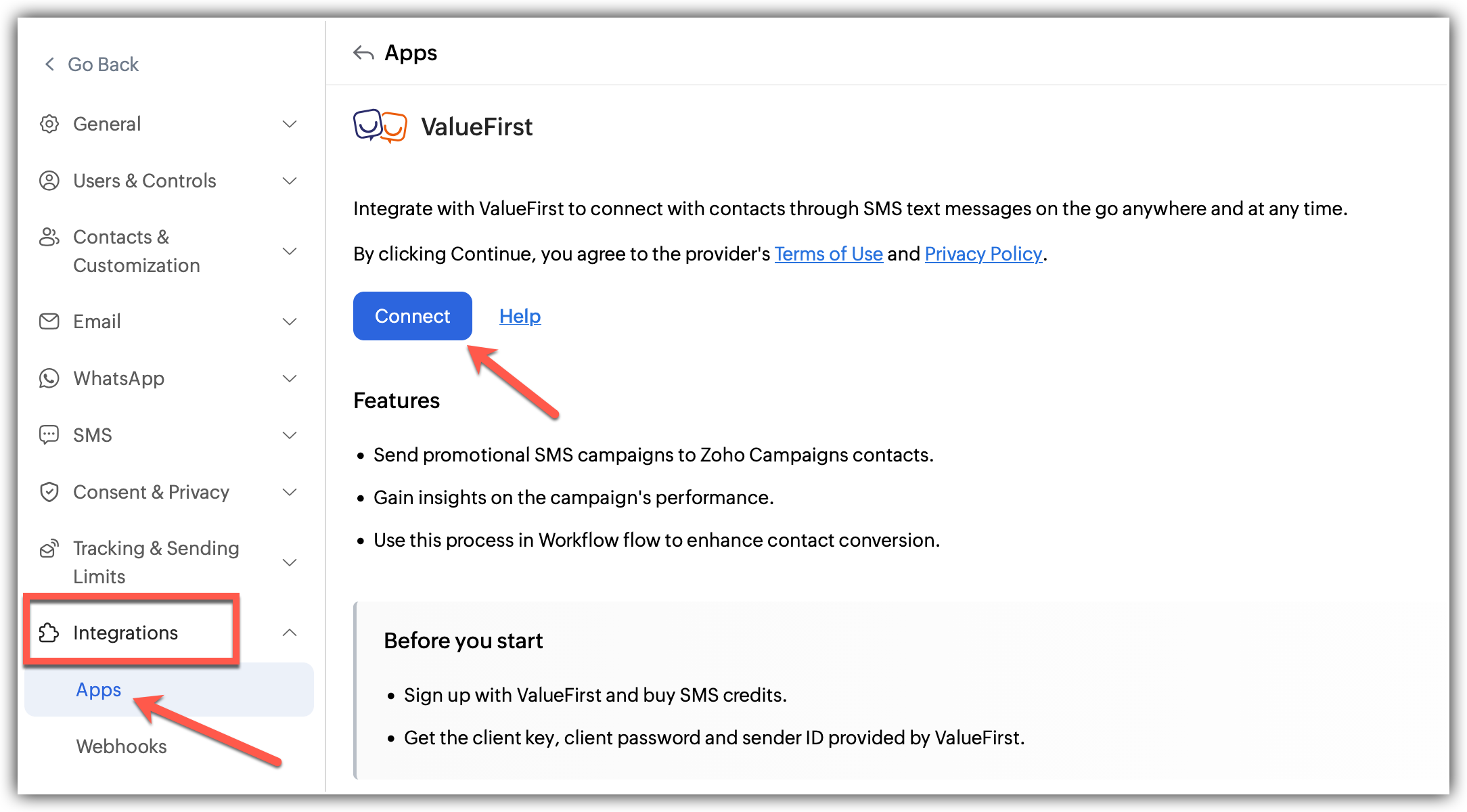
Click Settings icon on the top-right corner of the screen.
Choose Apps under Integrations.
Select SMS gateways from the available app options.
Choose ValueFirst and read the terms and conditions.
Click Connect, fill in the following information::
Client key
Client Password
Sender ID
Click Integrate.
After the integration
Once ValueFirst is connected, you can start using SMS as part of your campaign activities.
You will be able to:
Create and send SMS campaigns
Target specific audiences
Personalise messages
Send time-sensitive updates
All messages are routed through your ValueFirst account, while Zoho Campaigns is used to manage campaigns and contacts.