Integrate with Zoho CRM
Integrating Zoho Campaigns with Zoho CRM connects the two. CRM records sync into Zoho Campaigns automatically, so you can send targeted campaigns to your CRM audience without exporting a single CSV file, and marketing engagement data can flow back to Zoho CRM to help sales prioritize the right leads.
Overview
This doc walks you through:
Why you'd integrate Zoho Campaigns with Zoho CRM, and who it's for
Connecting your Zoho CRM account to Zoho Campaigns
Setting up a sync for a CRM module, including filtering which records sync and where they land
Mapping fields between Zoho CRM and Zoho Campaigns, in both directions
Managing your integration after setup: editing, pausing, re-initiating, and disconnecting
Why integrate Zoho Campaigns with Zoho CRM
If your organization uses Zoho CRM to manage leads or customers and Zoho Campaigns to communicate with them, integrating the two keeps everyone working off the same data. This is especially useful if a sales team qualifies leads before handing them to marketing, if you're running email campaigns for prospects who live in CRM, or if marketing and sales simply need to see the same activity on a contact.
Once connected, updates you make in Zoho CRM show up in Zoho Campaigns after the next sync, so you're not maintaining two versions of the truth. CRM fields like lead source, industry, or territory become available for segmentation without any manual list-building. And because engagement data can sync back to Zoho CRM, your sales team can see whether a lead opened your last campaign before they pick up the phone.
Without the integration, marketing typically maintains its own contact database that drifts out of sync with CRM, sales has no visibility into email engagement, and contacts risk getting duplicate or outdated communication. The integration exists to remove that gap.
 Info: This integration uses a continuous sync model. Instead of a one-time import, Zoho CRM records stay in sync with Zoho Campaigns for as long as the sync is active, and you can control exactly which records, fields, and subscription rules apply.
Before you start
Check the following before connecting your accounts:
You need an active Zoho CRM account. If you have multiple Zoho CRM accounts, only one can be selected for integration.
You must be the organization administrator in both Zoho Campaigns and Zoho CRM to set up the sync.
Connecting your Zoho CRM account 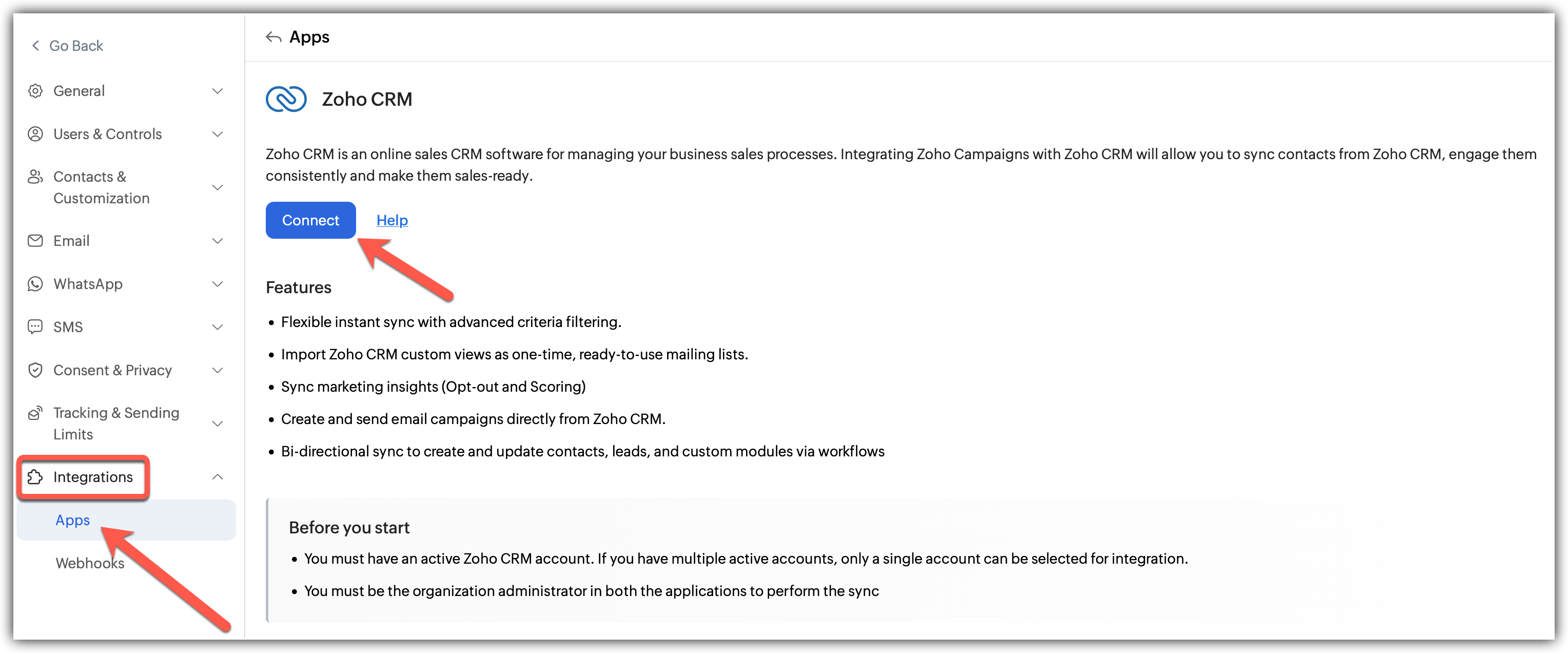
In Zoho Campaigns, go to Settings, then Integrations, then Apps.
Under Zoho, find the Zoho CRM card and click it.
On the Zoho CRM page, review the Features list and the Before you start requirements, then click Connect.
In the Integrate with Zoho CRM window, select your organization from the Select an organization to integrate with Zoho Campaigns dropdown.
Click Integrate.
You'll see a Zoho CRM connected confirmation, and the window automatically moves to the Setup Sync step.
 Note: The organization you connect to here determines what's available in every later step, including which custom modules you can sync. For example, if you connect to a Zoho CRM organization called "Skyline Realty," you'll only be able to sync modules and custom modules that exist in Skyline Realty's account, not in any other Zoho CRM organization you might have access to.
Setting up a sync
A sync connects one Zoho CRM module, either Leads, Contacts, or a custom module, to Zoho Campaigns. You can set up a sync for each module separately, and each one has its own module selection, record scope, subscription settings, and field mapping.
Choosing a module and record scope
From Select Module to Sync, choose Leads, Contacts, or Custom module.
If you choose Custom module, a second required field appears. Use the Custom module dropdown to pick the specific module you want to sync, for example, a "Property Enquiries" module built for a real estate business.
Choose how many records to sync:
All Records syncs every record from the selected module.
Specific Records lets you sync only the records that match criteria you define. This applies to new records only, so it won't retroactively remove or add records that already existed in the module before you set it up. To apply your criteria to existing records too, use Re-initiate Sync after setup.
Note: Custom module only appears as an option if the connected Zoho CRM organization has at least one custom module set up. If it doesn't, you'll only see Leads and Contacts in the dropdown. The custom modules listed also depend on which organization you connected to.If you choose Specific Records, the Add Contact Filter window opens:
In Group 1, choose a field, then a condition (for example, contains, is empty, starts with), and enter a value.
Click the + icon next to a condition to add another condition to the same group, or the trash icon to remove one.
Click Add a Group to create additional groups of conditions. When you add a second group, an AND/OR toggle appears between the groups, and a Criteria Pattern (for example, (G1 OR G2)) summarizes how the groups combine.
To customize how groups combine beyond a simple AND or OR, click Change Pattern and edit the pattern directly, then click Save.
Click Apply Filter.
Back on the Setup Sync screen, your filter appears as a tag with a Modify Filter link, so you can revisit it later without rebuilding it from scratch.
Choosing where synced contacts land
The Associations section controls what happens to contacts once they're synced.
Subscription Type. Choose Marketing if these contacts have given permission to receive marketing communication. They'll count toward your subscriber plan. Choose Non-Marketing if they haven't. Non-marketing contacts don't receive marketing communication and don't count toward your subscription plan.
Workspaces. If your Zoho Campaigns account has multiple workspaces, pick the one that should receive these contacts.
Add to List. Select an existing mailing list, or type a new name and click Create List to make one on the spot.
Add to Topic. Available only when Subscription Type is set to Marketing. Topics are grouped by category in the dropdown, and you can select more than one.
If you add contacts to a topic, a Lawful basis for communication field becomes required. Choose the basis that applies: Not Applicable, Consent, Legitimate Interest, Contract, Public Task, Legal Obligation, or Vital Interest. If you choose Consent, a Sync consent status from Zoho CRM checkbox appears, letting you keep consent records aligned between the two systems.
Setting sync rules
The Sync Rules section controls how unsubscribes and deletions in Zoho CRM affect your Zoho Campaigns contacts.
Opt-Out Field. Choose the Zoho CRM field where unsubscribe preferences are stored. Available options depend on the module: default Email Opt Out field. If you create a custom check-box field in Zoho CRM for this module, it also becomes available as an option here.
Sync opt-out status. When enabled, unsubscribe status syncs for new and existing records based on your selected Opt-Out Field. Choose what happens to those contacts in Zoho Campaigns: Mark as Non-Marketing Contact, Mark as Unsubscribe, or Delete.
Sync deleted contacts. When enabled, records deleted in Zoho CRM trigger the same action in Zoho Campaigns: Mark as Non-Marketing Contact, Mark as Unsubscribe, or Delete.
Sync empty field values. When enabled, clearing a field's value in Zoho CRM empties that field in Zoho Campaigns too.
Click Save & next to move to field mapping.
Mapping fields between Zoho CRM and Zoho Campaigns
The Map Fields step controls which CRM fields carry over to Zoho Campaigns, and which Zoho Campaigns fields, if any, flow back to Zoho CRM.
Mapping CRM fields to Zoho Campaigns fields
Email and Mobile are mapped by default and can't be removed, since Zoho Campaigns needs at least one of them to reach a contact. Other default mappings, like First Name, Last Name, and Phone, can be edited using the dropdowns or removed with the trash icon. Click the + icon to add another field mapping.
For the Contacts module, field mapping is organized into tabs for the module itself and its related modules: Contacts, Accounts, and Deals. Each tab comes with a sensible set of default mappings (for example, Account Name, Industry, and Annual Revenue under Accounts; Deal Name, Stage, and Amount under Deals), and you can adjust any of them the same way. The Leads module doesn't have related-module tabs, since leads don't carry account or deal associations.
Click Add new field if the field you need isn't already listed. This lets you map a custom Zoho CRM field without leaving the field mapping screen.
Sending marketing insights back to Zoho CRM
Toggle Sync from Zoho Campaigns to Zoho CRM on to share marketing data, including opt-out status and contact scoring, with your sales team.
Under Zoho Campaigns, select the field you want to send, for example Email Opt-out or Contact Score (contact's total engagement score.)
Under Zoho CRM, select the field that should receive it.
Click the + icon to map another field.
 Warning: If the Zoho CRM field you're trying to map to doesn't exist yet, you'll see an error like "Please create the Contact Score field in Zoho CRM." Create the matching field in Zoho CRM first, then come back and complete the mapping.
Things to know before you save
Record owner information, including Name, Email, Role, Profile, Street, City, Zip, Phone, Mobile, Fax, and Website, syncs by default and can't be mapped separately in field mapping.
Mobile numbers must follow E.164 format to send SMS and WhatsApp campaigns.
A contact must have either an email address or a mobile number to sync successfully.
Click Save to finish. You'll see a confirmation once your sync and field mapping are saved.
Managing your CRM integration
Once a sync is set up, you can manage it from the Zoho CRM integration page under Settings, then Integrations, then Apps.
Viewing your connected account and modules
The page shows your connected Zoho CRM account and organization at the top, and a Modules table listing every module you've synced, its Status (Active or Paused), Mapped List, and Last Sync Time, along with who created it and when.
Adding a sync for another module
Click Create New Sync in the top-right corner. Since your account is already connected, this shortens the wizard to two steps: Setup Sync and Map Fields. Only modules that don't already have a sync appear in the Select Module to Sync dropdown, and, as before, Custom module only shows up if the connected organization has one available. For example, if you've already set up a sync for Leads, only Contacts and any unsynced custom modules show up when you create a new sync.
Editing an existing sync
Click the three-dot menu next to a module and choose Edit. This reopens the Configuration and Field Mapping tabs with your current settings, so you can adjust the record scope, associations, sync rules, or field mappings without starting over.
Pausing and resuming a sync
Click the three-dot menu next to a module and choose Pause Sync to stop it temporarily. No records will be added or updated through that sync while it's paused, though the configuration stays intact.
To bring it back, choose Resume Sync. New records will be added and existing records updated based on your current settings, including any changes you made while the sync was paused.
Re-initiating a sync
Choose Re-initiate Sync from the three-dot menu to fetch all matching records from Zoho CRM again from the beginning. This is useful if you've made significant changes to your filter criteria or field mapping and want the sync to reflect them across your entire contact base.
Note: Re-initiating a sync re-fetches every matching record, not just what's changed. For a large CRM database, this can take a while to complete.Viewing sync history
Choose Sync History from the three-dot menu to see a log of every sync run, with the date and time it ran, the Total Records synced, how many were Added, how many were Updated, and how many were Skipped because they didn't match your sync criteria.
It is also tagged with a sync type: Initial for the first sync after setup, Resync for a re-initiated sync, Manual for a sync you trigger through lists, and Instant for a sync that fires right after a matching change in Zoho CRM.
Disconnecting Zoho CRM
Click the three-dot menu at the top of the page, next to Create New Sync, and choose Disconnect.
 Alert: Disconnecting Zoho CRM stops all active syncs immediately. You won't be able to import further contacts from Zoho CRM, and you won't be able to share marketing activity, like opt-out status or scoring, with Zoho CRM. This doesn't delete contacts already synced into Zoho Campaigns.
Doing a one-time sync from a list
Beyond the continuous module sync covered above, you can also pull contacts into a specific list with a one-time, manual sync. Synced contacts are treated as new contacts and are also accessible from the Contacts module in Zoho Campaigns.
This requires the Zoho CRM integration to be set up first. If you haven't integrated yet, you can start that process directly from the list.
If Zoho CRM is already integrated
After creating the list, click Import from Zoho CRM.
In the slide-in window that appears, choose the Zoho CRM module and the Zoho CRM view you want to sync.
Click Sync to pull contacts from Zoho CRM into this list.
If Zoho CRM isn't integrated yet
After creating the list, click Import from Zoho CRM.
You're redirected to the Zoho CRM integration page under Settings, then Integrations, to set up the integration.
Once the integration is complete, return to the list and click Sync from Zoho CRM again.
Choose the Zoho CRM module and the Zoho CRM view you want to sync.
Click Sync to pull contacts from Zoho CRM into this list.
What are skipped contacts?
Skipped contacts are records that exist in your Zoho CRM module but don't make it into Zoho Campaigns during a sync. A record can be skipped for a few different reasons, and knowing what to check can save you time when a sync's contact count doesn't match what you expected.
Use these checks to avoid skipped contacts:
Check your subscription plan before syncing. If you're syncing more Marketing contacts than your Zoho Campaigns plan allows, contacts beyond the limit are skipped. Confirm your plan can accommodate the incoming contacts before you sync a large batch.
Make sure contacts haven't opted out in Zoho CRM. If Sync opt-out status is enabled and a contact is already opted out based on your chosen Opt-Out Field, that contact is skipped instead of added as an active subscriber.
Confirm contacts haven't been deleted in Zoho CRM. A record deleted in Zoho CRM won't sync into Zoho Campaigns, even if it previously matched your sync criteria.
Fill in mandatory fields. Every contact needs either an email address or a mobile number. Records missing both are skipped. Mobile numbers must also follow E.164 format.
Check that the module you're syncing from still exists. If a CRM module is deleted after you've set up a sync from it, every contact under that module is skipped until you point the sync at a different module.
Match data types in your field mapping. Mapping a text field to a number field, or a similar type of mismatch, causes affected records to be skipped. Keep field types consistent on both sides of the mapping.
Watch field length limits. If a field's value is longer than what Zoho Campaigns allows, that record can be skipped. Trim oversized values in Zoho CRM before syncing.
Note: You can see exactly how many contacts were skipped in a given run from the Skipped column in Sync History, covered earlier in this doc.CRM actions in Workflows
Beyond keeping contact data in sync, Zoho Campaigns lets you trigger actions in Zoho CRM directly from a Workflow. Two CRM actions are available:
Push Data, which sends contacts from Zoho Campaigns into a Zoho CRM module based on your workflow's criteria. See Push Data in Workflows for setup steps.
Create Task, which creates a task in Zoho CRM automatically when a contact reaches that point in your workflow. See Create Task in Workflowsfor setup steps.