Integration with Event based apps
Eventbrite
Features
- Sync events, registrants, and attendees from Eventbrite.
- Create mailing lists for event participants.
- Use workflows for event follow-up communication.
- Segment contacts based on event participation and engagement.
- View sync activity and integration history from Zoho Campaigns.

- Eventbrite integrations use pre-mapped fields by default and field mapping cannot be modified.
Prerequisites
- You must have an active Eventbrite account. If you have multiple accounts, only one account can be selected for integration.
- Only users with Administrator permission in both Eventbrite and Zoho Campaigns can setup the sync.
- If GDPR is enabled in your account, the Lawful basis for communication must be configured.
Integrate with Eventbrite 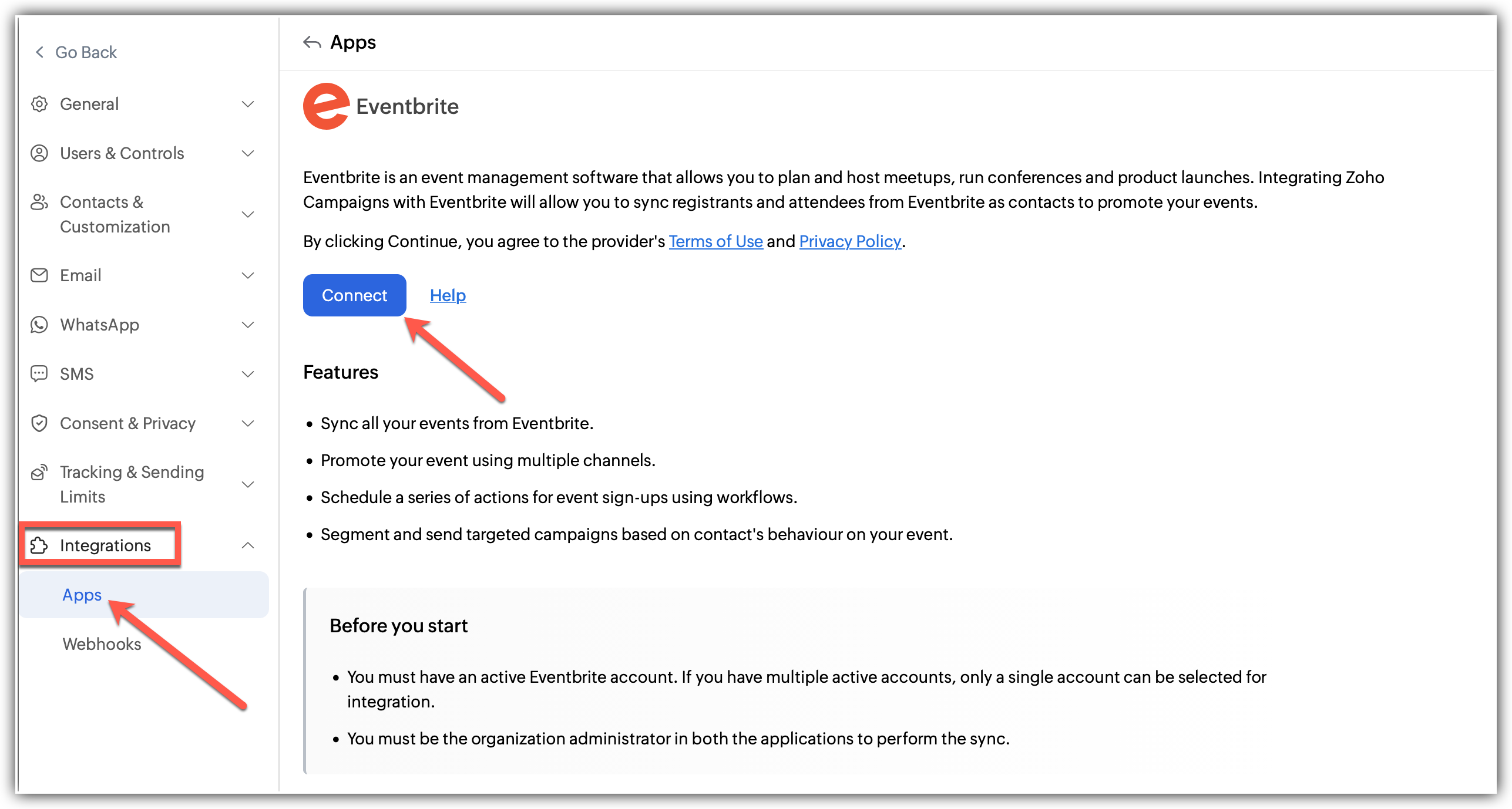
Click Settings icon on the top-right corner of the screen.
Choose Apps under Integration.
Select Eventbrite under Marketing Apps and click Connect
Log into your Eventbrite account in the new page that opens
After your account is connected, go back to Zoho Campaigns
Select Eventbrite and click Connect.
A pop up appears to Integrate with Eventbrite
In the pop up:
1. Select the Organization to Integrate
2. Choose the Webinar you want to sync.
3. Enable the toggle button to Create new mailing lists for new events(Optional).
4. Select a topic if required.Click Initiate to complete the integration.
What happens if I deny my Eventbrite account integration?
If you deny/change Eventbrite integration:
You can't import your contacts from Eventbrite.
Eventbrite campaigns in the draft cannot be sent.
Eventbrite stats and results will not be generated.
Denying access to Eventbrite
Follow the steps given below to disconnect your Eventbrite account.
Click the Settings icon in the top-right corner.
Click Apps under Integrations.
Select Eventbrite under Connected Apps.
Click the Disconnect option after clicking the three dots in the right.
A pop appears informing about the effect of disconnecting.
Click Proceed.
Post Integration
You can always go back and edit the Sync details and Field Mapping
You can also view the Sync History which logs all the actions related to this integration.
Zoho Backstage
Features
- Import attendee and event details into Zoho Campaigns.
- Use campaigns to drive registrations and engagement.
- Set up workflows for event reminders and follow-ups.
- Track responses and campaign performance for your events.
Prerequisites
- You must have an active Zoho books account. If you have multiple accounts, only one account can be selected for integration.
- Only users with Administrator permission in both Zoho Recruit and Zoho Campaigns can setup the sync.
Set up integration with Zoho Backstage
The organization administrator performs the following procedure to integrate a portal of any user of the organization.
Click Settings icon on the top-right corner of the screen.
Choose Apps under Integration.
Select Zoho Backstage and click Connect.
A pop up appears to Integrate with Zoho Backstage
In the pop up:
1. Select the portal/Organization to Integrate
2. Choose the type of events you want to sync.
3. Enable the toggle button to Create new mailing lists for new events(Optional).
4. Select a topic to integrate (Optional).Click Initiate to complete the integration.
What happens if I deny/change my Zoho Backstage account integration?
If you deny/change Zoho Backstage integration:
All the active syncs will be disabled.
Scheduled event-based campaigns will be moved to draft.
You cannot import attendees or send campaigns to them.
Denying access to Zoho Backstage
Click Settings icon in the top-right corner of the screen.
Choose Apps under Integration.
Under connected apps, Select Zoho Backstage.
Click the Disconnect option after clicking the three dots in the right.
A pop appears informing about the effect of disconnecting.
Click Disconnect.
Post Integration
You can always go back and edit the Sync details and Field Mapping
You can also view the Sync History which logs all the actions related to this integration including Total Records, Added, Updated, Skipped contacts.