Template List
Template List is a module of Zoho Campaigns Email API that you can access from the left navigation toolbar.
This module stores templates that you can use in future email campaigns. The templates that have been created manually or via API will be listed here. You can view the details of each template in this module.
 Note: Any content you use in the Send Email API will not be stored automatically as a template. Only the templates created inside this module or using the Create Template API will be stored here.Let's explore this module in detail.
Note: Any content you use in the Send Email API will not be stored automatically as a template. Only the templates created inside this module or using the Create Template API will be stored here.Adding a template
You can manually add the templates that you wish to use when sending an email campaign. To do that:
- Click Template List from the Navigation Toolbar to the left.
- Click Add Template in the top-right corner.
- In the slide-in window that appears, specify a Name for the template. The template name can only contain letters, numbers, underscores, hyphens, and spaces. No other special characters are allowed, such as ! @ #.
- Choose between Text or HTML for the Template Content Type.
- Based on the type you choose, paste the content under the Template Content text area.
- Click Add to create the template.
- Once a template is created, a unique Template ID will be generated. You can copy this ID to use it when sending email campaigns via API.
You will not be able to preview the template at this time.
Adding via API
The creation of templates can also be done via API. You can refer to the template API documentation here. Any template that gets created via API will also be stored in this module.
Editing a template
To edit a template:
- Click Template List from the Navigation Toolbar to the left.
- Click the More Actions button on the right and choose Edit.
- Make the necessary changes to the template and click Update.
Deleting a template
To delete a template:
Click Template List from the Navigation Toolbar to the left.
Click the More Actions button on the right and choose Delete.
Other Actions
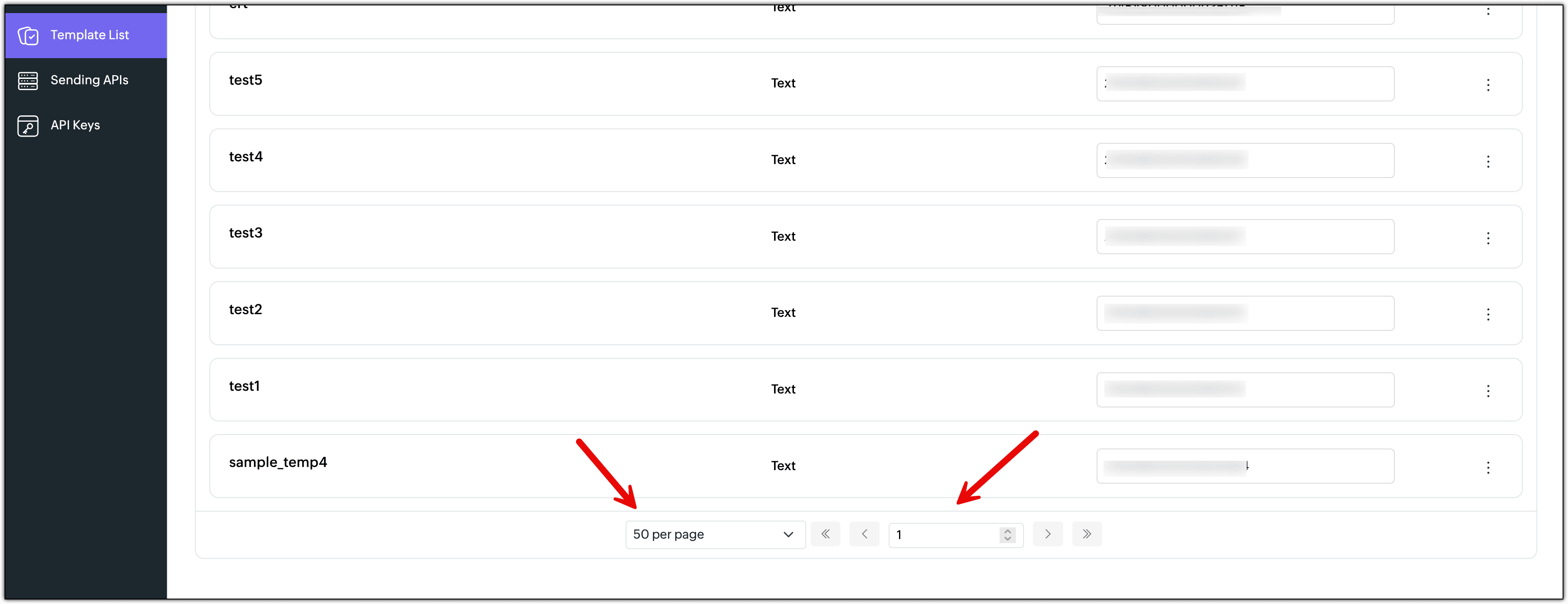
At the bottom of the Template List module, you can change the number of templates that can be displayed on a single page. Click on the drop-down field to change the count.
At the top-right corner, you can search for templates by typing their name in the search bar. Once you've typed the keyword, click Search or press enter to display the results.