Contact Tags
Tags are labels for your contacts that help you classify all your contact information. You can access tags in the Contact Tags section under the Contacts module and give your contacts a label, categorize them based on behavior, attribute, or other criteria, and keep them organized based on the information you have about them.
Unlike fixed data fields, tags are flexible and allow you to associate multiple labels with a single contact, making it easier to organize and manage your contact database.
You can create tags, associate and dissociate contacts, assign lists to the contacts of a tag, do a mass update on the contacts, and export these contacts.
Feature Availability
Creating a Tag
- From the Navigation Toolbar to the left, click Contacts.
- Click Contact Tags.
- In the page that appears, click Create at the top-right.
- Give your tag a Tag Name and Description, and choose a color.
- Click Create. Once a tag is created, it is time to add contacts under it.
User Scenario
Bill is a marketer for an e-commerce firm. He sells the products via retailers or by directly contacting the customers. He makes use of the contact tags feature and assigns tags to retailers based on their revenue and his customers based on their age groups. He creates tags like "Small-sized", "Medium-sized", and "Large-sized" for his retailers and "Men", "Women", "Kids" for his customers. Organizing the contacts has become much easier for Bill using Contact Tags.
Edit Tag
- From the Navigation Toolbar to the left, click Contacts and select Contact Tags.
- You can edit the tag in two ways. In the first way, hover over the tag and click the edit icon at the far right. Modify the tag as required and click Save.
- In the second way, click a tag that you've created.
- Click the More drop-down button at the top right and click Edit Tag.
- Modify the tag as required and click Save.
Assign Tags to Contacts
Tags can only be assigned to active contacts. You can assign multiple tags to a single contact. You have the option to tag wherever the contacts list view is available. You can manage tags from the contact list view, which you can access in the following sections:
Assign a Tag from All Contacts section
- From the Navigation Toolbar to the left, click Contacts and select All Contacts.
- Ensure you're in the Marketing Contacts view as tags can only be assigned to contacts whose subscription type is Marketing. Tags cannot be assigned to Non-marketing, Unsubscribed, and inactive contacts.
- Select the desired contacts using the checkbox present to the left of each of them.
- Click Assign Tags on top.
- Select a tag to assign using the checkbox. You can assign multiple tags as well and click Save.
- If you instead want to create a new tag, click Add New Tag. In the pop-up that appears, provide name and description for the tag and choose a color; click Save.
- Select the tags to be assigned and click Save.
Assign a Tag from Manage Lists
- From the Navigation Toolbar to the left, click Contacts and select Manage Lists.
- Click a list in which you want to assign tags to the contacts.
- Click the Contacts tab at the top.
- Ensure the filter is set to Marketing Contacts. If not, set it to this filter.
- From the list of all the marketing contacts, select the contacts to whom you want to assign the tag.
- Click the Assign Tags button at top.
- Choose tag(s) to assign. If you want to create a new tag, click Add New Tag.
- Click Save after selecting the tags.
Note:
- Even though you tag contacts from a list, the tag will be assigned to them across the organization.
Assign a Tag from the Contact Tags module
- From the Navigation Toolbar to the left, click Contacts and select Contact Tags.
- Click a tag that you've created before.
- Click the Assign Tag drop-down button in the top-right corner.
- You can choose one of the three options to add your contacts to the tag.
- Existing Contacts - Assign the tag to contacts from any of your mailing lists. Select the contacts using the checkbox present to their left and click Assign button at the top-right.
- New Contacts - Add up to maximum of 20 contacts at a time manually to mailing list and assign the tag.
- Import Contacts - Import Contacts saved in your files, add them to a mailing list and assign the tag to them.
- Existing Contacts - Assign the tag to contacts from any of your mailing lists. Select the contacts using the checkbox present to their left and click Assign button at the top-right.
You can view tag level stats and tag source by clicking the show drag-down button inside a tag.
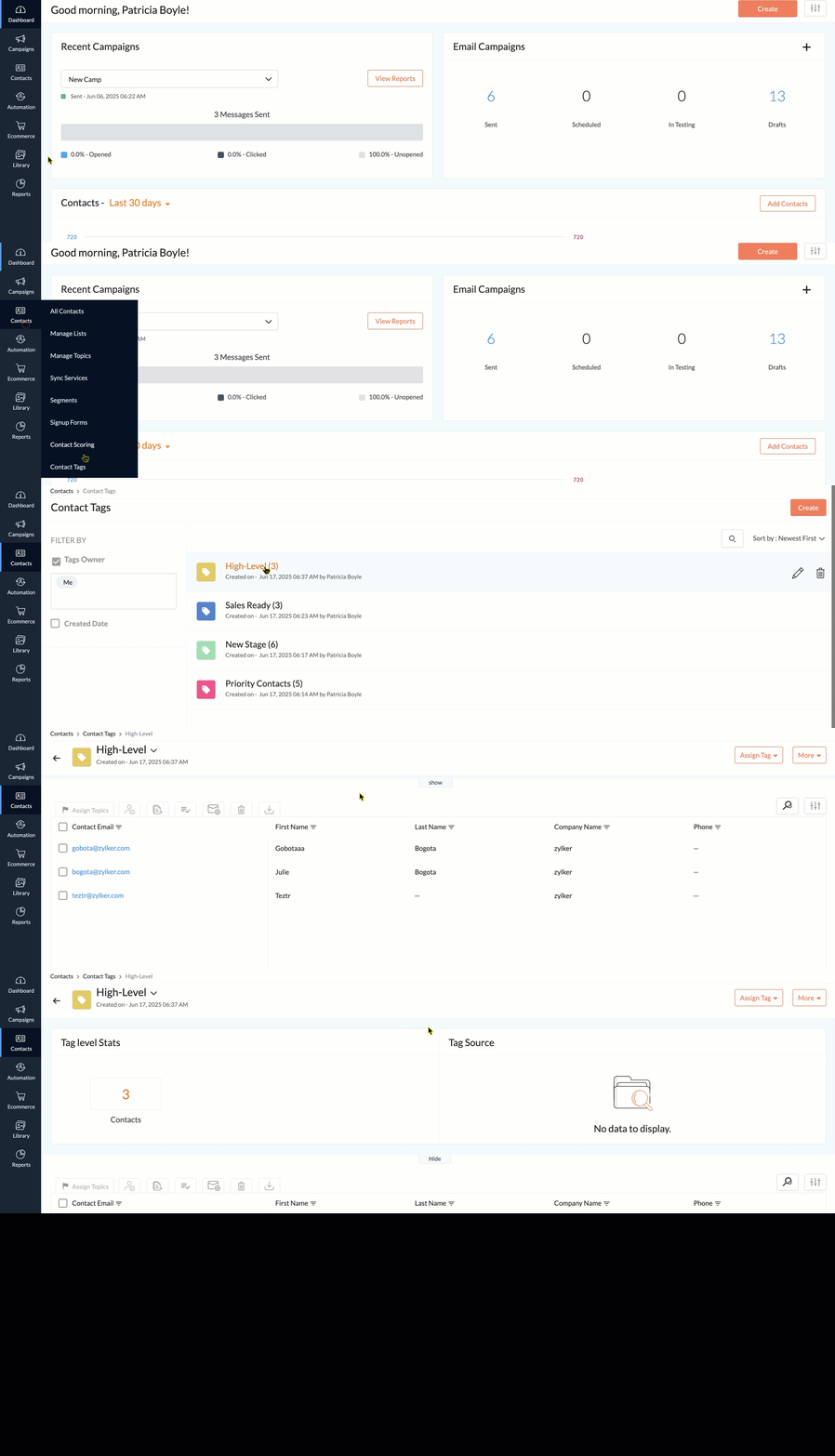
Actions inside a Tag
You can perform various actions on the contacts present inside a tag after selecting them.
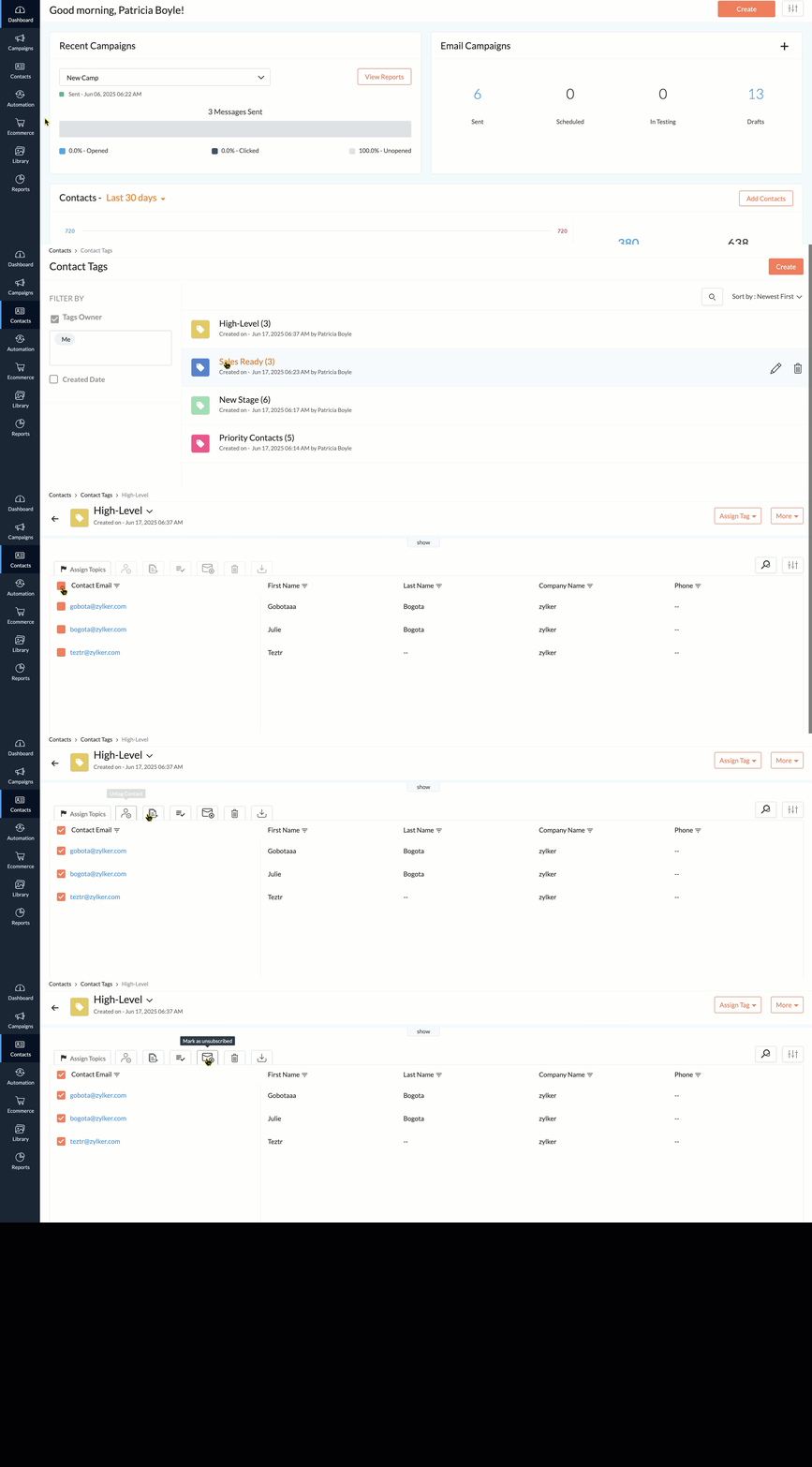
These include:
These include:
- Assign Topics
- Untag Contact
- Copy to Lists
- Mass Update
- Mark as unsubscribed
- Delete
- Export
Assign Topics
You can assign topics to the contacts present in a tag. You can either do this for all the contacts by ticking the checkbox to the left of Contact Email column or for selective contacts. After selecting the contacts, click Assign Topics button. In the pop-up that appears, choose the topics and select a lawful basis for communication and hit Save.
Untag Contact
You can dissociate the tag from contacts within a tag. To do this:
- From the Navigation Toolbar to the left, click Contacts and select Contact Tags.
- Click a tag that you've created before.
- Select the contacts using the checkbox present to their left and click the Untag Contact button.
- In the pop-up that appears, click Go Ahead.
Copy to Lists
You can assign the contacts present in a tag to one or more lists. To do this:
- From the Navigation Toolbar to the left, click Contacts and select Contact Tags.
- Click a tag that you've created before.
- Select the contacts using the checkbox present to their left and click the Copy to Lists button.
- In the pop-up that appears, you can choose one or more lists, or use the Create mailing list option to create a new list and assign the contacts to this list.
- Once finished, click Save.
Mass Update
You can mass update certain fields of the contacts present in a tag. You can also create a custom field during this process and mass update that field. To do this:
- From the Navigation Toolbar to the left, click Contacts and select Contact Tags.
- Click a tag that you've created before.
- Select the contacts using the checkbox present to their left and click the Mass Update button.
- In the window that appears, select a field that you wish to update and specify a value. Click Proceed.
- If you want to create a new field instead and mass update it, use the Add New Custom Field option at the bottom left.
- In the Select Field Type box, choose the type of field. Provide a name in the Display Label field; specify the Field Length if prompted (for example, for the Phone field it is mandatory to provide the field length). Click Add.
- Now, you can mass update this custom field by providing a value. Click Proceed once done.
Mark as unsubscribed
If there's a need for you to move the contacts of a tag to unsubscribed registry, you can do that by:
- From the Navigation Toolbar to the left, click Contacts and select Contact Tags.
- Click a tag that you've created before.
- Select the contacts using the checkbox present to their left and click the Mark as unsubscribed button.
- In the pop-up that appears, please read the message once and then click the Go Ahead button.
Delete Contacts
In case you want to delete some or all the contacts of a tag, you can do that as well by:
- From the Navigation Toolbar to the left, click Contacts and select Contact Tags.
- Click a tag that you've created before.
- Select the contacts using the checkbox present to their left and click the Delete button.
- In the pop-up that appears, click the Go Ahead button.
Deleting contacts in a tag is an irreversible process. The contacts will get deleted from your Zoho Campaigns organization itself (and not only from this tag) and cannot be retrieved; you've to re-create these contacts.
Export
To export the contacts present in a tag:
- From the Navigation Toolbar to the left, click Contacts and select Contact Tags.
- Click a tag that you've created before.
- Select the contacts using the checkbox present to their left and click the Export button.
- In the window that appears, you can export selected fields or all the fields. Provide a file name for the file (spaces can't be used), choose the file format beside it. If needed, password protect the file and click Export.
Delete Tag
To delete a tag if you feel that it is not needed anymore, you can follow the below steps:
- From the Navigation Toolbar to the left, click Contacts and select Contact Tags.
- You can delete the tag in two ways. In the first way, hover over the tag and click the delete icon at the far right.
- In the pop-up that appears, click the Delete Tag button.
- In the second way, click a tag that you've created.
- Click the More drop-down button at the top-right and click Edit Tag.
- In the pop-up that appears, click the Delete Tag button.
Deleting a tag will not delete the contacts present in it, so you can rest assured.