Advance Reports - Online Help | Zoho Campaigns

Advanced Reports

With the number of campaigns you send increasing day by day, there is certainly a need for you to monitor the performance of the same in a more advanced way. Zoho Campaigns brings to you advanced reports that facilitates you with insights on the top five campaigns, recently sent campaigns and a yearly statistic (Campaign-based reports). You can also view reports of the campaigns sent to a mailing list by choosing the desired lists (List-based reports).

Read on to know how advanced reports help you learn about the sent campaigns.

Campaign-based Reports

Campaign-based reports lets you view reports of your recently sent campaigns, most responded campaigns based on opens, clicks and the attached links.

  1. From the Navigation toolbar, choose Reports and select Campaign-based Reports.
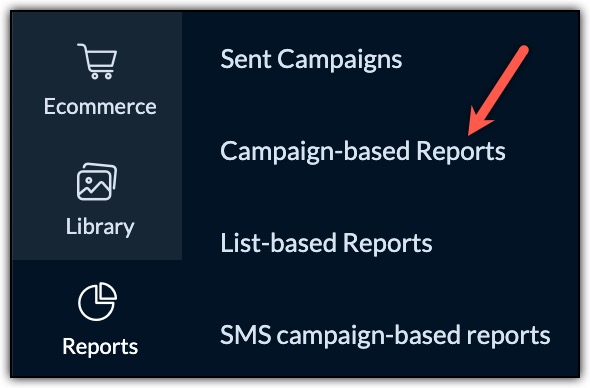
    campaign-based reports

You could check your sent campaigns' performance in three different views. Take a look at them here.

Top five campaigns

These reports show the first five campaigns and links that have the best response.

  1. Click the Top Five Campaigns tab.
In top five campaigns, we present the data in three categories as follows.

Click on the dropdown in the top-left corner of the section. From the dropdown, you can view three types of campaign-based reports.

Opened Campaigns 
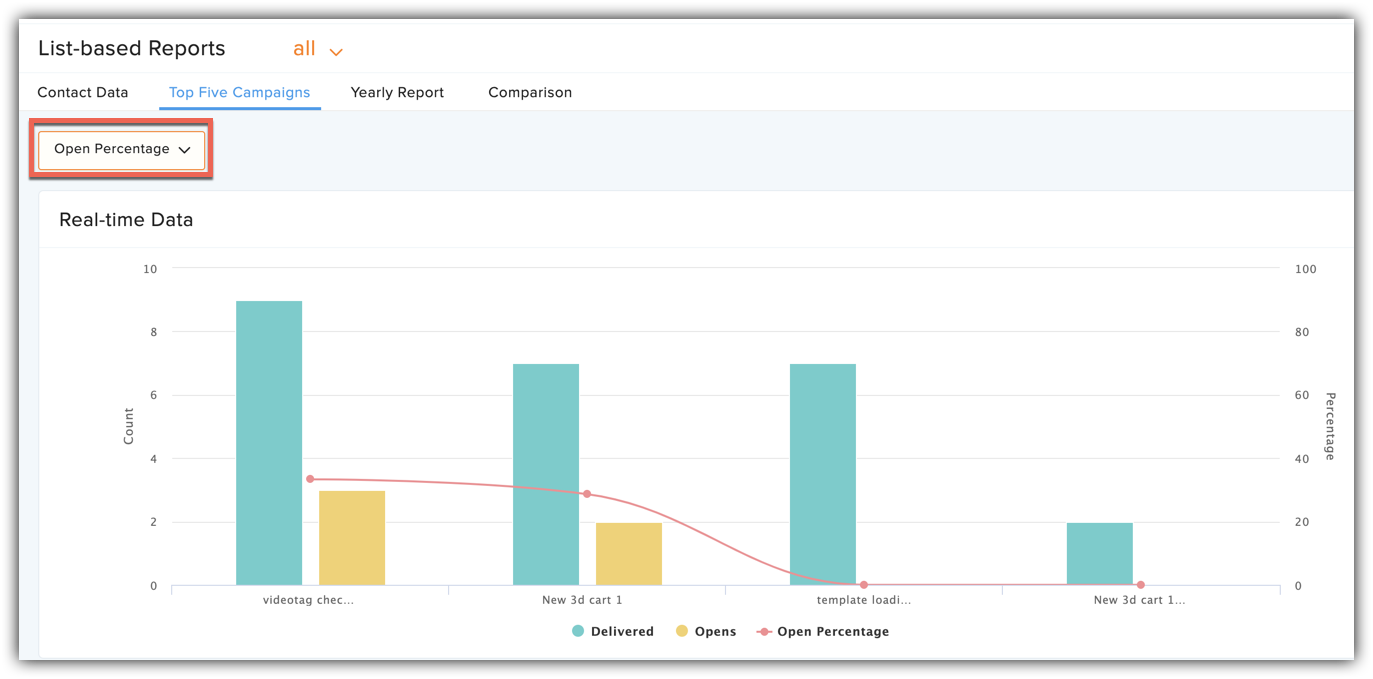
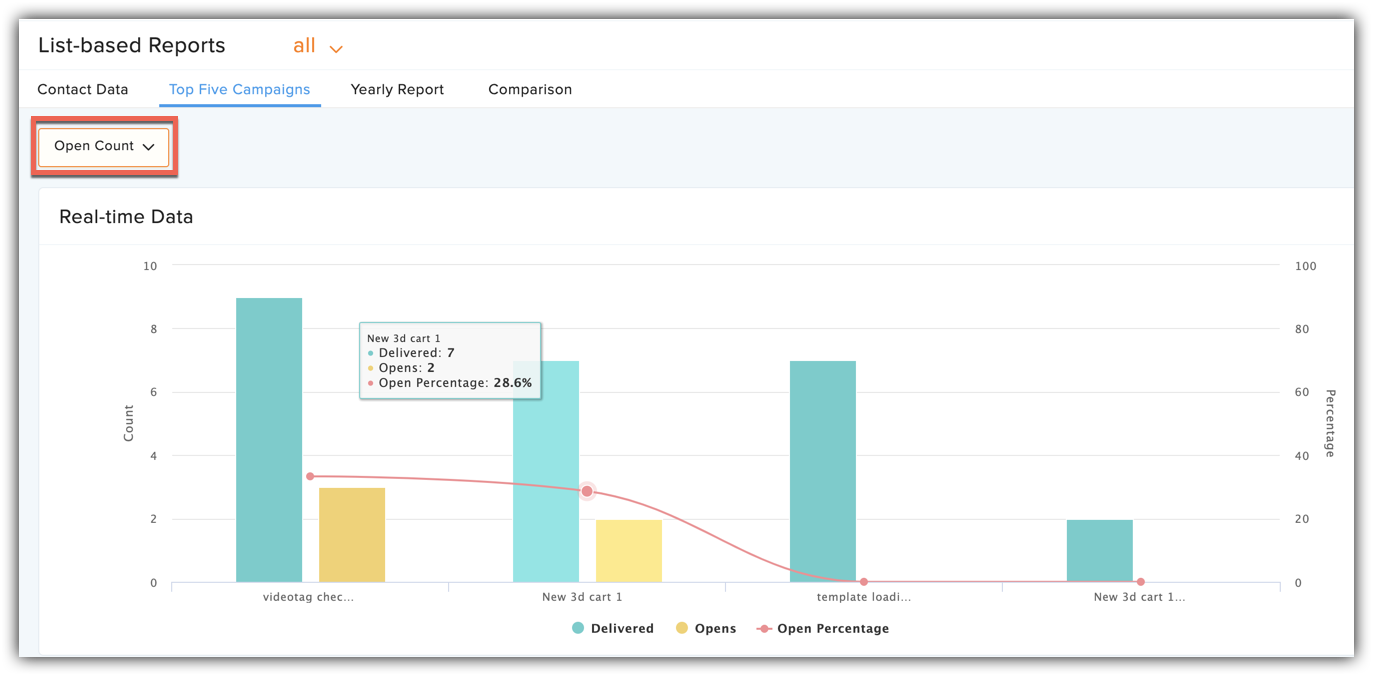
This lists the first five campaigns with respect to two entities namely open percentage and open counts. Present in the graph are information on the following elements.  

Delivered - Total number of contacts that received your campaign. 

Open - Total number of times your campaign was opened. 

Open percentage - Open rate of the campaign in percentage scale.


Entities:
  • Open Percentage - The graph displays the top five opened campaigns based on their open percentage. 

    Top five opened campaigns

  • Open Count - The graph displays those five campaigns that have highest number of opens. 

    Open count graph

  1. Opens by Location
This data allows you to see the top five locations the campaigns were opened from and open count from each country. You can use the data later for segmentation. 

Clicked Campaigns
This lists the first five campaigns with respect to two entities namely click percentage and click counts. Present in the graph are information on the following elements.
Open - Total number of times your campaign was opened.

Click - Total number of times links attached in the campaign were opened.

Click percentage - Open rate of the links in percentage scale.


Entities:
  • Click Percentage - The graph displays the top five opened campaigns based on click percentage of the URLs attached. 

    Top five clicked campaigns


  • Click Count - The graph displays those five campaigns that have highest number of URL clicks.
     
    Click count graph

Clicks by Location
This data shows you the top five locations campaign links got opened from and the open count from each country. You can use the data later for segmentation.

Clicked URLs
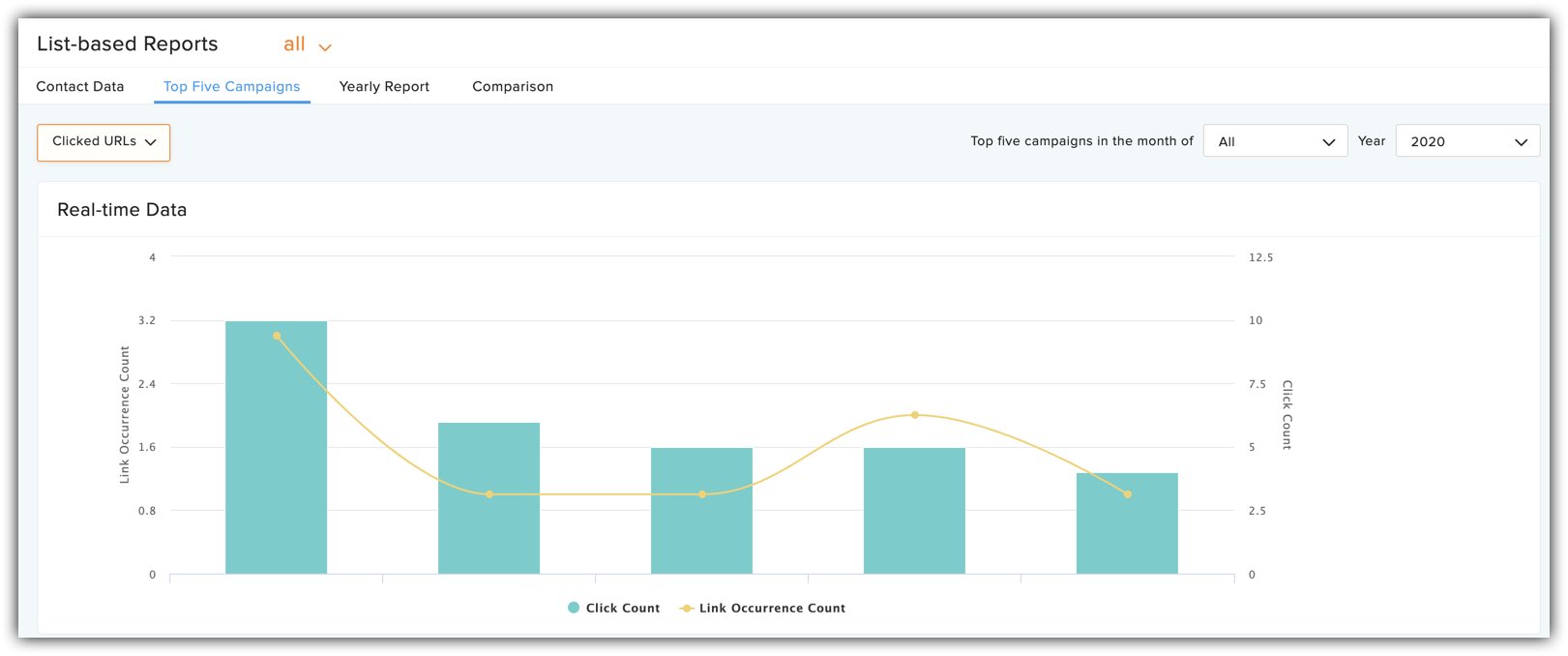
This shows those five links that received the highest number of visits. It gives data on the following elements.

Click - Total number of times the respective link was opened.

Link occurrence count - Total number of times the respective link has occurred in the sent campaigns.

Clicked URL count graph

Last five campaigns

These reports show the last five campaigns' response with respect to opens and clicks.

  1. Click the Last Five Campaigns tab.
You can view the following data here:

Delivered - Total number of contacts that received your campaign.

Open - Total number of times your campaign was opened.

Click - Total number of times links attached in the campaign were opened.

Open percentage - Open rate of the campaign in percentage scale.

Click percentage - Open rate of the links in percentage scale.

Last five campaigns

Opens by Location

This data allows you to see the locations these five campaigns were opened from and open count from each country. You can use the data later for segmentation.

Last 30 days

This section provided you with reports of the campaigns sent in the last 30 days.

  1. Click the Last 30 Days tab.

In last 30 days, we present the data in two categories as follows:

Opens
The graph here shows data on the open count of campaigns sent in the last 30 days. Use the scroll bar, on the bottom of the graph, to move to a different campaign and view its data.

Last 30 days campaign count graph

Clicks
The graph here shows data on the open count of links attached in campaigns sent in the last 30 days. Use the scroll bar, on the bottom of the graph, to move to a different campaign and view its data.

Last 30 days clicked campaign count graph

Yearly Report

In yearly stats, we show the performance of campaigns sent throughout a year.

  1. Click the Yearly Report tab.

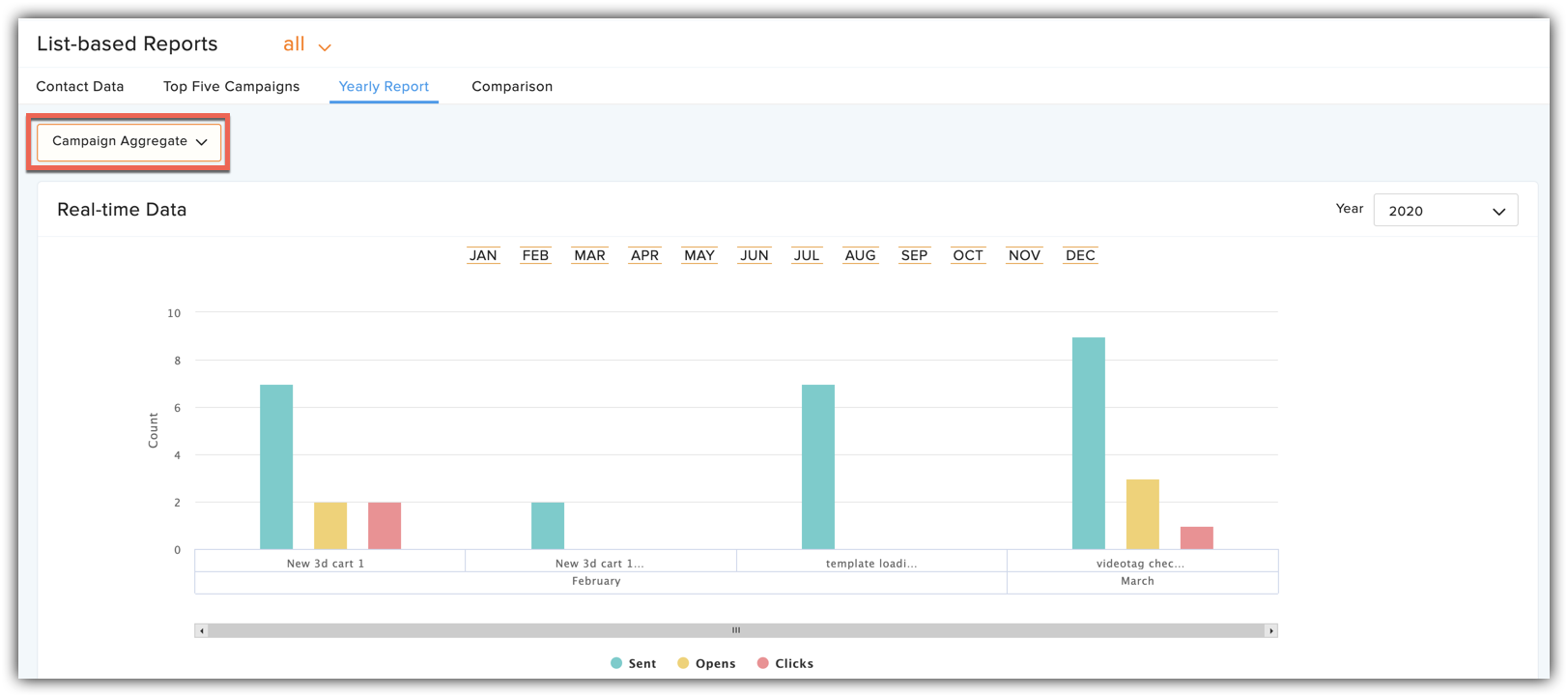
Data for a particular year is represented in two ways. You can select them from the dropdown in the top-left highlighted section.

Campaign Aggregate
This report shows data on the campaign response based on months for the whole year you have selected. To view reports for a particular year,
  1. Select year from the dropdown option present in the right corner of the graph.
    Campaign aggregate yearly

Monthly Aggregate
This report shows campaign-wise data for every month of the selected year. To view reports of a particular year,
  1. Select year from the dropdown option present in the right corner of the graph.
  2. If you want to view data for specific months, you have the option to deselect the remaining months as shown in the image.
    Campaign aggregrate monthly

Comparison

You can compare your campaigns' performance in two ways:

Yearly
You can see how your campaigns have performed over the years through Yearly Comparison. Click the Add icon to choose for which years you want to make the comparison. Click the Compare button to see the results.

Quarterly

You can view your campaigns' performance over years by dividing the years into four quarters. Select the start and end year for the comparison. Select the month from which you want a quarter to begin. You can only compare the quarterly reports of five consecutive years.

List-based Reports

This is an advanced report that shows how your contacts have responded to campaigns that you sent, top five campaigns and an yearly data on campaigns, all of this subject to a particular to a mailing list.

  1. From the Navigation toolbar, choose Reports and select List-based Reports.
  2. Select the desired mailing list from the dropdown option present in the top-right corner.
Take a look at the different elements that list-based reports present to you.

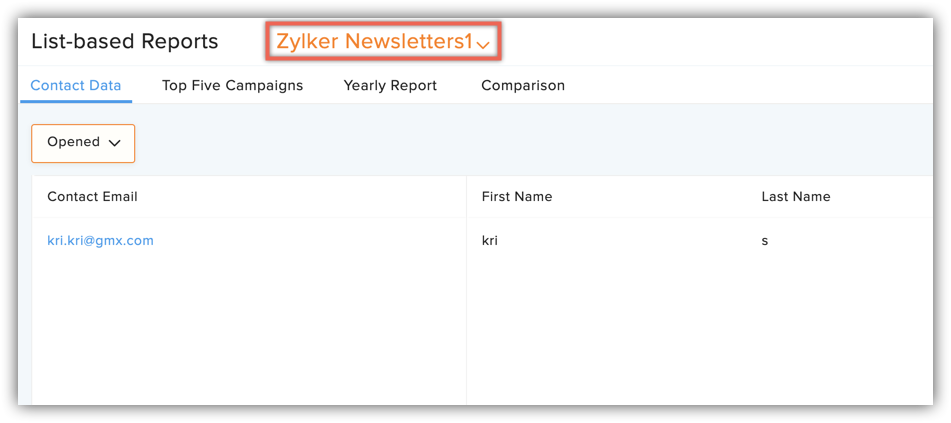
Contact data

This gives you data on contacts from the selected mailing list, based on their response to campaigns sent to that list so far. This information will help you encourage the active contacts and focus more on the contacts that are less active, with your nurturing campaigns.


  1. Click the Contact Data tab in List-based Reports.
  2. You can select your different mailing lists from the dropdown.

You can view the reports based on different data from the dropdown.


Opened
This lists down the contacts who have opened one more campaigns sent to the mailing list.

Never opened
This lists down the contacts who haven't opened any of the campaigns sent to the mailing list.

Not opened recently
This lists down the contacts who have not opened campaigns sent to the mailing list, in recent times which can range from the last one month to the last 12 months.

Never received a campaign
This lists down the contacts in the mailing list who have not received even one campaign.

Devices and operating systems
This shows the various devices used by your contacts as a percentage. When you can see what systems your customers are using, you can optimize your messages for them.

Email clients and Web browsers
This lets you see the email clients your contacts are using to view your emails, and the web browsers they are using to read your emails and open your links.

Top five campaigns

These reports show the first five campaigns and links that have the best response. This is similar to the one shown in Campaign-based Reports but with regard to a particular mailing list.

In top five campaigns, we present the data in three categories as follows.

Opened Campaigns
This lists the first five campaigns with respect to two entities namely open percentage and open counts, for the selected mailing lists. Present in the graph are information on the following elements.

Delivered - Total number of contacts in that received your campaign.

Opens - Total number of times your campaign was opened.

Open percentage - Open rate of the campaign in percentage scale.

Entities:
  1. Open Percentage - The graph displays the top five opened campaigns based on their open percentage.

  2. Open Count - The graph displays those five campaigns that have highest number of opens.     
Clicked Campaigns
This lists the first five campaigns with respect to two entities namely click percentage and click counts. Present in the graph are information on the following elements.

Open - Total number of times your campaign was opened.

Click - Total number of times links attached in the campaign were opened.

Click percentage - Open rate of the links in percentage scale.

Entities:

  1. Click Percentage - The graph displays the top five opened campaigns based on click percentage of the URLs attached.

  1. Click Count - The graph displays those five campaigns that have highest number of URL clicks.


Clicked URLs
This shows those five links that received the highest number of visits. It gives data on the following elements.

Clicks - Total number of times the respective link was opened.
Link occurence count - Total number of times the respective link has occurred in the sent campaigns.


Yearly Report

In yearly stats, we show the performance of campaigns sent to the mailing list throughout a year.

  1. Click the Yearly Report tab.

Data for a particular year is represented in two ways:

Monthly aggregate
This report shows data on the campaign response based on months for the whole year you have selected. To view reports for a particular year, select year from the dropdown option present in the right corner of the graph.


Campaign Aggregate
This report shows campaign-wise data for every month of the selected year. To view reports of a particular year, select year from the dropdown option present in the right corner of the graph. If you want to view data for specific months, you have the option to deselect the remaining months as shown in the image.


Comparison Report

You can compare your campaigns' performance in two ways:

Yearly
You can see how your campaigns have performed over the years through Yearly Comparison. Click Change Comparison and select Yearly to choose for which years you want to make the comparison. Click the Compare button to see the results.


Quarterly
You can view your campaigns' performance over years by dividing the years into four quarters. Click Change Comparison and select Quarterly to select the start and end year for the comparison. Select the month from which you want a quarter to begin. Click the Compare button to see the results. You can only compare the quarterly reports of five consecutive years.


        Create. Review. Publish.

        Write, edit, collaborate on, and publish documents to different content management platforms.

        Get Started Now


          Access your files securely from anywhere

            Zoho CRM Training Programs

            Learn how to use the best tools for sales force automation and better customer engagement from Zoho's implementation specialists.

            Zoho CRM Training
              Redefine the way you work
              with Zoho Workplace

                Zoho DataPrep Personalized Demo

                If you'd like a personalized walk-through of our data preparation tool, please request a demo and we'll be happy to show you how to get the best out of Zoho DataPrep.

                Zoho CRM Training

                  Create, share, and deliver

                  beautiful slides from anywhere.

                  Get Started Now


                    Zoho Sign now offers specialized one-on-one training for both administrators and developers.

                    BOOK A SESSION


                                Quick LinksWorkflow AutomationData Collection
                                Web FormsEnterpriseOnline Data Collection Tool
                                Embeddable FormsBankingBegin Data Collection
                                Interactive FormsWorkplaceData Collection App
                                CRM FormsCustomer ServiceAccessible Forms
                                Digital FormsMarketingForms for Small Business
                                HTML FormsEducationForms for Enterprise
                                Contact FormsE-commerceForms for any business
                                Lead Generation FormsHealthcareForms for Startups
                                Wordpress FormsCustomer onboardingForms for Small Business
                                No Code FormsConstructionRSVP tool for holidays
                                Free FormsTravelFeatures for Order Forms
                                Prefill FormsNon-Profit

                                Intake FormsLegal
                                Mobile App
                                Form DesignerHR
                                Mobile Forms
                                Card FormsFoodOffline Forms
                                Assign FormsPhotographyMobile Forms Features
                                Translate FormsReal EstateKiosk in Mobile Forms
                                Electronic Forms
                                Drag & drop form builder

                                Notification Emails for FormsAlternativesSecurity & Compliance
                                Holiday FormsGoogle Forms alternative GDPR
                                Form to PDFJotform alternativeHIPAA Forms
                                Email FormsFormstack alternativeEncrypted Forms

                                Wufoo alternativeSecure Forms

                                TypeformWCAG


                                    All-in-one knowledge management and training platform for your employees and customers.

                                              Create. Review. Publish.

                                              Write, edit, collaborate on, and publish documents to different content management platforms.

                                              Get Started Now


                                                                You are currently viewing the help pages of Qntrl’s earlier version. Click here to view our latest version—Qntrl 3.0's help articles.


                                                                    Manage your brands on social media


                                                                      • Desk Community Learning Series


                                                                      • Digest


                                                                      • Functions


                                                                      • Meetups


                                                                      • Kbase


                                                                      • Resources


                                                                      • Glossary


                                                                      • Desk Marketplace


                                                                      • MVP Corner


                                                                      • Word of the Day


                                                                      • Ask the Experts


                                                                        Zoho Sheet Resources


                                                                            Zoho Forms Resources


                                                                              Secure your business
                                                                              communication with Zoho Mail


                                                                              Mail on the move with
                                                                              Zoho Mail mobile application

                                                                                Stay on top of your schedule
                                                                                at all times


                                                                                Carry your calendar with you
                                                                                Anytime, anywhere


                                                                                      Zoho Sign Resources

                                                                                        Sign, Paperless!

                                                                                        Sign and send business documents on the go!

                                                                                        Get Started Now


                                                                                                Zoho TeamInbox Resources


                                                                                                          Zoho DataPrep Demo

                                                                                                          Get a personalized demo or POC

                                                                                                          REGISTER NOW


                                                                                                            Design. Discuss. Deliver.

                                                                                                            Create visually engaging stories with Zoho Show.

                                                                                                            Get Started Now


                                                                                                                                • Related Articles

                                                                                                                                • Reports and Analytics FAQ

                                                                                                                                  Understanding reports 1. How are forwarded emails (Tell-a-Friend) tracked in reports? Zoho Campaigns only tracks forwarded emails when the Tell-a-Friend merge tag is used in the campaign content. If a recipient forwards the email using this link, the ...
                                                                                                                                • An introduction to Reports

                                                                                                                                  Reports and Analytics in Zoho Campaigns are a core part of your campaigns journey that help you understand how your campaigns are performing and how your audience is engaging with them. It simply exists to help you make sense of what happens after a ...
                                                                                                                                • Activities Using Reports

                                                                                                                                  You can carry out various activities using reports, like sharing reports with other users, sharing reports on social media, sending followup campaigns, printing campaign reports or previews, and downloading reports as PDF or HTML. Share reports You ...
                                                                                                                                • Dormant Campaign

                                                                                                                                  To know how an email campaign will look in your subscribers' inbox, you generally make use of our test email functionality. But what if you want to know about your campaign's performance? In order to help you with this, we've come up with a ...
                                                                                                                                • List management and how it affects email deliverability

                                                                                                                                  In this document, you'll learn everything about email list management and its importance in email deliverability. What is email list management Maintaining a clean and healthy email list is crucial for the success of any marketing business. Most ...
                                                                                                                                  Wherever you are is as good as
                                                                                                                                  your workplace

                                                                                                                                    Resources

                                                                                                                                    Videos

                                                                                                                                    Watch comprehensive videos on features and other important topics that will help you master Zoho CRM.


                                                                                                                                    eBooks

                                                                                                                                    Download free eBooks and access a range of topics to get deeper insight on successfully using Zoho CRM.


                                                                                                                                    Webinars

                                                                                                                                    Sign up for our webinars and learn the Zoho CRM basics, from customization to sales force automation and more.


                                                                                                                                    CRM Tips

                                                                                                                                    Make the most of Zoho CRM with these useful tips.


                                                                                                                                      Zoho Show Resources