How to configure webhooks - Online Help | Zoho Campaigns

How to create webhooks

Webhooks is a feature that lets you collect real-time data or information from other applications and websites over the web. This feature is simple and easy to implement. The websites that you need information from are hooked to a URL which is setup in the application you are currently using. Every time these websites are updated with new information, you will receive a notification in the URL in your application. Therefore, allowing you to sit back and wait for information to reach you. 

Feature Availability


Why should you use Zoho Campaigns' Webhooks?

Zoho Campaigns introduces webhooks as a service that lets you collect information about the campaigns you send and also about the contacts in your lists. Zoho Campaigns provides two types of webhooks:
  1. Contacts Webhook: This webhook allows you to keep track of contact activities in your mailing lists such as subscribes, unsubscribes, and bounces.
  2. Campaign Webhook: This webhook allows you to keep track of your campaigns' status from the time of campaign creation to delivery to its recipient.
Consider the following example: Steve has to send an important campaign to a specific list of contacts and generate certain insights from his campaign. There are three tasks that Steve needs to perform in order to generate data:
  1. Keep track of the campaign to make sure the campaign is sent successfully
  2. Make sure the campaign is sent to all the contacts in the list
  3. Identify if any contacts have left or newly joined the list
These are multiple tasks that usually take time if performed manually. Webhooks automates the manual tasks and sends you periodic updates of information in the event of the above actions taking place. So Steve can simply setup a URL in his application that would collect all the data he needs and notify him with the updated information.

Generate a URL

The first step in configuring a webhook is to provide a URL to which your requests will be delivered to. This URL would help post the data to the website you want. This is usually done on the backend or through APIs. You can obtain the URL from the application to which you want to post the data and paste it in Zoho Campaigns' Webhooks.

Create a Webhook

Now that you understand why webhooks is used, learn how you can configure webhook in your Zoho Campaigns account from the below steps:
1. Click Settings (gear shaped icon) at top-right corner.
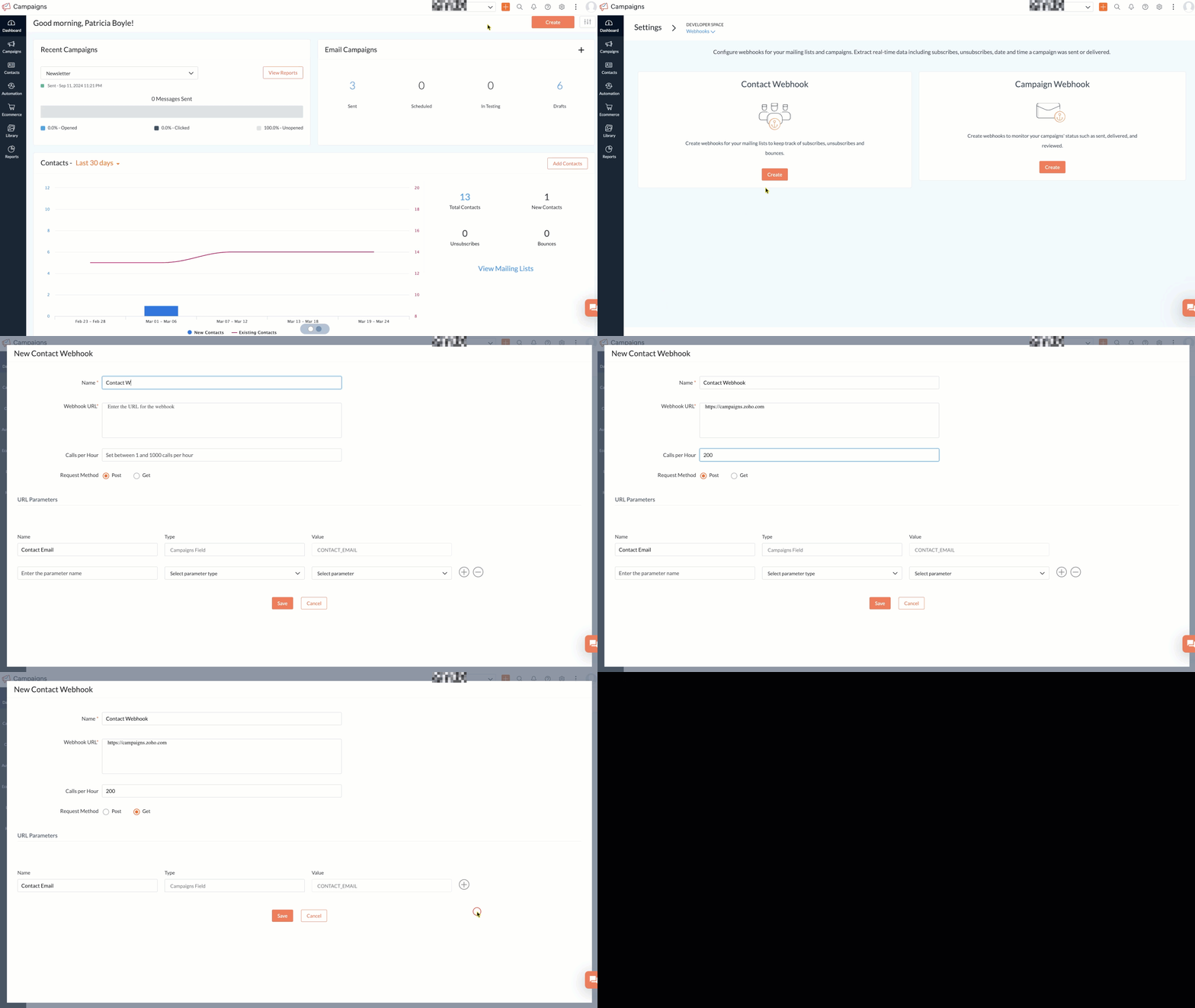


2. Click Webhooks under Developer Space.

    settings
3. In this page, you'll be able to create Contact Webhook and Campaign Webhook. 


4. Click Create to create either type of webhook. and enter the following details during webhook creation:
  1. Name for your webhook
  2. The Webhook URL of the webhook to be configured from the application to which you want your data to be posted to. 
  3. The number of Calls per Hour (default calls per hour is 60 for Free users) 
  4. The Method to extract data (i.e., POST or GET)
  5. For a contact webhook, under the URL Parameters section, you can specify the parameter name, select the parameter type, and select the parameter.
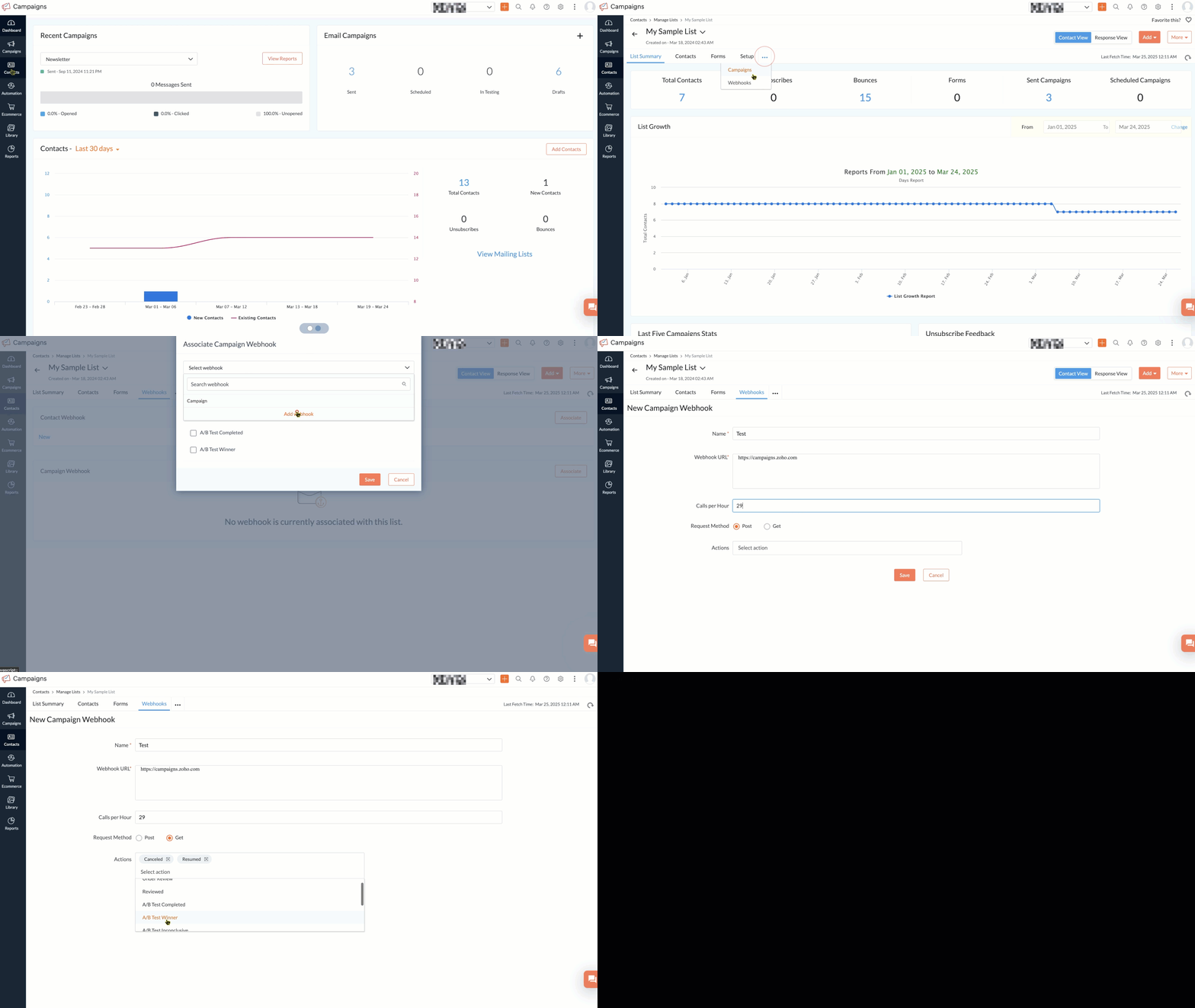

5. Click Save.
       
You can also create more webhooks using the steps below: 
  1. From the Navigation Toolbar to the left, click Contacts.
  2. Select Manage Lists and select the list that you want to associate a webhook for.
  3. Click the More Actions button and select Webhooks.


  4. Click Associate under either Contact Webhook or Campaign Webhook as per your requirement.
  5. On the Associate Webhook page, click Add Webhook option from the 'Select webhook' drop-down.
  6. Enter the following details during webhook creation:
    1. A Name for your webhook
    2. The Webhook URL of the webhook to be configured from the application to which you want your data to be posted to.
    3. The Method to extract data (i.e., POST or GET)
    4. The number of Calls per Hour (default calls per hour is 60 for Free users)
     7. If you're creating a contact webhook, you can select an action or multiple actions in the Actions field. The values of this field are Subscribe, Unsubscribe, and Bounce.
     8. Under the Action initiated by field in a contact webhook, you can choose either or both Administrator/User and Contacts as the value. The webhook will be triggered based on these two fields.
     9. For a contact webhook, under the URL Parameters section, you can specify the parameter name, select the parameter type, and select the parameter.     
                    

     10. If you're creating a campaign webhook, under the Actions field, you can choose ten options viz., Under Review, Reviewed, A/B Test Completed, A/B Test Winner, A/B Test Inconclusive, Stopped, Canceled, Paused, Resumed, and Sent.
      11. Click Create once you've filled in the necessary details.

Associate a Webhook

At some point, you may need to collect information across various lists of contacts and campaigns in your account. This can be accomplished by associating a webhook from one list to the webhooks of another list. You can also create new webhooks for the same list and associate them to the existing webhook to get more information. 

To associate a contact or campaign webhook follow the steps below:
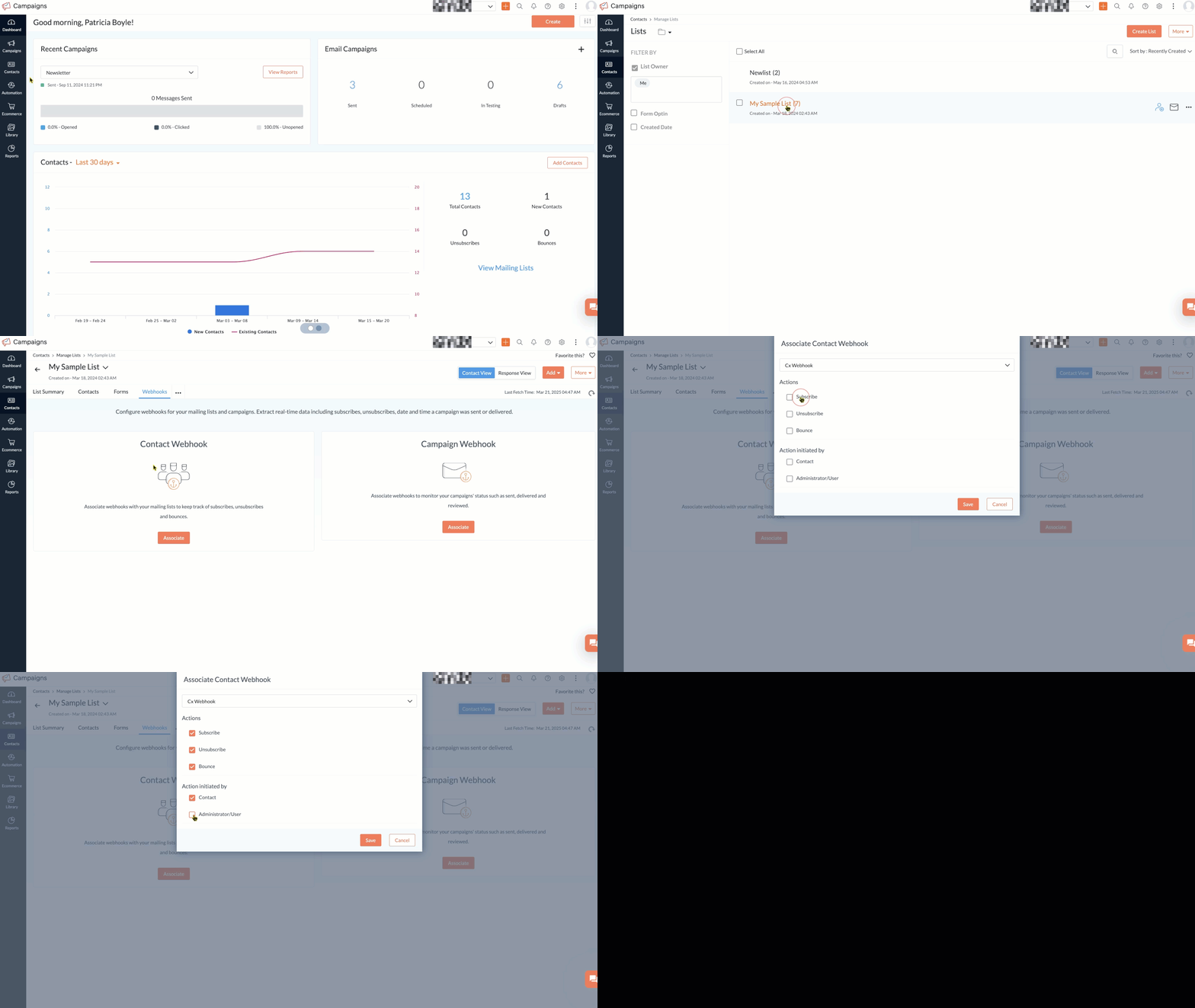
     
  1. From the Navigation Toolbar to the left, choose Contacts.


  2. Click Manage Lists and select the list for which you want to associate a webhook.


  3. Click the More Actions button and select Webhooks.


  4. Click Associate.


  5. In the Associate Webhook pop up, enter the following information:


    1. Select an existing webhook of another list or add a new webhook.
    2. Select the action to be notified.


    3. Select who should perform those actions.
       6. Click Save.

You can associate multiple contact or campaign webhooks using the following steps: 
  1. From the Navigation Toolbar to the left, click Contacts.
  2. Click Manage Lists and select the list for which you want to associate a webhook.
  3. Click the More Actions button and select Webhooks.
  4. To associate Contact/Campaign Webhook, click Associate on the top-right corner of the row.


  5. In the Associate Webhook page, enter the following information:
    1. Select an existing webhook of another list or add a new webhook.
    2. Select the action to be notified.
    3. Select who should perform those actions.


       6. Click Save.

Disconnect a Webhook 

You can disconnect a webhook connection from a specific list. However, the webhook will still exist in the webhook list page. There are two ways to disconnect a webhook:
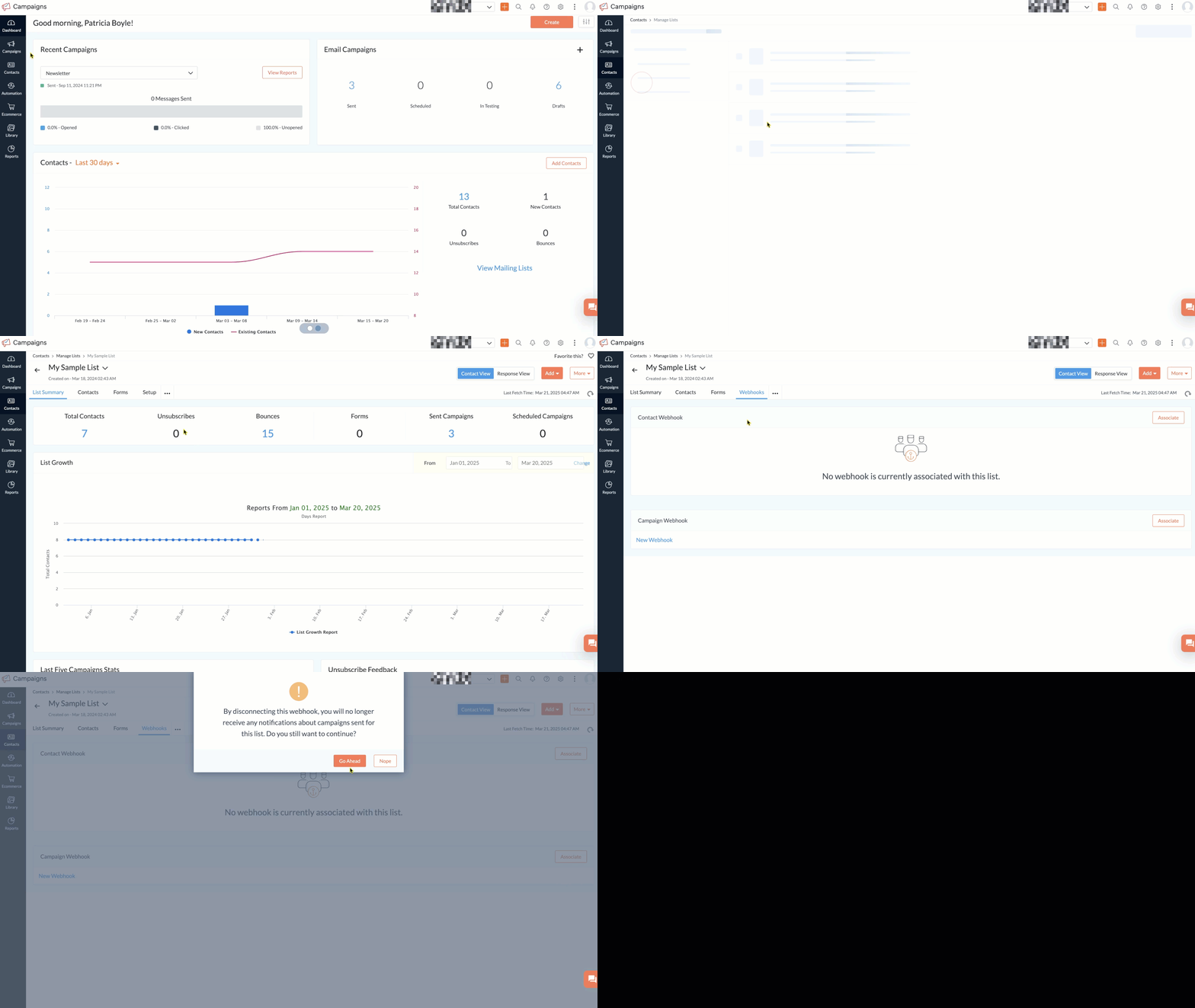

  1. From the Navigation Toolbar to the left, click Contacts.
  2. Click Manage Lists and select the list in which you want to disconnect a webhook.
  3. Click the More Actions button and select Webhooks.
  4. Locate the webhook you want to disconnect from the list and click the Disconnect icon on the top-right corner.


Alternatively:
  1. From the Navigation Toolbar to the left, click Contacts.


  2. Click Manage Lists and select the list in which you want to disconnect a webhook.
  3. Click the More Actions button and select Webhooks.
  4. Locate the webhook you want to disconnect from the list and click the Reports icon.
  5. Click the View Details icon in the top-right corner and click the Disconnect icon.
  6. In the pop-up that appears, click Go Ahead.


Delete a Webhook 

You can delete a webhook from a list and its associated lists in the Settings page.
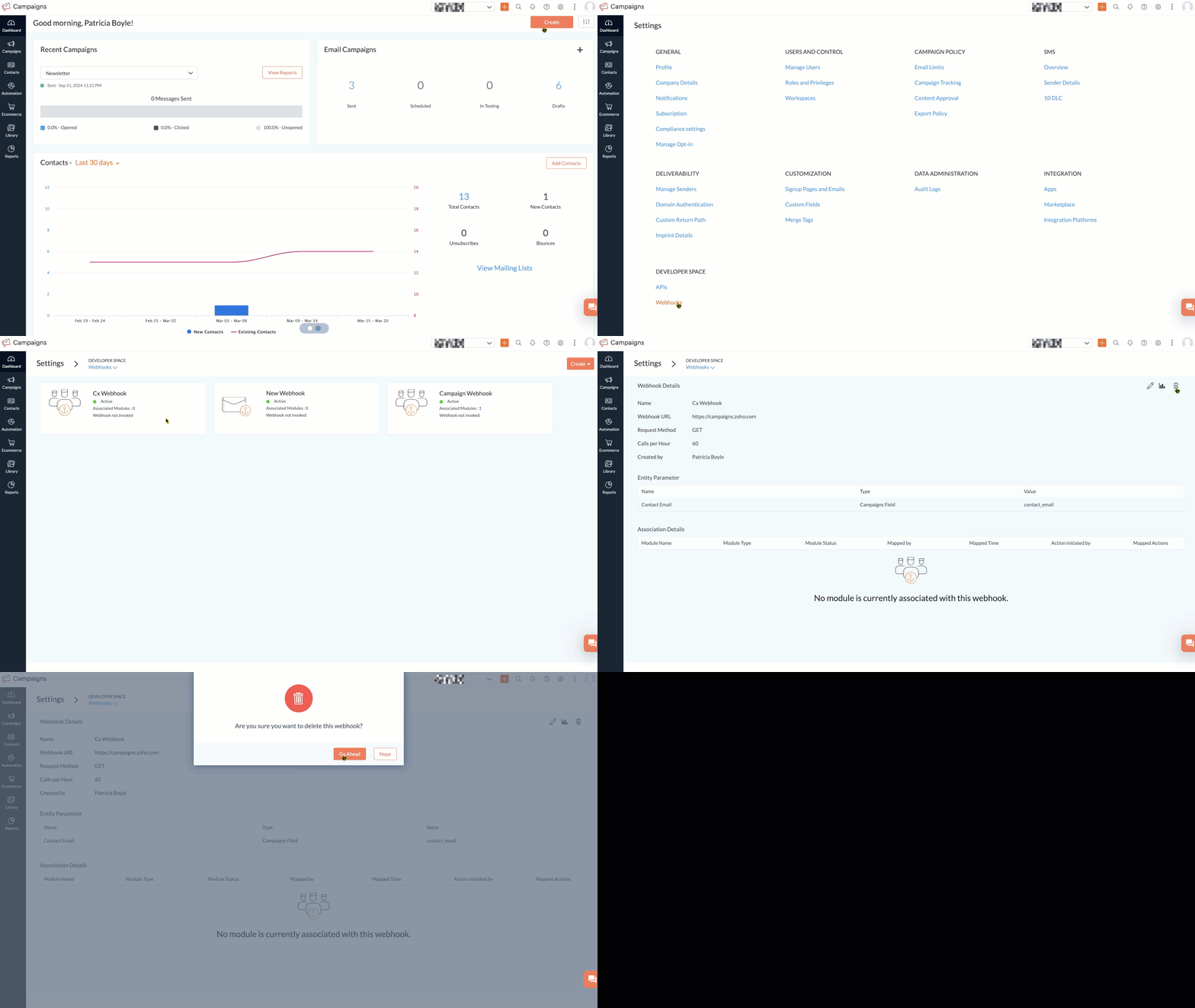

  1. Click Settings (gear shaped icon) at top-right corner. 
  2. Click Webhooks under Developer Space.
  3. Locate the webhook you want to delete and click it.
  4. Click the Delete icon on the top-right corner of the details page. In the pop-up that appears, click Go Ahead. Once a webhook is deleted, it cannot be retrieved.

    delete webhook

View Reports

This section lets you view information about a webhook. You can Filter to view all or only failed or successful webhooks invoked in your lists. There are two ways to view reports:
  1. From the Navigation Toolbar to the left, click Contacts.
  2. Click Manage Lists and click the list for which you want to view the webhook reports.
  3. Click the More Actions button and select Webhooks.


  4. Locate the webhook and click the Reports  icon in the top-right corner.
Alternatively:
  1. Click Settings (gear shaped icon) at top-right corner.
  2. Click Webhooks under Developer Space.
  3. Click the webhook that you want to view reports for and select it.


  4. Click the Reports icon on the far right corner of the details page.

View Webhook Details 

Webhook details let you view all the information affiliated with a webhook. You can edit a webhook, view reports and disconnect a webhook on this page. There are two places where you can view webhook details:
  1. From the Navigation Toolbar to the left, click Contacts.
  2. Click Manage Lists and click the list for which you want to view the webhook reports.
  3. Click the More Actions button and select Webhooks.


  4. Locate the webhook and click the Reports icon on the top-right corner.
  5. Click the View Details icon on the top-right corner of the reports page to view webhook details.
Alternatively: 
  1. Click Settings (gear shaped icon) at top-right corner.
  2. Click Webhooks under Developer Space.
  3. Click the webhook that you want to view reports for and select it. This page will display the details of the webhook.


        Create. Review. Publish.

        Write, edit, collaborate on, and publish documents to different content management platforms.

        Get Started Now


          Access your files securely from anywhere

            Zoho CRM Training Programs

            Learn how to use the best tools for sales force automation and better customer engagement from Zoho's implementation specialists.

            Zoho CRM Training
              Redefine the way you work
              with Zoho Workplace

                Zoho DataPrep Personalized Demo

                If you'd like a personalized walk-through of our data preparation tool, please request a demo and we'll be happy to show you how to get the best out of Zoho DataPrep.

                Zoho CRM Training

                  Create, share, and deliver

                  beautiful slides from anywhere.

                  Get Started Now


                    Zoho Sign now offers specialized one-on-one training for both administrators and developers.

                    BOOK A SESSION


                                Quick LinksWorkflow AutomationData Collection
                                Web FormsEnterpriseOnline Data Collection Tool
                                Embeddable FormsBankingBegin Data Collection
                                Interactive FormsWorkplaceData Collection App
                                CRM FormsCustomer ServiceAccessible Forms
                                Digital FormsMarketingForms for Small Business
                                HTML FormsEducationForms for Enterprise
                                Contact FormsE-commerceForms for any business
                                Lead Generation FormsHealthcareForms for Startups
                                Wordpress FormsCustomer onboardingForms for Small Business
                                No Code FormsConstructionRSVP tool for holidays
                                Free FormsTravelFeatures for Order Forms
                                Prefill FormsNon-Profit

                                Intake FormsLegal
                                Mobile App
                                Form DesignerHR
                                Mobile Forms
                                Card FormsFoodOffline Forms
                                Assign FormsPhotographyMobile Forms Features
                                Translate FormsReal EstateKiosk in Mobile Forms
                                Electronic Forms
                                Drag & drop form builder

                                Notification Emails for FormsAlternativesSecurity & Compliance
                                Holiday FormsGoogle Forms alternative GDPR
                                Form to PDFJotform alternativeHIPAA Forms
                                Email FormsFormstack alternativeEncrypted Forms

                                Wufoo alternativeSecure Forms

                                TypeformWCAG

                                  Zoho FSM Video Tutorials


                                        All-in-one knowledge management and training platform for your employees and customers.

                                                  Create. Review. Publish.

                                                  Write, edit, collaborate on, and publish documents to different content management platforms.

                                                  Get Started Now


                                                                    You are currently viewing the help pages of Qntrl’s earlier version. Click here to view our latest version—Qntrl 3.0's help articles.


                                                                        Manage your brands on social media


                                                                          • Desk Community Learning Series


                                                                          • Digest


                                                                          • Functions


                                                                          • Meetups


                                                                          • Kbase


                                                                          • Resources


                                                                          • Glossary


                                                                          • Desk Marketplace


                                                                          • MVP Corner


                                                                          • Word of the Day


                                                                          • Ask the Experts


                                                                            Zoho Sheet Resources


                                                                                Zoho Forms Resources


                                                                                  Secure your business
                                                                                  communication with Zoho Mail


                                                                                  Mail on the move with
                                                                                  Zoho Mail mobile application

                                                                                    Stay on top of your schedule
                                                                                    at all times


                                                                                    Carry your calendar with you
                                                                                    Anytime, anywhere


                                                                                          Zoho Sign Resources

                                                                                            Sign, Paperless!

                                                                                            Sign and send business documents on the go!

                                                                                            Get Started Now


                                                                                                    Zoho TeamInbox Resources


                                                                                                              Zoho DataPrep Demo

                                                                                                              Get a personalized demo or POC

                                                                                                              REGISTER NOW


                                                                                                                Design. Discuss. Deliver.

                                                                                                                Create visually engaging stories with Zoho Show.

                                                                                                                Get Started Now


                                                                                                                                    • Related Articles

                                                                                                                                    • settings

                                                                                                                                      How do I log out from my Zoho Campaigns account? You can sign out of your Zoho Campaigns account by following the instructions below: Go to your Zoho Campaigns account and click on the profile icon on top-right corner of the screen This will open an ...
                                                                                                                                    • Enable GDPR settings

                                                                                                                                      This feature is available for Zoho Campaigns accounts migrated to the new version of Topic management. GDPR (General Data Protection Regulation) is an effective legal regulation for all residents of the European Union (EU) since May 2018. GDPR will ...
                                                                                                                                    • Settings - Troubleshooting Guide

                                                                                                                                      In this document, we discuss a few points related to Settings and some helpful tips in using few features under Settings. Custom merge tag values Custom merge tag values are used to show a default text when the intended text value is not available ...
                                                                                                                                    • Create an email campaign

                                                                                                                                      Email marketing is considered the simple and most effective method to reach out to your leads and contacts. The best part is that the return on investment (ROI) is much higher than other marketing channels making it the most affordable way of ...
                                                                                                                                    • How do I create a custom field?

                                                                                                                                      Zoho Campaigns allows you to create your custom fields for your contacts where you can store the extra information. With Custom fields, you can feed any type of information, set character limit and use them to save data which are specific to your ...
                                                                                                                                      Wherever you are is as good as
                                                                                                                                      your workplace

                                                                                                                                        Resources

                                                                                                                                        Videos

                                                                                                                                        Watch comprehensive videos on features and other important topics that will help you master Zoho CRM.


                                                                                                                                        eBooks

                                                                                                                                        Download free eBooks and access a range of topics to get deeper insight on successfully using Zoho CRM.


                                                                                                                                        Webinars

                                                                                                                                        Sign up for our webinars and learn the Zoho CRM basics, from customization to sales force automation and more.


                                                                                                                                        CRM Tips

                                                                                                                                        Make the most of Zoho CRM with these useful tips.


                                                                                                                                          Zoho Show Resources