Autoresponder Reports
 Zoho Campaigns will soon deprecate its Autoresponder feature. The feature will not be available to new users, but existing users will have time to replicate it using Workflows.
Once your autoresponder has been sent, you'll be able to view the report.
Autoresponder-specific report
To view the autoresponder-specific message click the Reports tab in the autoresponder summary page. Under the reports section, you will be able to view the following:
- Overall report
Under this section you will be able to view the following: - Number of emails sent
- Number of emails delivered
- Number of emails bounced
- Number of opens
- Number of clicks
- Number of unsubscribes
- Number of emails ignored
-
Activity-based recipient list
Under this section you will be able to view the list of recipients who have opened and clicked the autoresponder messages.
-
Time-based report
Under time-based report you will be able to view the total number of opens and clicks made over time.
-
Message-specific report
Under this section, you will be able to view the total number of recipients, opens, clicks, bounces and unsubscribes for a specific message. To view a detailed report of every message, click View detailed report button next to the message report. This will take you to the Reports page, which displays the message delivery rate, open rate, click rate, number of unsubscribes, recipient activity, user agent stats and more.
Contact path
Under Contact path, you can view the number of messages received by an individual Contact along with the date and time the messages were sent.
Click Contact Path tab in the autoresponder summary page and click on a contact to view their detailed report. 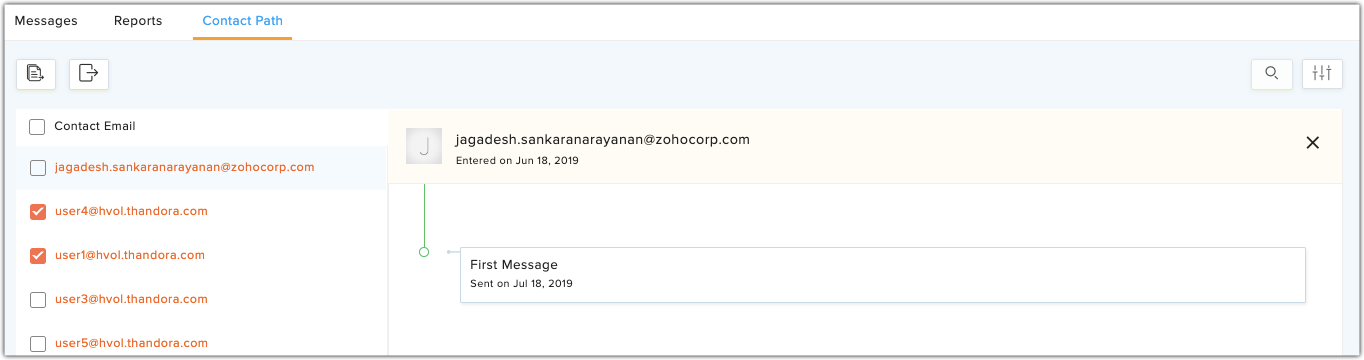
Overall report
You can view overall autoresponder reports in the autoresponder list view. This report displays the following metrics:
- Messages that were sent in the last 30 days
- Messages that were sent in the last 7 days
- Messages that were sent the previous day
- Messages that were sent on the current day
- Messages that will be sent in the future
If you click on an individual metric, you will be able to the view the list of autoresponders that were sent.

Note: If the section is hidden, click Show from the top of the page.