Member Portal - Sender Email
The email address from which your customers receive an email from your store is extremely important. The email should be recognisable to your customers and shouldn’t sound like spam. To avoid being sent into the spam folder, choose an email address associated with your store's name.
1. Go to Settings > Member Portal under General. Select Sender Email from the left panel.
2. Select email from drop-down list.
3. Click Save.
Add your business email
- To add your own email address instead of the ones provided by default, Click on Add New.
- Provide Sender's Name and email address.
- Click Save.

Public Domains are automatically validated. Public domains include email addresses ending with yahoo.com, gmail.com etc. Whereas, private domains need to be validated separately before use.
Domain Validation
All private domains need to be validated before they can be used for sending emails. These will fall under Unauthenticated Domains. 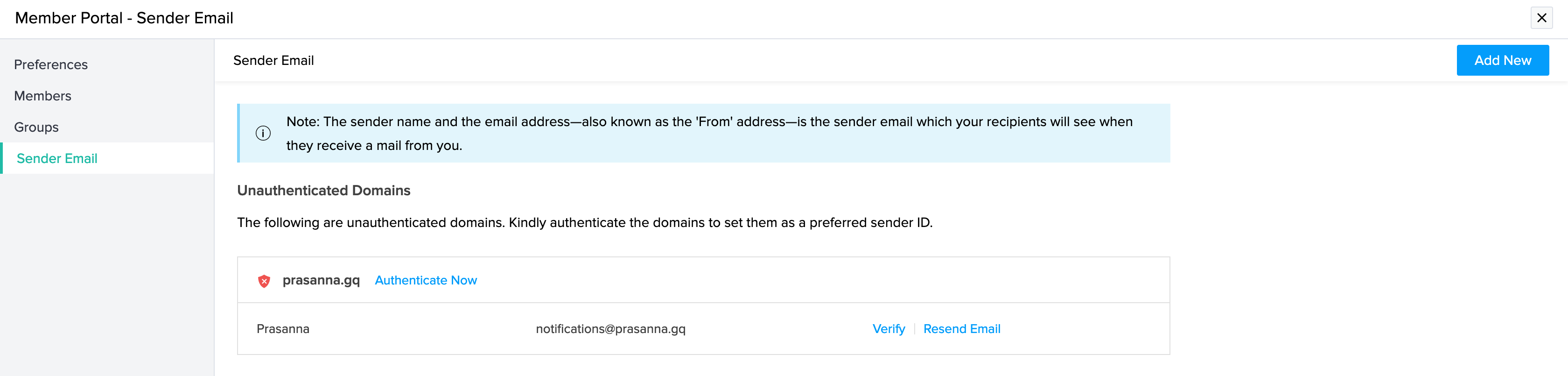
- Click Authenticate Now.
- Copy Host Name and Value. Host name and value should be configured as TXT record in DNS settings of your respective Domain Provider.
- Click Validate after half an hour so that the DKIM will be recognised by the DNS server.
- Once Validated, the screen will look like this:
Email Verification
- Click Verify beside the authenticated domain.
- A verification code will be sent to the provided email address. Enter the verification code in the text box.
- Click Validate.
- Verified email addresses can be mapped and set as your preferred sender email.
- Once verified the email will appear in the drop-down list.