Request to join Groups
Feature availability
Overview
Using the request to join option in Zoho Connect, admins can manage who can join their new and existing Groups.
How does the request to join option work?
When the request to join option is enabled, any user trying to join the Group sends a request to the Group admin. The admin can then either accept or reject the request from the Moderation tab.
Who can enable the request to join option?
Only the Group admins can enable the request to join option in their Group.

A user creating a new Group becomes the Group admin automatically.
How do I enable the request to join option while creating a new Group?
- Click Groups from the main menu on the left.
- Click + New Group in the bottom of the extended menu.
- In the Create new Group page, enter the required details, including the name, description and members.
- Choose the access type (Public or Private). Once you've selected one of the above options, a few additional options will be displayed.
- Choose Users can request to join the Group from the additional options.
How do I enable the request to join option in an existing Group?
- Click Groups from the main menu on the left.
- Click the ellipsis [...] next to the Group name in the header.
- Select Settings from the dropdown.
- In the General tab, scroll down to Access Level field.
- Choose Users can request to join the Group from the list of options.
How can users request to join a Group?
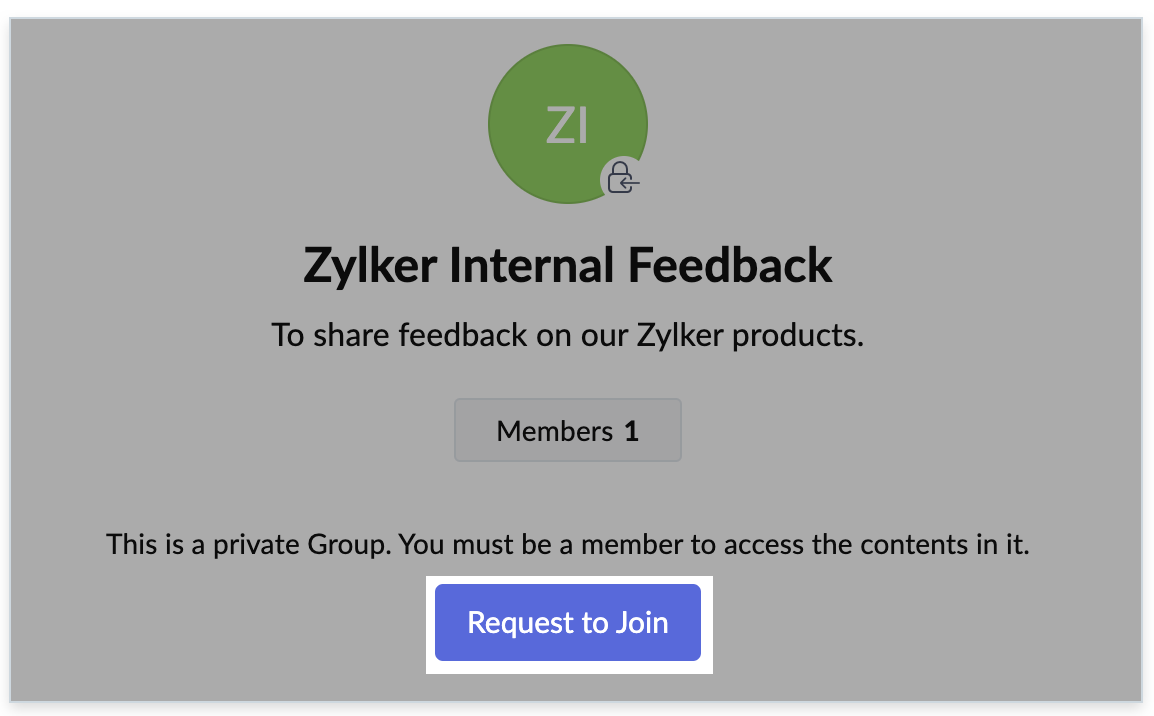
Once the request option is enabled, users who would like to become a member of the Group can visit the Group page and click the new Request to Join button. The Group admin will be notified of the new request.
Where can the admins find the Group join requests?
- Click the flag icon [
] in the right menu.
- In the Moderation pop-out, switch to Members tab.
- Navigate to the required request in the list. You can also use the search tab to filter and view requests made to join a particular Group.
- Click Approve or Reject.
What happens once the admin has approved the request?
Once the request is approved, the users are directly added to the Group. Users will also receive a notification informing them that their request is approved.
Users will not receive any notification if their request is rejected.
If you have any questions related to the request to join option in Groups, please write to us support@zohoconnect.com. We're happy to help!