Save posts to your Read Later list
Overview
Save posts, forum discussions, Articles, and Town Hall questions to your Read Later list, so you can revisit them later when you find the time. You can also set a reminder to receive notifications, reminding you to read the post.
How to save a post to your Read Later list?
-
Navigate to the required post.
-
Click the ellipsis icon (...) in the top-right corner of the post.
- Select Read Later from the dropdown.
- In case you'd like to receive a reminder, click Set a Reminder in the confirmation message.
- In the date picker pop-out, select the date and time.
- Click Set Reminder.
Where can you find the posts you've saved for later?
- Go to the Feeds page.
- Click See more from the extended menu.
- Select Read Later from the list of additional options.
- All the posts that you've saved to your Read Later list will be displayed on the right.
How to remove a post from the Read Later list?
- Go to the Feeds page.
- Click See more from the extended menu.
- Select Read Later from the list of additional options.
- Navigate to the required post.
- Click (
) icon found in the top-right corner of the post
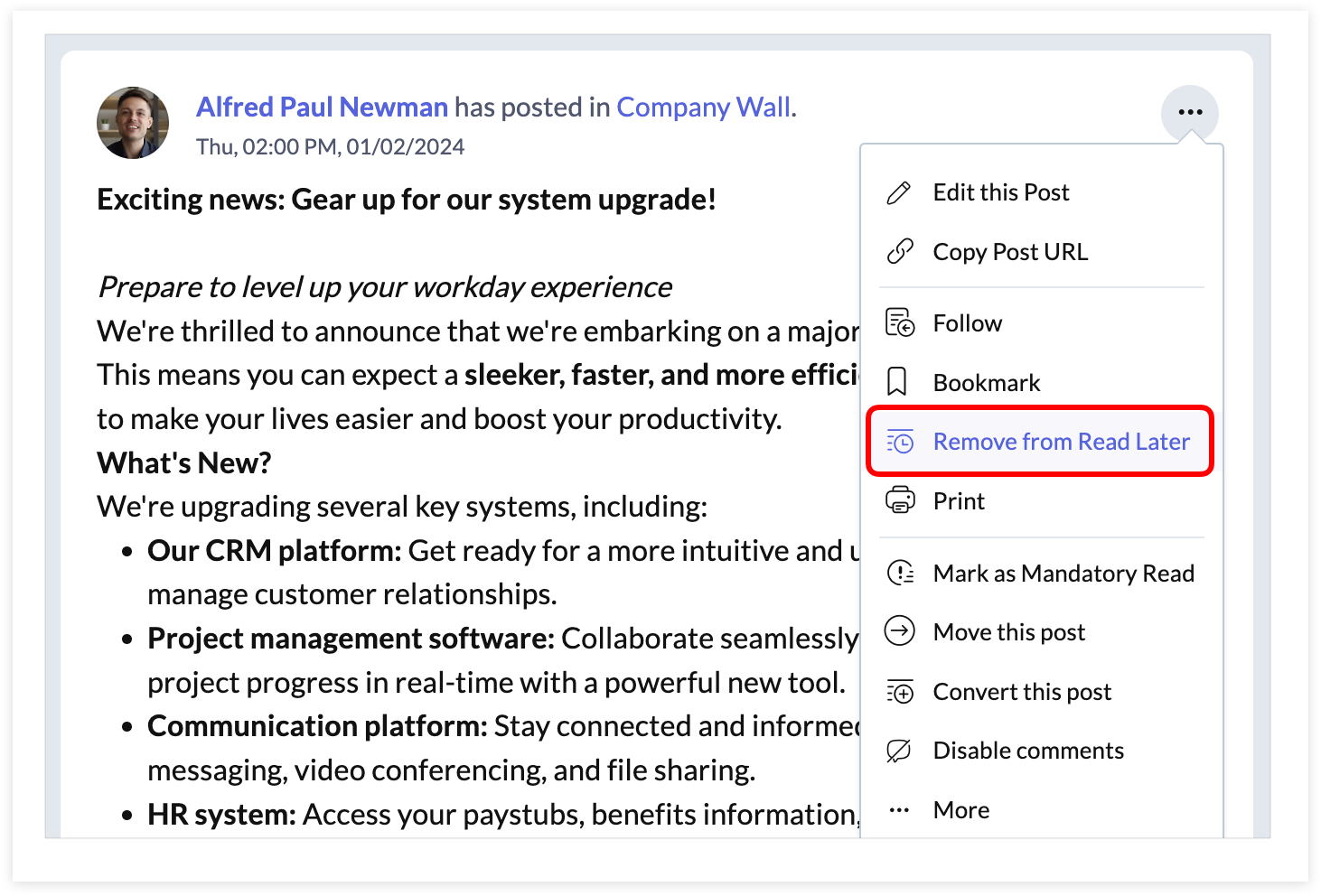
6. Alternatively, click the ellipsis (...) icon found on the top-right corner of the post.
7. From the dropdown, select Remove from Read Later.
How to edit or remove the reminder?
- Navigate to the Feeds page.
- Click See more from the extended menu.
- Select Read Later from the list of additional options.
- Navigate to the required post.
- Click the clock icon
found in the top-right corner of the post.
- In the pop-out, click Clear.
7. If you'd like to change the timing, select the required time, and click Update.

The option to save posts to the Read Later list is available across all plans of Zoho Connect.