Review and manage posts under moderation
Feature availability
Overview
This feature allows moderators and admins to review posts that are pending approval and reject those that do not meet the company guidelines. This helps maintain the quality and relevance of content shared within your network.
When can one use moderation?
When there are posts that are irrelevant, inappropriate, or violate internal policies, you can use the moderation to restrict them from publishing.
Rejecting such posts ensures:
- Your network stays clean and focused
- Users follow content guidelines
- Sensitive or harmful content does not reach others
Who can review posts?
- For network-level posts- network admins
- For group-level posts- network admins, group admins, and moderators

You can reject a post when they:
- Does not follow company guidelines
- Are irrelevant to the group or network
- Contain inappropriate or offensive content
- Are spam or promotional content
How to review a post
- Click the flag icon from the right menu.
- From the extended menu, select a post you'd like to review.
- From the pop-up, review the post based on your company guidelines.
Based on your review,
- Click Approve to publish the post
- Click Reject to send the post back to the user with feedback
- Click Delete to delete the post
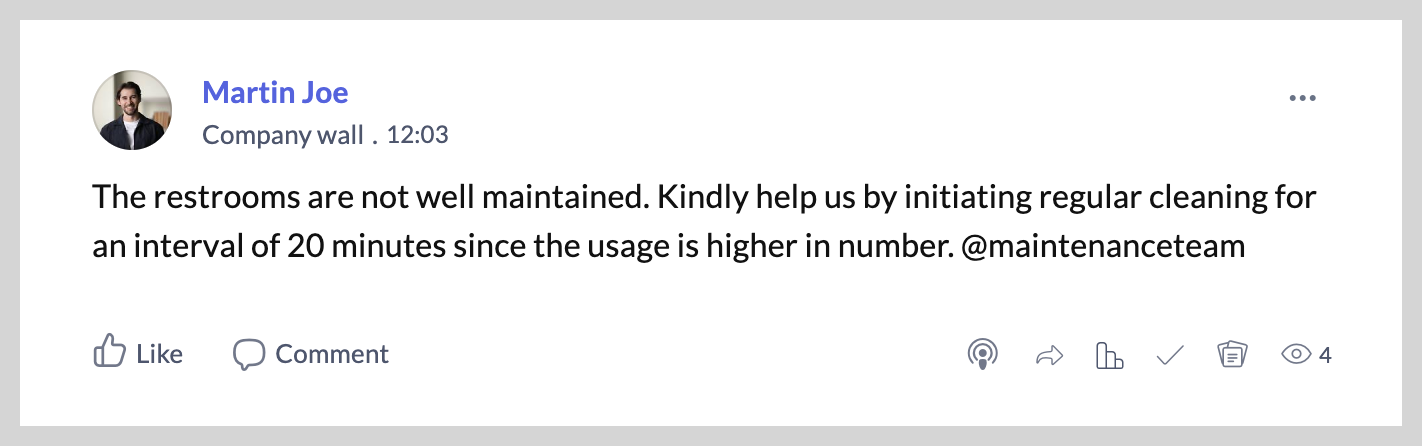
What happens to a post after approving?
Once approved, the post will be published on the network immediately. A post preview will be shown just after you approve the post.
What happens to a post after rejection?
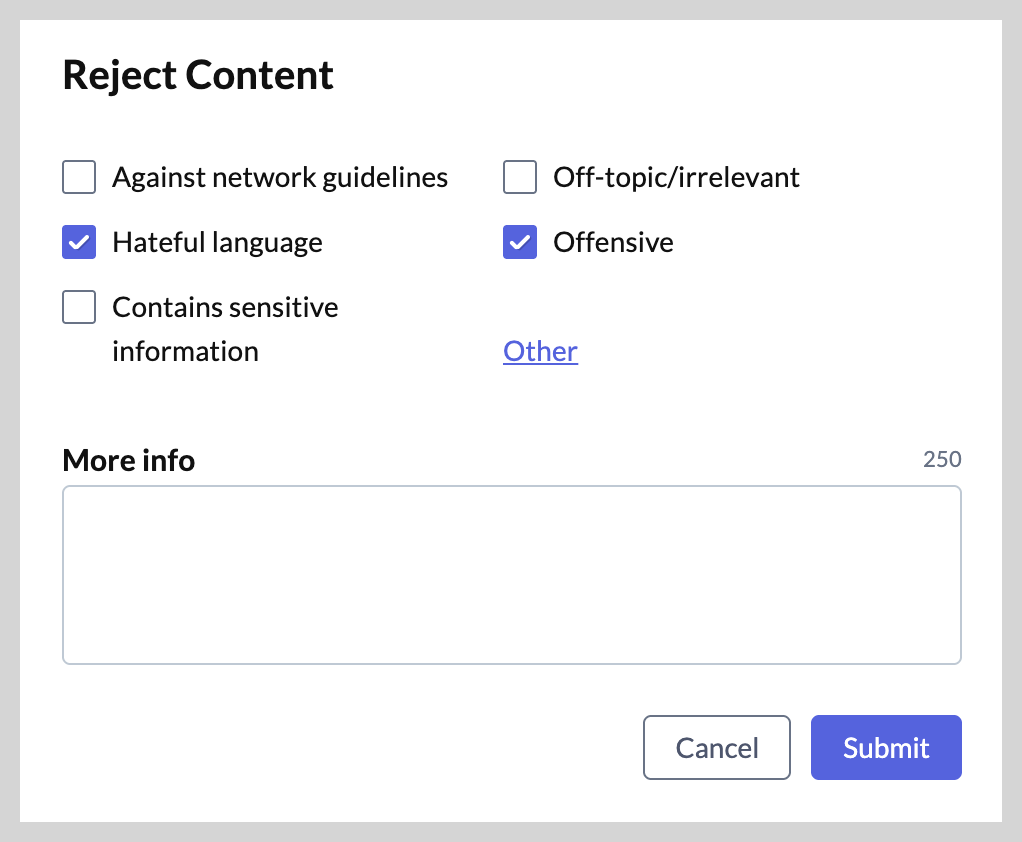
The post will not be published on the network and the post author will be informed of the reason for its rejection./

The rejected posts will be shown in Rejected tab for the post author.
When rejecting a post, you'll have to select the reason for not approving the post and click Submit.
What happens to a post after deletion?
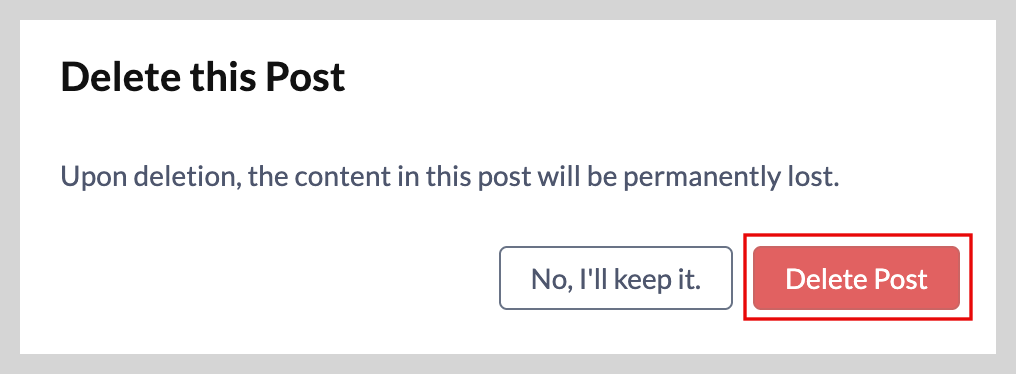
The post will not be published on the network and will be deleted permanently for both post author and reviewer (admin/moderator).
To proceed with deletion, confirm the action by selecting Delete Post in the pop-up.
Where can I view pending and rejected posts after moderation?
- Go to the Feeds from the left menu.
- Click See More from the left extended menu.
- Select Under Moderation.
- On the right side, a list of Pending and Rejected posts will be listed.
- Pending: Posts awaiting review
- Rejected: Posts that were not approved during moderation
How to edit a post awaiting review
Pending posts can be edited anytime before review.
To edit a pending post,
- Go to Pending tab in Under Moderation page.
- Select a post and click Edit this Post.
- Edit and click Update.
How do I resubmit a rejected post?
To resubmit a rejected post, review the feedback provided, make the necessary changes, and submit the post again for moderation.
To avoid repeated rejection, ensure all issues are addressed.To update rejected post,
- Go to Rejected tab in Under Moderation page.
- Select a rejected post and click Edit this Post.
- Make required changes and click Update to resubmit.
Once resubmitted, the respective person will receive this post for moderation.
We hope this guide was useful! For queries or feedback, get in touch with us at support@zohoconnect.com. We're happy to help!