Viewing tasks and checklists in Zoho Connect
Overview
The All Tasks view in Zoho Connect provides a list of tasks and checklists from all boards you belong to, except for private tasks.
How to view all tasks and checklists
- Go to Tasks.
- Click All Tasks from the left extended menu.
- Go to the All tab to view all tasks and checklists that are associated with you.
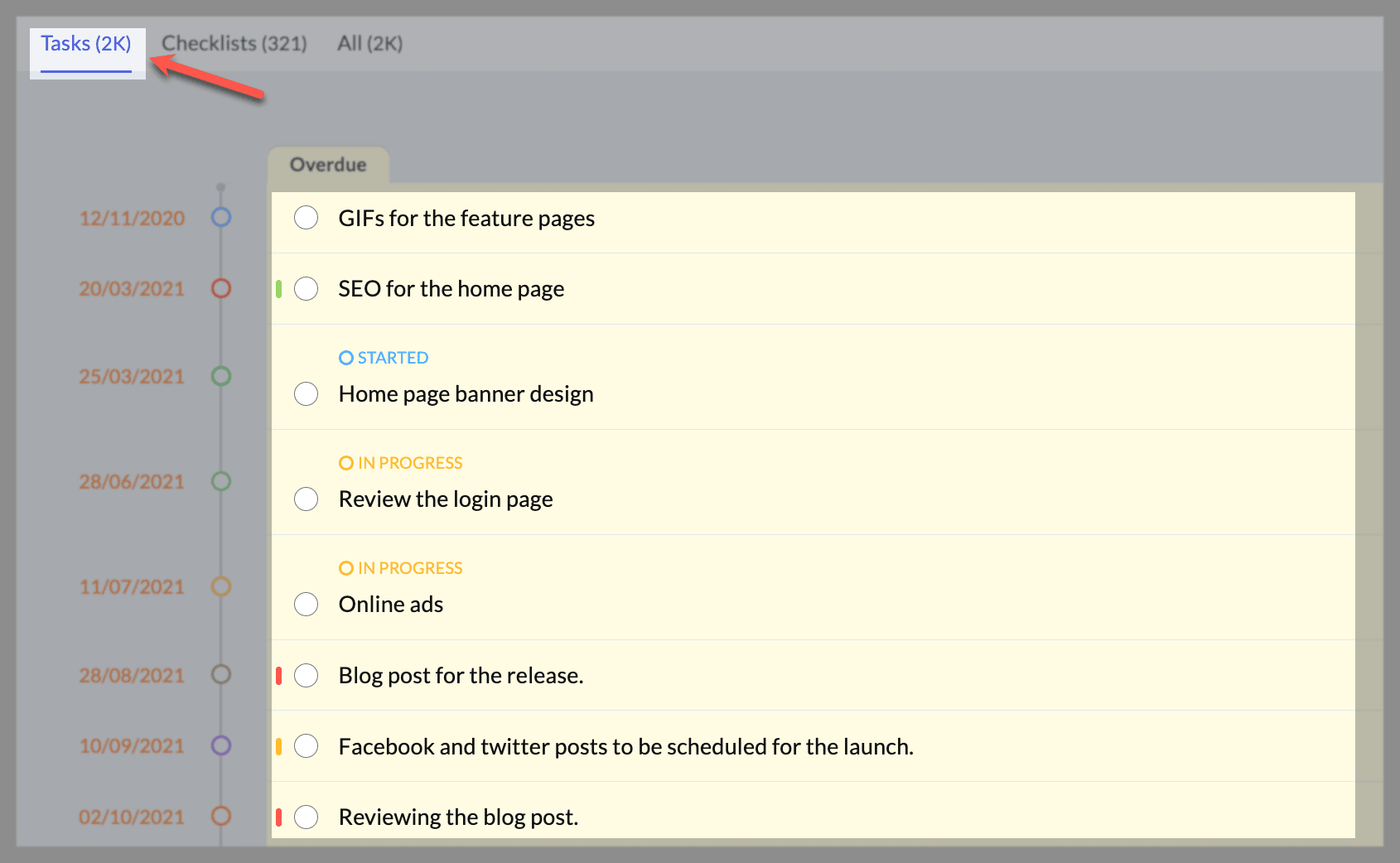
To only view tasks, go to the Tasks tab.
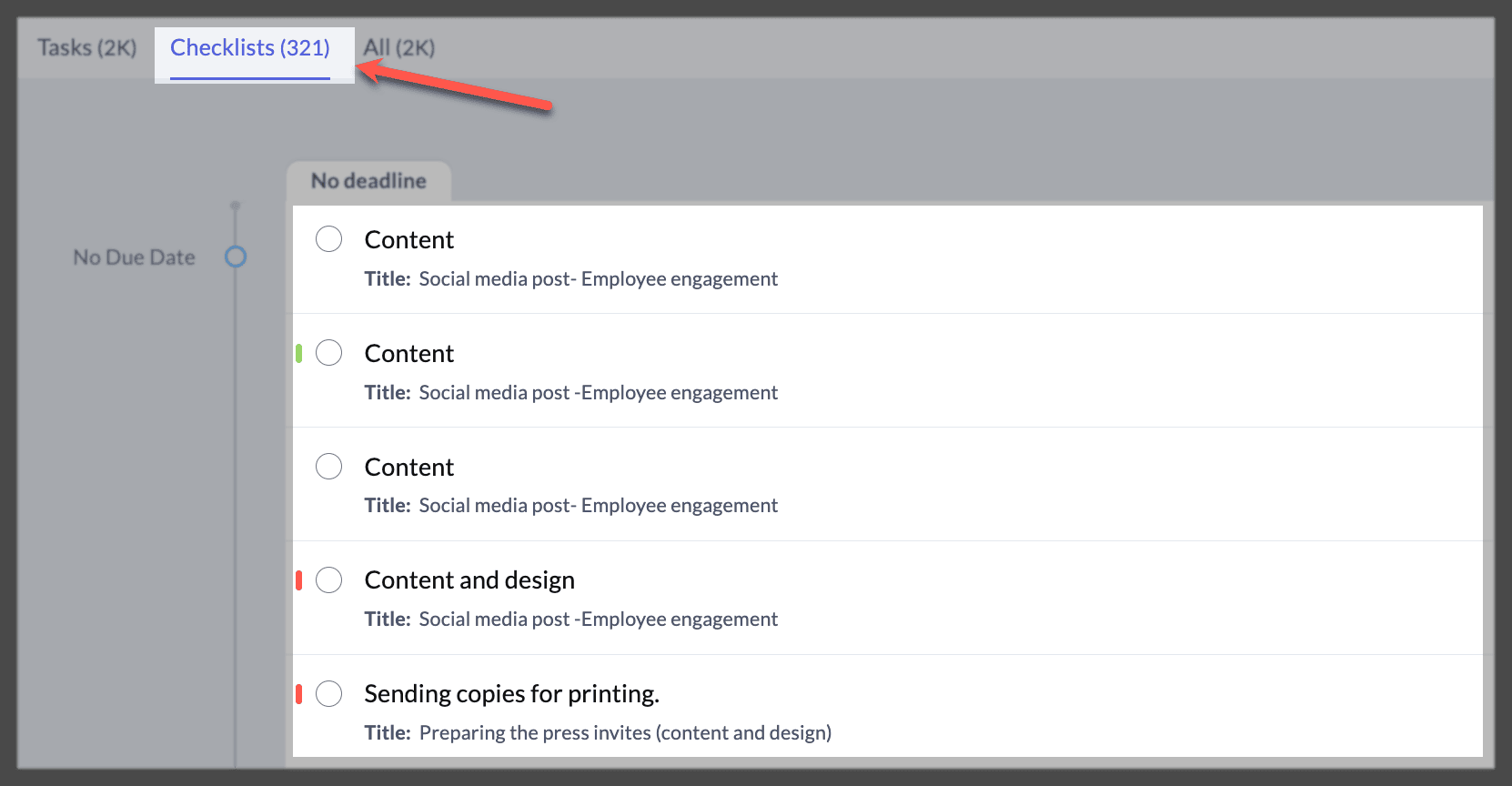
To only view checklists, go to the Checklists tab.
How to view all tasks by applying filters
By default, you'll see all tasks from all boards. You can narrow this view down using filters by assignee, end date, start date, priority, and status.
Filter by assignees, priority, and status
In the All Tasks page, click the funnel icon in the top-right corner.
Choose filters for assignees, due date, priority, and status.
Click Apply.
How to switch the task view
You can view tasks either as a list or in calendar view.

By default, list view will be applied.
- Go to All Tasks.
- Click the calendar icon in the top-right corner to change to the calendar view. Click the list icon on the left of the calendar icon to switch back to the list view.
We hope this guide has helped you view tasks better in Zoho Connect. If you have any questions or need assistance, you can reach out to us at support@zohoconnect.com!