Participating in video town halls as attendees
Overview
Video Town Hall in Zoho Connect is a space where you can join important conversations, share your opinions, and interact with your team or organization. This guide explains everything you can do as a participant.
Joining a video town hall
There are four ways to join a town hall session.
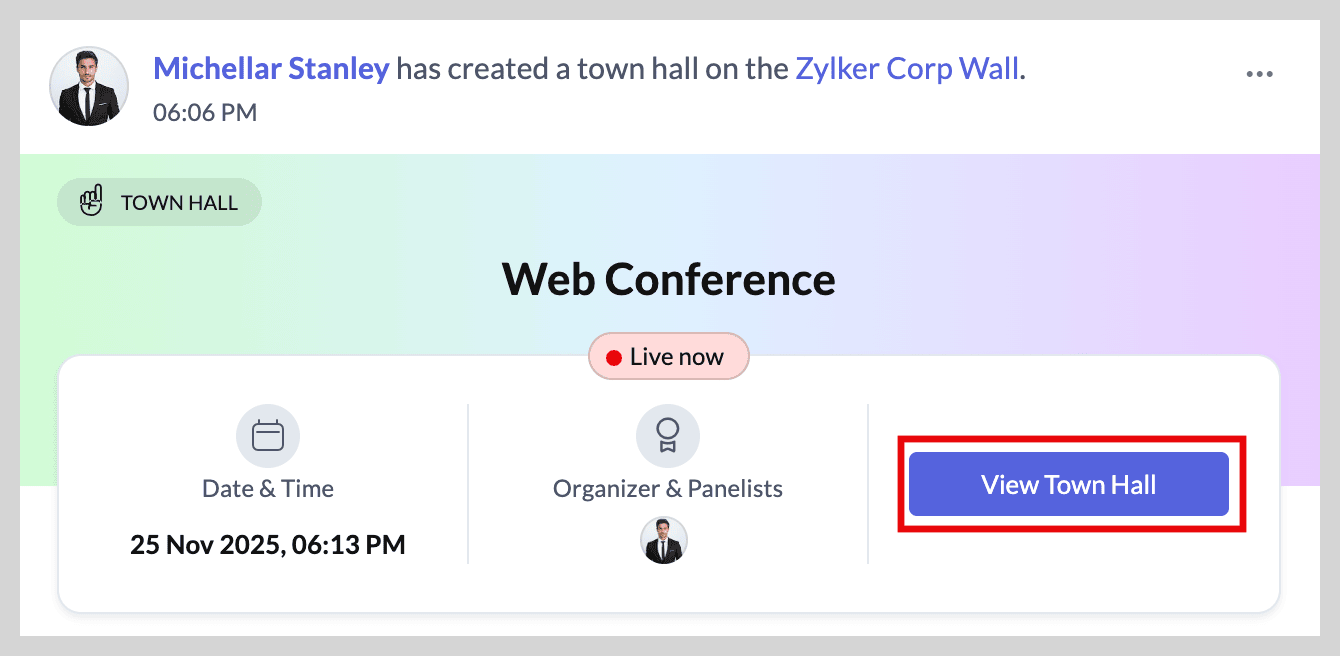
1] Join from Feeds
Go to Feeds and click View Town Hall to join the session.
2] Join from live indicator.
Click the live indicator on the top-left corner.
3] Join from notifications
Open your Notifications and click the video town hall notification to join.
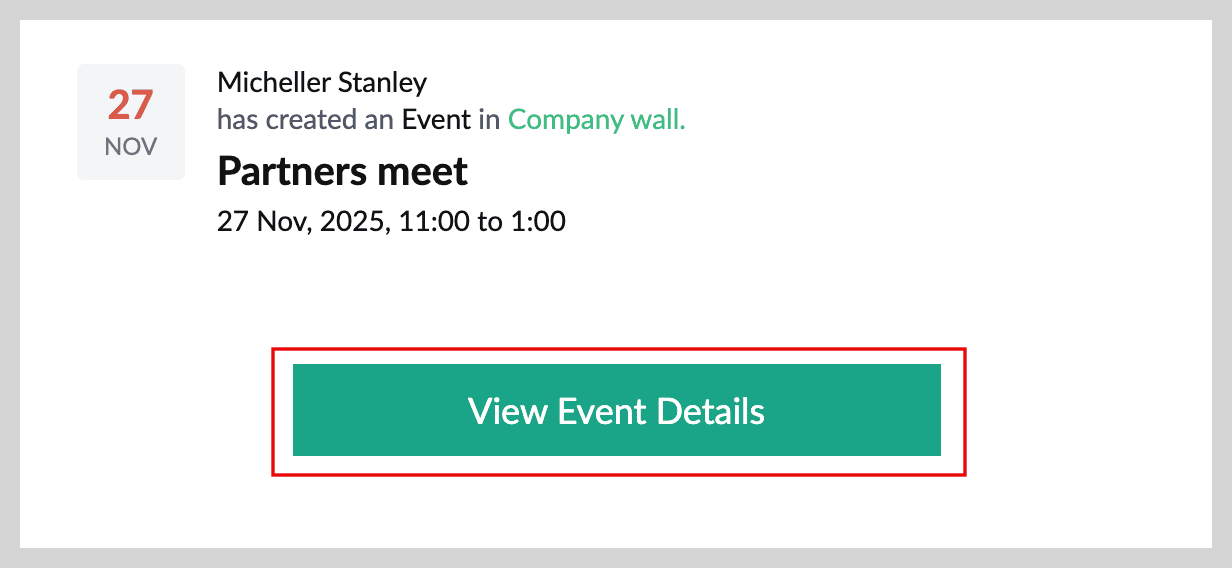
4] Join from email
Go to your zoho mail account and click View Event Details on the video town hall email.
Setting reminder to town hall
To set a reminder,
- Open the feed post of the town hall.
- Click Set Reminder on the right side of the post.
From the dropdown, select the time you want the reminder to be sent.
Click Set.
Interacting in the session
You can interact by asking questions, commenting, upvoting, downvoting, or replying.

Only network admins, the town hall host, and panelists can add answers to questions.
To ask a question:
- Click Ask a question on the top-right side.
In the pop-up, write down your question with an explanation and click Ask.
To comment on a question:
- Go to the question you'd like to comment on.
- Click Comment.
Write your thoughts and click Post.
You can add as many comments as you want.
To upvote or downvote:
- Go to the question you'd like to upvote/downvote.
- Click the up arrow to upvote and down arrow to downvote.
Following along with the host
If you join late or get disconnected, click Go to live Question to jump to the question the host is currently answering.
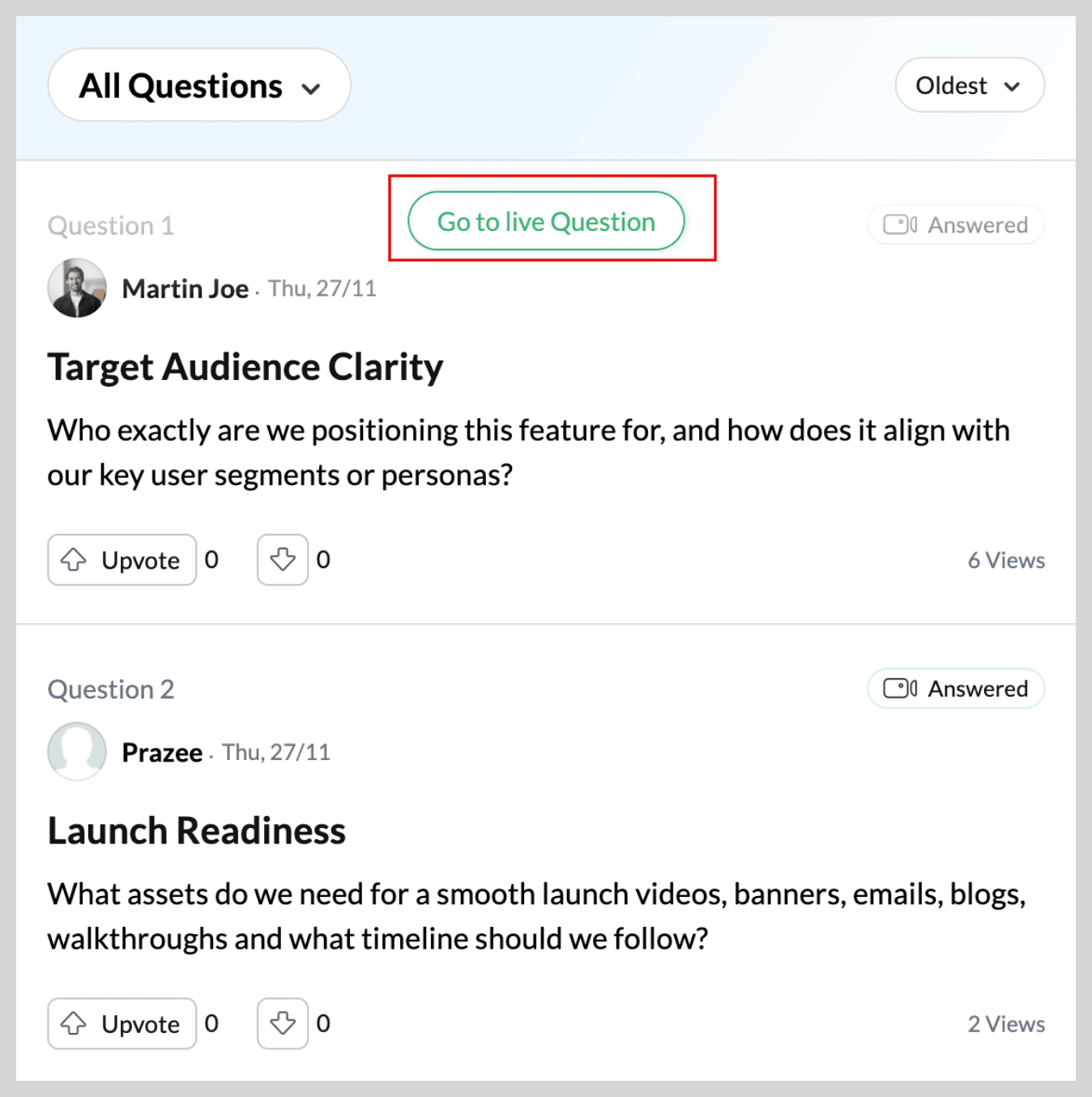
This will help you follow along with what the host and panelists are sharing.
Filtering the questions in a town hall
To filter questions based on all, answered, and unanswered:
- Click All Questions at the top-left of the chat box and choose your preferred option from the dropdown.
To filter questions by recency and activity:
- Click Oldest at the top-right side of the chat box and select your preferred option from the dropdown.
To view the session in picture-in-picture window,
- Click the picture-in-picture icon on the right-bottom corner.
The session will shrink into a small window that stays at the bottom-right of your screen.
You can drag and place this window anywhere inside Connect, and continue switching between Connect apps while the session runs in the background.
 Use this option when you want to stay in the live session and multitask inside Connect.
Switching to full screen
To return to full screen, click the maximize icon in the top-right corner of the picture-in-picture window.
To view the participants count:
Click the participants icon in the top-right corner.
The list of participants will appear in the extended pop-up.
Leaving a town hall
If you wish to exit during a live session, click the end button at the center-bottom.

You can still rejoin anytime until the session ends.
We hope you find this guide useful! For more questions or feedback, get in touch with us at support@zohoconnect.com. We're happy to help!