Filter options in Zoho Connect
Overview
Zoho Connect has two filters to help you explore content across the network. They are Wall filter and User profile filter. Let us explain more on both in detail for your better understanding.
Wall Filter
This filter lets you choose what you want to see on your wall. You can choose to see only certain post types, like announcements, events, or manuals, instead of seeing everything. This makes it easy to find what you need without scrolling too much.
For example, if you only want to see the announcements, just select Announcements and the wall will show only those posts.
To use a wall filter,
- Go to a company wall/ group wall.
- Click All on the left and choose a post type from the dropdown.
On selecting, the posts belongs to the selected type will be shown in the feed.
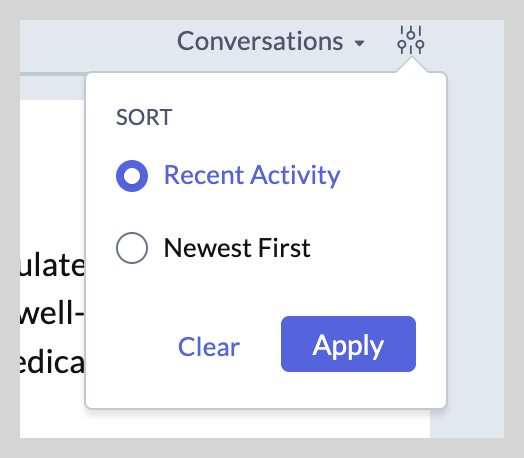
Additionally, you can use the sort filter next to the Wall filter to narrow down your search even further. For most types, you can choose between recent activity and newest first.
 Info:
Info:Newest First- Shows the latest posts on top.
Recent Activity- Shows posts with the latest comments or updates on top.
For questions and ideas, you’ll also get extra sort options to choose from.
For Questions:
For Ideas:
User Profile filter
When you visit someone's profile in the network, you’ll be able to view what they've been up to, including posts, town halls, surveys, forum discussions, manuals, events, and more. Sometimes, though, you're looking for something specific. Maybe you just want to see the ideas they've shared, or check out the manuals they’ve written. That’s where the profile filter feature can help you.
What does a user profile filter do?
The profile filter helps you narrow down a user’s activity by content type and where it is published, so you can find exactly what you’re looking for.
How to use the profile filter
Post type filter
- Go to the user’s profile for whom you want to view the activities for.
- In the Activity tab, click All in the top-left corner of the section.
- From the dropdown, select the type of content you want to search for:
- Posts
- Comments
- Others (includes Surveys, Events, Manuals, and Custom Apps)
That’s it! The activity feed will now show only the type you picked. You can switch between content types by using the same dropdown.
Module filter in user profile
- In the same Activity tab, click All in the top-right corner of the section.
- From the dropdown, select where you want to search in, Forums, Town Hall, Company Wall, and Group Walls.
That’s it! The activity feed will now show only the content in the wall you picked. You can switch between walls by using the same dropdown.
Reaction filter
You can view the activity of you from your Profile page. The only other tab you can view in your profile is your post reactions.
How is user profile filter helpful?
Whether you're a team member or lead, this filter can save you time and effort.
For example, let’s say you're managing a marketing team, and you want to see what Ad Copies John has created. Instead of scrolling through his entire activity feed, you can go to his profile and filter for Manuals. Now you’ll see only the manuals he’s worked on.
Another example is planning an event involves a flooding of related posts and updates. However, you only need Priya’s announcements. You can just go to her profile, filter only her company announcement posts to find all her event-related forums instantly.
If you’re reviewing users or your own contributions, or just trying to find something specific, this filter keeps things simple and quick.
We hope you find this helpful! For any queries or feedback, reach out to us at support@zohoconnect.com. We're ready to help!