 Mandatory property can be configured for all form fields except : auto-number, formula, add notes, QR/Barcode, section and AI fields.
Enabling this property for a field forces your users to enter an input in that field. Until they don't enter an input in that field, they will be unable to submit your form. Indirectly, this ensures that each record (submitted through that form) has data stored in that field.
For example, when you enable the Mandatory property for an email field on your form, the below given is what happens when a user accesses it from a web browser:
- A red color asterisk symbol (*) appears next to that field's name. This indicates that the field is mandatory.

- If a user submits your form without entering an email address, Zoho Creator will prompt as follows:
- The Invalid entries found message will appear in a pop-up window.
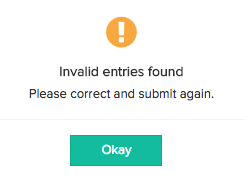
- Clicking Okay will close this pop-up and display a message below that email field.
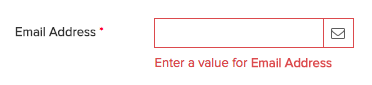
When a user accesses this email field from a phone/tablet:
- A red color asterisk symbol (*) appears next to that field's name. This indicates that the field is mandatory.
- If a user submits your form without entering an email address, Zoho Creator will prompt as follows:
- The Invalid entries found message will appear in a pop-up window.
- Tapping Done will close this pop-up and display a message below that email field.