Understand prediction field


AI calls are consumed each time an AI model runs within your Creator application. For the prediction field:
- When all predictor fields are filled with the required input, an AI call is triggered to generate the prediction in the target field. This AI call is deducted from the AI calls limit available in your Creator plan.
- If any predictor field is modified, either before or after the prediction is displayed in the target field, the model recalculates the result using the updated inputs. This triggers an additional AI call, which is also counted against your AI calls limit.
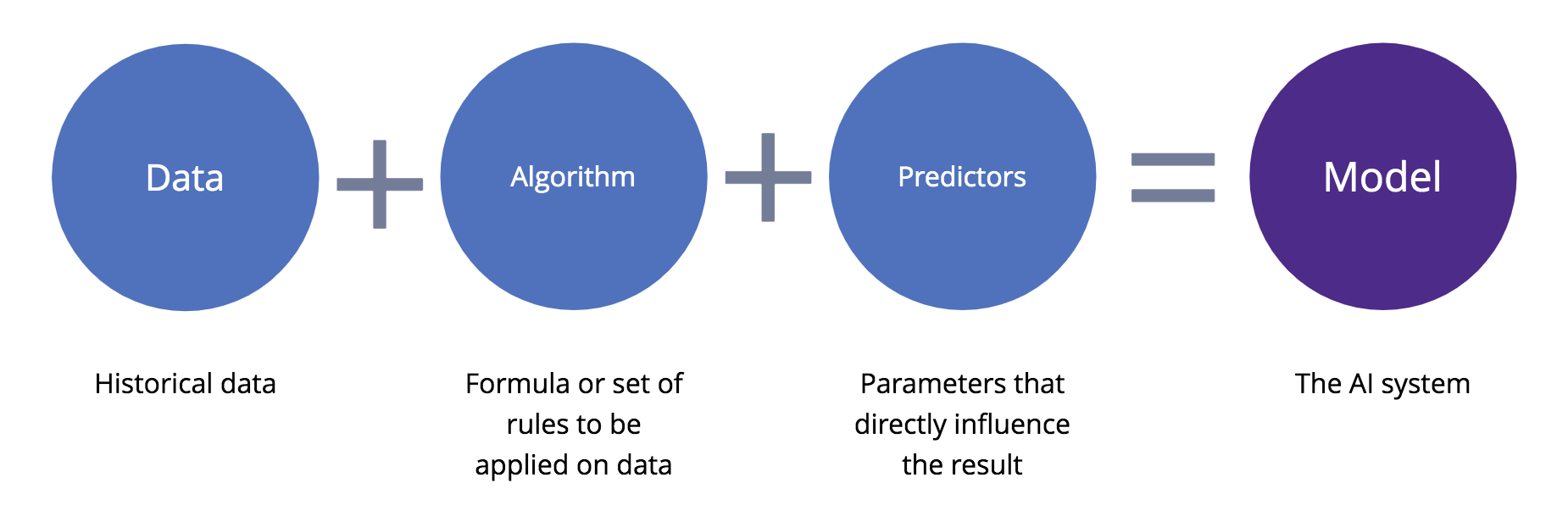
Imagine that you've built an order management app using Creator, and you want to share the expected delivery date with your customers. From experience, you know that the time it takes for an order to be delivered is influenced by factors such as the type of product being ordered (a refrigerator may take more time than a TV to be delivered), the number of units being ordered (quantity), who the delivery partner is (some partners would be prompt, some may be delayed a little intermittently). Here's how you would use the prediction field in this case:
- Identify what data point you want to predict. Since you want to estimate the expected delivery date, the prediction's target is "Delivery Date", which is the field that stores the actual date orders are delivered
- Identify what data points you want to use for prediction. In this case, the predictors are the "Delivery Partner", "Quantity", and "Product Type" fields (as mentioned above).
- Ensure that your "Orders" form has as many records as possible. You can have the AI use all the records in that form, or set a criteria to define the records that are to be used for training the model.
- Add a prediction field to your form where:
- "Delivery Date" is the target field
- "Delivery Partner", "Quantity", and "Product Type" are the predictor fields
- All or selected records in your form are used as the training data. You can opt to use a specific set of records by defining a criteria.
As its value is estimated by the AI, the prediction field will appear disabled on your form, which indicates to your users that they cannot enter an input in it.
Features
- Adding a prediction field to a form
- Supported data types
- Target field and predictor fields
- Model training and retraining
- Other field properties
Supported field types
Field types that can be selected as the target and predictor field: number, decimal, percent, currency, drop down, radio, date, date-time, lookup (single-select), and users.
Target field and predictor fields
- Target field is the field for which you want to predict the value
- Predictor fields are the fields that you want the AI to use for prediction
- Only the supported field types can be selected as the target and predictor fields

Model training and retraining
Prediction relies on a substantial amount of data. The AI analyzes your data and "learns" from it to build the model. This model is the one that will predict the field value for all future records. The presence of a large number of records will help the AI to build a more reliable model.
When you add a prediction field to your form, you'll have to define the training data set (the records that the AI will analyze and learn from to create the predictive model). Once the training set is identified, it cannot be changed. However, the prediction model can be retrained.
The status of the model will be reflected in the prediction field's Field Properties:
- When the model is being trained, you'll see Model training in progress
- Once the AI has successfully analyzed your data and built the model, the model's Accuracy will appear
- Since new data is always being generated, we recommend that you periodically retrain your model. This helps in improving the predictive model's reliability (how dependable it is for making the prediction).
- When you click Retrain, you'll again see Model training is in progress
- Once the model retraining is successful, you'll see the new model's accuracy
- If the model training fails, you'll see Model training has failed. Meanwhile, the previous working model will be used for prediction.
Other field properties
- Customize the field name and field link name of this field
- Show this field only to the app’s admin (and hide it from other users)
- Set this field’s size
- Describe this field using a tooltip or a help text