Email data to a form
 Note: This page is for users who're already using Email form data. Users who signed up after 02-Apr-2025 must integrate with Mail360, which leverages this feature to enable form submissions via email.
 To get the email address of a form
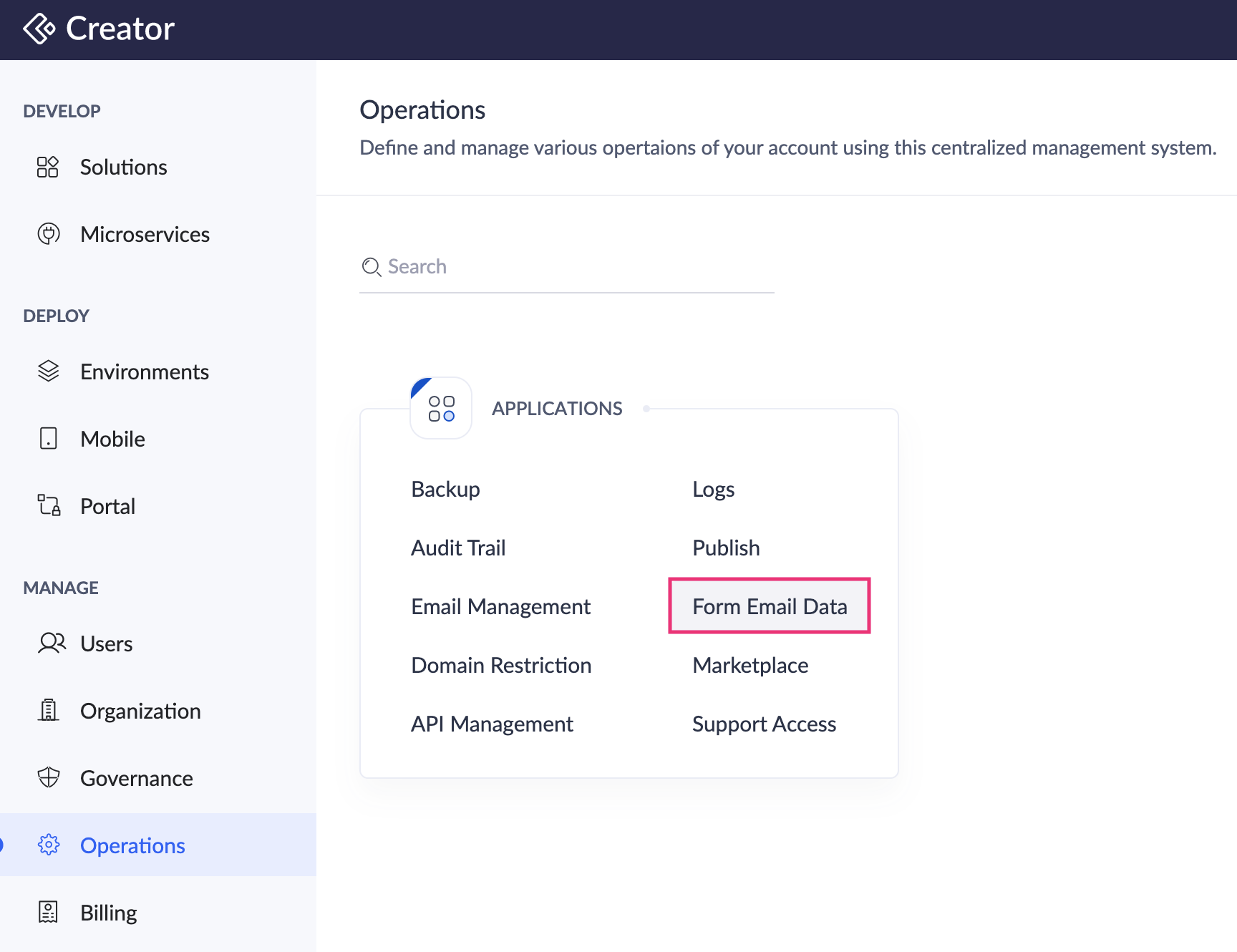
- Navigate to Operations on the left pane and select Form Email Data under Applications.
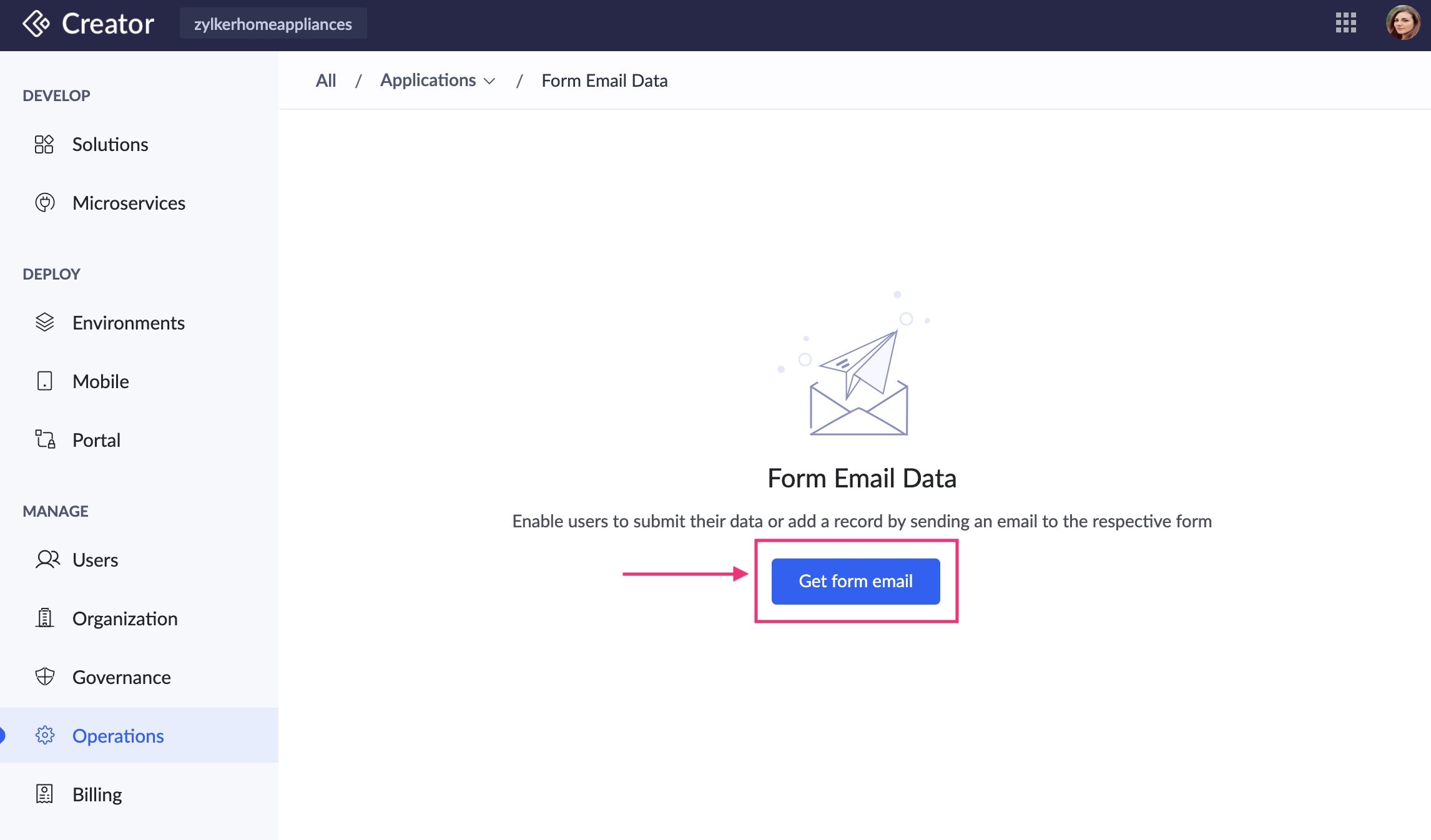
- Click on the Get Form Email button in the center. A popup will appear.
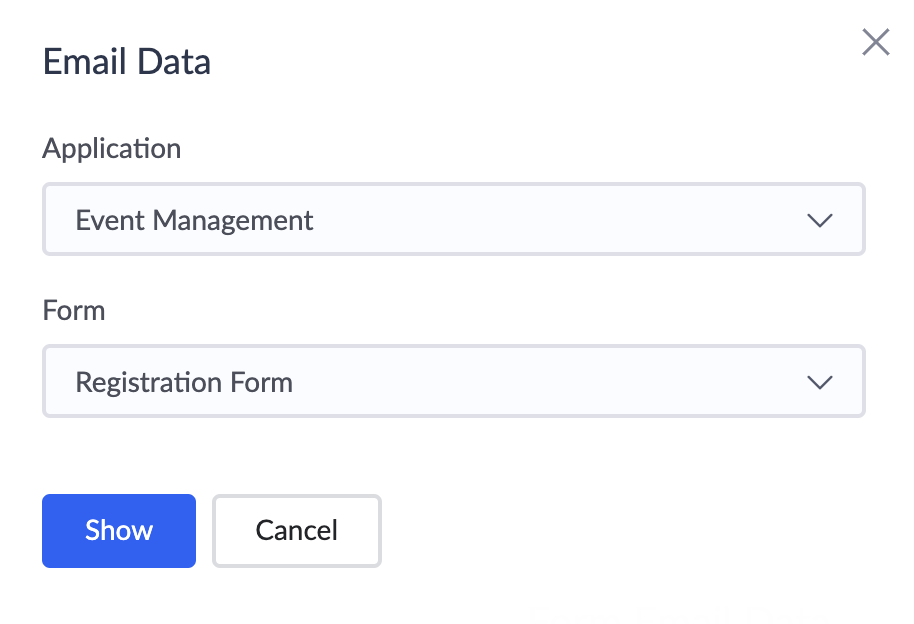
- In the popup, choose the Application and the Form for which you need to get the email address from the dropdowns, then click Show.
- You can find the Form Email Address and Template in the following page. To email data to your form, users will have to email the data in the format specified under Template to the email address specified under Form Email Address.
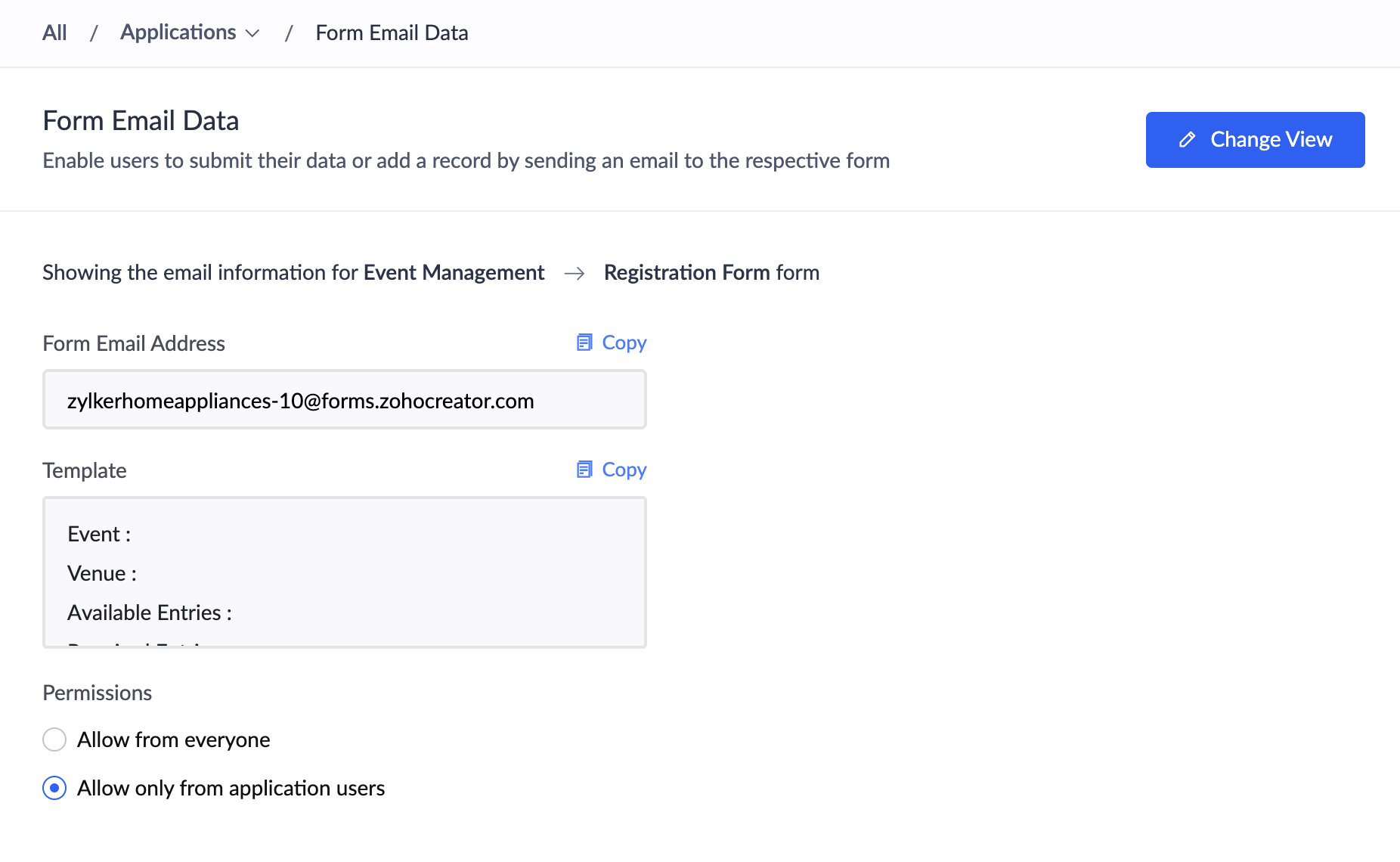
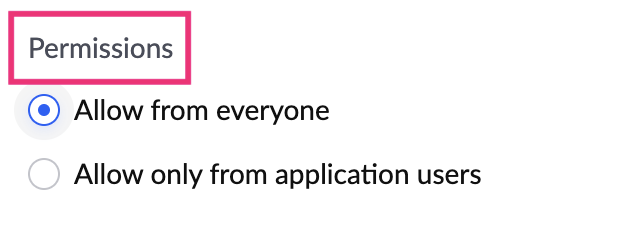
- To define who can email data to your form, select the required value under Permissions:
- Select Allow from Everyone to enable anyone to email data to your form. (They'll need to have your form's email template, without which they won't be able to email data to your form)
- Select Allow only from application users to enable only your app's users, with whom you've shared this form and assigned the permission to create records in it, to email data to your form.
- To switch to view the form email address page of a different form, click the Change View button at the top-right corner.
To enable your users to email data and separately capture the email's parts
Another way of sending data through email is to let users send the email and capture the email parts like the from address, subject, message, and attachments as separate fields in a form. You can do this by creating a new form, as mentioned in this page.