Viewing contact roles' emails within a deal's record and linking them with deals is available for all users in all DCs, for organizations
whose users have have all switched to the latest email configuration.
Email conversations play a vital role in the process of closing deals across different business contexts. Their cost-effectiveness is attractive to small businesses. The ability to maintain conversations with multiple stakeholders across different departments is used by mid-market firms. Enterprises use it as a formal and auditable means of communication during high-stakes negotiations.
In Zoho CRM, a deal can be linked to the following stakeholders:
- A primary contact who is the main person you're dealing with in order to close that deal. For example, this could be the sales champion in some contexts, the decision maker in some other contexts, and so on. There can only be one primary contact for a deal.
- Contact roles are other stakeholders who are involved in that deal. For example, technical experts, members of the legal, finance, or purchasing team, and so on are usually marked as contact roles. For large deals, it is the norm that multiple stakeholders in a company are involved in the process of finalizing a deal.
So, it is possible to link a single deal with multiple contacts. It is also true that a single contact can have multiple deals associated with them (either as the primary contact or as a contact role).
Emails are linked to contacts, but in order to follow up or close a particular deal, you would likely find it tiresome to go through all the emails of a contact, filter out the ones related to that deal, and repeat the same for all stakeholders. Instead, you may prefer to see the emails distinctly marked to a deal, rather than having all the emails of a contact listed together.
In Zoho CRM, you can associate each email with a deal to conveniently follow conversations related to that particular deal. This linking can be done either:
- Automatically based on a predefined prediction pattern
- Manually from within the Deals or Contacts modules.
The following table shows the actions that are supported for primary contacts and contact roles when it comes to associating their emails with a deal.
|
Action
|
Primary contact
|
Contact role
|
|
View emails in a related deal's record
|
Yes
|
Yes
|
|
Automatic linking of an email to a deal
|
Yes
|
No
|
|
Manual linking of an email to a deal
|
Yes
|
Yes
|
|
Replacing or changing the linked deal of an email
|
Yes
|
Yes
|
|
Un-linking a deal from an email
|
Yes
|
Yes
|
 Note
Note
Emails from contact roles will be available under "Emails associated with related contacts".
Availability
Permission Required
Users who have configured IMAP integration can access this feature.

Email Views From the Deals Module
The email communication for a deal is listed in the Email Related lists of the deal and the associated contact. In the Deals module, there are two options to view the associated emails:
- Emails associated with this deal - This is a default option that will display only those emails that are related to the particular deal.
- Emails associated with the related contact - This option will display all the emails that are related to the associated contact or contact roles.
To select an email view
- Go to the Deals module and select a record.
Go to the Emails Related List, then choose one of the following from the drop-down list:
- Emails associated with this deal.
- Emails associated with the related contact.
Auto-link Emails by Deal Prediction Mechanism
Zoho CRM automatically links a contact's incoming emails to the deals using the Deal Prediction Method. This linking of emails only happens with deals where the contact is the primary contact. Emails will not be linked automatically to deals where the contact is involved in a contact role.
When you receive an email:
- If the contact has only one deal in Zoho CRM
- If the deal is open/ Closed Won, then the email will be linked to that deal.
- If the deal is Closed Lost, the email will not be linked to that deal and will be retained under the contact's emails related list.
- If the contact has multiple deals in CRM
- If the last modified deal is open/ Closed Won, the email will be linked to that deal.
- If the last modified deal is Closed-Lost and there are no open deals, the email will not be linked to any deal and will be retained under the contact's emails related list.
- If the last modified deal is Closed-Lost and there are open deals, the email will be linked to the last modified open deal.
Note
- During a fresh IMAP configuration, the previous emails will be linked to the deal only if the contact had a single deal associated to it at the time of receipt of the email.
- If the contact had more than one open deal the email will not be linked and will be listed under the contact's Email related list and the user can manually link it to the deal. In the Deals module. these emails will be displayed under "Emails associated with the Contact".
- Once an email is linked to a deal, within the Deals and the Contacts modules, these emails will display the "linked" icon. By clicking on the icon you can choose to change or unlink the deal.
Link, Unlink or Change Deal Manually
Zoho CRM's deal prediction mechanism automatically links the emails to;the respective deals. However, if required, you can choose to replace the deal that the email is already linked to. Also, you can manually link or unlink an email to a deal when required.
Note that once an email is linked to a deal, the association will be retained unless the email is unlinked or the deal is deleted from the CRM account.
To link a deal
- Go to the Deals module and select a record.
- Go to the Emails Related List, select Emails associated with the Related contact from the drop-down list.
Select the contact or contact role from the dropdown list.
- Click the Link icon (
 ) beside the email.
In the pop up, choose the deal you want to link the email to.
Only the deals associated to the contact or contact role will be displayed.
- Go to the Deals module and select a record.
- Go to the Emails Related List, select Emails associated with the Related contact from the drop-down list.
- Select the contact or contact role from the dropdown list.
Click the Linked Deal icon in the email and choose the following:
To unlink or change the deal from Emails associated with this Deal
- Go to the Deals module and select a record.
- Go to the Emails Related List, select Emails associated with this Deal from the drop-down list.
Click the More link in the email and choose the following:
 Note
Note
You can also choose to link, unlink or change the deal from within an email.
- Select an email, from the Deals/Contacts module.
In the email, do the following:
Deactivate IMAP Integration
On IMAP deactivation, the emails that are linked to the deals either manually or based on prediction will be unlinked and a fresh prediction will happen on IMAP reconfiguration.
SEE ALSO
Building strong connections with customers is crucial in business, and one effective way to achieve this is through skillful email communication. Zoho CRM provides a range of tools for mass email communication that have been designed exclusively for sales purposes. These tools empower users to connect with numerous customers, deploy automatic responses, schedule mass email distributions, and create easily accessible email templates.
The benefits of using mass emails in a sales context are numerous:
- Time efficiency: The streamlined process of reaching an entire customer base saves valuable time in communication efforts.
- Scheduled dispatches: Users can schedule emails precisely based on individual or regional time zones to optimize reach and add convenience.
- Opt-in/out mechanisms: Customers have the flexibility to opt in or out of emails, ensuring compliance with regulations such as GDPR and respecting recipients' privacy preferences.
Zoho CRM's mass email features focus on efficient, personalized, and meticulous email engagement. To provide you with a clearer understanding of these offerings, it's important to recognize the various types of sales emails that you can use them to craft:
- Promotional sales emails: Boost sales by highlighting special offers or promotions.
- Cross-selling or upselling emails: Recommend additional products or upgrades to enhance customer purchases.
- Welcome or onboarding emails: Introduce the product or service to new customers and guide them through the initial steps.
- Event invitations: Invite customers to participate in events, webinars, or special gatherings.
- Product announcements or updates: Keep customers informed about new products, features, or updates.
- Re-engagement emails: Encourage inactive customers to re-engage with the brand.
- Surveys and feedback: Gather valuable insights from customers to improve products or services.
- Follow-up emails: Follow up with customers after a sale or interaction to ensure satisfaction.
- Renewal/subscription emails: Remind customers to renew subscriptions or memberships.
By exploring these different types of sales emails, users can strategically use Zoho CRM's mass email features for specific sales-related purposes, enhancing their overall communication and engagement strategies.
Note:
- The Mass Email functionality within Zoho CRM extends to the Leads, Contacts, Deals, and custom modules, offering a versatile approach to engaging with customers in line with specific business requirements. This feature empowers users to send tailored updates or personalized follow-up emails to a wide audience at various stages of customer interactions.
- It's essential to note that while mass emails within Zoho CRM serve as a facilitator, they do not replace the more specialized features that dedicated email campaign software tools provide; their primary utility within the CRM ecosystem is to streamline and enhance your business processes.
- There are essential considerations to bear in mind before deploying mass emails, such as the validity of the email addresses in your records, which are necessary to ensure successful communication.
- The execution of mass email distributions depends on the email limit specific to your Zoho CRM edition. Only up to 10 mass emails can be scheduled at a given time. Email Limits should be referred to for further details here.
- It's imperative to create email templates before using the mass email feature in order to ensure smooth and efficient email communication. The Email Templates section provides valuable insights and guidance for using this functionality optimally.
Send and schedule mass emails
Zoho CRM enables you to efficiently send multiple emails at once, with the flexibility either to send them immediately or schedule them for a specific time. Let's say you need to email some customers at 10 AM PST, but you'll be tied up in a meeting then. No worries—you can schedule the emails for that exact time.
For any given period of time, you can set up to 10 mass email processes per module. And when it comes to choosing recipients, you have three options:
- Select contacts from a module list view.
- Select contacts using a custom view.
- Select contacts based on specific criteria.
Sending mass emails from a module list view:
-
Select any module (Leads, Contacts, Deals, etc.)
-
Choose records (one or more) from the module's list of records and click Send Email.
-
In the Send Email pop-up, select an email template.
-
-
Under the From and Add Reply to fields, do the following:
-
Choose one of these options from the dropdown list (noting that, by default, your email address will be displayed in both fields):
-
Email address of the record owner
-
-
Under Send Options, do the following:
-
Click Send immediately to send the email right away.
-
Click Schedule Later to send the email later. Enter the date and time for which you wish to schedule the emails.
-
You can set a follow-up action:
-
Click on + Trigger an action
-
You can choose your trigger based on the following email events: when the email is opened, when the email is clicked, or when the email is bounced.
-
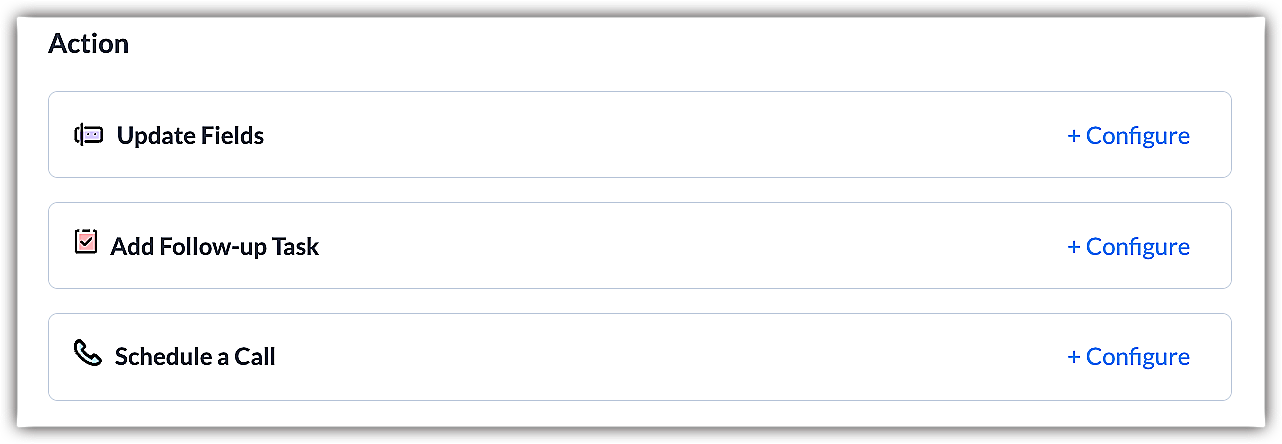
Once you select the trigger, you can configure one or more of the following options: Update Fields, Add Follow-up Task, or Schedule a Call.
-
Click Done.
-
Click Send or Schedule.
Sending mass emails from a custom view list :
- In the Module List View page, click the Actions button.
- Select Mass Email from the list of options.
- On the Mass Email Summary page, click Create Mass Email.
- Select recipients from the custom view in the dropdown list.
- Select an Email Template and repeat the steps detailed in the previous section to send or schedule mass emails.
Sending mass email based on criteria :
- In the Module List View page, click the Actions button.
- Select Mass Email from the list of options.
- On the Mass Email Summary page, click Create Mass Email.
- Under To, click Based on Criteria from the dropdown list.
- In Specify Criteria, enter the appropriate details.
- Click Save.
- Select an Email Template and repeat the steps detailed in the previous section to send or schedule mass emails.
Set trigger actions in mass emails
You can automate certain actions based on how your mass emails perform, including updating a field, scheduling a follow-up task, or planning a call—all triggered by whether an email is opened, clicked, or bounced.
For instance, after a contact opens or clicks your email, you can automatically schedule a follow-up task, such as sending them more details about your products. Conversely, if an email bounces, you can set up an automatic field update.
Here are a few scenarios where you can apply trigger actions:
Email opens or clicks: When a recipient opens or clicks a mass email, you can automate certain actions, like updating a field, scheduling a follow-up task, or planning a call.
Email bounces: If a mass email bounces (fails to be delivered), you can automatically trigger a field update.
To set a trigger action :
- In the Mass Email pop-up, click Trigger an action.
- Select one of the following triggers from the dropdown list:
- Email is opened
- Email is clicked
- Email is bounced
- Choose an action, click Configure, and do the following:
- Update fields - Choose a field that should be updated when the email is opened, clicked, or bounced.
- In the Update Fields pop-up, select a field from the dropdown list and enter a corresponding value.
- Click Save.
- Add a follow-up task - Choose this to add a follow-up task to the records for the emails that are opened or clicked.
- In the Add Follow-up Task pop-up, enter the details like subject, due date, status, priority, and assignee.
- Click Done.
- Schedule a call - Select this to schedule a call if the email is opened or clicked.
- In the Schedule a call pop-up, enter a subject.
- Choose an owner from the dropdown list.
- Select the Call start time.
- Click Done.
- Click Done.

- For bounced emails, you can only update a field; you can't add follow-up tasks or schedule calls.
- For each trigger action, you can add up to three field updates, three follow-up tasks, and three scheduled calls.
Add follow-up emails to mass emails
When you're sending mass emails, Zoho CRM lets you plan ahead by scheduling follow-up emails. Let's say you send a welcome email to customers on Day 1. You can then set up a follow-up email for those who received or opened the welcome message that is delivered on a specific date or after a specific number of days.
What's more, you can customize your follow-up by excluding certain customers. For instance, you might choose not to send a follow-up to those who've already made a purchase. And if you want to add extra actions to your follow-up—like triggering a specific event—Zoho CRM makes that possible, too.
Note
- If you choose to send a follow-up email to customers who have opened the first email, you won't be allowed to select a particular date for the follow-up email, and instead will have to configure the follow-up email to be sent after a specific number of days.
- You can add up to three follow-up emails to a mass email.
Adding a follow-up email :
- On the Mass Email summary page, click Create Mass Email.
- Scroll to Follow-up Emails and click Add follow-up.
- In the Follow-up pop-up, select a value for Who should receive the follow-up email?
- Click Specify criteria to ignore if you want to restrict certain recipients from receiving an email.
- Select an Email Template.
- Enter the number of days or select a date from the calendar in When should the follow-up email be sent?
- Click Add.
- In the Follow-up Action, click Trigger an Action and select a trigger from the dropdown list.

Edit, stop, or delete emails:
On the Mass Email summary page in Zoho CRM, you can get a clear overview of your email activities, including which emails have been scheduled, sent, or stopped. Let's further break down what you can do:
- Scheduled emails: This section lists mass and follow-up emails scheduled for later delivery. You can edit, stop, or delete them. An important note: If you edit a scheduled email within 15 minutes of its delivery time, it moves to the stopped list. Deleting a mass email also removes associated follow-up emails.
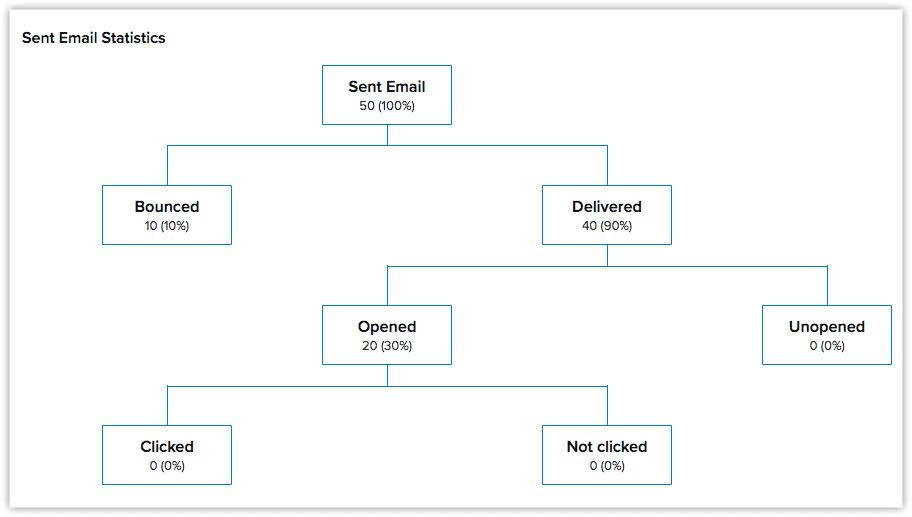
- Sent emails: Here you can see emails that have already been sent. If necessary, you can delete them. If a mass email has been sent but the follow-up is pending, you can edit the follow-up from the sent email section. Plus, you can get insightful statistics regarding sent emails, including the number that have been sent, bounced, delivered, opened, unopened, clicked, and not clicked.
- Stopped emails: Emails that were never sent reside here. You can edit, start, or delete them. Deleting a stopped email also removes any associated follow-up emails.
- Only the user who has created a mass email can edit, stop, or start it. Other users are only allowed to view or delete it.
- You can also try the Zoho Campaigns integration to use your Leads and Contacts in Zoho CRM to carry out email campaigns. Additionally, you can track clicks, bounce rates, and more, as well as use Zoho Campaigns's standard email templates.
View email statistics
Understanding how your sent emails perform is crucial, and in Zoho CRM you can easily check such statistics on the Email Summary page. These stats give you insights into the number of emails that have been sent, opened, clicked, bounced, delivered, unopened, and not clicked. Plus, you can see the list of recipients for each category.
Here's how to view your email statistics:
- Head to the Mass Email Summary page.
- Click on Sent Emails and pick any specific email.
- View the available email statistics.
- For a detailed list of recipients, click on categories like Opened or Bounced