Check Blueprint Usage Reports
Blueprint Reports will give you valuable insights about your business processes and their execution and help you streamline them better. Blueprint reports of two types - Built-in reports and Customized reports.
Built-in Blueprint Reports
Following are the various Blueprint reports readily made available to you.
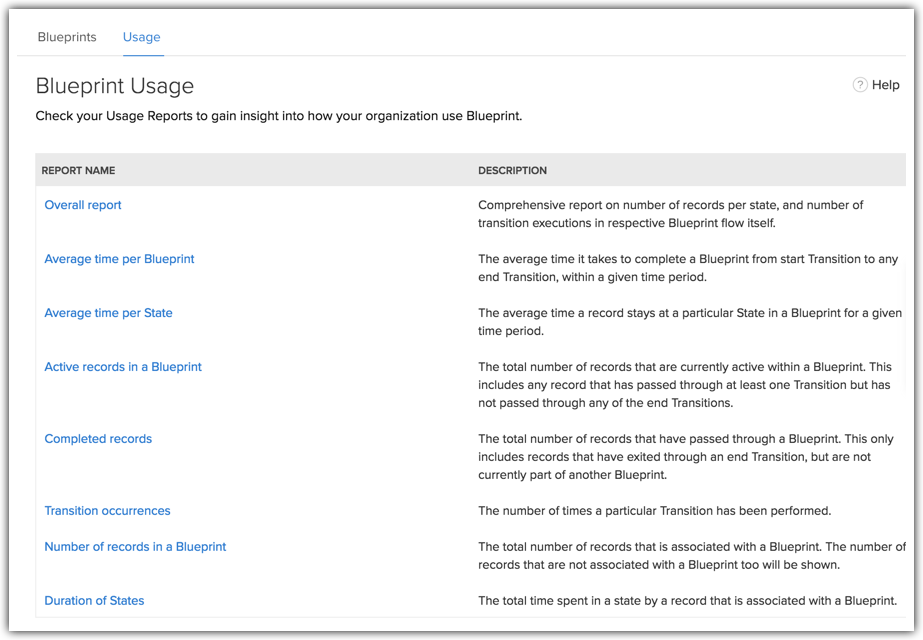
To check Blueprint reports
- Go to Setup > Automation > Blueprint.
- Click the Usage tab.
- The various Blueprint reports are listed.
- Click on a report to view the insights. Example, the following image is a report on Average time per Blueprint for the Deal follow-up process.
This gives you details on the average time it takes to complete a Blueprint from start Transition to any end Transition, within a given time period.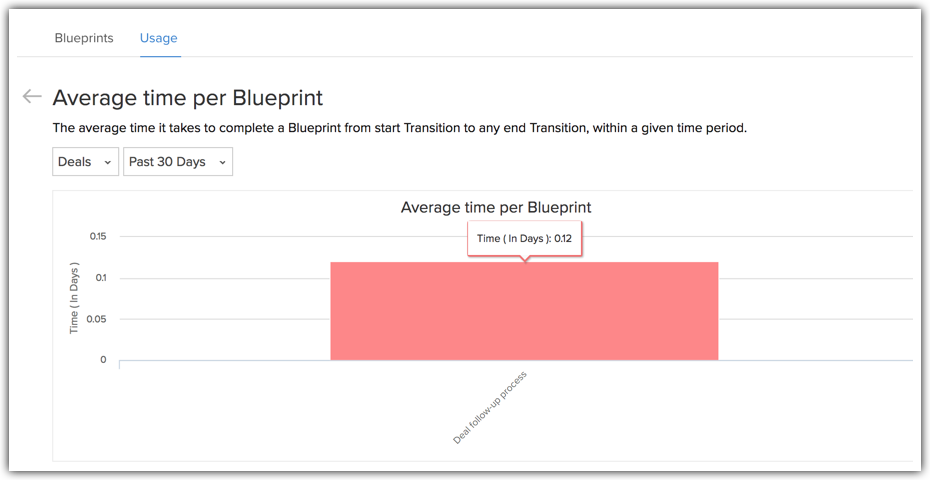
Customized Blueprint Reports
The Zoho CRM Reports module presents you with myriad default reports for various sales insights such as Sales by Lead Source, Leads by Type, Call Status Reports and so on. You can customize these reports based on Blueprint insights. When you create a report for a module you will see Blueprint insights as part of the Select Related Modules section. From this you can build your own reports based on Blueprint insights.
To create a report based on Blueprint insights
- Go to the Reports module.
- Click Create Report.
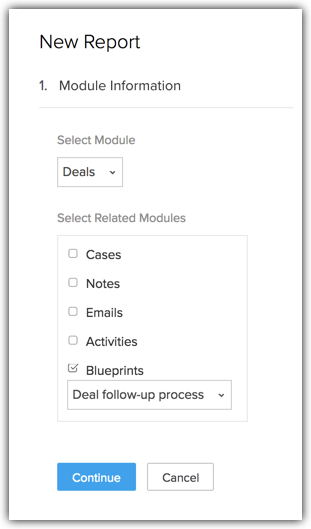
- Select the primary module: Example, Deals.
- From the list of Related Modules, select the appropriate Blueprint from the list of Blueprints.
- Select a Report Type: Example, Summary Report.
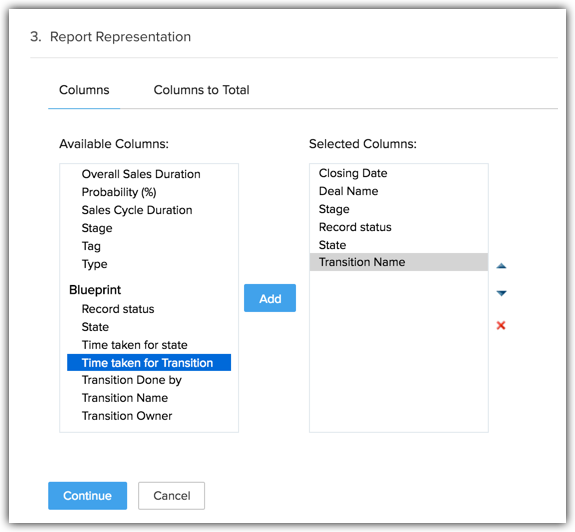
- Select the columns you wish to have on the report. You can select the required details from the Blueprint section on the list of available columns.
- Add Filters if required.
- Name the report and sort it into a folder. Example: Deal Blueprint Status Report.
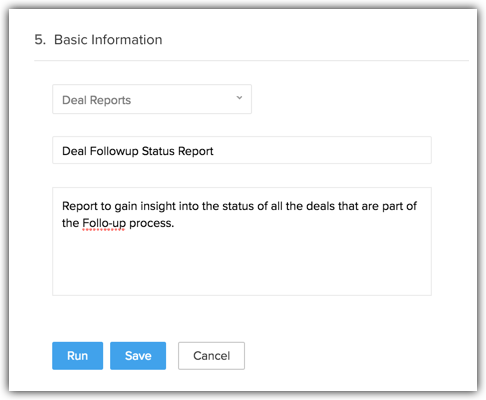
- Run the report to see the Blueprint details of each deal.
