A record's details are available in two sections - Info and Timeline. When you switch on GDPR Compliance in your Zoho CRM account, you will be able to view another section, namely Data Privacy. This section has the following details:
Data Privacy
- Data Source
- Personal Fields
- Data Processing Bases
View Data Source
Data Subject information can be pushed into Zoho CRM from multiple sources such as the web-forms, by importing, APIs and third-party integrations. Data Source displays the information about how the record was Created and when it was Last Updated. Along with these information, additional details will also be available as listed in the table below.
| Source (Feature) | Data Tracking | Last Updated Details | Source (Feature) | Data Tracking | Last Updated Details |
| Zoho Finance Suite | Portal Name | - | Google Calendar Sync | Calendar, Account Id or Email | - |
| Zoho Desk | Portal name, Department | Portal name, Department | Office 365 Calendar Sync | Account Id or Email | - |
| Zoho Survey | Survey Name, Department | Survey Name, Department | API | Service Name | Service Name |
| Zoho Projects Tasks/Notes | Portal name, Project Name | - | Custom Functions | Service name | Service name |
| Zoho Calendar | Folder name, Account Id or Email | - | Social | Network Name, created_type | - |
| BCC dropbox | From Address | Not displayed | MS Outlook | Service name | - |
| Mail Parser | From Address, Parser Name | Not displayed | Zoho SalesIQ | Portal name, Screen name | Portal name, Screen name |
| Email Workflow | Workflow Name, Workflow Id. | Not displayed | Web Forms | Website (like sulekha.com), IP Address, Form Name (like oppo) | Not displayed |
| Import | File Name | File Name | Campaign | Campaign name | Campaign name |
| Migration - User's old system (say Salesforce, Pipedrive, etc) | File name, Account Id., IP Address | Not displayed | Workflow | Service name (workflow) | - |
| Google Contact | Contact folder, Account Id. or Email | Contact folder, Account Id. or Email | Google Ads | Website (like sulekha.com), IP Address, Form Name (like oppo) | Not displayed |
| Office 365 Contact | Account Id. or Email | Account Id. or Email | - | - | - |
To view data source
- Click open the data subjects record in your CRM account.
The record could be in the Leads, Contacts, Vendors or any other custom module for which GDPR Compliance is enabled. - Click Data Privacy.
Under the Data Source section, the details of how the record was created and how it was last updated is displayed.
View Personal Fields
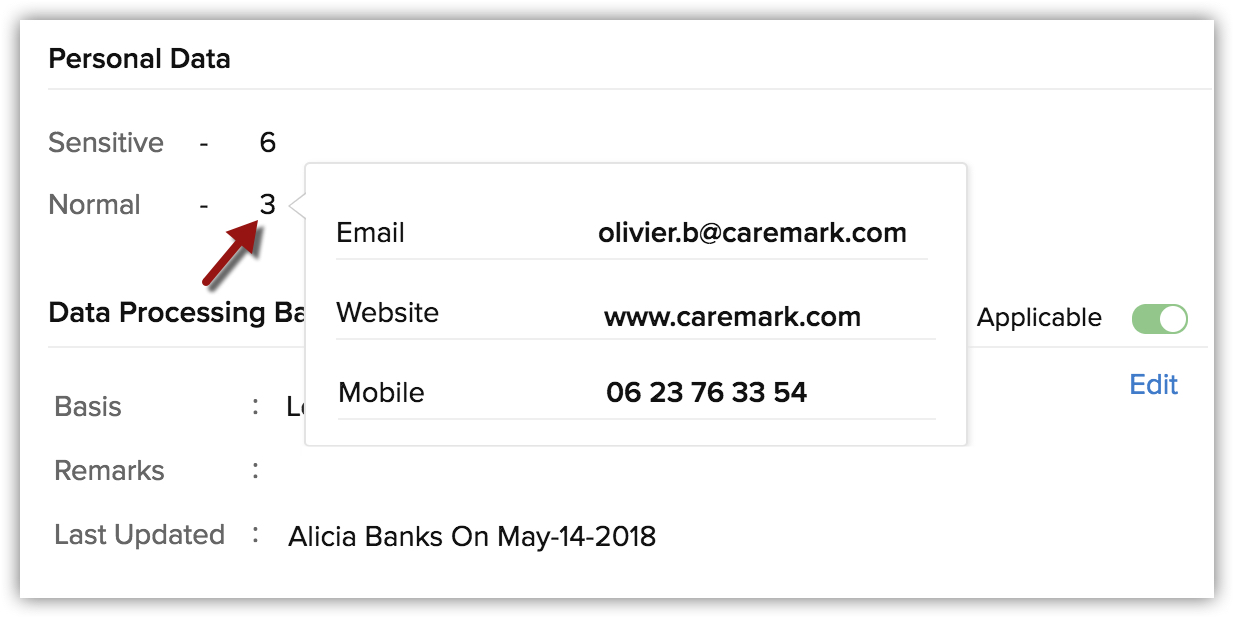
The Data Privacy section for a record also contains details about the personal fields. It lists the number of fields that are marked as Sensitive and the ones as Normal.
To view personal fields
- Click open the data subjects record in your CRM account.
The record could be in the Leads, Contacts, Vendors or any other custom module for which GDPR Compliance is enabled. - Click Data Privacy.
Under the Personal Data section, the number of Sensitive and Normal fields details are available. - Hover your cursor on the number to view the fields with the values for the selected record.
Manage Data Processing Bases
The core principles of GDPR revolves around the lawful collection and processing of customer data. By default, all the records in the Leads, Contacts, and Vendors modules will have the Data Processing Basis set to Not Applicable when you enable GDPR from Setup > Security Control > Compliance Settings. Once this is enabled, each record will have a Data Privacy section with the data processing basis details. You can change this based on your discretion and business cases.
To manage personal fields from the Modules page
- Click open the data subjects record in your CRM account.
The record could be in the Leads, Contacts, Vendors or any other custom module for which GDPR Compliance is enabled. - Click Data Privacy.
- Toggle on the Data Processing Basis section option.
- Select the appropriate lawful basis from the drop-down list.
- In the popup, enter the remarks as required and click Save.