Dynamic display in Zoho CRM for Android
The list view displays all the records in an organized order, helping users quickly find and manage their CRM data. With Dynamic display support in Zoho CRM mobile, users can customize the fields they want to display in each record of their list view. This optimizes the limited screen space on mobile devices, showing the most relevant information at a glance and allowing quick access to key data.
Dynamic display setting page
You can customize fields based on your preferences to set up Dynamic display in list view. To do this, navigate to the desired Module > More Settings ( ) > Display Fields.
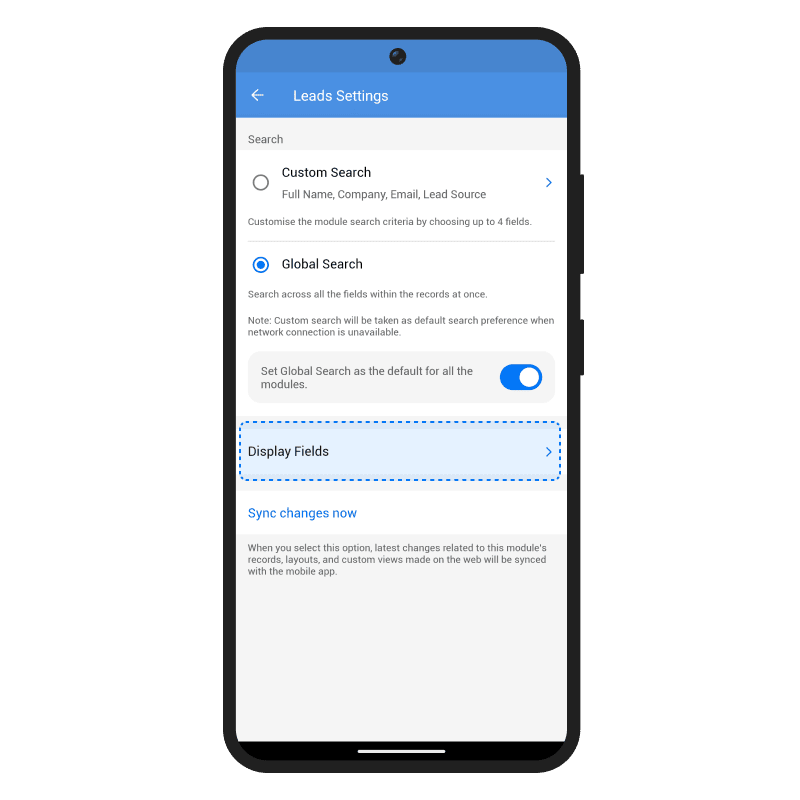
On the display page, users can see the following elements:
List view preview
The list view preview provides users with a glimpse of all the customized fields that will appear in the list view of the module. It offers a preview of how the final layout will appear.
Field customization section
In this section, users can customize up to nine fields in their list view display using four layout categories. These layouts follow the typographic hierarchy, determining the way the fields are organized.
Heading
The heading is the top priority field that will be displayed prominently in large, bold text. It is meant to highlight the most important information. For example, in the Leads module, the heading could be the lead's name.
Subheading
The subheading is the second most important field, where up to two fields can be added. This section is used to display additional key information that supports the primary heading.
Items
This section can be used to add the remaining important data. A maximum of four fields can be added here, allowing users to include additional relevant information.
Advanced options
The advanced options button on the display field page allows users to further customize the appearance of each card. It offers three advanced settings: Image, Style, and Action.
Image
Users can choose from three options: Owner, Record, or None. For example, in the leads module, the image can be either the lead owner's or the lead's, or none. The image can be aligned to the left or right, and users can select the profile picture shape as either a circle or a square.
Style
Users can choose the display style of the record in the list view from two options: list and card. This section also includes a toggle to display icons alongside the fields.
Action
Users can select actions available for each module from here. Currently, only the call action is available, but more actions will be added in the future.
Adding, removing and rearranging fields
To add fields
- Open the Zoho CRM app.
- Navigate to the desired module.
- Tap on More Settings (
).
- Select Display Fields.
- Tap the Plus icon (
) next to each layout to add fields.
- Tap the Tick icon (
) in the top-right corner to save your changes.

Info: Zooming in on the display cards in list view will enlarge the card and hide the subheading and item fields, leaving only the heading field visible.
To remove fields
- Open the Zoho CRM app.
- Navigate to the desired module.
- Tap on More Settings (
).
- Select Display Fields.
- Uncheck the fields you want to remove.
- Tap the Tick icon (
) in the top-right corner to save your changes.
Alternatively, you can drag and drop the field to the bottom to remove it.
Info:
- To undo all changes and return to the default settings, tap the More icon (
) on the Display Field page and select the Reset to Default option.
- The Settings will also reset to default when the app is reset or on every fresh login
To rearrange layouts and fields
- Open the Zoho CRM app.
- Navigate to the desired module.
- Tap on More Settings (
).
- Select Display Fields.
- To rearrange the layouts, long-press the (
) icon, then drag and drop the layouts to your desired order.
- To rearrange the fields, drag and drop them according to your preference.
- Tap the Tick icon (
) in the top-right corner to save your changes.
Modes in Dynamic Display
When setting up dynamic display, users can choose between two modes: Mobile Only and Web Setup.
- Mobile Only: Changes made in this mode are saved exclusively on the mobile app and are not synced with the web version. These changes will be erased if the app is reset or the user signs out.
- Web Setup: This mode syncs the fields from the web directly to the mobile app, based on the custom view in the selected module. Customization options are aligned with the web setup to maintain uniformity.