Each notification will give you enough details to take a quick glance at what is important to get going. You can always click on the notification to get more details related to records.
Signals for emails
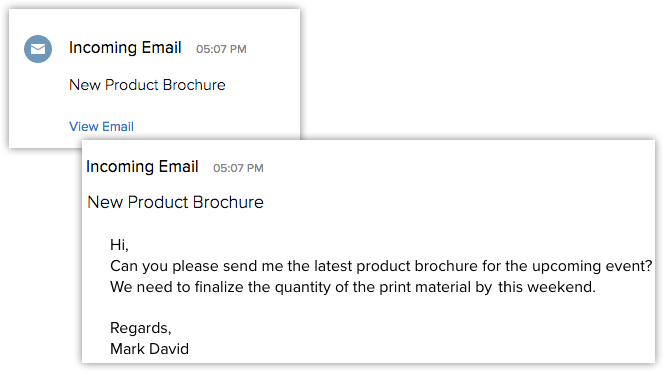
For unread emails, you will be able to view the email content when you click on the sales signal. As for read emails, a View Email link will be available. The Reply and Reply All options help you quickly respond to the emails.
Signals for email insights
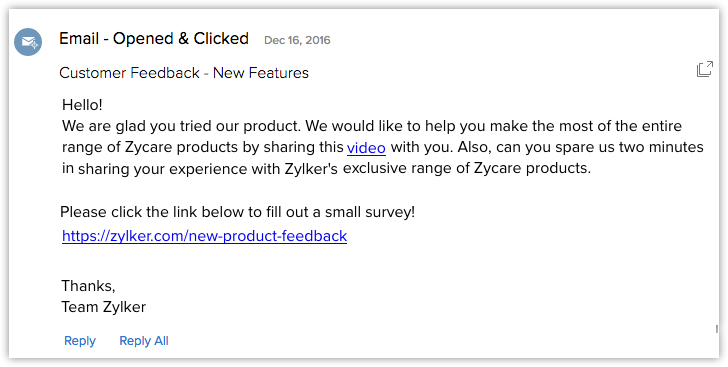
This gives you information on whether an email was clicked, opened, hard bounced, or soft bounced. The View Email link will give a quick glance at the email content.
Signals for survey responses
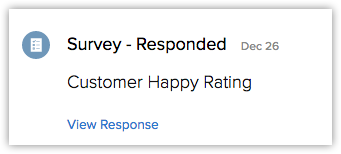
When surveys are responded, Signals informs you and sends you the response details. Click on the View Response link and the pop-up shows you all the details about the survey.
Signals for campaigns
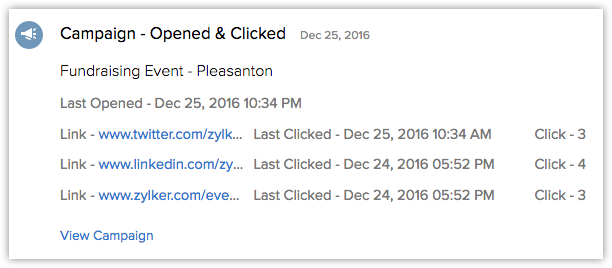
This gives you the clicked, opened, bounced details of an email campaign. The links from the email are listed along with the number of clicks and the last clicked date and time.
Signals for missed chats
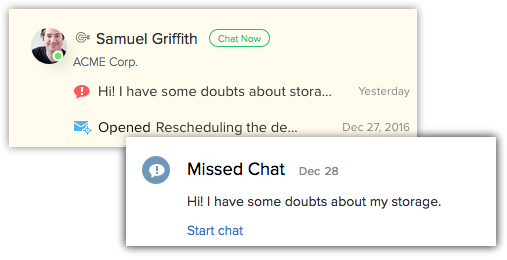
Missed chats from your customers cannot go unseen with Sgnals. If you have the Zoho SalesIQ integration enabled, you will get notified of the chats that you missed. If the customer is online, you can see the Start Chat link to starting interacting right away.
Signals for support tickets
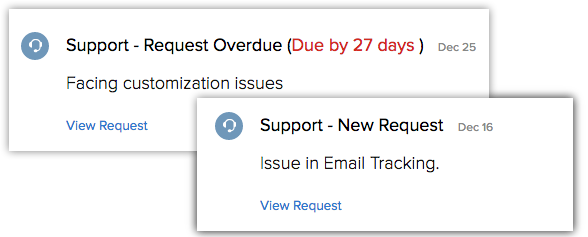
New support tickets, comments, or responses, tickets that are overdue or escalated and new ratings can be viewed in Signals.
Signals from Twitter and Facebook
You will be notified of the direct messages, facebook posts, comments, likes, and tweets.
Signals for missed calls
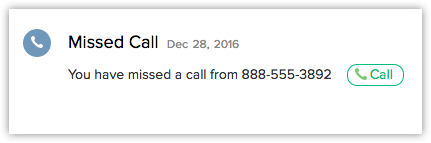
With Zoho PhoneBridge integration enabled in your CRM account, you can make calls directly from your CRM account. Signals give you notifications for the missed calls from customers.
Contact information
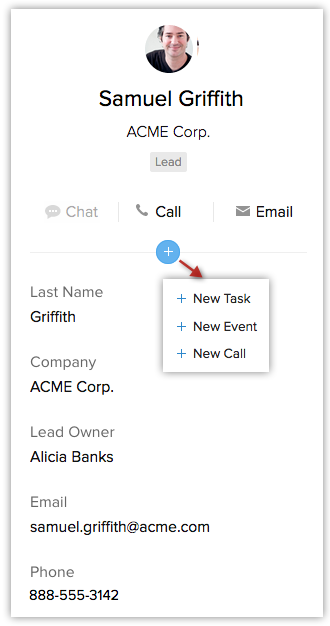
Along with all the notifications, each signal provides the contact's details such as name, company, email address, phone number, etc. Here, you have the option to instantly chat, make a call or send an email to the contact. Additionally, you can create tasks, events and calls too.