Troubleshooting Settings and Customizations
Personal Settings
Why are the dates in my Zoho CRM account visible in a different format?
Ensure that the date format in CRM > Personal Settings is configured according to your required format so that all date fields are displayed consistently.
To verify the date format:
Navigate to CRM Setup > General > Personal Settings > Locale Information > Date Format and confirm that the selected format matches your requirement.
If you still encounter discrepancies, write to us at support@zohocrm.com and include the following screenshots:
- The Settings page showing the date format set under Locale Information in Personal Settings.
- The record where the date field value is displayed in a different format.
- The record ID or the complete URL visible while accessing that record.
All of the schedules, such as meetings or calls, are displayed at times that are different from their original schedule
Ensure that the time zone selected in Personal Settings is configured according to your local time zone so that all your schedules are displayed at the correct time.
To check this, navigate to CRM Setup > General > Personal Settings > Locale Information > Time Zone, and set it to your local time zone.
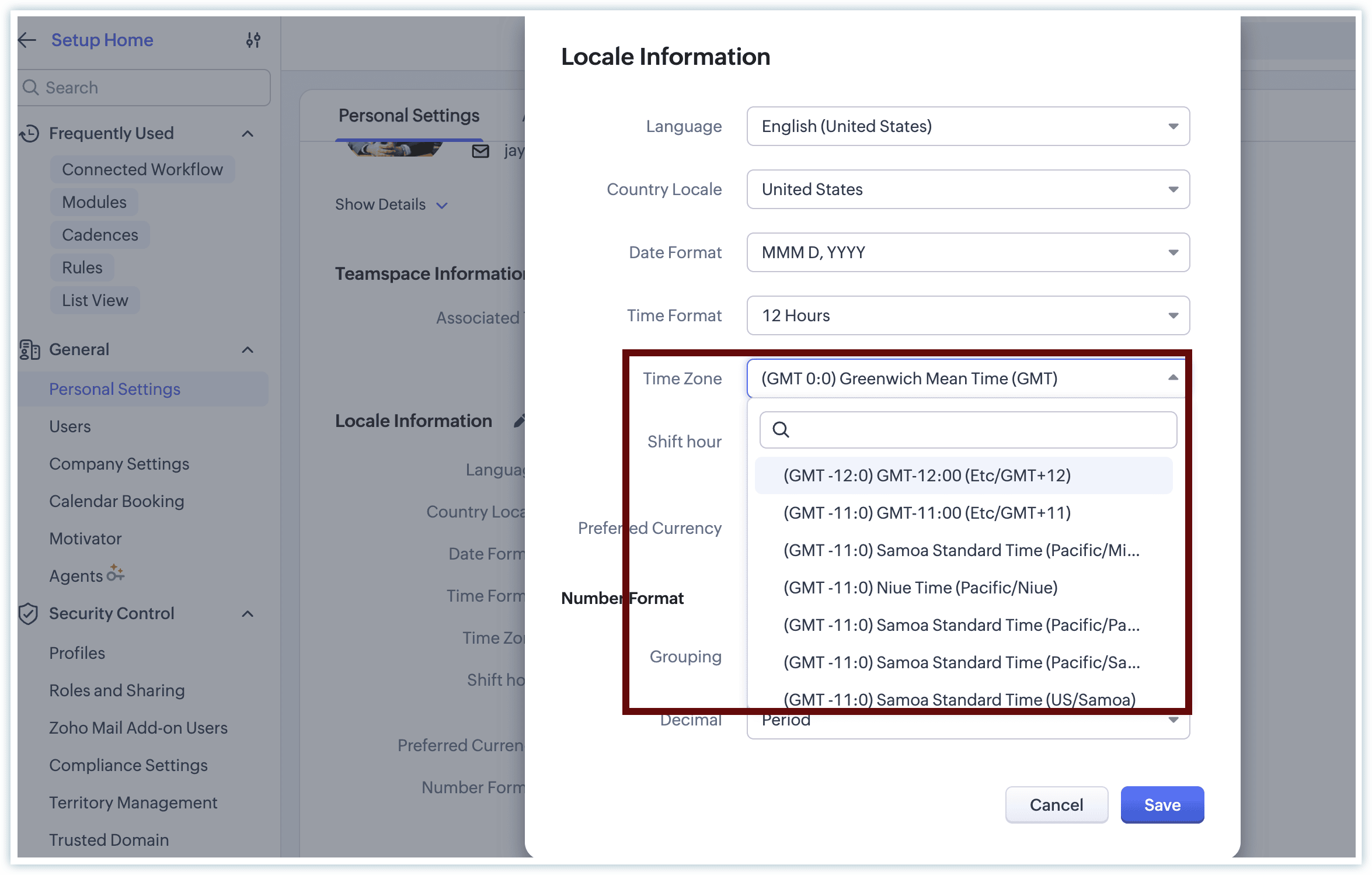
If you still witness a discrepancy, please write to us at support@zohocrm.com along with screenshots or recordings of:
- The Settings page showing the time zone set under Locale Information in Personal Settings.
- The record or activity where the meeting or call is displayed at a different time than expected.
- The record ID or the complete URL visible while accessing that record.
Record names are displayed in the wrong format
Record names may appear in a format such as Last Name, First Name instead of the preferred format Salutation. First Name, Last Name.
Check the display name format preference set under Personal Settings and update it according to your required display format.
To verify or update this setting, navigate to:
CRM Setup > General > Personal Settings > Display Name Format & Preferences > Name Format.
CRM Setup > General > Personal Settings > Display Name Format & Preferences > Name Format.
If the issue still persists, please write to us at support@zohocrm.com and include the following screenshots:
- The Settings page showing the Name Format set under Display Name Format & Preferences.
- A record where the name is displayed in the incorrect format.
- The record ID or the complete URL visible while accessing that record.
How do I check the Teamspaces each user is associated with?
Users can check the Teamspaces they are associated with in two ways.
Method 1:
Access the Teamspaces option in the left panel, then click the dropdown to view the Teamspaces that are available to you.
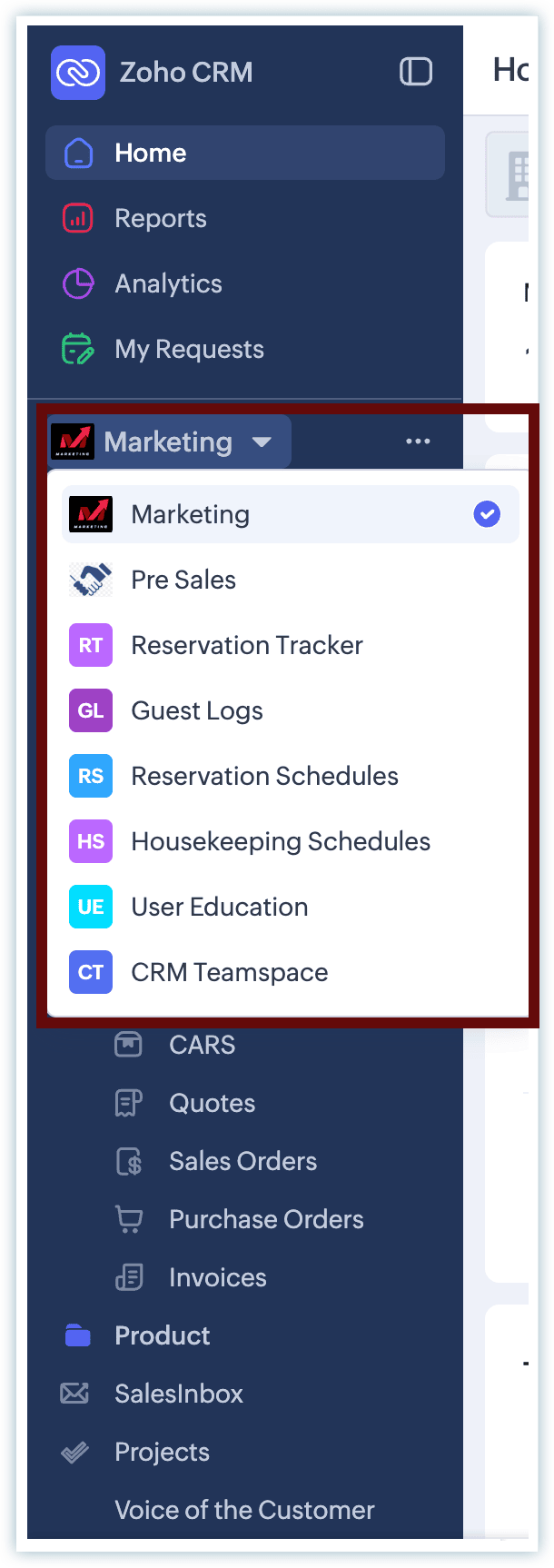
Method 2:
Navigate to CRM Setup > Personal Settings > Teamspace Information. This page lists the Teamspaces that the user has access to.
How can I customize my CRM visibility to be more comfortable to use?
Zoho CRM provides accessibility options that allow you to customize the interface to make it more comfortable to use. These options help you adjust the system in terms of visibility and motion control.
Using these settings, you can customize aspects like font size, character spacing, shortcuts, and a more focused UI experience.
For a detailed explanation and the configuration steps, please refer to the help link. If you have any concerns after making these changes, you can revert the settings at any time.
Does Zoho CRM have voice assistance?
Yes, the Zia Voice Assistant feature is supported in Zoho CRM. It helps you navigate through commonly used actions in CRM using voice commands.
Once enabled, you can use commands for actions such as opening Leads, selecting records, editing records, or deleting a record.
To access this feature and view the supported commands, navigate to:
CRM Setup > General > Personal Settings > Accessibility > Zia Voice Assistant.
Here, you can enable the feature and check the list of commands currently supported by the Voice Assistant.

Note: If you already have a voice assistant enabled on your system, running both voice assistants at the same time may cause conflicts. For an optimal experience while using the Zia Voice Assistant, we recommend disabling the system voice assistant.
Users
Below are some troubleshooting tips related to a few important settings under the Users section.
Unable to add users
Check the number of user licenses available in your account. Click the profile picture on the screen and select Manage Subscription. This will redirect you to the Zoho Store page, where you can view your subscription purchase details.
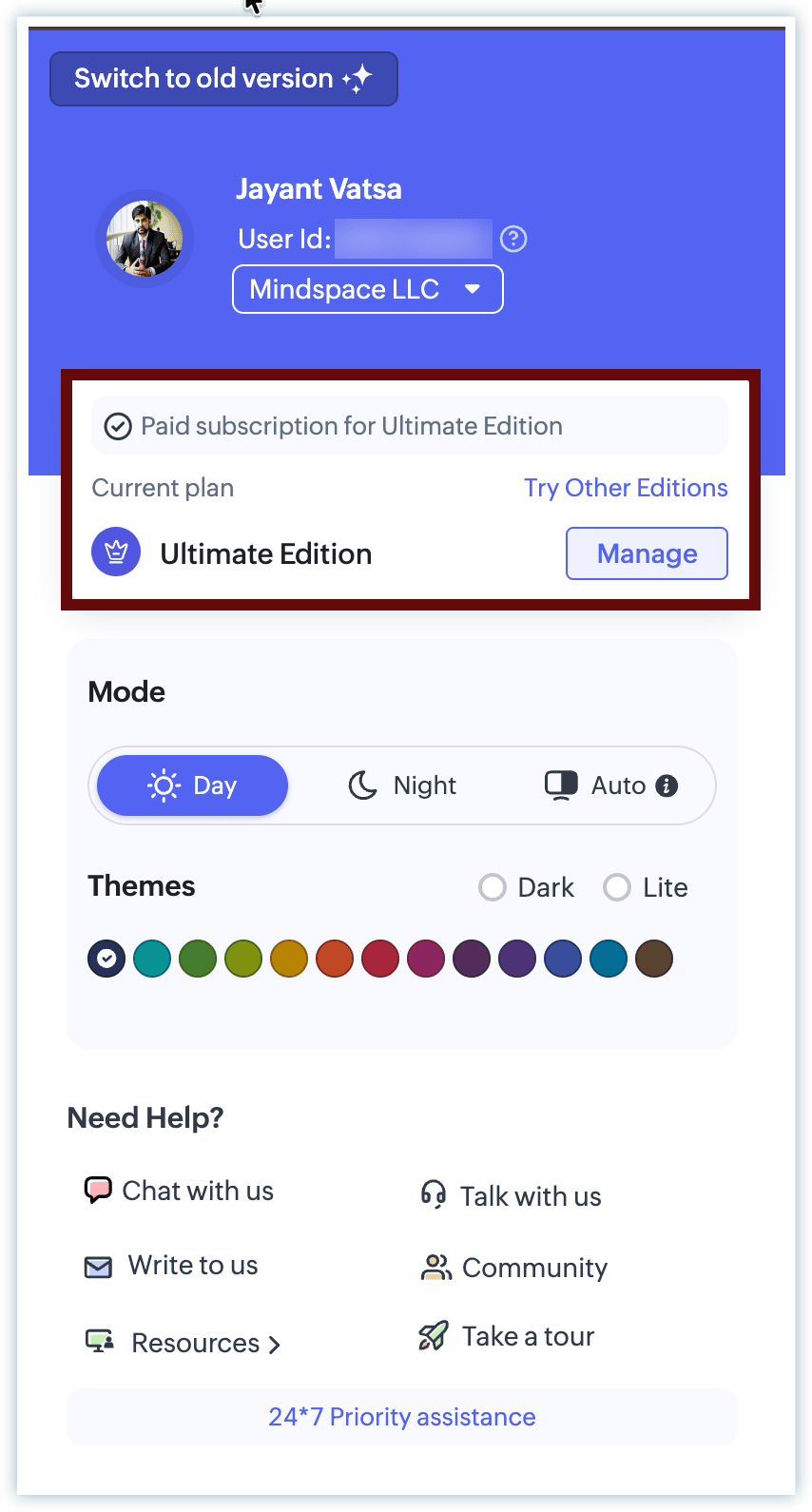
In the purchase details section, you can see the application, its edition, and the number of units (user licenses) purchased.
Navigate to CRM Setup > General > Users to check the number of active users in the account and verify whether all the available licenses are already occupied.
If there are available licenses and you are still unable to add a user, write to us at support@zohocrm.com along with screenshots or a screen recording explaining the issue.
When trying to add a new user, there is an error stating the user already exists
Check if the user has already been invited to your organization account. Navigate to CRM Setup > General > Users.
In the Users section, you will see the list of active users. Click the drop-down option to view other user categories such as Inactive Users or Deleted Users, and check whether the user already exists there.
If you are still unable to find the user, write to us at support@zohocrm.com along with screenshots or a screen recording of the error explaining the issue.
We have invited a user, but they have not received the invite email yet
Check with the user to confirm whether the invite email has been received in their Spam or Junk folder.
If the email is still not received, please write to us at support@zohocrm.com and share the invited user's email address so that our support team can assist you further.
We have added a new user to our CRM, but they are unable to join the account
Check if the user is receiving any error while accessing the Join Now option in the invite email. They can also try using the alternate link provided in the same email to join the account.
If the issue persists, try sending a new invite. Navigate to CRM Setup > General > Users, select the invited user, and click the Re-invite button to send a new invitation.
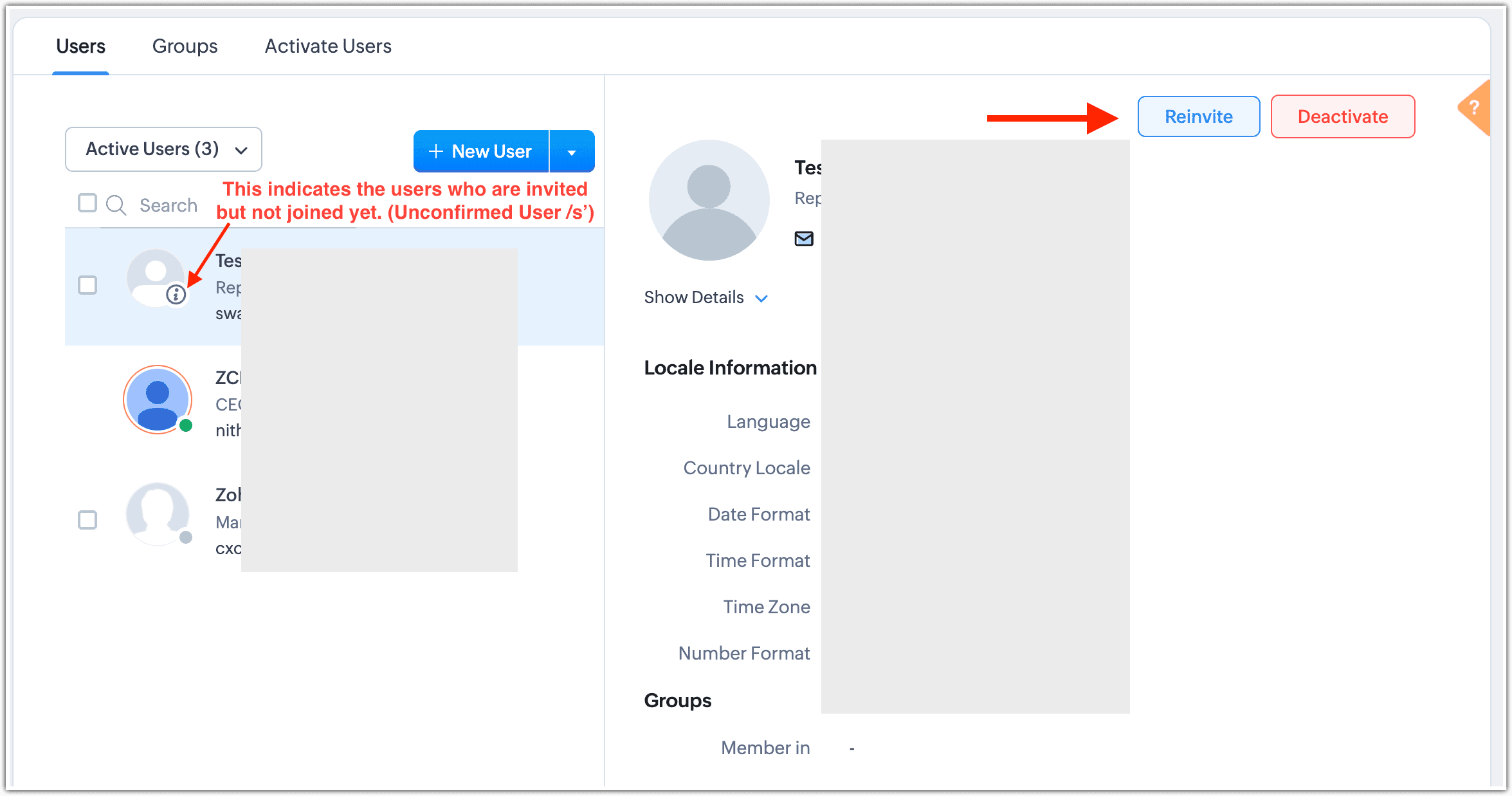
If the user is still unable to join the account, please send screenshots or a screen recording of the issue to support@zohocrm.com so we can assist you further.
How do I edit a user's email address?
You can update the email address by changing the primary email address in Zoho Accounts.
- Navigate to your Zoho account page at accounts.zoho.com. Click on your profile in the left menu, then select Email Address.
- Click Add Email Address and enter the required email address, then click Add.
- Enter the OTP received in the new email address and complete the verification.
- To make this your primary email address, click Set as Primary Address and select Make Primary.
Once this is completed, the email address will be updated.
If you encounter any issues while completing these steps, write to us at support@zohocrm.com or support@zohoaccounts.com along with screenshots of the issue so that we can assist you further.
Can we use the same email address for different organization accounts?
Yes, you can use the same email address to create and manage multiple Zoho organization accounts. You can also easily switch between the different organizations associated with your account.
To switch between organizations, click on the profile picture icon, then click the drop-down menu next to the Organization Name and select Manage Organization to access the alternate organization account.
Company Details
Why am I unable to edit any information in Company Details in my CRM?
This privilege is restricted to the super admin or administrator. If you need to make any changes to the company details, please check with your account super admin or administrator.
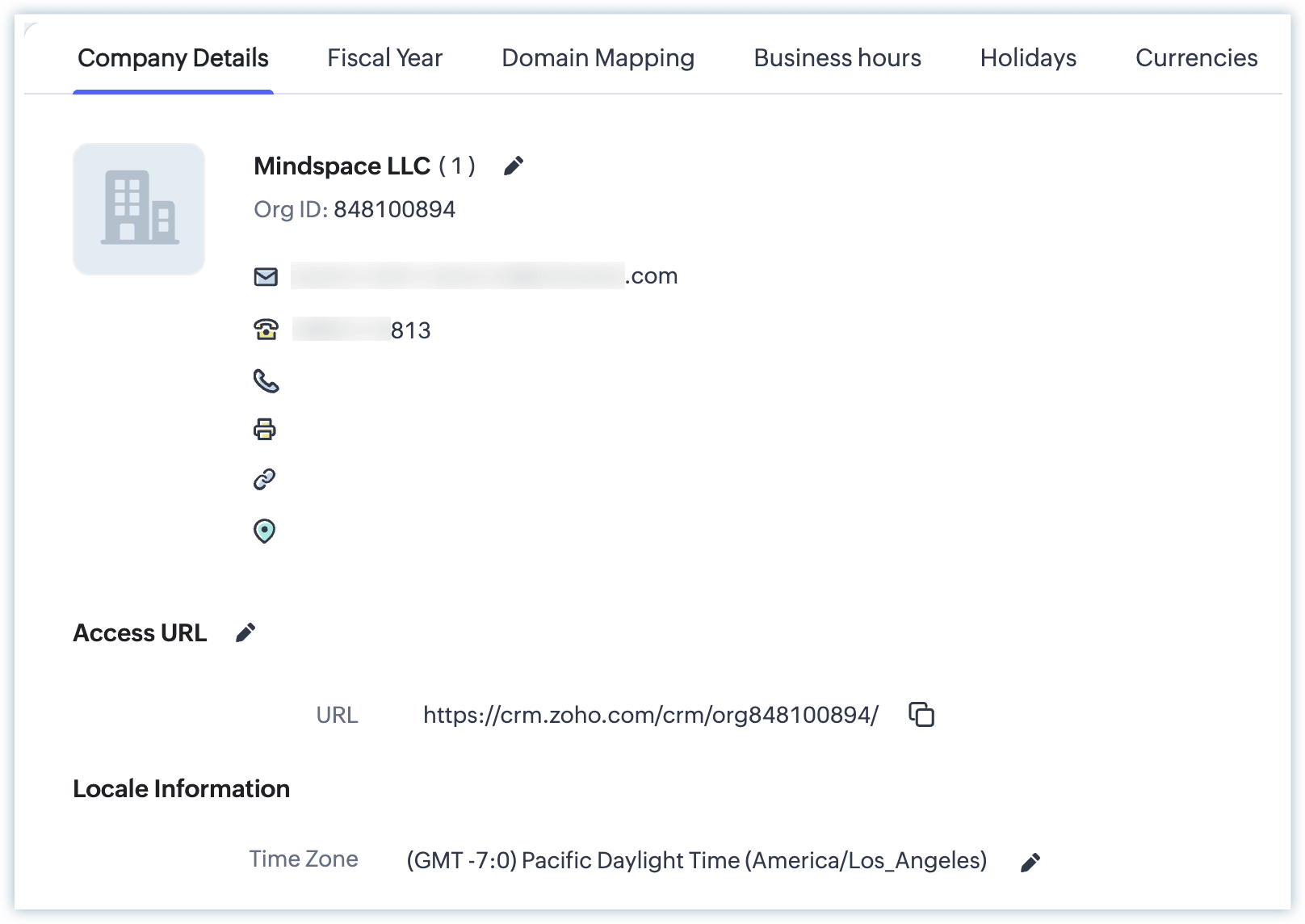
If you are an administrator and are still unable to modify these details, please write to us at support@zohocrm.com along with supporting screenshots or a screen recording of the issue so that we can assist you further.
My Zoho CRM account is set up with a custom domain. However, when one of our developers tried to access the CRM portal, it still shows the default portal address instead of the custom domain we added.
Domain mapping allows you to rebrand your CRM account with a custom domain, but it supports only one portal at a time and does not apply to all account environments automatically.
Check with the developer who is accessing the CRM portal and verify whether they are logging into the same environment, such as Production or Sandbox.
The Custom Domain Mapping (Rebranding) feature in Zoho CRM must be configured separately for each environment, such as Production, Sandbox, or Client Portal created for external users.
Ensure that the custom domain setup has been configured for the specific environment that the user is trying to access. If not, choose the required environment and complete the setup for that instance.
We are unable to configure custom domain mapping in our account. It throws an error stating “Portal is yet to be configured.” What is this portal that needs to be configured?
Custom domain mapping is supported only for standalone Zoho CRM accounts in the Enterprise or Ultimate editions. It is not supported for Zoho CRM Plus or Zoho One subscription accounts for the main CRM domain.
However, these subscriptions still allow custom domain mapping for Client Portals created in CRM.
If no Client Portal has been configured in the respective account, the system will display the error “Portal is yet to be configured.” This indicates that there is currently no portal setup available in the account for domain mapping.
We want to change the super admin of our Zoho CRM account
If both the current Super Admin and the user who will become the new Super Admin are active in the account, this change can be made directly by the current Super Admin.
Log in to your CRM using the Super Admin account and navigate to Setup > General > Company Details.
Click the edit (pen) icon. In the pop-up window, locate the field Super Admin - "CurrentAdmin", select the user who should become the new Super Admin from the drop-down list, then click Save.
Note: The user who will be assigned as the new super admin must be active in the account and have the Administrator profile.
If the current super admin is not active, but you still need to change the super admin, please write to us at support@zohocrm.com with the current admin in cc, along with your consent so that we can validate the request and assist with the change.
Unable to see the Delete CRM Account button in our CRM
Ensure that your account has been downgraded to the Free Edition. If the account has multiple active users, you must deactivate all users except the super admin before the account can be deleted.
Once these conditions are met, the Delete CRM Account option will be available.
If you would like to close the CRM account without waiting for the 7-day period, please contact our support team at support@zohocrm.com after completing the steps above. We will then enable the option for you to access and close your CRM account immediately.
A report on revenue generated this year does not show some values from deals closed this year
Check the data for the deals created or closed in each month and verify the fiscal year setting configured in your account, as the report captures data based on this time frame.
For example, if your fiscal year is set from April to March, the values for the current year will be calculated according to that period.
Review the fiscal year setting and the filters applied in the report to ensure the correct values are being captured and displayed.
If you still experience any issues, please write to us at support@zohocrm.com so that we can assist you further.
Unable to change the home currency in our Zoho CRM account
First, verify whether a home currency has already been set in your account. To check this, navigate to Setup > General > Company Details > Currencies.
If a home currency is already configured, it cannot be changed directly because doing so would affect the existing records in the account and the changes cannot be reverted.
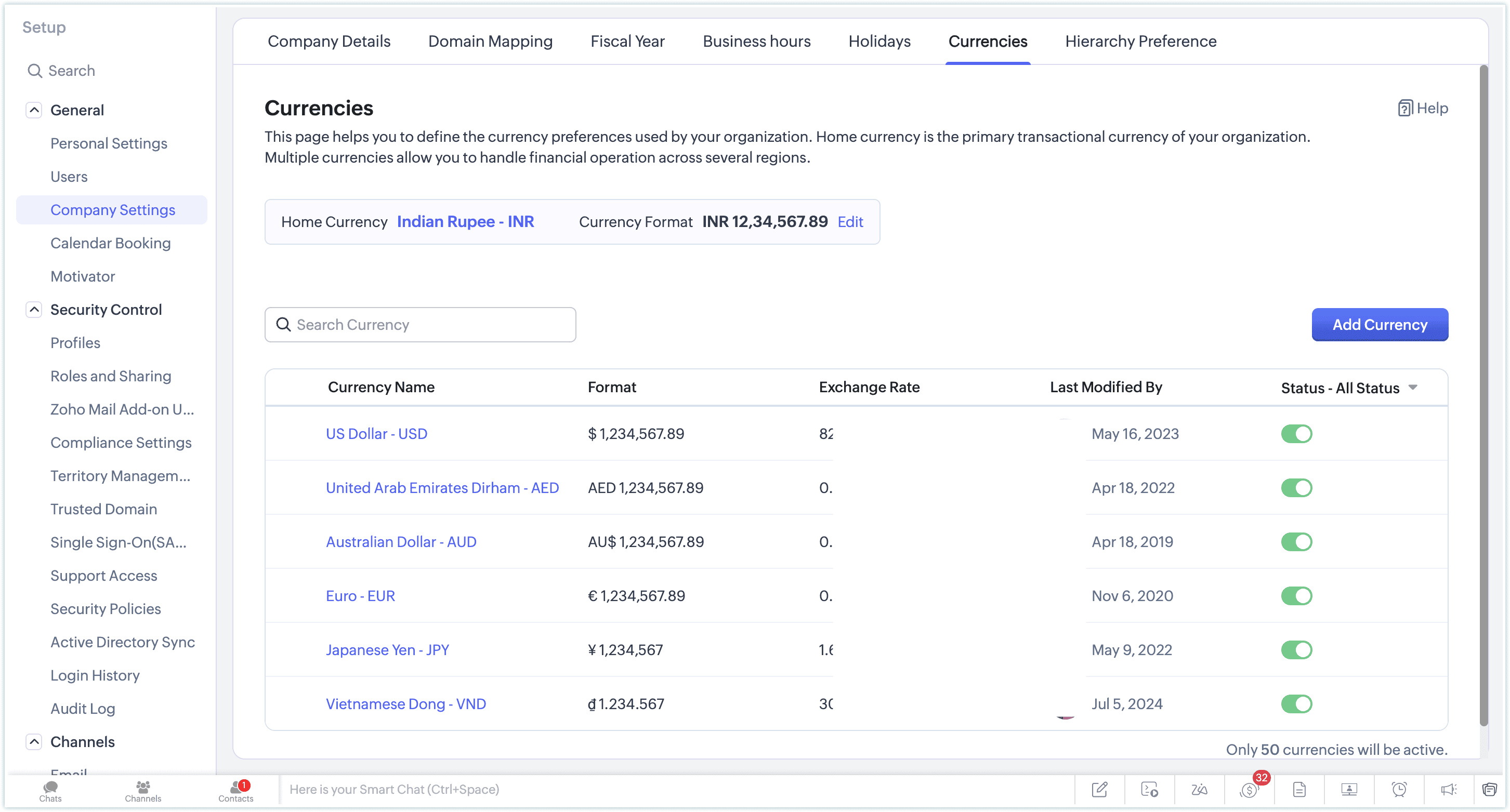
If the home currency is reset from our end, the following changes will occur:
- After the reset, you can select the required currency and set it as the new home currency.
- Once the new home currency is set, all existing records will reflect the new home currency.
- Existing currency values will not be converted. They will remain the same, but the currency symbol will change.
- For example, if a deal amount is $200 USD and the new home currency is EUR, the deal amount will be displayed as €200 EUR, not the converted value.
- All configured multiple currencies will be deleted, as their exchange rates are defined based on the previous home currency.
- After setting the new home currency, you can add the required currencies again.
If you are comfortable with these changes and still need the home currency to be reset, the super admin of your Zoho CRM account must provide consent by writing to support@zohocrm.com so that we can proceed with the reset.
Can I change the hierarchy from role-based to reporting-based?
Yes, you can switch between a role-based hierarchy and a reporting hierarchy in Zoho CRM.
The hierarchy configured in your CRM account defines the user level ranking based on designations and determines the level of access users have to data. However, before switching to another hierarchy type, you should review the consequences of changing the hierarchy preference.
Important considerations when switching hierarchies:
- If Forecasts are configured based on the existing role-based hierarchy, switching to a reporting hierarchy will delete the forecasts created for the current and upcoming periods.
- The existing role-based forecasts for completed periods will be archived. Any new forecasts will be created based on the reporting hierarchy.
- The Adjustments feature will be disabled because it cannot be configured for the reporting hierarchy in Forecasts. However, the adjustments made in completed forecast periods will remain retained.
Motivators For Zoho CRM
The KPI metrics based on Leads with a criteria value are not displayed, or another component shows an incorrect count
Check the same details in the Leads module by applying Smart Filters to match the count for the specific criteria or time interval used in the KPI component. Verify whether the values match.
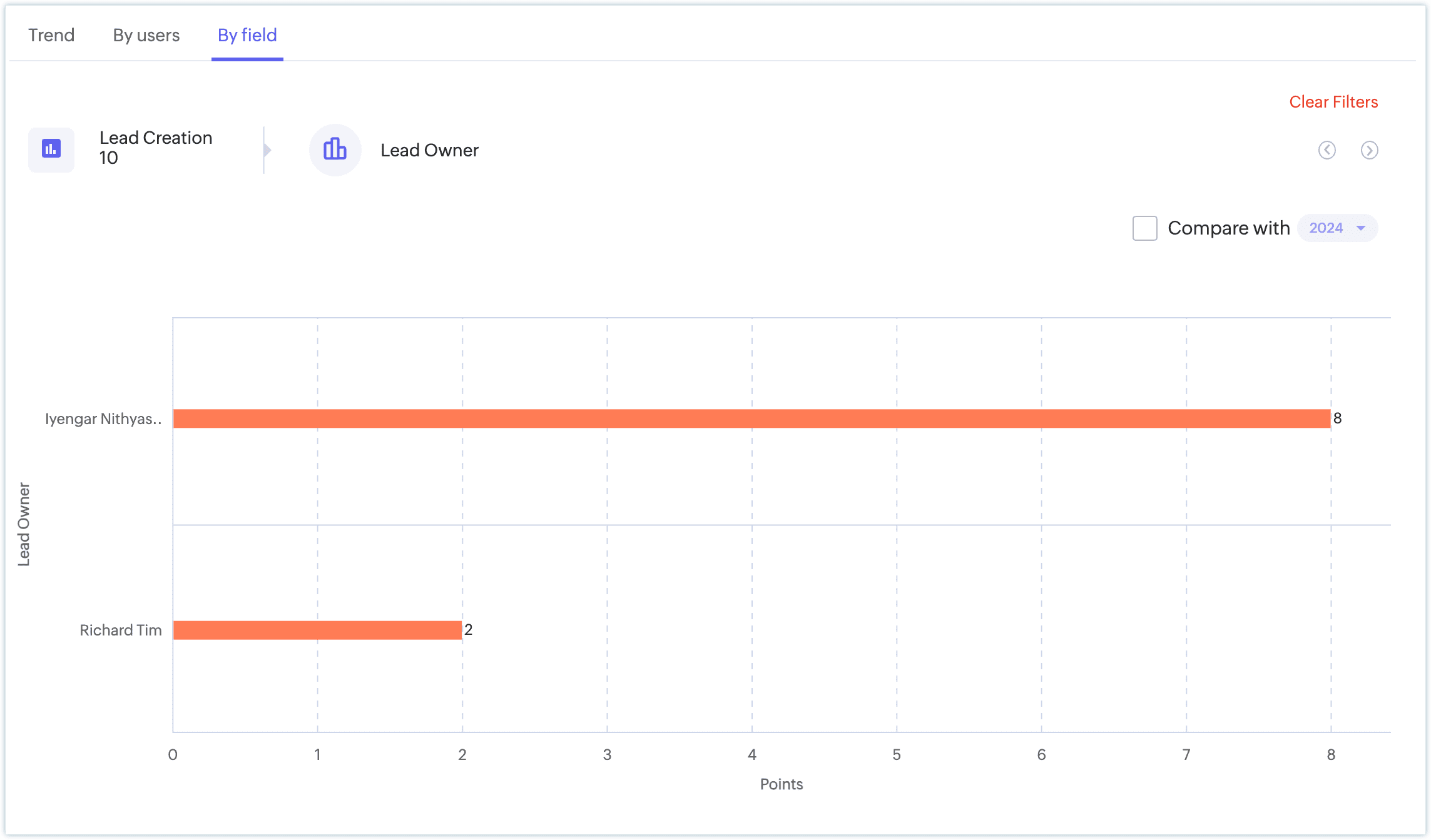
If the count still does not match, please send screenshots and a screen recording of the issue to support@zohocrm.com so that we can check and assist you further.
The Completed Games section shows a count mismatch, and we are unable to identify why one user's count is different. Can we edit it?
Editing the details displayed in a Completed Game is not possible. Once a game is completed, its records cannot be edited.
You can click the More icon and select About to view the criteria set for that game, along with the matched records or Achievers count.
To verify the count mismatch, apply the same criteria in the respective module and compare the results with the scores shown in the game.
If you still notice a mismatch, please write to us at support@zohocrm.com along with reference screenshots and a detailed screen recording of the issue. You can also contact support directly to investigate this further in a session.
Calendar Booking
Unable to create a new calendar booking
Check the number of active bookings you have already created for individual bookings.
According to the feature limit, you can have only three active calendar bookings per user. If you try to create more than this limit, the system will display the error:
"You cannot create more than 3 active calendar bookings."
A user had two meetings scheduled at the same time or several meetings scheduled back-to-back. How can this overlap occur when it was not planned?
Ensure that the same user has not been associated with multiple team bookings where the time slots are configured without a buffer. This can allow meetings to be scheduled back-to-back or appear to overlap.
For example, if one team booking is configured with a 30-minute slot without a buffer, and another booking uses a different slot duration with a buffer, the available time may still appear open based on the users assigned through the round robin method. In such cases, the system may allocate the slot based on the user’s availability across these bookings.
After reviewing these settings, if you still notice discrepancies or need further clarification, please connect with our support team so we can review the configuration in a live session and assist you further.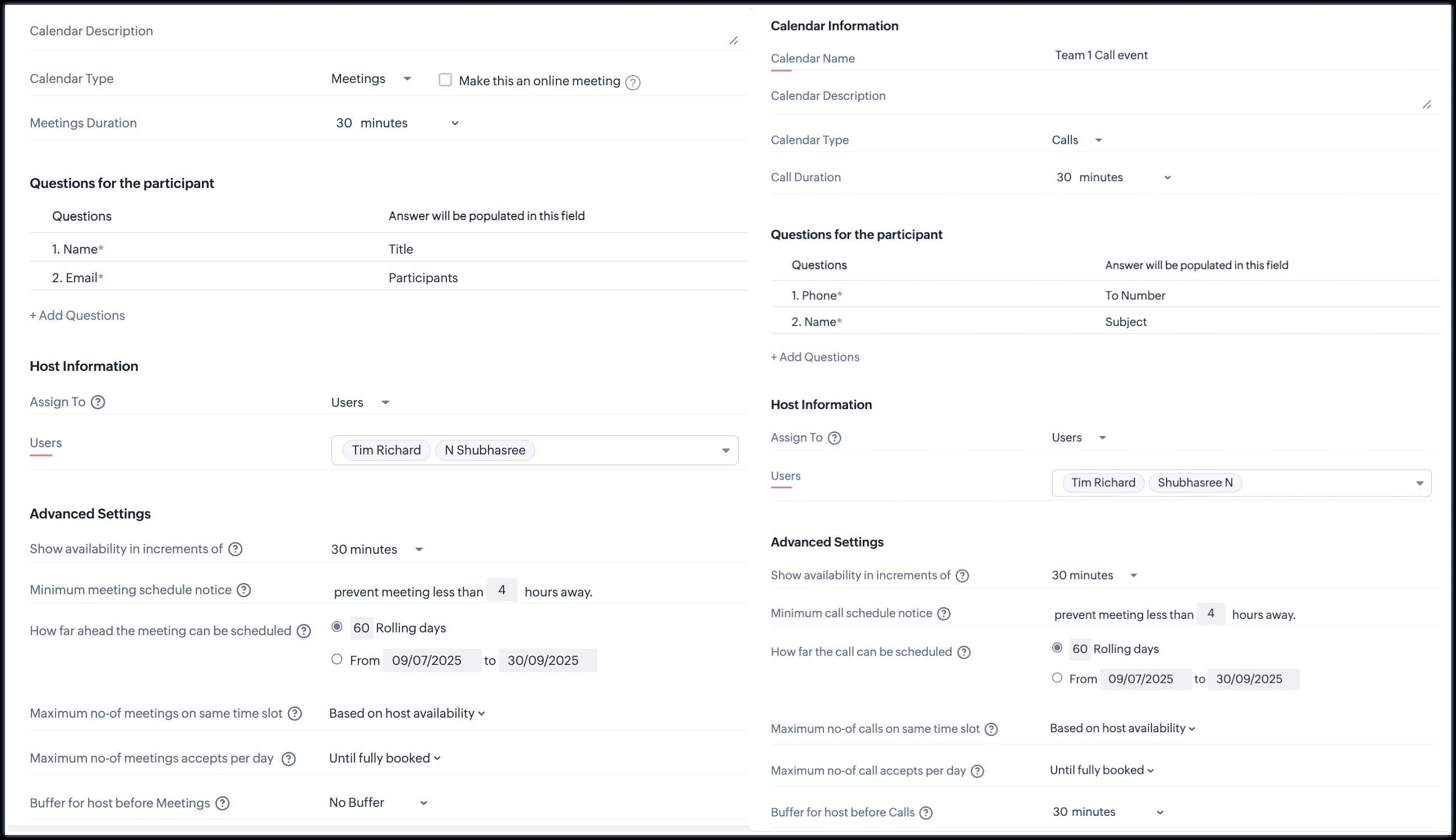
Unable to create an individual booking link for calls or meetings because the option is not visible
If you do not see the Individual Booking option in the drop-down while creating a booking, check whether you have the required permissions for the Meetings and Calls modules.
The Individual Booking option will only be available if you have access to these modules.
If the option is still not visible after verifying the permissions, you may need to check the module access configured for your profile.
You can check the permissions by going to CRM Setup > Security Control > Profiles.
Global Search and Advance Filtering
While searching for a record, the existing record is not listed in the results.
Check the search term you are using and ensure that the word associated with the record is entered as a complete word, rather than using only a few characters from the middle of the word.
The search works based on the full term as it appears in the record details. The word must be spelled correctly and should match the value stored in the record, regardless of whether the word appears first, second, or anywhere in the field value.
For example, if you search for “test”, the results will list records that contain the word test in the record name or field value. However, if you search using only part of the word such as “est”, the relevant records may not appear in the search results.
The searched records are not listed, even though we have already added them to the CRM account
If more than 10 records match the search term, the results will be displayed based on the last activity or modified time.
Use the right arrow to navigate through the next set of records to view additional results.
If you still do not find the required records, check whether the respective record is available in the specific module where it was originally created.
While searching for a record in the Global Search of CRM, no results appear even though we are sure the record was added
If you are certain that the record was added to the module but it does not appear in the search results, check whether the record may have been deleted by another user in the meantime.
You can verify this by checking the Recycle Bin. Navigate to CRM Setup > Data Administration > Recycle Bin, where you can view the details of when the record was deleted and by whom. From there, you can also choose to restore the record or permanently delete it.
If you still cannot find the record, please share the details with us at support@zohocrm.com along with relevant screenshots or a detailed screen recording so that we can troubleshoot the issue further.
How can we view more details in the Global Search preview?
The Global Search window displays only limited information in the initial search results.
To view more details, click on the Advanced Search button. This will open the detailed search view, where additional information for the records will be listed.
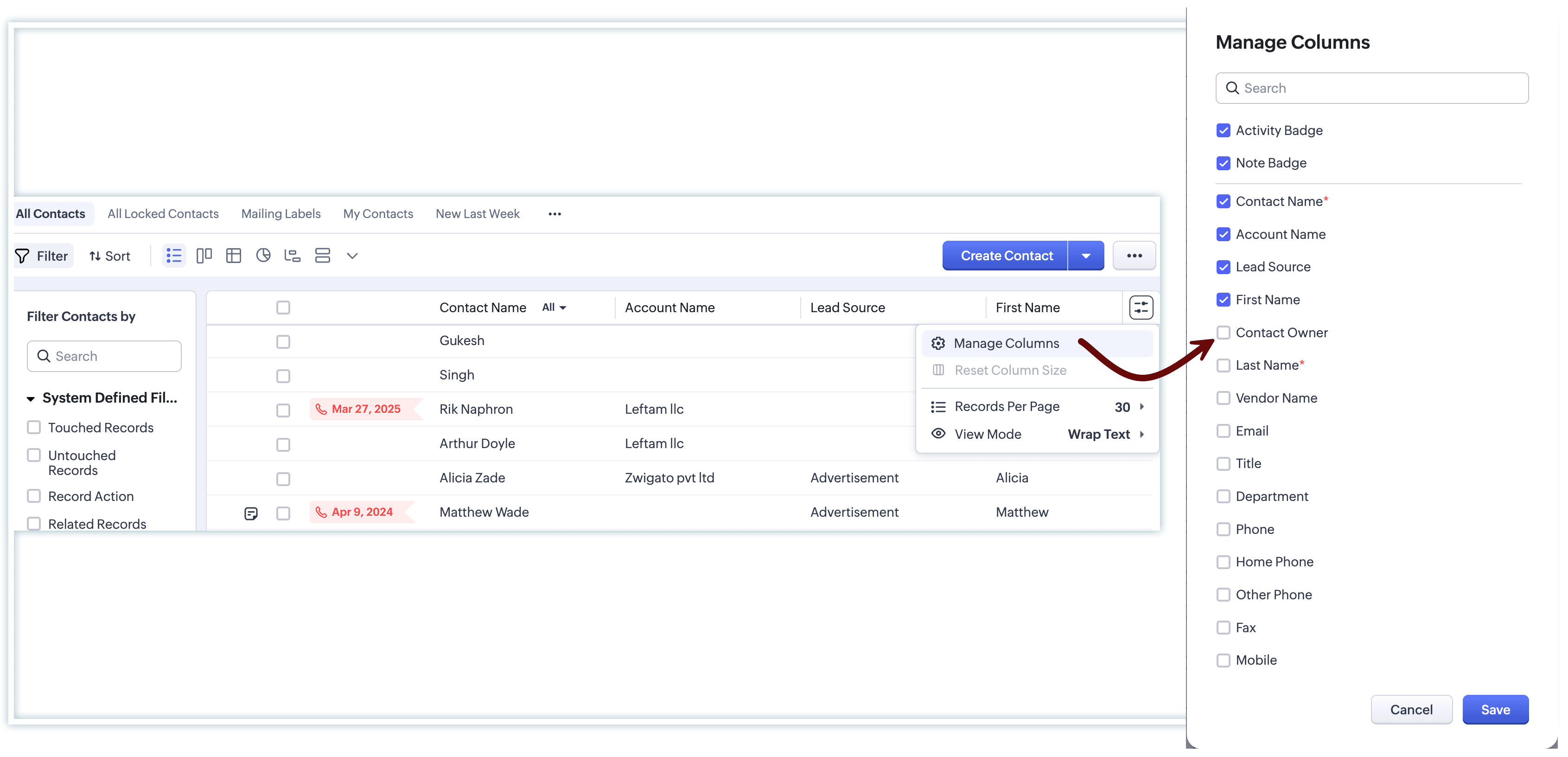
You can also click the Manage Columns icon to customize the columns displayed and choose the fields you want to view in the results list.
Is it possible to search records within a specific module or across selected modules, such as only in the Sales Order and Invoice modules?
Yes. You can search for a term and then use Advanced Search to filter the results for specific modules.
Click the Search icon, enter the required search term, and click View Advanced Search.
In the Advanced Search window, click the Filter icon to view the list of available modules. Select the modules you want to search in, such as Sales Order and Invoice, and click Apply Filter.
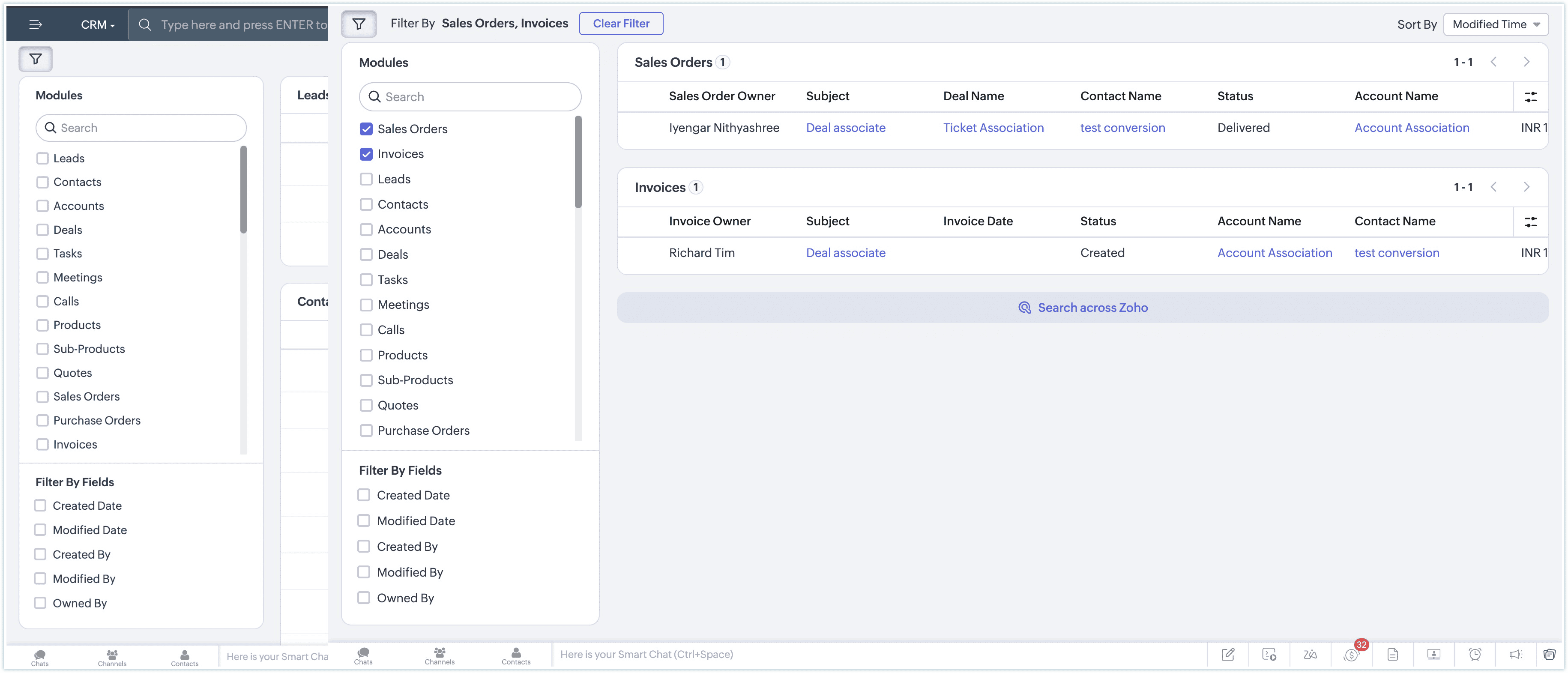
You can also refine the results by applying filters such as Created Date, Modified Date and Time, or Record Owner.
If you need further assistance, please write to us at support@zohocrm.com along with reference screenshots.