FAQs: Teamspaces
What is a teamspace?
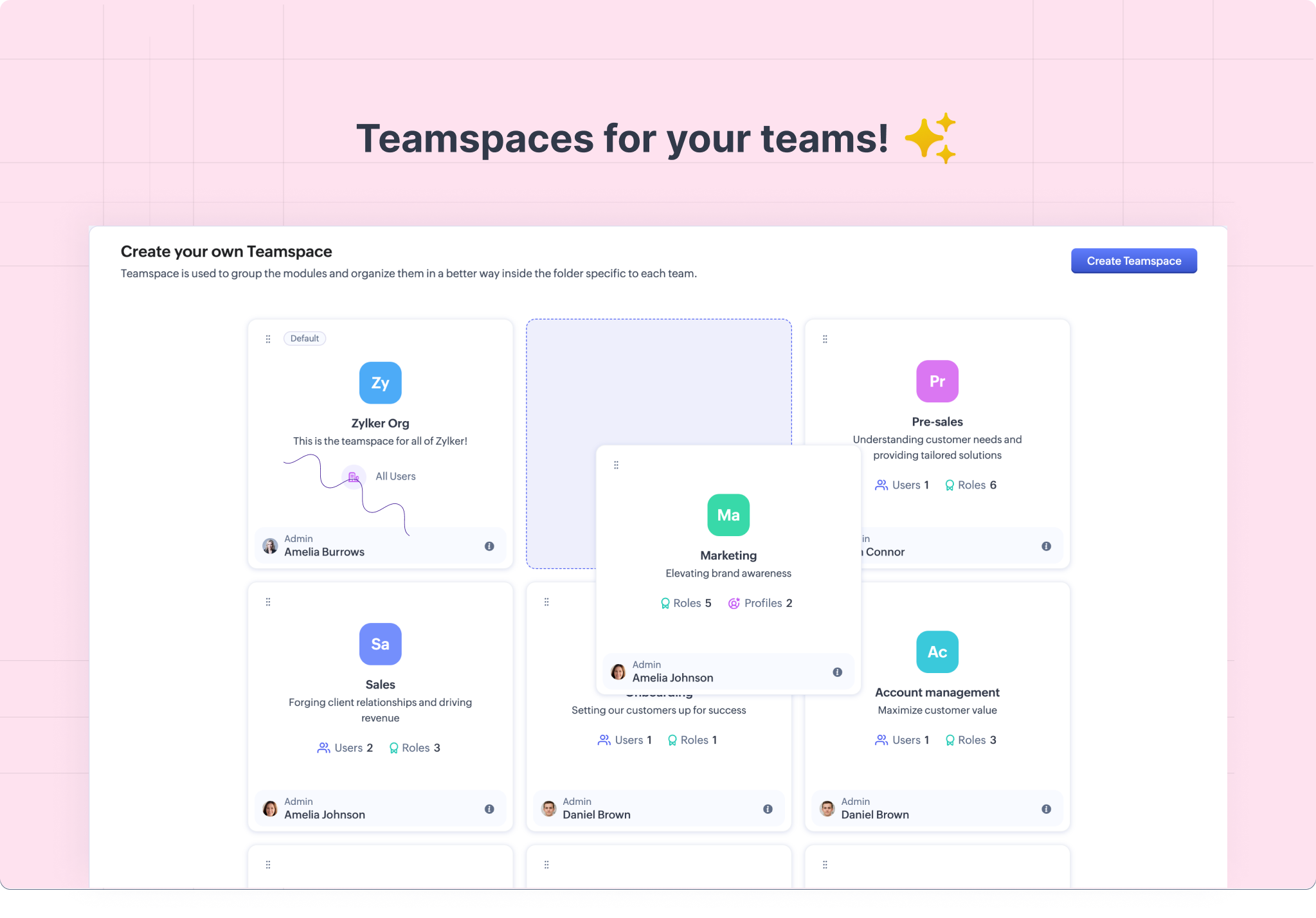
Teamspaces in Zoho CRM serve as specialized areas where teams can operate and collaborate effectively. Imagine a business as a large building, within which each department—like Sales, Marketing, or Customer Support—has its own dedicated office space. These office spaces are akin to teamspaces in Zoho CRM, designed to support the unique needs of each team within a single CRM organization. This setup allows for customization based on various criteria such as department functions, geographic locations, or specific projects.
Each teamspace has the members of a team along with the modules that are relevant for that team's work. For example, the Sales teamspace might include modules for lead tracking, sales forecasting, and client communications, while the Marketing teamspace could contain tools for campaign management, analytics, and content creation.
Furthermore, each teamspace is overseen by a teamspace admin. This role is similar to an office manager in a physical office setting, responsible for organizing the space, ensuring everyone has what they need, and making adjustments as necessary. In the CRM context, the teamspace admin has the authority to add or remove CRM users from the teamspace as well as to manage the modules within it, tailoring the space to fit the team's evolving needs. This level of organization and flexibility ensures that every team within the CRM organization can work in an environment that's specifically designed to support their tasks and goals.
Who can I create or manage teamspaces?
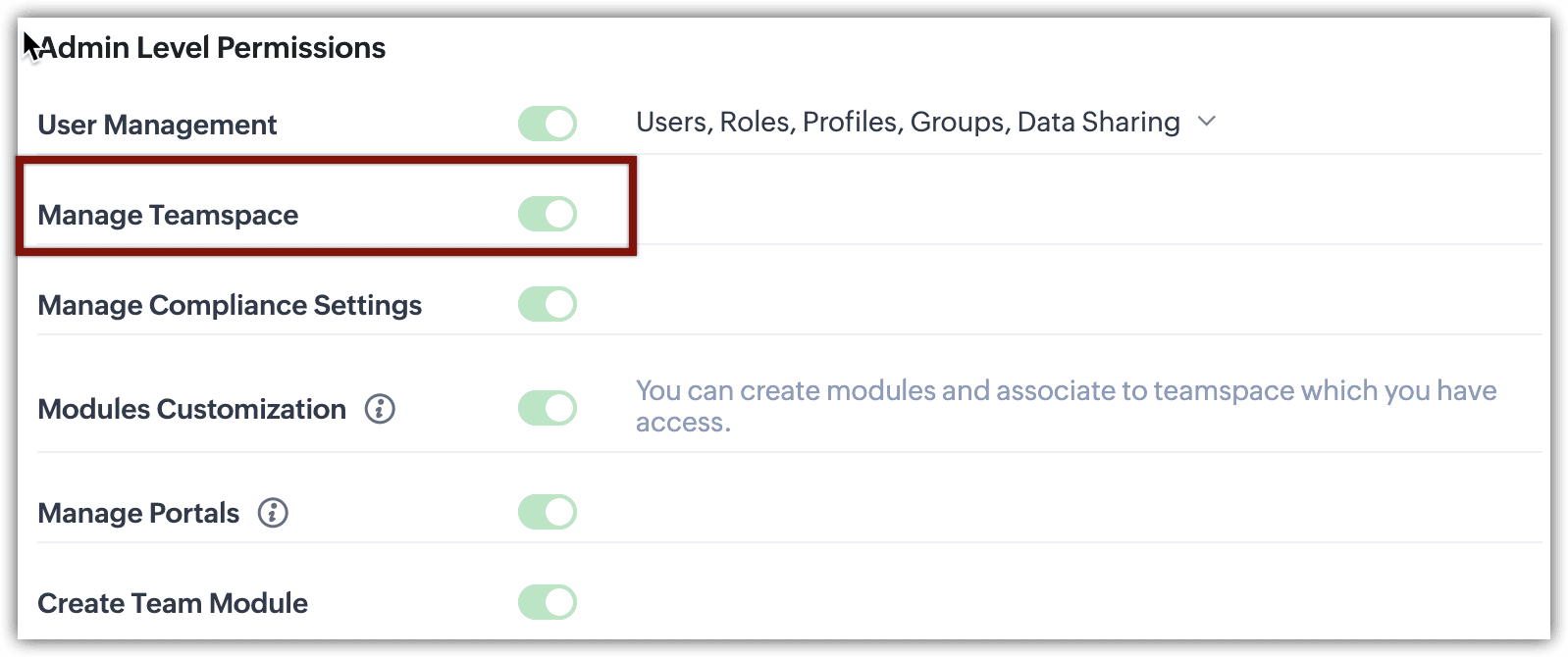
An individual with administrator privileges has the ability to create a teamspace, or a user with the Manage Teamspace permission in their profile can create or manage it.
How can I create a teamspace in my CRM?
To create a teamspace:
- Click the teamspace switcher located in the sidebar and click + New Teamspace.
- In the Create New Teamspace page, Click on the teamspace to set an icon. Enter the name of the teamspace and give it a description.
- Click Add Modules. In the popup that appears, select the modules for your teamspace and click Add.
- In the same popup, click + Create Folder to create a folder. Add a folder name and click Create.
Once created, you can select the folder when you add modules. - You can also rearrange modules, move them to another folder, and remove them in this space.
- Select the teamspace admin. This person will be able to manage the teamspace going forward. This can be any CRM user.
- Manage access to the teamspace by either making it available for all users or for selected users.
In case you've chosen the latter, you can add users, roles, profiles, and groups to the teamspace and click Save.
Please note that the teamspace admin will not be added automatically when you choose selected users. - Click Save.
You've successfully created a brand-new teamspace!

Note: You can also create a teamspace by navigating to Setup > Customization > Teamspace and clicking Create Teamspace.
How can I delete a teamspace?
To delete a teamspace:
- Click the Teamspace switcher in the sidebar.
-
Hover over a teamspace and click the delete icon.
-
In the Delete Teamspace popup, click Yes, delete.
You have successfully deleted your teamspace!
How to add or remove users in an existing teamspace?
To add or remove users:
- Click the Teamspace switcher in the sidebar.
- Hover over the teamspace you want to add users to and click the Edit icon.
- In the Edit Teamspace page, in the Admin & Permissions section, manage access to the teamspace by either making it available for all users or for selected users.
- In case you've chosen selected users, you can add users, roles, profiles, and groups to the teamspace and click Save.
- Click Save to save the changes to your teamspace.
What is a folder in teamspace and how to create it?
Within a teamspace, folders serve the purpose of further organizing modules when additional structure is needed. For instance, in a Marketing team's space, various folders can be created to group related team or custom modules based on specific needs. You could have a folder for 'Customer Testimonials', another for 'Campaigns', and yet another for 'Product Launches.' Each folder acts like a dedicated section, housing all the modules relevant to that particular aspect of the team's work, much like how a physical office might have different file cabinets for separate projects or functions.
You can create a folder in a teamspace during the setup process. By default, modules are assigned to the 'Root folder'. To create a folder in a teamspace while setting up the teamspace, after adding the modules, follow these steps:
You can create a folder in a teamspace during the setup process. By default, modules are assigned to the 'Root folder'. To create a folder in a teamspace while setting up the teamspace, after adding the modules, follow these steps:
- In the same popup, click + Create Folder to create a folder. Add a folder name and click Create.
- Once created, you can select the folder when you add modules.
- You can also rearrange modules, move them to another folder, and remove them in this space.
You have successfully created a folder.
Additionally, once you have created folders in your teamspace, you can add modules to the teamspace using the 'Manage [Module]' option in the sidebar in your CRM account. For example, in the Marketing Team teamspace, there are two folders named "Sales Module" and "Activities Folder." This setup allows for the "Switch Folder" option since the folders were added during the teamspace creation, enabling the Leads module to be placed in the Sales Modules folder.
Additionally, once you have created folders in your teamspace, you can add modules to the teamspace using the 'Manage [Module]' option in the sidebar in your CRM account. For example, in the Marketing Team teamspace, there are two folders named "Sales Module" and "Activities Folder." This setup allows for the "Switch Folder" option since the folders were added during the teamspace creation, enabling the Leads module to be placed in the Sales Modules folder.
How many teamspaces can I add in my CRM?
The number of teamspaces you can add to your CRM depends on your subscription plan:
- Zoho CRM Standard Edition: Allows up to 5 teamspaces.
- Zoho CRM Professional Edition: Permits the creation of up to 10 teamspaces.
- Zoho CRM Enterprise Edition: You can add up to 25 teamspaces.
- Zoho CRM Ultimate Edition: Also offers the ability to add up to 25 teamspaces.
Additionally, across all editions, a teamspace can contain a maximum of 50 folders.
Who can be made an admin for a teamspace?
- Any active user in your organisation can be designated as the admin for a teamspace.
- Each teamspace is limited to having just one admin. However, any user who holds an administrator profile or has the Manage Teamspace permission is capable of managing the teamspace.
Will a teamspace admin gets to access the teamspaces they created?
A teamspace admin will not inherently gain access to the teamspaces they created. They cannot take part in the processes their teamspaces are conducting.
However a teamspace admin can:
- Click the Teamspace switcher in the sidebar.
- Choose the teamspace from the list click the Edit icon. You'll be landed on the respective teamspace where you can add modules, create folders, reorder modules, and manage permission.
This setup is in place because the teamspace admin may not be actively involved in the daily activities of the teamspace. Instead, their role is primarily to oversee the teamspace, handling administrative tasks and management duties without direct participation in the day-to-day operations.
If the teamspace admin is required to take part in a process,
- In the Edit Teamspace page, in the Admin & Permissions section, give access to the teamspace by adding the teamspace admin (in context) as the teamspace user.
Can a user be a part of more than one teamspace?
Yes, a user can be added to multiple team spaces and also be an admin of multiple team spaces.
What is the difference between a CRM admin, a teamspace admin, and a team module admin?
CRM Admin: The CRM admin holds a central role in managing the settings and configurations within a CRM account. To be a CRM admin, one needs to have an Administrator profile or a custom profile equipped with administrative rights. A CRM admin has the capability to access and manage both teamspaces and team modules. However, administrators specific to teamspaces or team modules cannot make organization-wide changes.
Teamspace Admin: A user of any profile type, whether Standard, Administrator, or a custom profile, can be appointed as a teamspace admin. Their responsibilities include managing and configuring the teamspace they are assigned to, but they lack the authority to implement changes across the entire organization. Their focus is solely on the teamspace they oversee.
Team Module Admin: Similar to the teamspace admin, a team module admin can be any user, regardless of their profile type. They are tasked with managing the team module, which includes assigning permissions and roles such as admin, requester, or participant to other users within that module. Their authority is confined to the specific team module they administer.
What will happen when a teamspace is deleted?
When a teamspace is deleted, the team modules within it will become unlinked. These unlinked team modules can be added to another teamspace by following the steps outlined in the section for adding or removing users/modules in an existing teamspace.
Can Organization modules be added to multiple teamspaces?
Yes, Organization modules can be added to multiple teamspaces.
In which editions of Zoho CRM are Teamspaces available?
Teamspaces are included in every edition of Zoho CRM, with the exception of the free edition.
How can I create a folder in the teamspace?
You can create folders from the modules tab in the sidebar of your CRM account. To create folders:
- Click the ellipsis icon in the sidebar and select Create Folder.
- Enter the folder name and click Create.
- To add more modules to your folder from the Modules tab, simply click the + icon next to the folder name, select the modules you need, and click Add.
How can I edit the folder?
To edit the folder from sidebar :
- Click on the ellipses next to the [Teamspace Name]
- Select Manage [TeamSpace]
- Click the Edit icon next to the folder to rename it and enter the new folder name. If you're okay with the change, click the green tick to save. Otherwise, click the red cross icon to not apply the change.
- You can drag and drop the modules to rearrange them.
- Click Save.
How can I delete folders?
To delete a folder from sidebar :
- Click on the ellipses next to the [Teamspace Name]
- Select Manage [TeamSpace]
- Click the Delete icon next to the folder name. You can choose to:
- remove the modules from the folder and delete the folder and click Delete.
-
move the modules to another folder and then delete the folder, select a folder and click Move & Delete.
To delete a folder from a Teamspace within Setup:
- Go to Setup, select the Teamspace, and click on the Teamspace you want to delete a folder from.
- Locate the folder and click the Delete icon next to the folder name.
- To remove the modules from the folder and delete the folder, click Delete.
- To move the modules to another folder and then delete the folder, select a folder and click Move & Delete.
Note: While removing modules and deleting the folder, please note your Teamspace cannot be created without any modules. Make sure to add modules to your Teamspace and save for it to function effectively.

For additional information on teamspaces and their features, please consult this help document.