Managing roles and permissions
The organizational hierarchy in your business can be replicated in CRM Plus as roles, and it defines the permissions each user has to view data and access various features across modules. These roles and permissions can be customized for CRM, SalesIQ, Desk, Projects, Analytics, and all the Marketing apps, such as Campaigns, Social, Marketing Automation, and so on. The following permissions can be assigned to each module.
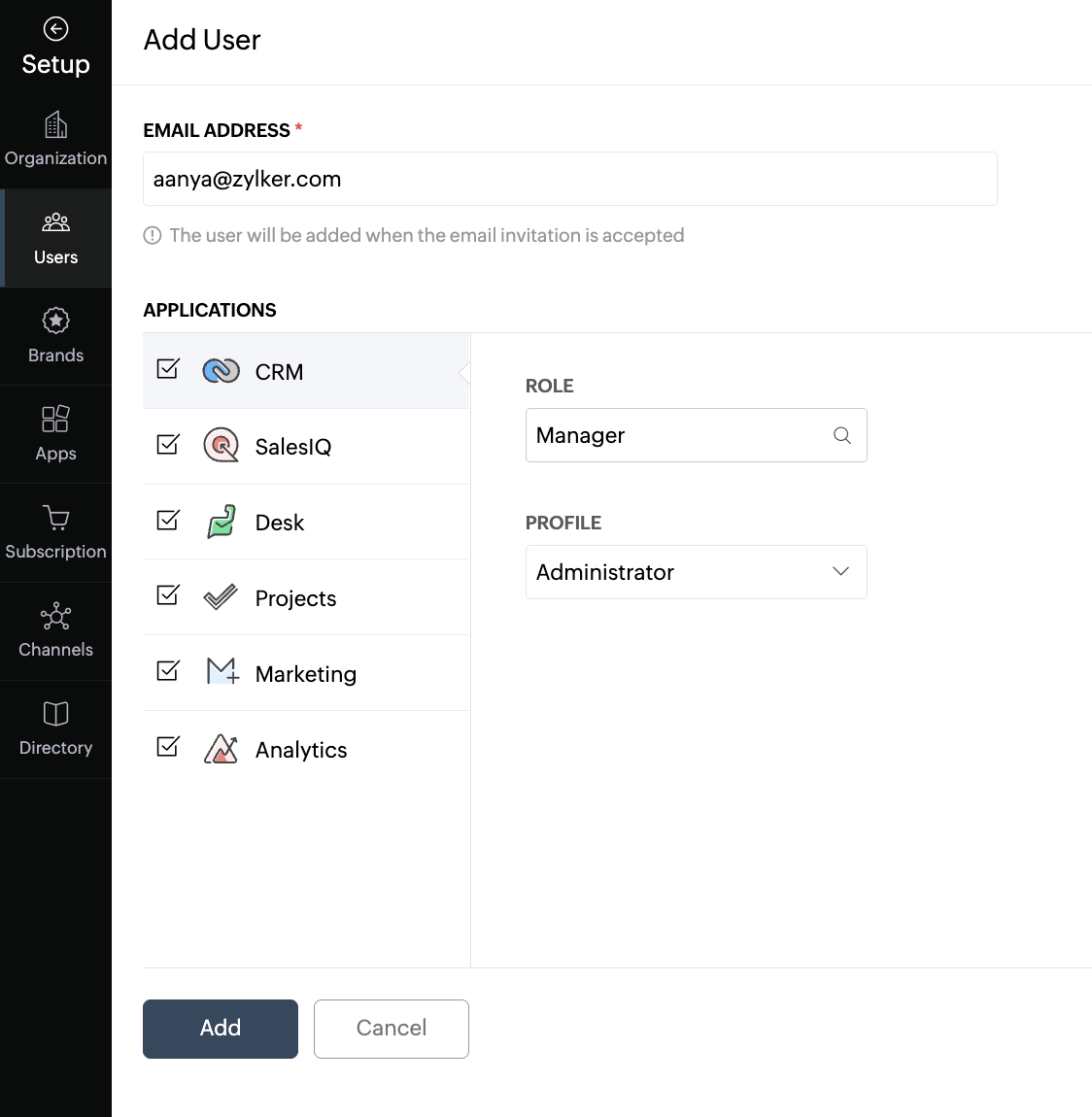
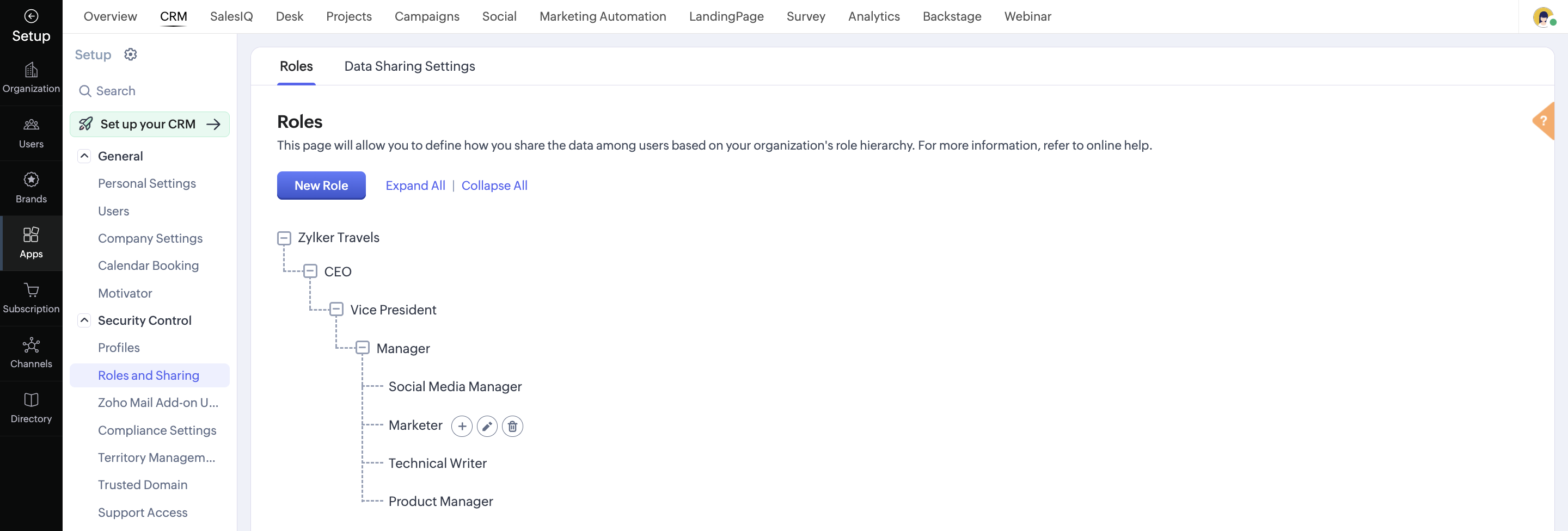
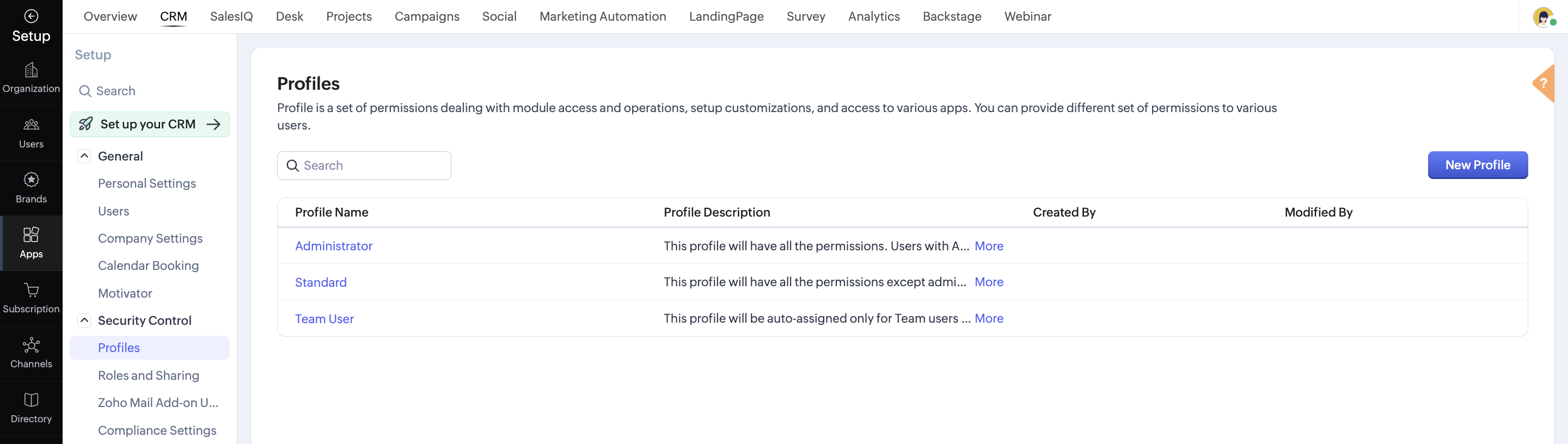
CRM: Default roles and permissions are available in CRM, and you can also customize or add new ones based on your requirements and assign them to users in your organization. Read more: Adding roles and profiles.
SalesIQ: There are three default roles: Administrator, Supervisor, and Associate, which can be assigned to users while adding them to CRM Plus. Read more: Understanding roles in SalesIQ.
Desk: Default roles and profiles are available to make it easy for you to manage access for your users.
Default Roles: CEO and Manager.
Default Profiles: These are system-defined and cannot be edited.
- Support Administrator: By default, admin profile users have access to all the features. However, they can also choose to enable and use only the specific options and functionalities they need within their profile permissions settings.
- Agent: This profile has limited access to the features.
- Light Agents: This profile has a very limited set of permissions (such as read-only).
Custom Default Profiles: These are also system-defined, but you can edit them and change the permissions as needed. All these profiles have limited access.
- Newbie Agent
- Supervisor
- Support Manager
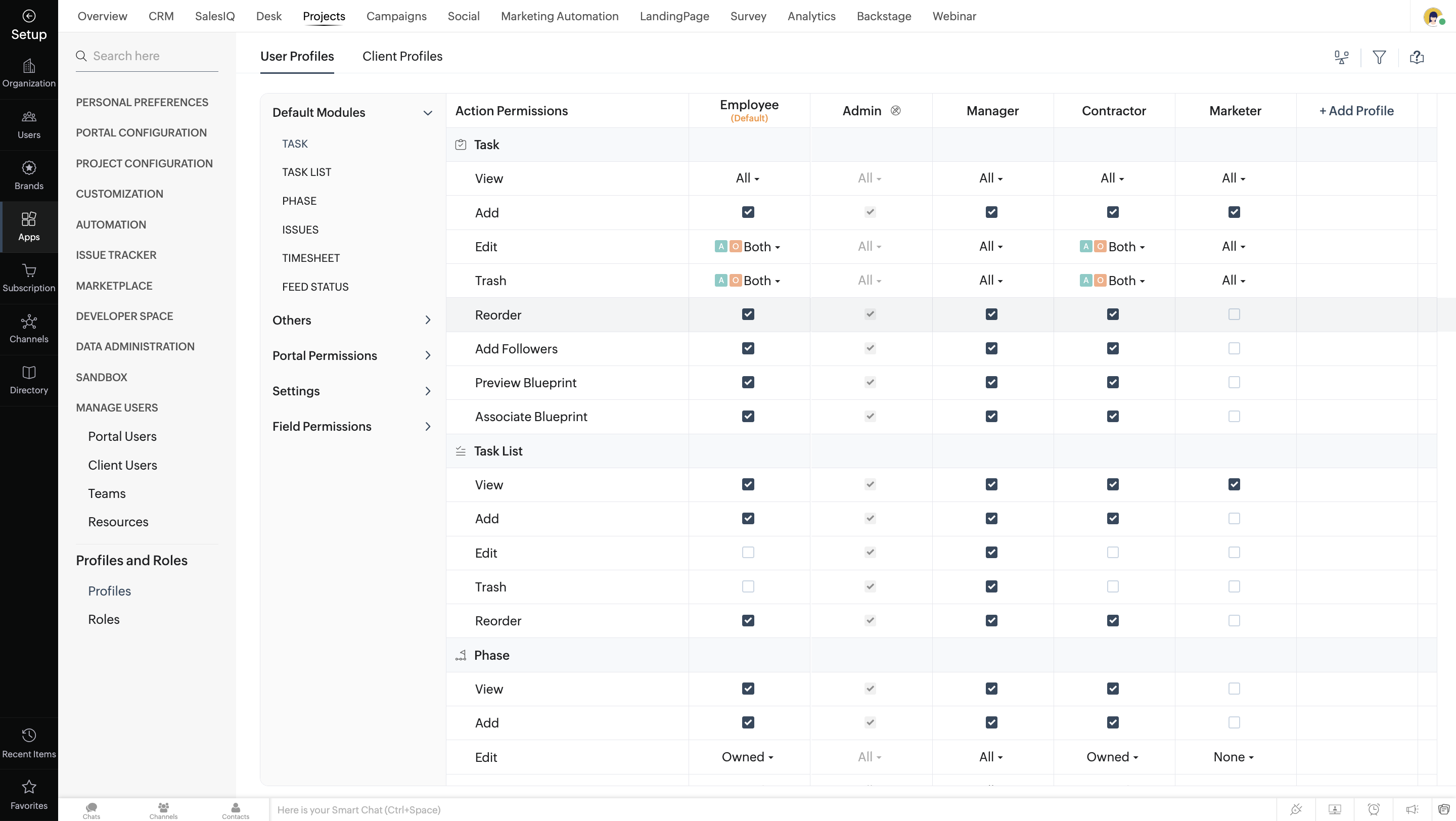
Projects: Default roles and profiles such as Administrator, Manager, Contractor, and Employee are available, and you can also create custom roles and profiles as required. You can also create permissions for your clients and invite them to Projects in CRM Plus. Read more: Manage roles, profiles, and clients.
Analytics: You can define the following permissions for users to access the Analytics module:
- Organization Admin: The organization admin has permissions to all the Workspaces from the Analytics module. They will be able to create workspaces, configure connections, add reports, tables, or dashboards.
- User: The user can access the workspace, tables, reports, and dashboards that are shared with them. You can also grant them administrative privileges for a workspace in the Analytics module of CRM Plus.
- Viewer: A viewer has read-only access to the reports and dashboards that are shared with them from the Analytics module.
Marketing: You can invite your team member as a user or admin.
- User: Access to modules, data, and features can be customized as required.
- Administrator: An Administrator has complete access to all the brands in CRM Plus.
Configure organization-level access: An organization normally consists of one or more brands. The organization-level access determines the permissions to use various modules such as Campaigns, Social, Survey, and Webinar. These permissions apply across all the brands in an organization.
Configure brand-level access: The permission to access a brand and all the modules in it can be defined here. Access to various modules in a brand can be defined using Brand Roles.
Brand Roles: By default, three roles are part of all the brands in your account:
- Brand Admin
- Brand Marketer
- Brand Member

New brand roles can also be created by defining access permissions for the services that are available in CRM Plus. The permissions set in the custom brand roles that you have created can't be edited.