Using the Zoho CRM Mobile App for Android
Organize CRM Home Screen
Zoho CRM for Android welcomes you with an attractive Home screen that displays the Activities for the week. You can prioritize your work for the day based on the activities displayed. You can also check off completed activities and add new activities from the Home screen.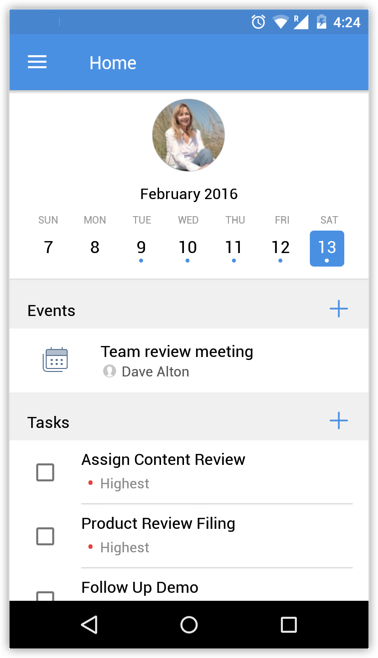
Toggle between the days of the week to view the tasks, events and calls for the selected day. Click the Add (+) icon against the Event, Task or Call to add a new activity, respectively.
Sort the activities into pending and completed lists by grouping the completed events, tasks and calls. Selecting an event, call or task would mark it as complete.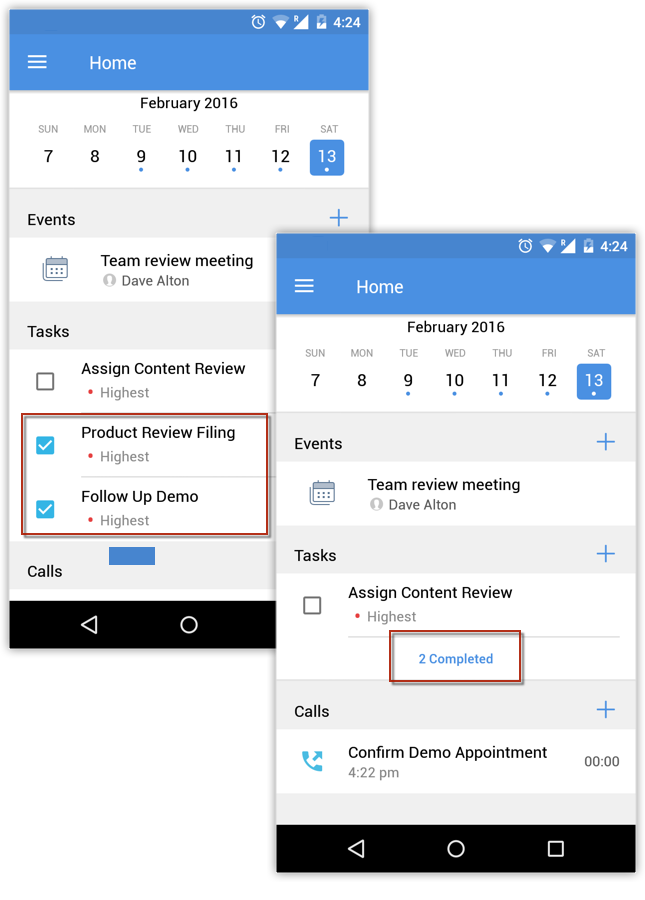
Collaborate Using Feeds
Feeds on Zoho CRM for Android lets you collaborate with your peers and keep a track of your organization's activities - be it your own or that of your colleagues. It lets you post and view status updates, add comments, attach files and filter Feeds updates by modules.
To create/view Feeds updates
- In your Zoho CRM Android app, go to Feeds.
- Tap the Add icon and compose your status update.
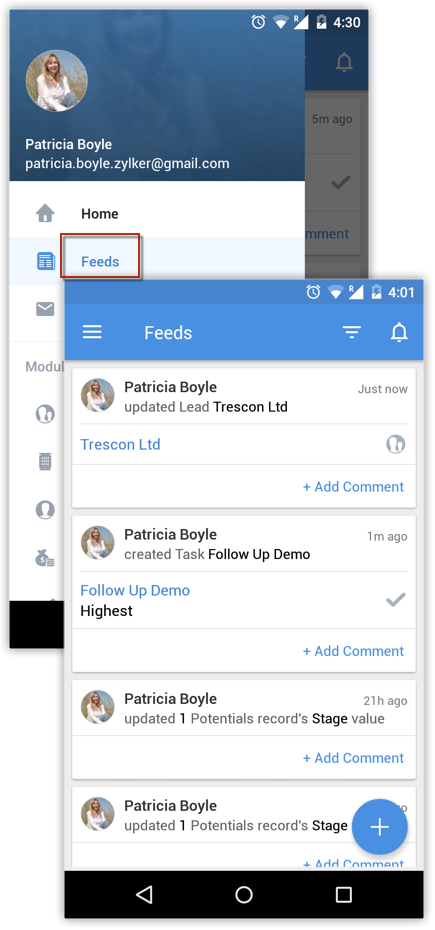
- Comment on other record updates by your peers.
- Click the Filter icon to view the updates of a selected module.
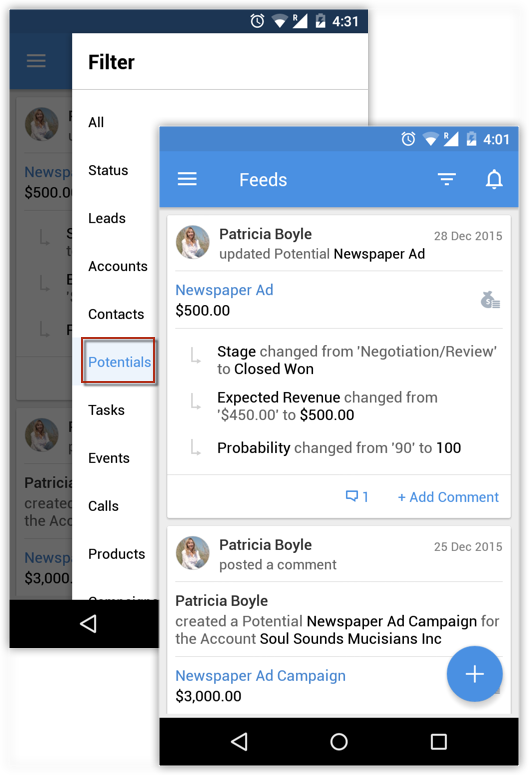
You can also filter out just status updates by tapping on Status.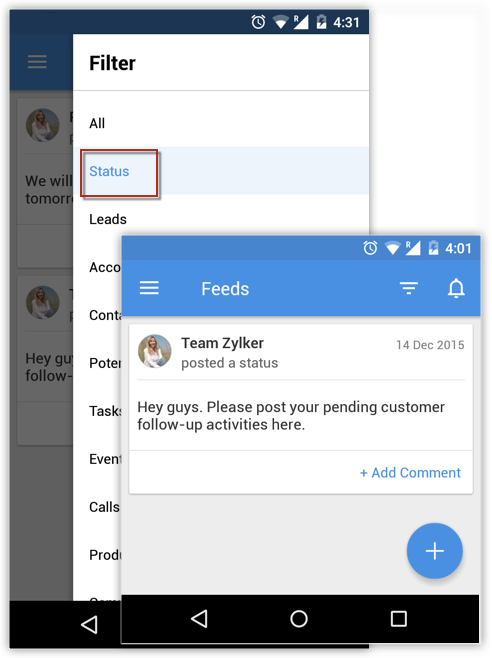
Create Records
You can create records in the supported modules from your Android device. While adding leads and contacts, you have two options: to create a new record or import from Address Book.
To create a new record
- Go to the module (Leads, Accounts, Contacts, etc.).
- Tap the huge Add Record icon.
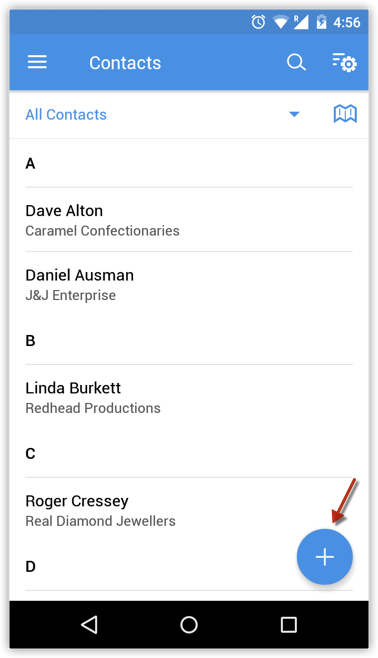
In the case of Leads and Contacts, you can choose between New Lead/Contact and Import from Address Book. - In the Add [Record] screen, specify record details.
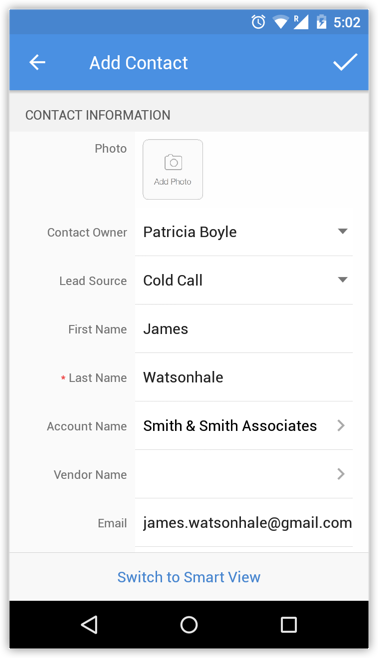
- Tap the OK icon.
Convert Leads
Once the lead status has reached a certain stage, (i.e. when there is a chance of further negotiations), it can be qualified as a potential. You can then convert the lead into an account, contact, and potential.
To convert a lead
- Tap the Leads module.
All the leads in the selected list view will be listed. - Tap the record that you want to convert.
- Tap the Convert icon.
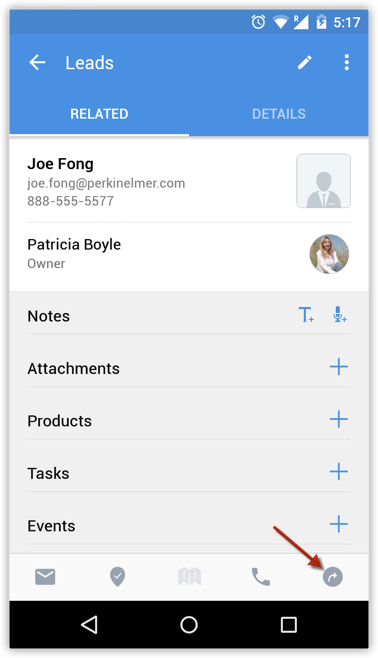
- In the Convert Leads screen, specify the necessary details and tap the OK icon.
The lead will be converted and will be available in the Converted Leads list view.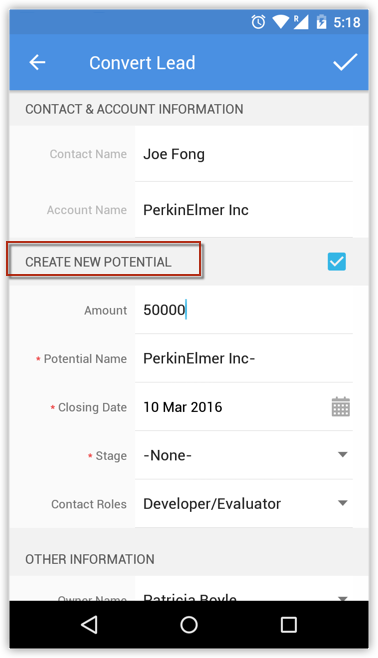
Edit Records
To edit a record
- Go to the module (Leads, Accounts, Contacts, etc.).
- Tap the record that you wish to edit.
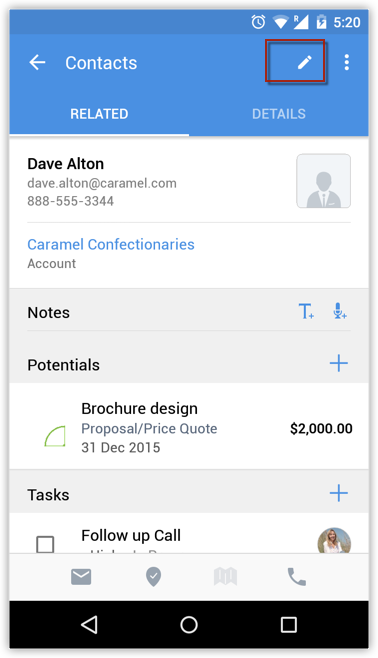
- Tap the Edit icon.
- In the Edit [Record] page, modify the details of the record.
- Tap OK.
Delete Records
Occasionally, you may need to remove some of the unnecessary records from Zoho CRM, for better organization of data. From the Zoho CRM App (Android version), you can delete records from the supported modules.
To delete a record
- Go to the module (Leads, Accounts, Contacts, etc.).
- Tap the record that you want to delete.
- Tap the MoreOptions icon and then tap Delete.
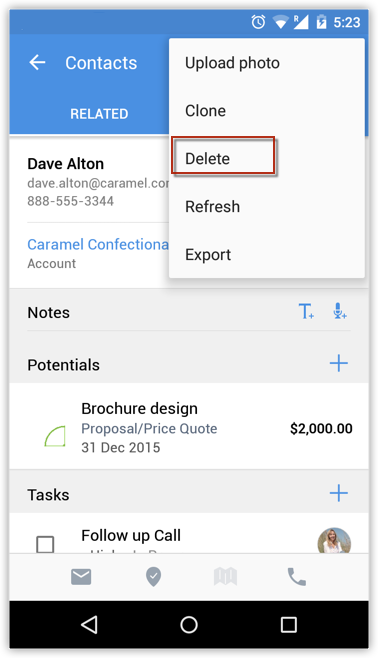
- Confirm deletion by tapping Yes. The record will be deleted.
Change List View
You can change the list view that helps you filter the required data based on specified criteria. For each module the pre-defined list views and the ones created by the users will be listed.
To change list views
- Go to any module.
The records will be listed based on the List View that was pre-selected. - Tap the List View for the list views in the module.
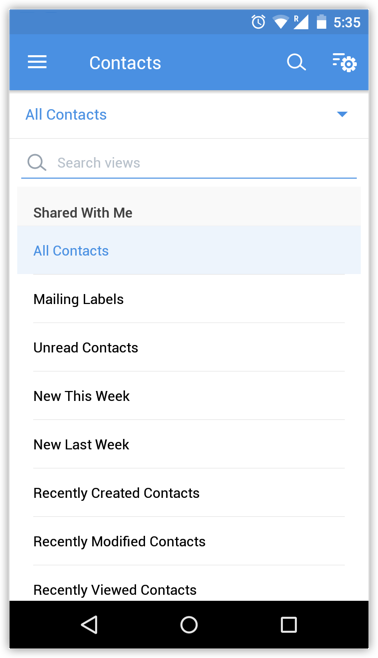
- From the List Views displayed, select the one matching your requirement.

- Only the list views already available in the web version will be displayed.
- New list views cannot be created in the Zoho CRM mobile app.
Send Emails
To send an email
- Go to Leads, Contacts or Cases module (or any other custom module).
You will have the option to send an email to the contact if the email address is available. - Tap a record to which you want to send email.
- In the Record Information page, tap the Email icon.
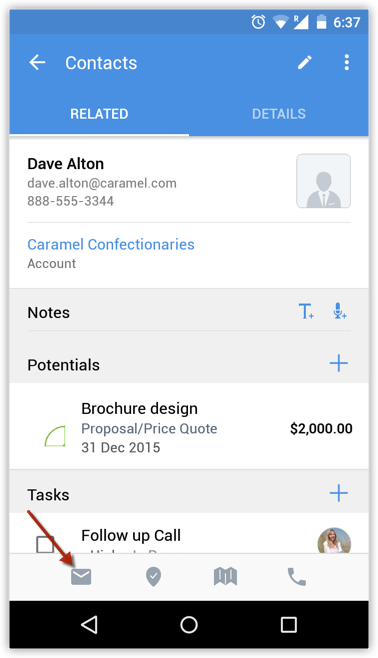
- Select the Application that you want to use to send the email.
- Compose an email and send.
Using MailMagnet on an Android device
With Zoho Mail Add-on configured in your Zoho CRM account, you will have an inbox full of important emails from customers that are associated to your leads and contacts. It is very important that emails from your customers get a timely response and in that case, email notifications play a vital role. MailMagnet does exactly that.
For a field sales rep on the move, the MailMagnet option is very useful to receive instant notifications so that the most important emails from leads and contacts get your immediate attention. MailMagnet intelligently scans your inbox and notifies you of the emails from your prospects and customers in CRM.
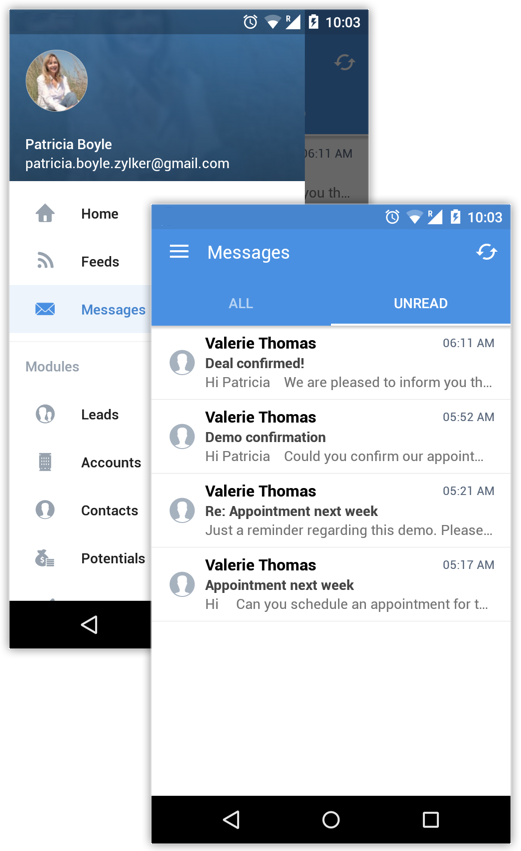
MailMagnet will be available only if you enable the Zoho Mail Add-on feature and configure your email account within Zoho CRM via POP3 configuration. See Also Zoho Mail Add-on
- When you receive mails from leads or contacts, it will be listed under MailMagnet. Outgoing emails will not be listed in MailMagnet.
- Only if you are the recipient (i.e. your emails address is in the To or CC fields of the email), will you receive the email in MailMagnet.
- Group mails, such as info@zillum.com, sales@zillum.com, etc. will not be listed in MailMagnet.
- The mail magnet will retrieve emails every 3 minutes.
- 100 emails will be listed under MailMagnet.
Reply to Emails
To reply to emails
- Tap Messages option in the Zoho CRM app.
All the emails from the leads and contacts will be listed.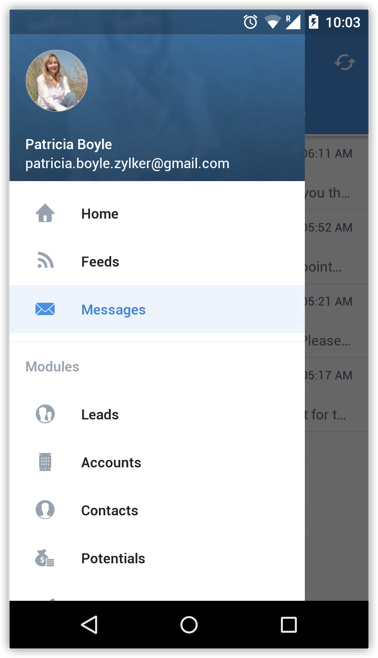
- Tap an email to open.
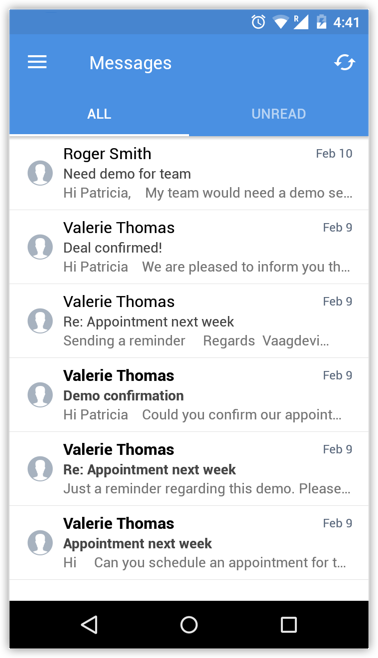
- Tap on the Reply icon and compose an email.
You can also use the Reply All icon, if required.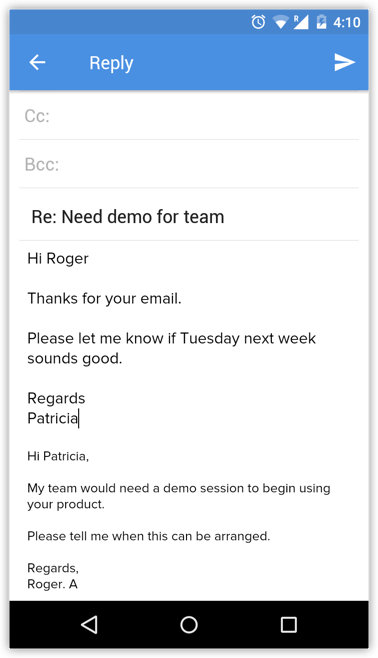
- Tap Send.
On sending the email, you wil get the option add a follow-up task and a note.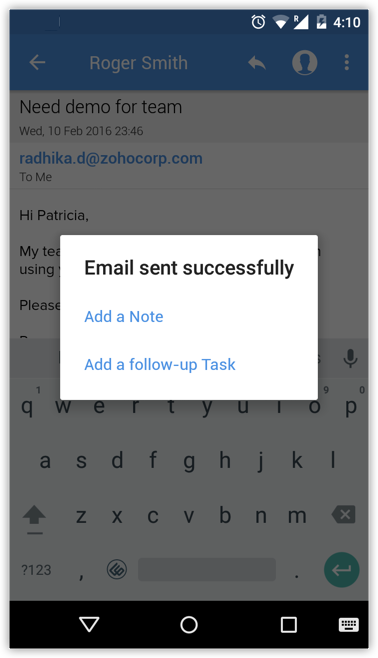
Add a Follow-up Task/Note
To add a follow-up task/note
- Tap Messages option in the Zoho CRM app.
All the emails from the leads and contacts will be listed. - Tap an email to open.
- Tap on the More icon.

Select Task or Note as required. - In the Add Task screen, specify the task details and tap Save.
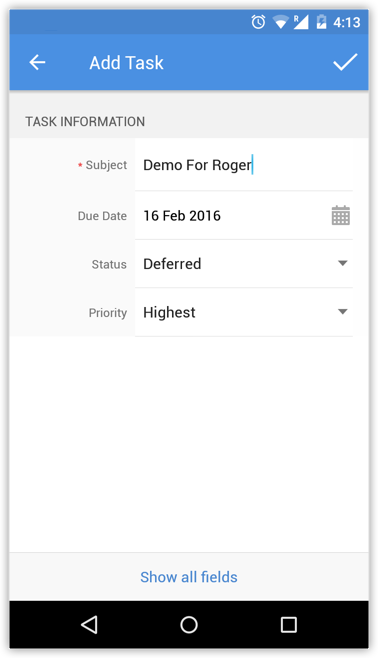
If you have selected Note, type the note and save it.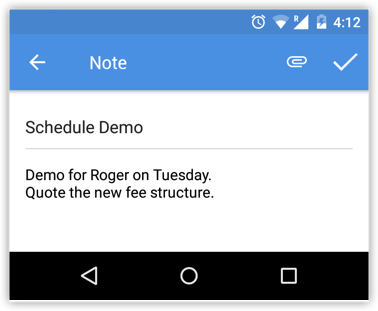
Execute a Blueprint on the CRM app
A Blueprint that you have configured in your Zoho CRM web account can be executed on the mobile app. Suppose you are out on a field visit to meet a customer regarding a deal and the deal has progressed from Qualification to Negotiation. You can update the stage right there on the app. If you have a process in place for the all the deals, you can execute the required Blueprint Transitions right on the app and progress to the subsequent stages in the process.
Example, you have configured Transition called "Negotiate", which must be completed in order to move to the next stage. The Negotiate Transition requires the sales rep to enter an acceptable discount and enter the details of the negotiation as a note. These requisites can be fulfilled right on the mobile app by executing the Negotiate Transition.
See also: Creating a Blueprint
To execute a Blueprint using the CRM app
- Tap the module for which you wish to execute the Blueprint. Example, Deals.
- Tap the record in question.
You will see a Blueprint Strip that displayes the Current State as well as the Transitions that must be executed in order to progress to the next State. - Click the required Transition and complete the requisites as directed. Example, Negotiate.
If the values you enter are unacceptable, you will see relevant error messages as configured in your Blueprint.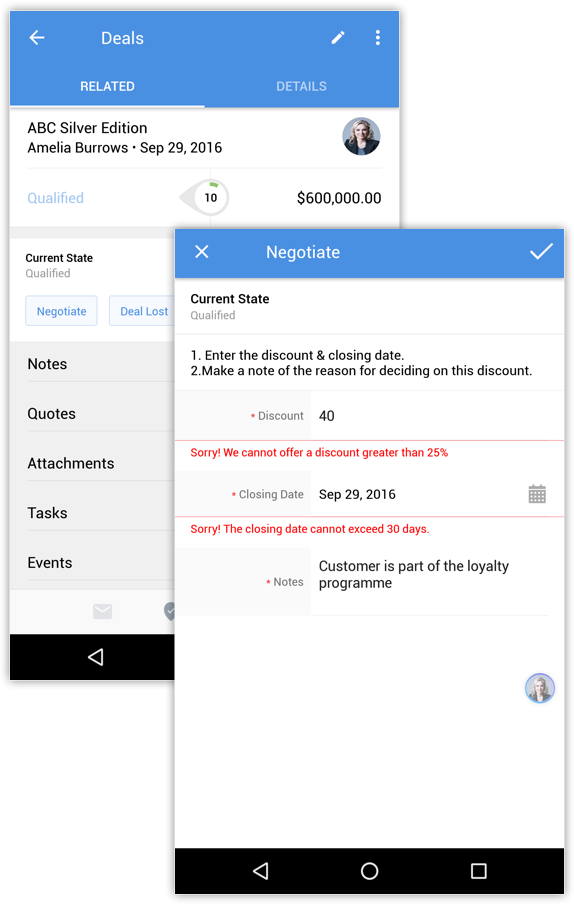
This way CRM guides and validates a sales process. - Once you have entered the accptable values, click Save.
The record is now moved to the next State in the process.
In a similar manner execute each subsequent Transitions until the process is completed.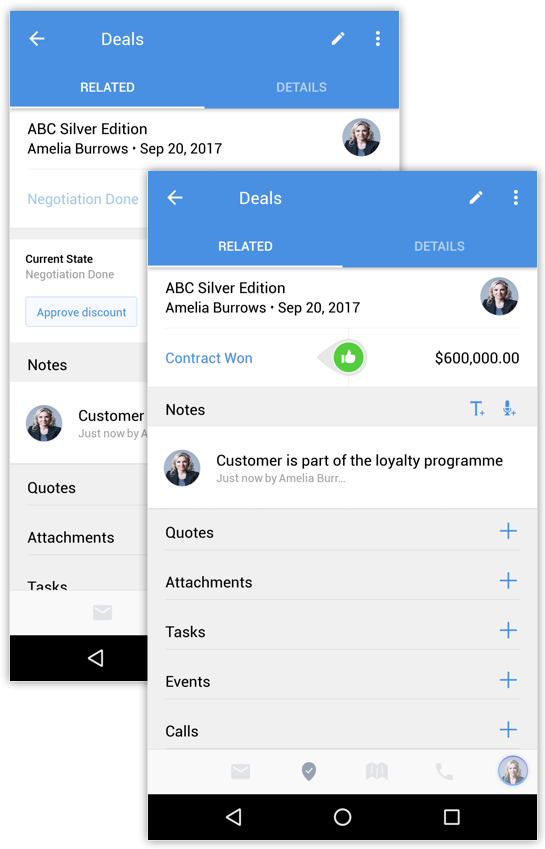
Quick Notes
State: Each stage in a process is referred to as a "State" in Blueprint. For example, a deal in your sales pipeline goes through different stages such as Qualification, Needs Analysis and Negotiation until it is won/lost. Each of these stages will be called a “State”.
Transition: Transition refers to the change of State in a process. It prescribes a set of requirements for the records to move from one state to another.
- Blueprint is available in Zoho CRM for Android from (v3.2.16) onwards.
- Blueprint is available in Zoho CRMfor iOS from (v3.2.9) onwards.
Upload Photos
For Leads and Contacts, you can upload an image by taking a photo or using an existing photo in the Android device.
To upload photo
- Go to the Leads or Contacts module.
- Tap the record to which you want to upload a photo.
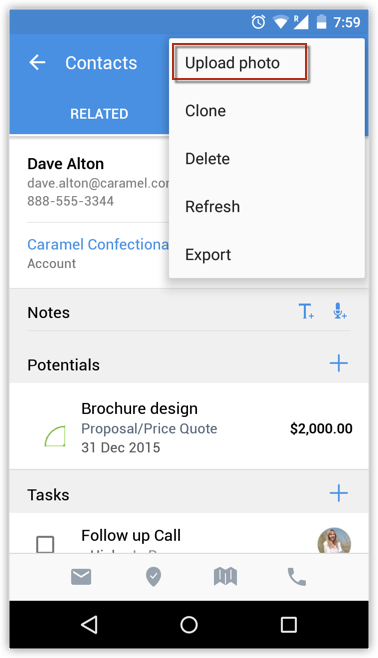
- In the Record Information page, tap the More icon.
- Tap Uploadphoto.
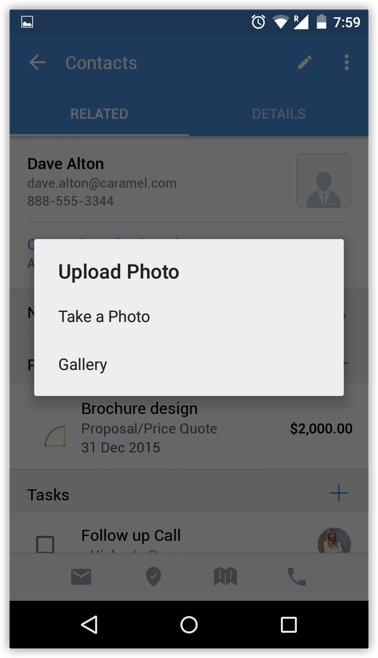
- Tap TakePhoto or Gallery to upload.


Access your files securely from anywhere
Zoho CRM Training Programs
Learn how to use the best tools for sales force automation and better customer engagement from Zoho's implementation specialists.
Zoho DataPrep Personalized Demo
If you'd like a personalized walk-through of our data preparation tool, please request a demo and we'll be happy to show you how to get the best out of Zoho DataPrep.
- Zoho Workerly Home
- Forums
- Connect With Us:


- Zoho Recruit Home
- Forums
- Connect With Us:
Zoho FSM Video Tutorials
All-in-one knowledge management and training platform for your employees and customers.
Create. Review. Publish.
You are currently viewing the help pages of Qntrl’s earlier version. Click here to view our latest version—Qntrl 3.0's help articles.





Zoho Sheet Resources
Zoho Forms Resources
Zoho Sign Resources
Sign, Paperless!
Zoho TeamInbox Resources
Design. Discuss. Deliver.
Related Articles
Zoho CRM for Android
Zoho CRM for Android is a native application that enables you to access and work with your Online Zoho CRM data from your Android phones. With this mobile application you can access and manage your Leads, Accounts, Contacts, Potentials, Cases, ...Searching records in Zoho CRM Android app
The Search feature in the Zoho CRM mobile app helps you quickly find the exact record you're looking for without scrolling through multiple entries. The app supports two types of search: Custom Search Global Search Custom Search Custom Search allows ...Zoho CRM Analytics App
Dashboards in CRM represent your data in graphical format, allowing you to take a quick glance at various important metrics for your business. They consist of the following types of components: charts, ...CRM App Settings
Configure Calendar Settings Tap the icon in the Zoho CRM app. Tap Settings. Tap Week Starts On in the Calendar section of the Settings page. Select the day of the week you want the week to start on in the pop-up. Configure Call Settings Go to ...Locate people near you in Zoho CRM Android app
If you want to meet up with other customers in the area when you are on a business trip, you can check your Zoho CRM mobile app to instantly check which contacts are near you and how important they are to your business. Using Google Maps on your ...