Configuring Email Compose Setting
Email communication is a cornerstone of effective business operations, serving varied purposes, from scheduling meetings to engaging potential clients. While many organizations use a standard email template for consistency, there are instances where a personalized approach is required to meet specific professional standards.
In Zoho CRM, the Email Compose Settings empower users to tailor emails sent to leads, contacts, deals, and more, directly from the respective modules. By default, emails from these modules adopt a system-defined style, including font and color, which lacks customization options. However, with the Compose Settings, users can customize these aspects to align with their business identity. This includes setting preferred fonts, colors, and even the default 'from' address, ensuring that each email not only meets unique business needs, but also maintains consistency and professionalism across all communications.
Note: This is a built-in functionality of Zoho CRM available in all editions.
Configuring Compose Settings
The Compose Settings enable CRM users to tailor the default email interface according to their preferences. These settings are accessible to all CRM users, allowing for individual customization.
In Compose Settings, you can customize the:
- Font type
- Font size
- Default From Address
- Default Reply-to Address
- Email signatures
- Font type : Users can either select a default font from the provided font type list or choose to add custom fonts for all emails sent from CRM. They can add up to five custom font types to match the unique requirements of their business.
 Note: The custom fonts added to CRM are device specific. If the font is not available on the user's device, an error will be displayed when the font type is chosen in the settings page. This usually occurs when a user adds a custom font type by accessing CRM on one device and then tries to select the added custom font when accessing CRM on another device.
- Font size : Users can either select a default font size from the provided font size list or choose to add custom font sizes for all emails sent from CRM using the Send Email option. They can define up to five custom font sizes to choose from as the default size.Note: Any value between 9 and 99 with up to two decimal places can be set as default font sizes.
- Default from Address: Email addresses added under organization emails or configured via IMAP or POP3 integration will appear in the list of default "from" addresses. Users can select one of these addresses as their default "from" address. This address will then be displayed automatically when composing emails to your customers. Read more about Organization emails.Note: While configuring the compose settings, users can view only those org email addresses that have been shared with them. For example, if sales@zylkertest.com is not shared with marketing admins profile, then this email address will not be displayed for users in that role while configuring the default address.
- Default reply-to address: The users can now specify the default reply-to address inside the email compose settings. They can choose to set their reply-to address as one of the configured from-addresses or available organisational email addresses.
This is useful when the email is sent out from an organization mail address that is not integrated with the CRM, or from a 'no-reply' mail address. Having a default reply-to would ensure that replies can be tracked inside Zoho CRM if the reply-to mailbox is connected with Zoho CRM. - Email signatures: Email addresses from organization emails, the user's personal email, and those set up through IMAP or POP3 integration will be presented as options for setting up email signatures. Users can create up to five email signatures, and each signature can be applied to multiple email addresses.For example, sales@zylker-eu.com and sales@zylker.com can both have a common email signature:Best Compliments from Zylker Family,Contact us at: +71888999900PS: You are receiving this email because your email address is registered with us. To stop these further correspondence email us at: noemails@zylkerservices.comWhile composing the email the associated signature will be auto-populated.Note: The signature content should not exceed 32,000 characters.
To configure compose settings:
- Navigate to Setup > Channels > Email > Email Configuration.
- Click the Compose tab.
- In Compose Settings, select the font type from the drop-down list. You can also add custom fonts by clicking Add Custom Font.Note: You can add up to five custom font types.
- Select the font size from the drop-down list. You can also add custom font sizes by clicking Add custom font size. Check Preview before finalizing the font type and size.
Note: You can add up to five custom font sizes. Any value between 9 to 99 up to two decimal places can be set as default font sizes. - In Default From Address, select the addresses you wish to use from the drop-down list.
- Add a reply-to address. You can set one of the configured from-addresses or available organizational email addresses as your reply-to address.
- In Email Signature, click Add New Signature and type the Signature Name.
- Choose the email addresses you want to set a signature for from the drop-down menu in the Select an Email Address section.
- Enter your desired signature in the designated space. You can enhance your signature by adding images or a company logo in PNG, JPG, JPEG, or GIF formats. Additionally, you can customize your signature using various font styles and sizes, and apply formatting options such as bold, italics, and font color, and so on using the available tools.
- Click Save.
Functionalities in the Email tool bar:
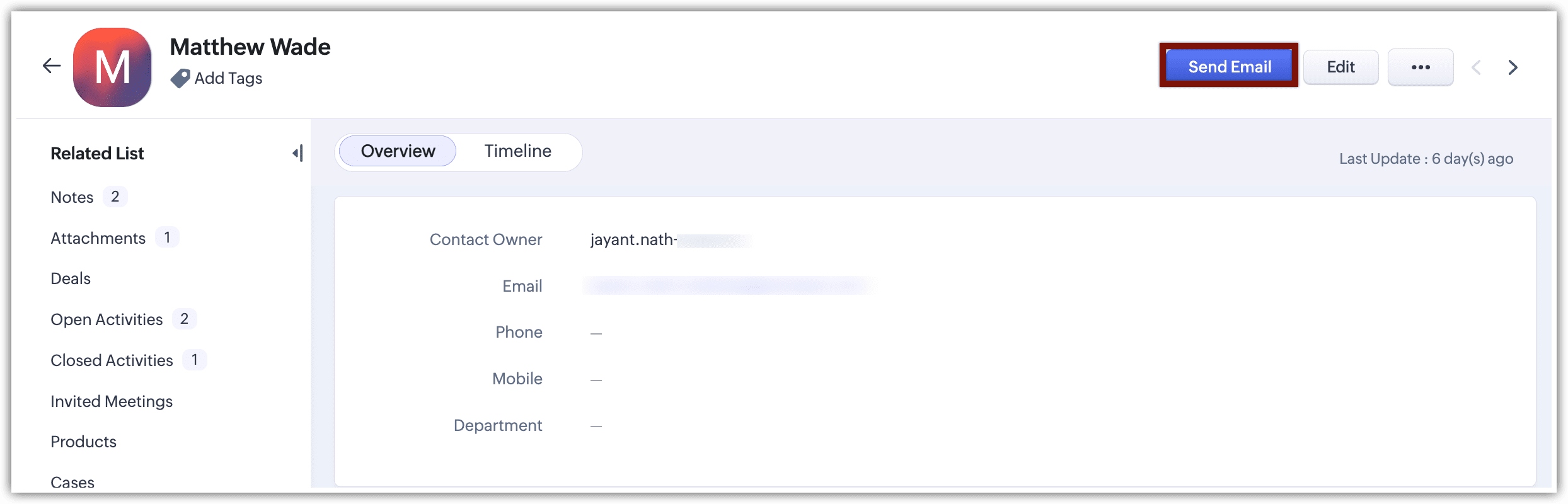
To send an email, users should navigate to a record in any module, such as Leads, Contacts, Deals, or Accounts. On the record's detail page, click Send Email.
The toolbar in the email compose window offers a suite of options for formatting and personalizing the email content. Some key options are highlighted below, along with additional formatting tools available for use.
The toolbar in the email compose window offers a suite of options for formatting and personalizing the email content. Some key options are highlighted below, along with additional formatting tools available for use.
There are numerous choices available in the toolbar, with some of them being highlighted below. Additionally, there are various formatting options that can be utilized to customize the email content.
- Insert table: You can insert a table and customize its rows, columns, border size, and header type, as well as its width, height, and alignment.
- Insert image: You can upload an image in PNG, JPEG, JPG, or GIF format, or you can insert an image using a web URL.
- Spellcheck and autocorrect features are available for email content in multiple languages.
- Auto-suggestion: This feature suggests appropriate phrases as you type. Press the space bar to accept an auto-suggested phrase.Note that autosuggestion is only available if Zia is enabled in your CRM account.
- Color palette is available for selecting background and text colors.
- Add a template, Survey Link, or Zoho SalesIQ Link.
Composing an email:
You can compose emails for leads, contacts, deals, and custom modules directly from your CRM account.
When you minimize the compose window, a Mail icon will appear in the bottom panel of the CRM account. Click on this icon to reopen the window.
While composing an email you can:
- Resize the compose window and drag the pane, to easily look up record information.
- Minimize the compose window to access other modules. A draft of your email will be saved automatically under the Emails section of the related list for the record, where you can access it later. You can have up to five email compose windows open at any time.
In the email related list, you can select Drafts to view all the saved email drafts.
Notes:
- For the draft owner, the draft email opens directly in the compose window, enabling them to continue editing and sending the email.
- For other users, the draft email opens in a view mode. If the user has the necessary permissions to edit the draft, an "Edit" button will be available. Clicking this button opens the draft in the email compose window and enables them to make changes.
Learn more about data sharing permissions for emails.
Schedule the email at the following time:
- Best time to email
- An hour after it is composed
- Next day evening at 8 PM (based on the org's timezone)
- Custom date and time along with a specific time zone.
Notes:
- The best time to email will only be available if Zia email predictions are on and Zia has some data to compare.
- The ability to edit or delete a scheduled email before it's sent is decided as per the data sharing settings for emails within the org. Learn more.
Send Email attachments like files, images, and documents from the following places:
- Desktop
- Google drive
- Zoho Docs
- Documents
- Workdrive
- Record - All the attachments present in a records related list will be listed out.
- Other Cloud Drives