Customizing the User Layout
Zoho CRM allows you to customize the layout where you fill a user's details. Usually, while adding a user in Zoho CRM, you will be prompted to add basic information such as name, email address, role, profile, etc,. You can customize this default user layout to include details specific to your organization's users such as employee ID, department name, date of joining, team name and so on. Yon can also make the certain fields mandatory.
Availability
Permission Required
Users with Manage User permission in their profile can access this feature.
Users with Manage User permission in their profile can access this feature.
Add custom fields
To add custom fields to the user details page
- Go to Setup > General > Users and Control > Users.
- Select the user you want to edit from the list of available CRM users and click the Edit icon.
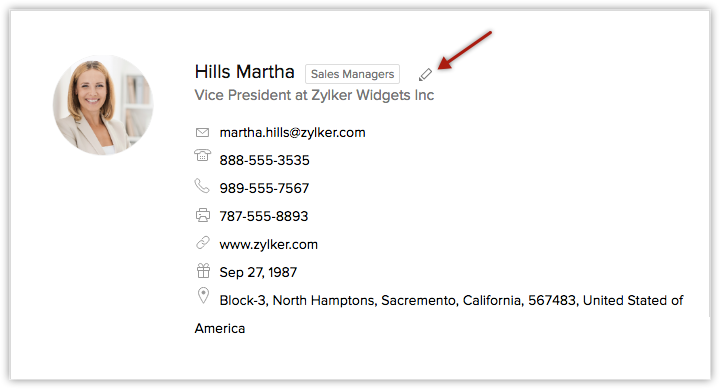
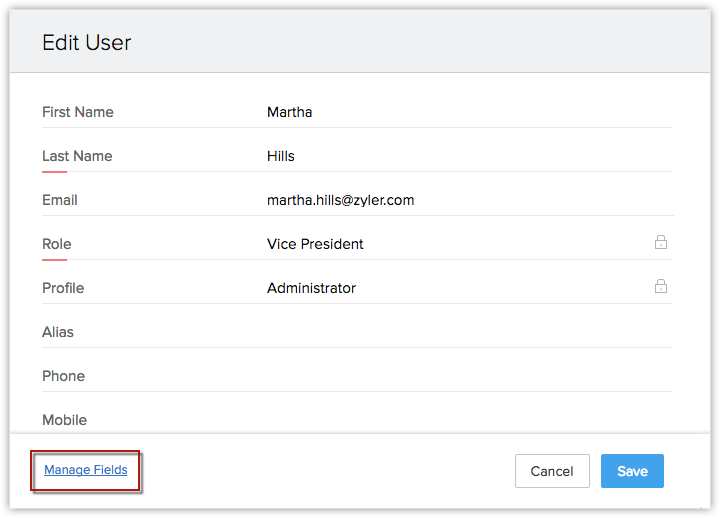
- In the Edit User form, click the Manage fields link. Currently, you can only view the default fields available for adding the user's information.
- Now edit the existing user's layout in the Manage Field Users page. This consists of a form builder, where you can edit the layout. Drag and drop the neccesary fields and customize your form as per your requirements.
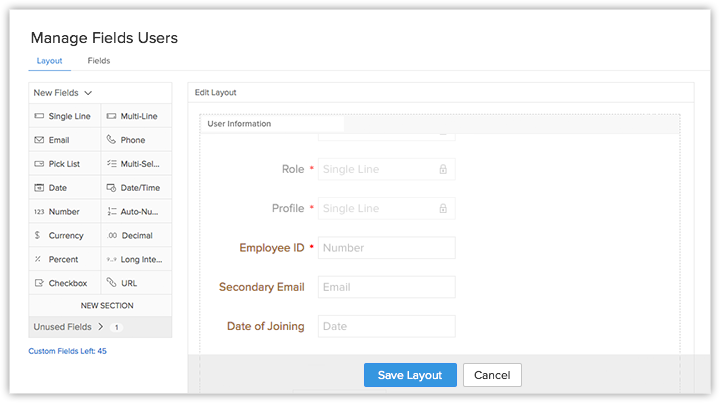
- Click Save Layout.
- Refresh the Edit User page and enter the required user details in the new layout and click Save.
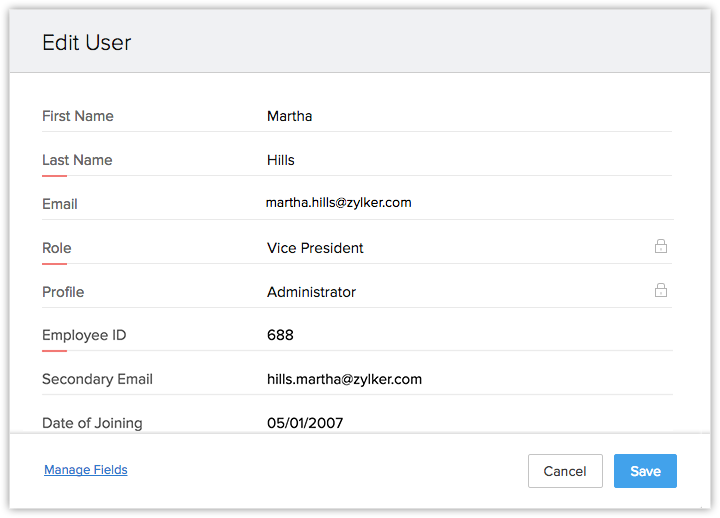
You can now view the updated layout in the Users page.
Manage custom fields
You can set profile permissions, make custom fields mandatory or delete the unwanted fields whenever you require.
To manage custom fields
- Go to Setup > General > Users and Control > Users.
- Choose the required CRM user and click Edit icon.
- Click Manage fields. You will be redirected to the Manage User Fields (Layout Editor) page. All the existing and custom user fields will be displayed.
- Choose the user custom field that you require in the layout editor.
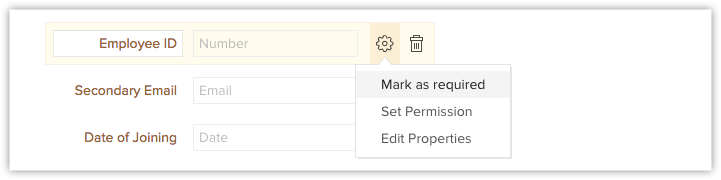
- Choose Mark as required option to mark the field mandatory.
- Select the Set Permission option to set profile permissions as per your requirements.
- Choose Edit Properties to edit the name and other properties of the custom field.
- Click the Delete icon to remove the field.
Please note that, the field you removed from the layout will be moved to the Unused Fields section. You can reuse it, whenever required. To permanently delete this field, you need to delete it from the Unused Fields section as well.

Notes
- User's Social and Locale information cannot be customized.
- You cannot edit, delete or change the order of the existing mandatory fields (Last Name, Email, Role, and Profile). However, you can delete or rename the existing user fields that are not mandatory. Also, you can arrange the newly created fields as per your requirements.
- Lookup, Autonumber, and Formula fields are not available for the Users layout customization.
SEE ALSO