View Approval History

This new update will be Released to All DCs in Phased Manner.
Approval History gives you a chronological record of all approval actions performed on records that are part of an approval process, such as records being submitted, recalled, approved, rejected, delegated, or resubmitted etc.
To view the Approval History :
- In your Zoho CRM account, click the My Jobs ab.
- Click the Approvals tab.
- In the top right corner, click Approval History.
The Approval History page opens and displays all approval actions in chronological order, grouped by date.
Switch between views
The Approval History can be displayed in two views. Use the view icon at the top right of the page (next to Jump to) to switch between them.
- Narrative View (default): Presents each approval action as a sentence along a timeline, with the time on the left and a short description of what happened, who performed the action, and the approval process involved (for example, “A Lead named Tanya Gupta was approved by the Process Admin”).
- Tabular View: Presents the same approval actions in a table, with the details arranged in columns for easier scanning and comparison.
To switch the view:
- Click the view icon at the top right corner of the Approval History page.
- Select Narrative View or Tabular View.
Jump to a specific period
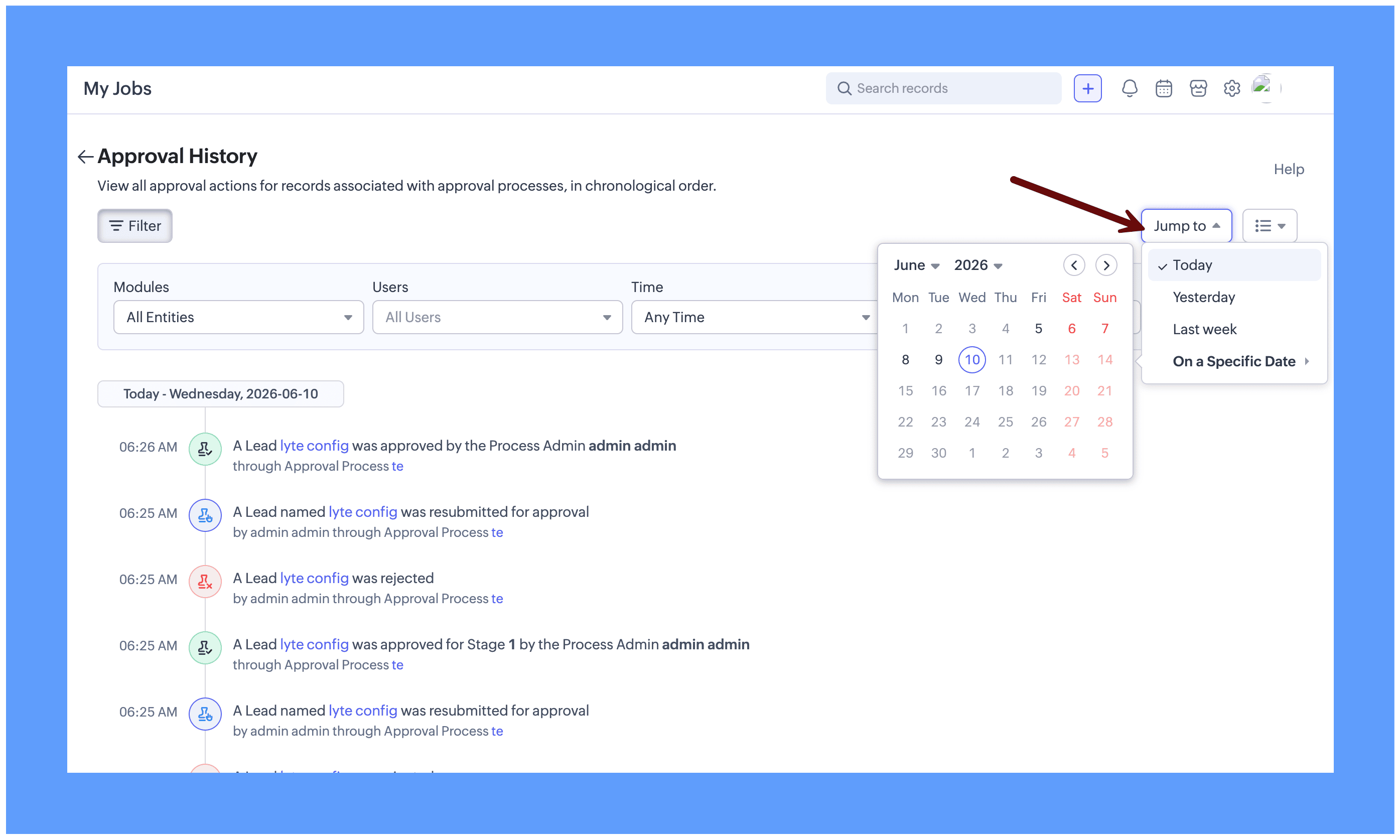
Use the Jump to option at the top right corner to quickly move to the entries for a particular period, without scrolling through the entire history. Click Jump to and choose one of the following:
- Today
- Yesterday
- Last week
- On a Specific Date – pick any date from the calendar to view the entries for that day.
The page scrolls to the entries for the selected period.
Filter the records in the Approval History
Since the Approval History can grow long over time, it can be tedious to sift through the entries when you are looking for specific details. For example, you may want to see only the records submitted for approval by a particular user, or only the actions taken in a particular module. In such cases, use the filters to narrow down the entries.
The filters are available inside the Filter button at the top left of the page. Click Filter to expand the filter options.
To filter the records:
- On the Approval History page, click Filter.
- From Modules, select a module to view the approval history of records in that module. Choosing All Entities displays the approval history across all modules.
- From Users, select a user to view the approval history for that user. Choosing All Users displays the approval history for all users in your organization.
- From Actions, select an action to filter the entries by the action performed on the records. You can choose Approved, Rejected, Delegated, Submitted or Recalled. Choose All Actions to view the entries for all the actions.
- From Time, select the timeframe for which you want to view the approval history. By default, this is set to Any Time.
- Click Apply. The Approval History is displayed according to the filters you set.
Example:
To view all the records in the Leads module that were submitted for approval by a specific user in the last week:
- Click Filter.
- Set Modules to Leads.
- Set Users to the desired user.
- Set Actions to Submitted.
- Set Time to the required timeframe.
- Click Apply.
The Approval History is displayed according to the filters set above.
SEE ALSO >>