Configuring Email Compose Setting

Configuring Email Compose Setting

Email communication is a cornerstone of effective business operations, serving varied purposes, from scheduling meetings to engaging potential clients. While many organizations use a standard email template for consistency, there are instances where a personalized approach is required to meet specific professional standards.

In Zoho CRM, the Email Compose Settings empower users to tailor emails sent to leads, contacts, deals, and more, directly from the respective modules. By default, emails from these modules adopt a system-defined style, including font and color, which lacks customization options. However, with the Compose Settings, users can customize these aspects to align with their business identity. This includes setting preferred fonts, colors, and even the default 'from' address, ensuring that each email not only meets unique business needs, but also maintains consistency and professionalism across all communications.

Note: This is a built-in functionality of Zoho CRM available in all editions.

Configuring Compose Settings

The Compose Settings enable CRM users to tailor the default email interface according to their preferences. These settings are accessible to all CRM users, allowing for individual customization.

In Compose Settings, you can customize the: 

  1. Font type
  2. Font size
  3. Default From Address
  4. Default Reply-to Address
  5. Email signatures 
  • Font type :  Users can either select a default font from the provided font type list or choose to add custom fonts for all emails sent from CRM. They can add up to five custom font types to match the unique requirements of their business.
    Notes
    Note: The custom fonts added to CRM are device specific. If the font is not available on the user's device, an error will be displayed when the font type is chosen in the settings page. This usually occurs when a user adds a custom font type by accessing CRM on one device and then tries to select the added custom font when accessing CRM on another device.
  • Font size : Users can either select a default font size from the provided font size list or choose to add custom font sizes for all emails sent from CRM using the Send Email option. They can define up to five custom font sizes to choose from as the default size.
    Notes
    Note: Any value between 9 and 99 with up to two decimal places can be set as default font sizes.
  • Default from Address: Email addresses added under organization emails or configured via IMAP or POP3 integration will appear in the list of default "from" addresses. Users can select one of these addresses as their default "from" address. This address will then be displayed automatically when composing emails to your customers. Read more about Organization emails.
    NotesNote: While configuring the compose settings, users can view only those org email addresses that have been shared with them. For example, if sales@zylkertest.com is not shared with marketing admins profile, then this email address will not be displayed for users in that role while configuring the default address.
  • Default reply-to address: The users can now specify the default reply-to address inside the email compose settings. They can choose to set their reply-to address as one of the configured from-addresses or available organisational email addresses.

    This is useful when the email is sent out from an organization mail address that is not integrated with the CRM, or from a 'no-reply' mail address. Having a default reply-to would ensure that replies can be tracked inside Zoho CRM if the reply-to mailbox is connected with Zoho CRM.

  • Email signatures: Email addresses from organization emails, the user's personal email, and those set up through IMAP or POP3 integration will be presented as options for setting up email signatures. Users can create up to five email signatures, and each signature can be applied to multiple email addresses.

    For example, sales@zylker-eu.com and sales@zylker.com can both have a common email signature:

    Best Compliments from Zylker Family,
    Contact us at: +71888999900
    PS: You are receiving this email because your email address is registered with us. To stop these further correspondence email us at: noemails@zylkerservices.com
    While composing the email the associated signature will be auto-populated.
    Note: The signature content should not exceed 32,000 characters.

    To configure compose settings:

    1. Navigate to Setup > Channels > Email > Email Configuration.
    2. Click the Compose tab.
    3. In Compose Settings, select the font type from the drop-down list. You can also add custom fonts by clicking Add Custom Font.
      Note: You can add up to five custom font types.
    4. Select the font size from the drop-down list. You can also add custom font sizes by clicking Add custom font size. Check Preview before finalizing the font type and size.

      Note: You can add up to five custom font sizes. Any value between 9 to 99 up to two decimal places can be set as default font sizes.
    5. In Default From Address, select the addresses you wish to use from the drop-down list.

    6. Add a reply-to address. You can set one of the configured from-addresses or available organizational email addresses as your reply-to address.

    7. In Email Signature, click Add New Signature and type the Signature Name.

    8. Choose the email addresses you want to set a signature for from the drop-down menu in the Select an Email Address section.
    9. Enter your desired signature in the designated space. You can enhance your signature by adding images or a company logo in PNG, JPG, JPEG, or GIF formats. Additionally, you can customize your signature using various font styles and sizes, and apply formatting options such as bold, italics, and font color, and so on using the available tools.

    10. Click Save

    Functionalities in the Email tool bar:   

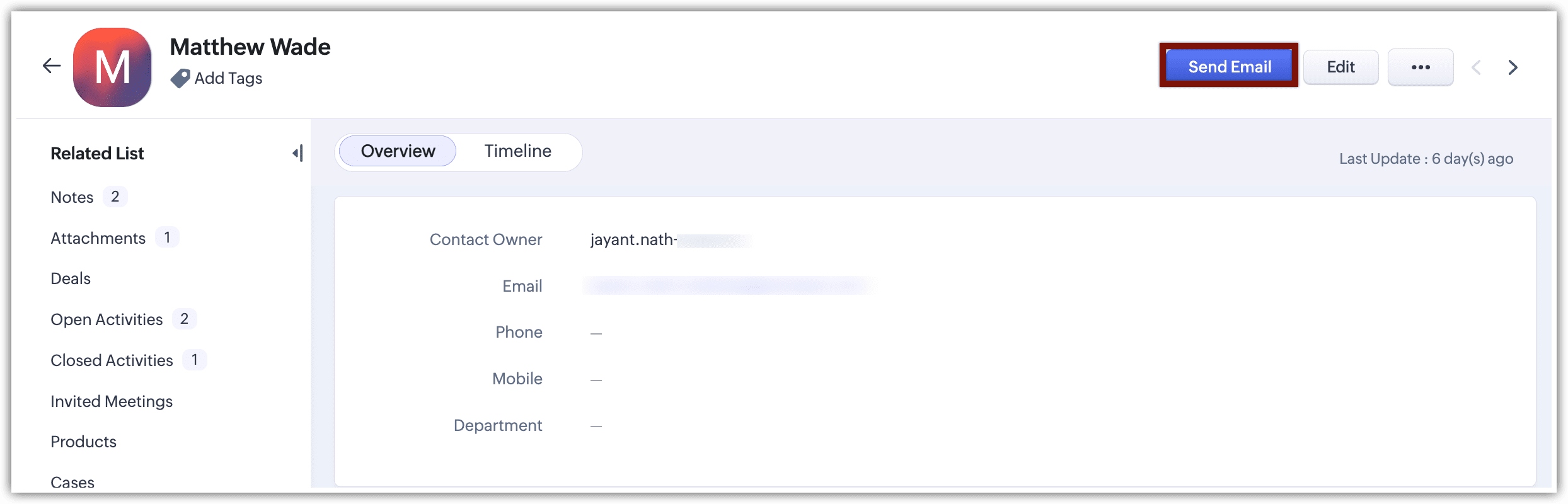
    To send an email, users should navigate to a record in any module, such as Leads, Contacts, Deals, or Accounts. On the record's detail page, click Send Email.
    The toolbar in the email compose window offers a suite of options for formatting and personalizing the email content. Some key options are highlighted below, along with additional formatting tools available for use.

    There are numerous choices available in the toolbar, with some of them being highlighted below. Additionally, there are various formatting options that can be utilized to customize the email content.
    • Insert table: You can insert a table and customize its rows, columns, border size, and header type, as well as its width, height, and alignment.
    • Insert image: You can upload an image in PNG, JPEG, JPG, or GIF format, or you can insert an image using a web URL.
    • Spellcheck and autocorrect features are available for email content in multiple languages.
    • Auto-suggestion: This feature suggests appropriate phrases as you type. Press the space bar to accept an auto-suggested phrase.
      Note that autosuggestion is only available if Zia is enabled in your CRM account.

    • Color palette is available for selecting background and text colors.
    • Add a template, Survey Link, or Zoho SalesIQ Link.

    Composing an email:

    You can compose emails for leads, contacts, deals, and custom modules directly from your CRM account.
    When you minimize the compose window, a Mail icon will appear in the bottom panel of the CRM account. Click on this icon to reopen the window.


    While composing an email you can: 

    • Resize the compose window and drag the pane, to easily look up record information.
    • Minimize the compose window to access other modules. A draft of your email will be  saved automatically under the Emails section of the related list for the record, where you can access it later. You can have up to five email compose windows open at any time.

      In the email related list, you can select Drafts to view all the saved email drafts.

    Notes:
    1. For the draft owner, the draft email opens directly in the compose window, enabling them to continue editing and sending the email.
    2. For other users, the draft email opens in a view mode. If the user has the necessary permissions to edit the draft, an "Edit" button will be available. Clicking this button opens the draft in the email compose window and enables them to make changes.

      Learn more about data sharing permissions for emails.

    Schedule the email at the following time: 

    1. Best time to email
    2. An hour after it is composed
    3. Next day evening at 8 PM (based on the org's timezone)
    4. Custom date and time along with a specific time zone.
    Notes:
    1. The best time to email will only be available if Zia email predictions are on and Zia has some data to compare.
    2. The ability to edit or delete a scheduled email before it's sent is decided as per the data sharing settings for emails within the org. Learn more.

    Send Email attachments like  files, images, and documents from the following places:

    1. Desktop
    2. Google drive
    3. Zoho Docs
    4. Documents
    5. Workdrive
    6. Record - All the attachments present in a records related list will be listed out.
    7. Other Cloud Drives


        Create. Review. Publish.

        Write, edit, collaborate on, and publish documents to different content management platforms.

        Get Started Now


          Access your files securely from anywhere

            Zoho CRM Training Programs

            Learn how to use the best tools for sales force automation and better customer engagement from Zoho's implementation specialists.

            Zoho CRM Training
              Redefine the way you work
              with Zoho Workplace

                Zoho DataPrep Personalized Demo

                If you'd like a personalized walk-through of our data preparation tool, please request a demo and we'll be happy to show you how to get the best out of Zoho DataPrep.

                Zoho CRM Training

                  Create, share, and deliver

                  beautiful slides from anywhere.

                  Get Started Now


                    Zoho Sign now offers specialized one-on-one training for both administrators and developers.

                    BOOK A SESSION


                                Quick LinksWorkflow AutomationData Collection
                                Web FormsEnterpriseOnline Data Collection Tool
                                Embeddable FormsBankingBegin Data Collection
                                Interactive FormsWorkplaceData Collection App
                                CRM FormsCustomer ServiceAccessible Forms
                                Digital FormsMarketingForms for Small Business
                                HTML FormsEducationForms for Enterprise
                                Contact FormsE-commerceForms for any business
                                Lead Generation FormsHealthcareForms for Startups
                                Wordpress FormsCustomer onboardingForms for Small Business
                                No Code FormsConstructionRSVP tool for holidays
                                Free FormsTravelFeatures for Order Forms
                                Prefill FormsNon-Profit

                                Intake FormsLegal
                                Mobile App
                                Form DesignerHR
                                Mobile Forms
                                Card FormsFoodOffline Forms
                                Assign FormsPhotographyMobile Forms Features
                                Translate FormsReal EstateKiosk in Mobile Forms
                                Electronic Forms
                                Drag & drop form builder

                                Notification Emails for FormsAlternativesSecurity & Compliance
                                Holiday FormsGoogle Forms alternative GDPR
                                Form to PDFJotform alternativeHIPAA Forms
                                Email FormsFormstack alternativeEncrypted Forms

                                Wufoo alternativeSecure Forms

                                TypeformWCAG

                                  All-in-one knowledge management and training platform for your employees and customers.

                                            Create. Review. Publish.

                                            Write, edit, collaborate on, and publish documents to different content management platforms.

                                            Get Started Now


                                                              You are currently viewing the help pages of Qntrl’s earlier version. Click here to view our latest version—Qntrl 3.0's help articles.


                                                                  Manage your brands on social media


                                                                    • Desk Community Learning Series


                                                                    • Digest


                                                                    • Functions


                                                                    • Meetups


                                                                    • Kbase


                                                                    • Resources


                                                                    • Glossary


                                                                    • Desk Marketplace


                                                                    • MVP Corner


                                                                    • Word of the Day


                                                                    • Ask the Experts


                                                                      Zoho Sheet Resources


                                                                          Zoho Forms Resources


                                                                            Secure your business
                                                                            communication with Zoho Mail


                                                                            Mail on the move with
                                                                            Zoho Mail mobile application

                                                                              Stay on top of your schedule
                                                                              at all times


                                                                              Carry your calendar with you
                                                                              Anytime, anywhere


                                                                                    Zoho Sign Resources

                                                                                      Sign, Paperless!

                                                                                      Sign and send business documents on the go!

                                                                                      Get Started Now


                                                                                              Zoho TeamInbox Resources


                                                                                                        Zoho DataPrep Demo

                                                                                                        Get a personalized demo or POC

                                                                                                        REGISTER NOW


                                                                                                          Design. Discuss. Deliver.

                                                                                                          Create visually engaging stories with Zoho Show.

                                                                                                          Get Started Now


                                                                                                                              • Related Articles

                                                                                                                              • Compose, Organize and Configure Emails

                                                                                                                                Zoho SalesInbox lets you compose and send an email to your leads, contacts and others easily. Following are some useful features in SalesInbox with respect to composing an email. When you compose your email, SalesInbox suggests contacts and leads ...
                                                                                                                              • Email Authentication

                                                                                                                                In this digital era email forms a major part of communication in every business or organization. Companies often use different domains to deliver the message to its recipients. In such cases, it's crucial to establish an email policy that can define ...
                                                                                                                              • Adding SPF and DKIM records to DNS settings

                                                                                                                                Email authentication is a process that enables organizations to maintain the credibility of the email's source when they send emails from Zoho CRM using their own domain. To authenticate the emails, they must verify the following authentication ...
                                                                                                                              • Setting up Email Sharing Permissions

                                                                                                                                Emails exchanged with customers contain important information that may be required for reference by several other teams who are involved in the business process. For example, a contract agreement exchanged with a firm may be required by the legal ...
                                                                                                                              • Setting up Email Relay

                                                                                                                                Understanding Email Relay and its benefits Email Relay allows you to route emails through your (company's) server while sending emails from Zoho CRM. Once the relay server is set up, the sent emails will follow a path like this: Zoho CRM -to- Relay ...
                                                                                                                                Wherever you are is as good as
                                                                                                                                your workplace

                                                                                                                                  Resources

                                                                                                                                  Videos

                                                                                                                                  Watch comprehensive videos on features and other important topics that will help you master Zoho CRM.


                                                                                                                                  eBooks

                                                                                                                                  Download free eBooks and access a range of topics to get deeper insight on successfully using Zoho CRM.


                                                                                                                                  Webinars

                                                                                                                                  Sign up for our webinars and learn the Zoho CRM basics, from customization to sales force automation and more.


                                                                                                                                  CRM Tips

                                                                                                                                  Make the most of Zoho CRM with these useful tips.


                                                                                                                                    Zoho Show Resources